
 Halkali merkez neighborhood fatih st ozgur apt no 46 , Kucukcekmece , Istanbul , 34303 , TR
In this real Ubuntu 24.04.4 LTS VPS deployment we ran n8n in Docker on loopback port 5678, published n8n.ekasunucu.com through Nginx + Let’s Encrypt, connected n8n to the Ollama qwen3:4b model on the private Docker network, and validated a Chat Trigger + AI Agent + Simple Memory + Calculator + HTTP Request Tool workflow with real failures and successful executions.
Ubuntu 24.04.4 LTS
  ↓ Docker / eka-ai
n8n 2.33.7 :5678
  ↓ AI Agent
Ollama :11434 → qwen3:4b
  ├─ Simple Memory
  ├─ Calculator Tool
  └─ HTTP Request Tool
  ↓
Nginx + HTTPS → n8n.ekasunucu.comThis guide documents the real n8n automation layer we deployed on an Ubuntu 24.04.4 LTS VPS, the qwen3:4b model running through Ollama, and the complete n8n AI Agent workflow. n8n, Ollama and Open WebUI run in Docker on the shared eka-ai bridge network.
Users send messages through Chat Trigger. The AI Agent calls qwen3:4b through the Ollama Chat Model, keeps conversational context with Simple Memory, and can invoke Calculator or HTTP Request Tool when required. Host ports 5678 and 11434 are bound to loopback while Nginx exposes the service over HTTPS.
Internet :443
  ↓
Nginx + Let's Encrypt
  ↓
127.0.0.1:5678 → n8n
  ↓ eka-ai
ollama:11434 → qwen3:4b
  ↓
AI Agent + Memory + Calculator + HTTP Tool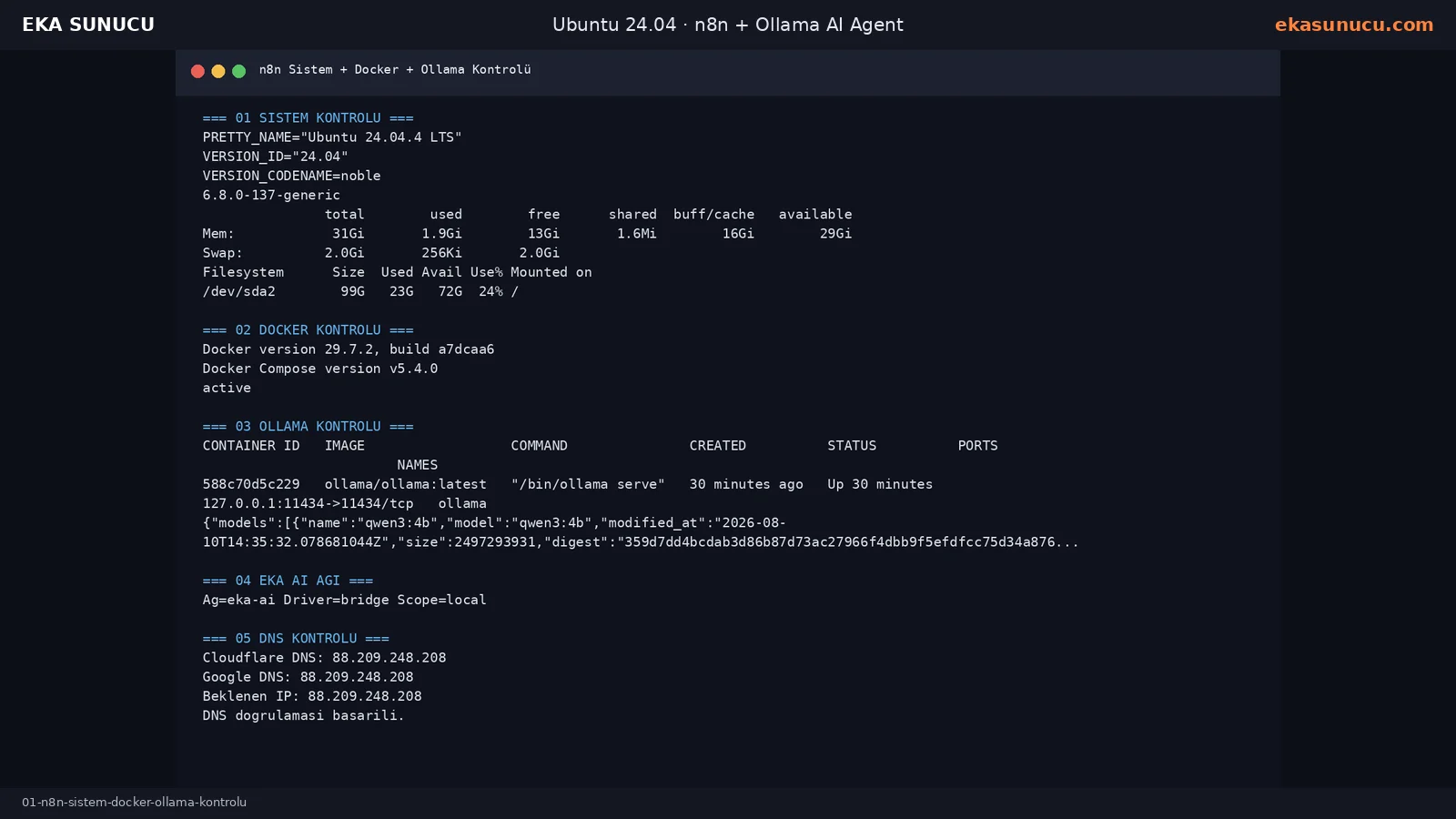
The real test server was running Ubuntu 24.04.4 LTS with kernel 6.8.0-137-generic, about 31 GiB RAM and a 99 GB root filesystem. Docker Engine 29.7.2 and Docker Compose v5.4.0 were active.
Ollama was already listening on 127.0.0.1:11434 and qwen3:4b appeared in /api/tags. Verifying these dependencies before deploying n8n makes later credential and network failures much easier to isolate.
cat /etc/os-release | grep -E 'PRETTY_NAME|VERSION_ID|VERSION_CODENAME'
uname -r
free -h
df -h /docker --version
docker compose version
systemctl is-active dockerdocker ps --filter name='^/ollama$'
curl -sS http://127.0.0.1:11434/api/tagsBecause n8n and Ollama run in separate containers, localhost inside n8n does not point to Ollama. Both services were attached to the eka-ai network and n8n uses http://ollama:11434.
We also verified that n8n.ekasunucu.com resolved to the VPS before requesting TLS. Checking both 1.1.1.1 and 8.8.8.8 helps separate DNS propagation issues from Nginx or Certbot issues.
docker network inspect eka-ai --format 'Network={{.Name}} Driver={{.Driver}} Scope={{.Scope}}'dig +short A n8n.ekasunucu.com @1.1.1.1
dig +short A n8n.ekasunucu.com @8.8.8.8n8n application data was stored in a named volume rather than the disposable container filesystem. This preserves users, workflows and credentials when the container is recreated.
Keep N8N_ENCRYPTION_KEY stable because it protects stored credentials. Define the public editor URL, host, protocol, proxy hop count and timezone explicitly when running behind Nginx.
docker volume inspect n8n_data >/dev/null 2>&1 || docker volume create n8n_dataopenssl rand -hex 32N8N_ENCRYPTION_KEY=LONG_RANDOM_KEY
N8N_HOST=n8n.ekasunucu.com
N8N_PORT=5678
N8N_PROTOCOL=https
N8N_EDITOR_BASE_URL=https://n8n.ekasunucu.com
WEBHOOK_URL=https://n8n.ekasunucu.com/
N8N_PROXY_HOPS=1
N8N_SECURE_COOKIE=true
N8N_ENFORCE_SETTINGS_FILE_PERMISSIONS=true
GENERIC_TIMEZONE=Europe/Istanbul
TZ=Europe/Istanbul
NODE_ENV=productionWe pulled the official n8n Docker image and connected the container to eka-ai. Port 5678 was bound to 127.0.0.1 instead of 0.0.0.0 so the editor was not exposed directly through Docker.
The n8n_data volume was mounted at /home/node/.n8n and a restart policy was enabled for automatic recovery after a reboot.
docker pull docker.n8n.io/n8nio/n8n:latestdocker run -d --name n8n --restart=always --network eka-ai --env-file /root/n8n.env -p 127.0.0.1:5678:5678 -v n8n_data:/home/node/.n8n docker.n8n.io/n8nio/n8n:latest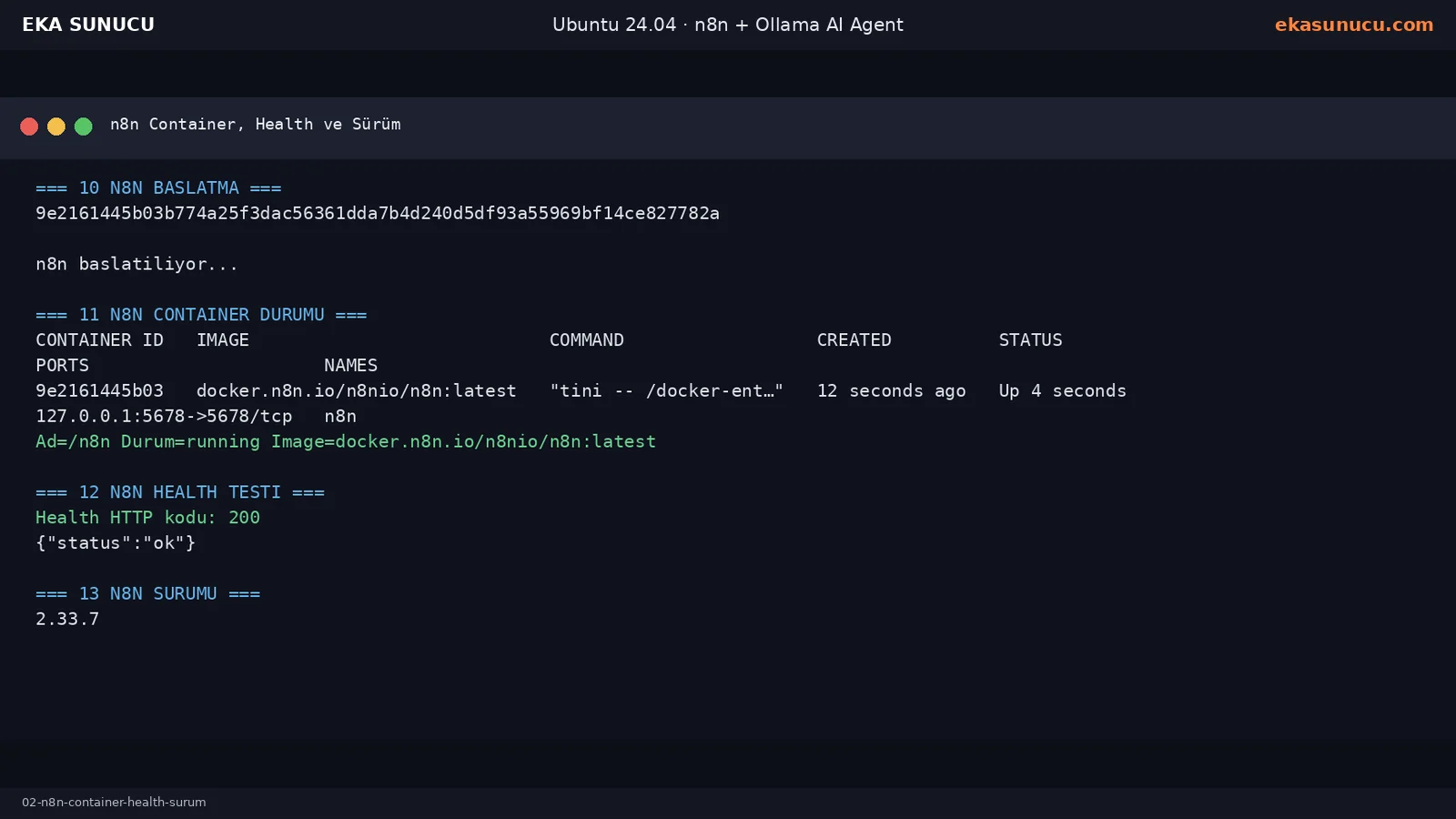
The local /healthz endpoint returned HTTP 200 with {"status":"ok"}. The real test instance reported n8n 2.33.7.
Database migrations on first start are expected. Our logs also warned that the internal Python task runner could not start because Python 3 was missing and reported future configuration changes; this did not prevent the JavaScript-based AI workflow from running.
curl -sS http://127.0.0.1:5678/healthzdocker exec n8n n8n --versiondocker logs --tail 120 n8nA host-side Ollama test is not enough. We used fetch inside the n8n container to call http://ollama:11434/api/tags. It returned HTTP 200 and listed qwen3:4b.
We then sent a real /api/chat request from inside n8n. The response was N8N-OLLAMA-BAGLANTISI-BASARILI, confirming Docker DNS, Ollama API access and model inference before touching the workflow UI.
docker exec n8n node -e "fetch('http://ollama:11434/api/tags').then(r=>r.text()).then(console.log)"docker exec n8n node -e "fetch('http://ollama:11434/api/chat',{method:'POST',headers:{'Content-Type':'application/json'},body:JSON.stringify({model:'qwen3:4b',messages:[{role:'user',content:'Write only N8N-OLLAMA-BAGLANTISI-BASARILI'}],stream:false})}).then(r=>r.json()).then(d=>console.log(d.message?.content))"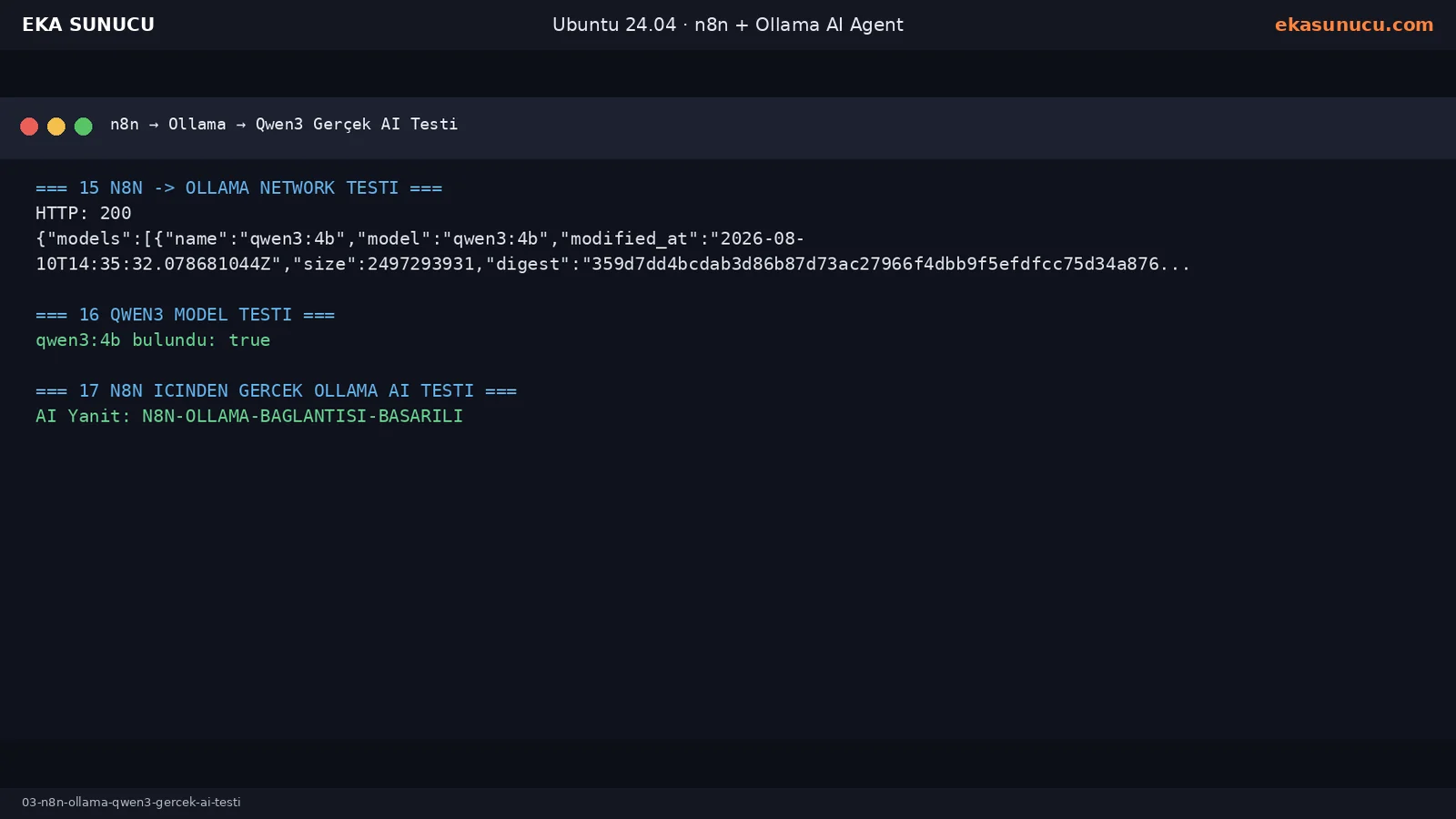
Because n8n listens only on loopback, Nginx provides the public web layer. We forwarded Host and X-Forwarded headers, preserved WebSocket upgrades, disabled proxy buffering and increased timeouts for long-running workflows.
The first plain HTTP domain check returned 404. After the Nginx vhost and Certbot flow were completed, the Let’s Encrypt certificate deployed successfully and both origin HTTPS and the public domain returned HTTP 200.
cat > /etc/nginx/sites-available/n8n.ekasunucu.com <<'EOF'
server {
    listen 80;
    listen [::]:80;
    server_name n8n.ekasunucu.com;
    client_max_body_size 100m;
    location / {
        proxy_pass http://127.0.0.1:5678;
        proxy_http_version 1.1;
        proxy_set_header Host $host;
        proxy_set_header X-Real-IP $remote_addr;
        proxy_set_header X-Forwarded-For $proxy_add_x_forwarded_for;
        proxy_set_header X-Forwarded-Proto $scheme;
        proxy_set_header Upgrade $http_upgrade;
        proxy_set_header Connection $connection_upgrade;
        proxy_buffering off;
        proxy_read_timeout 3600;
        proxy_send_timeout 3600;
    }
}
EOFnginx -t && systemctl reload nginx/snap/bin/certbot --nginx -d n8n.ekasunucu.com --email [email protected] --agree-tos --no-eff-email --non-interactive --redirect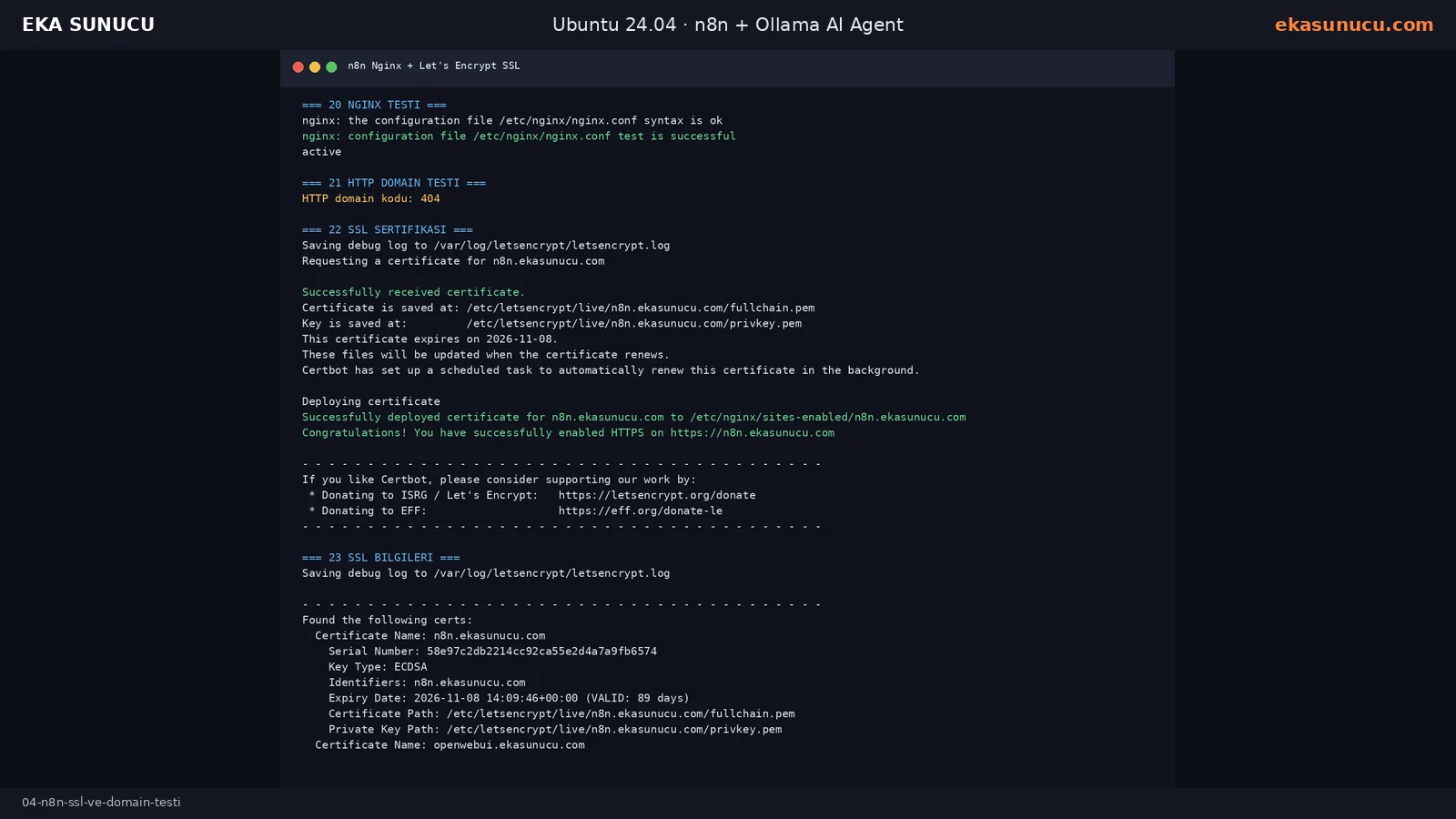
In the final port check n8n listened on 127.0.0.1:5678, Ollama on 127.0.0.1:11434 and Open WebUI on 127.0.0.1:3000. Only Nginx ports 80 and 443 were public.
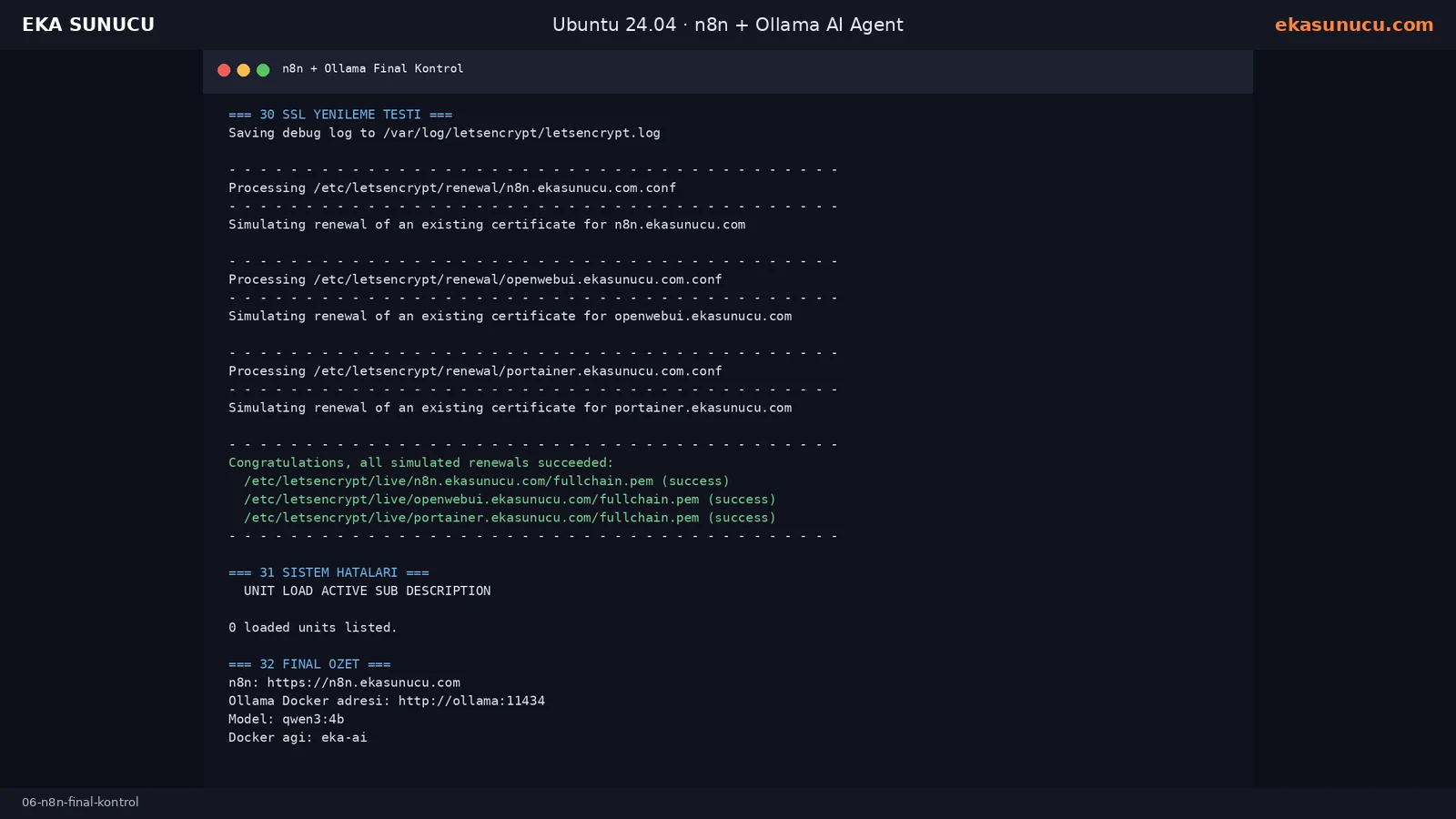
Portainer, Ollama, Open WebUI and n8n were all running together. Certbot renewal dry-run succeeded and systemctl --failed reported zero failed units.
ss -lntp | grep -E ':5678[[:space:]]|:11434[[:space:]]|:3000[[:space:]]|:443[[:space:]]|:80[[:space:]]'docker ps --format 'table {{.Names}}\t{{.Image}}\t{{.Status}}\t{{.Ports}}'/snap/bin/certbot renew --dry-run
systemctl --failed --no-pager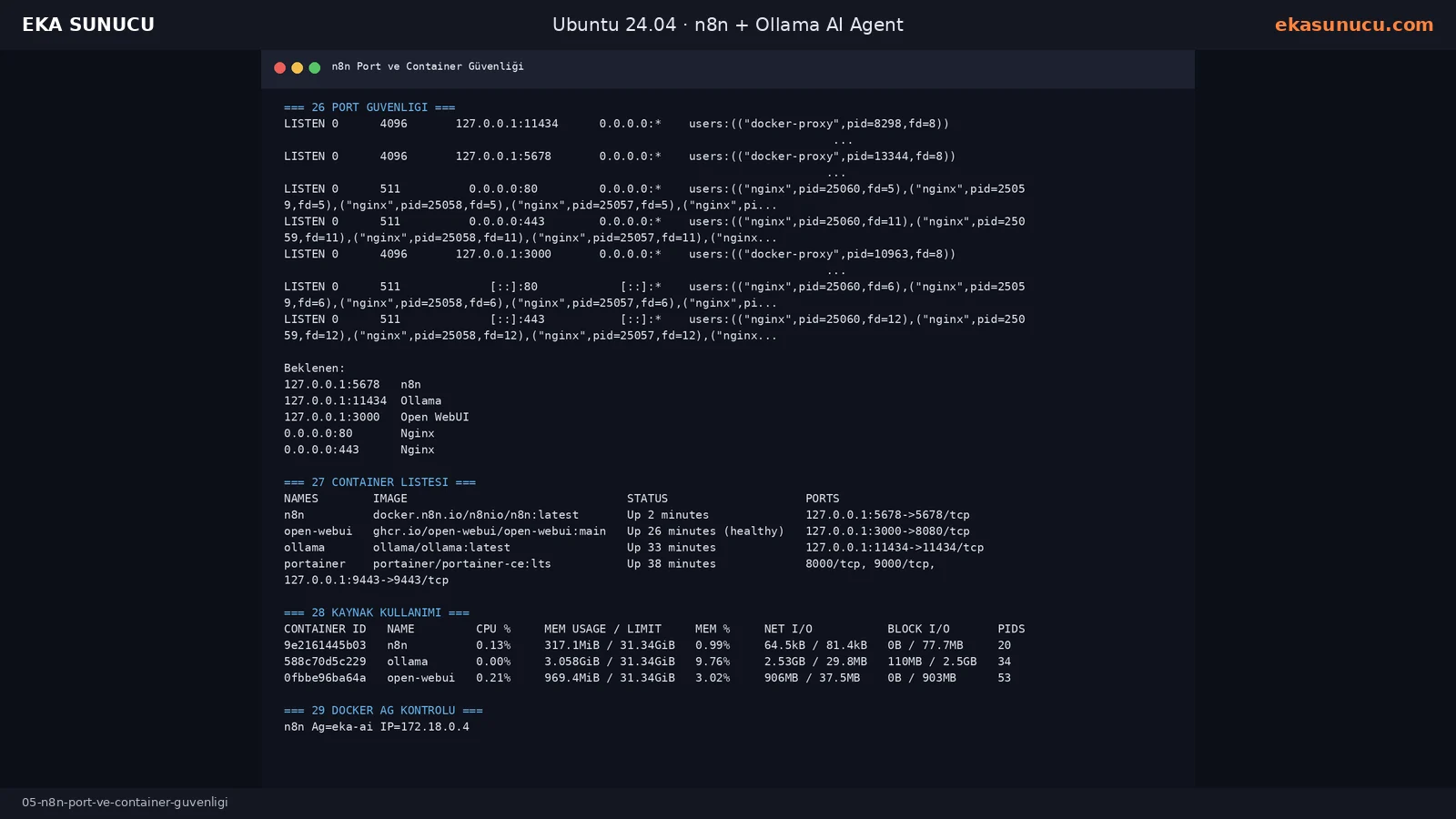
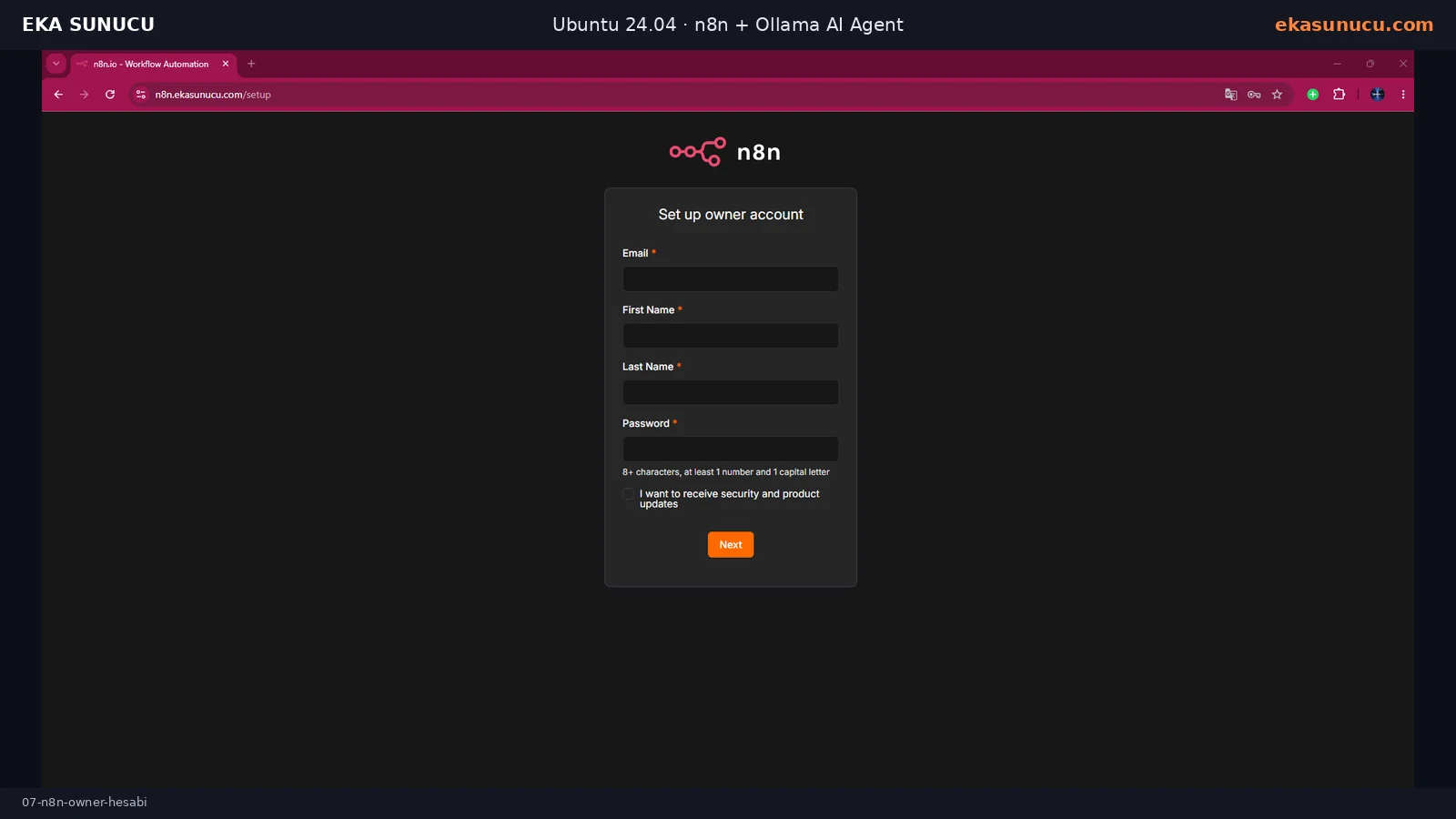
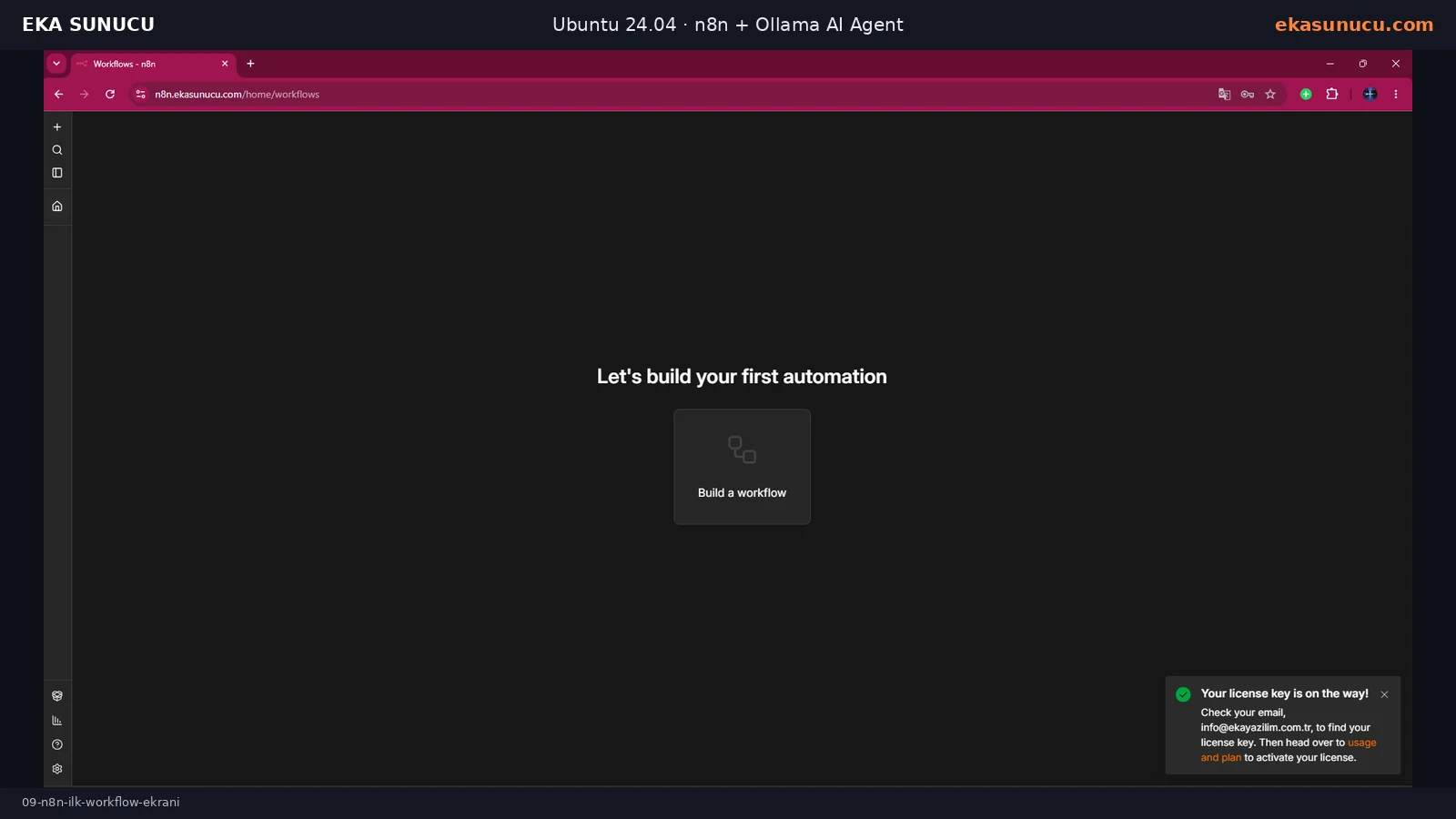
Opening the HTTPS domain displayed the owner-account form. We created the instance owner with an email address, first name, last name and a strong password.
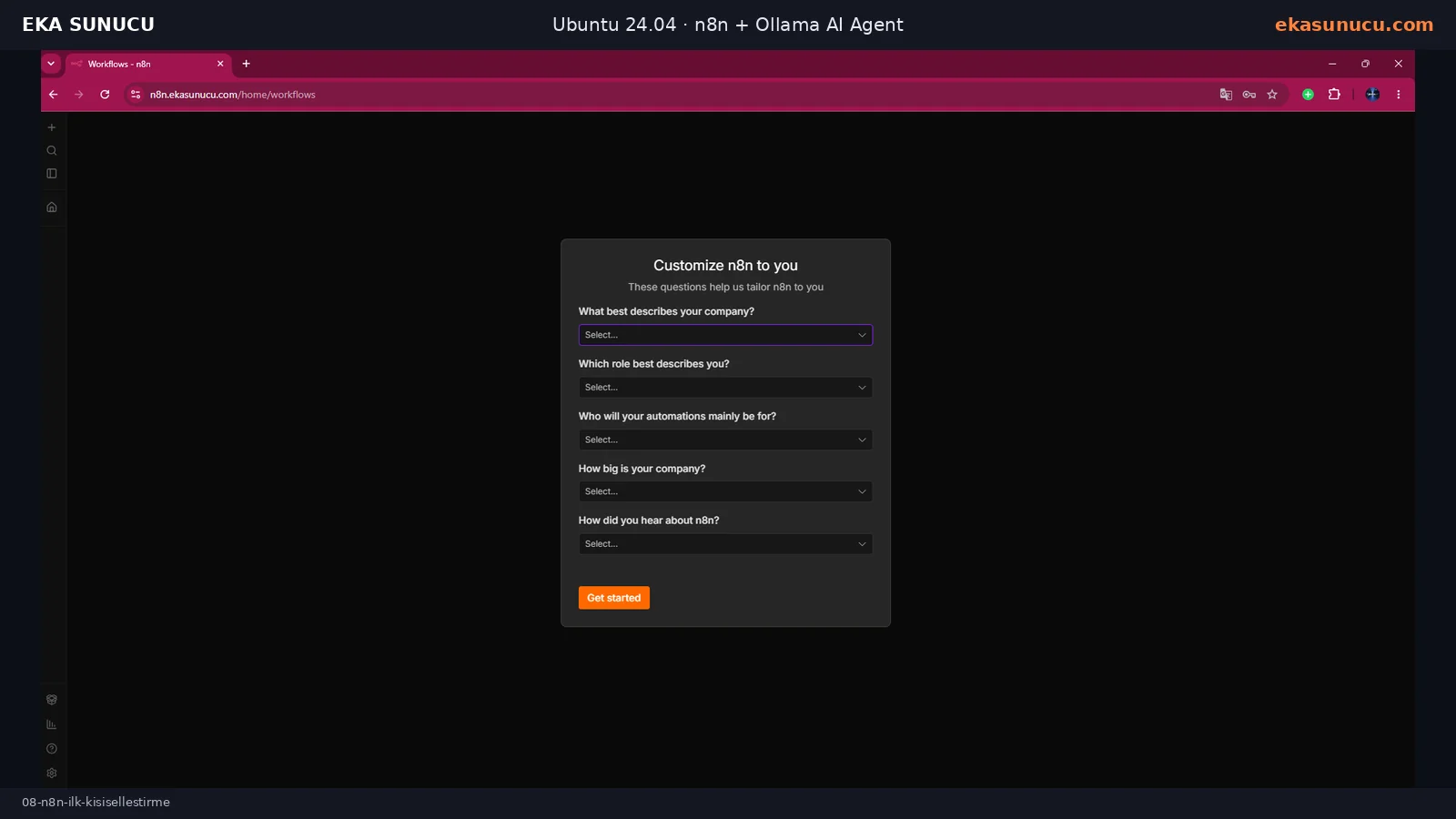
n8n then displayed optional personalization questions. They are not required for the workflow engine itself and can be completed before moving to the workflow dashboard.
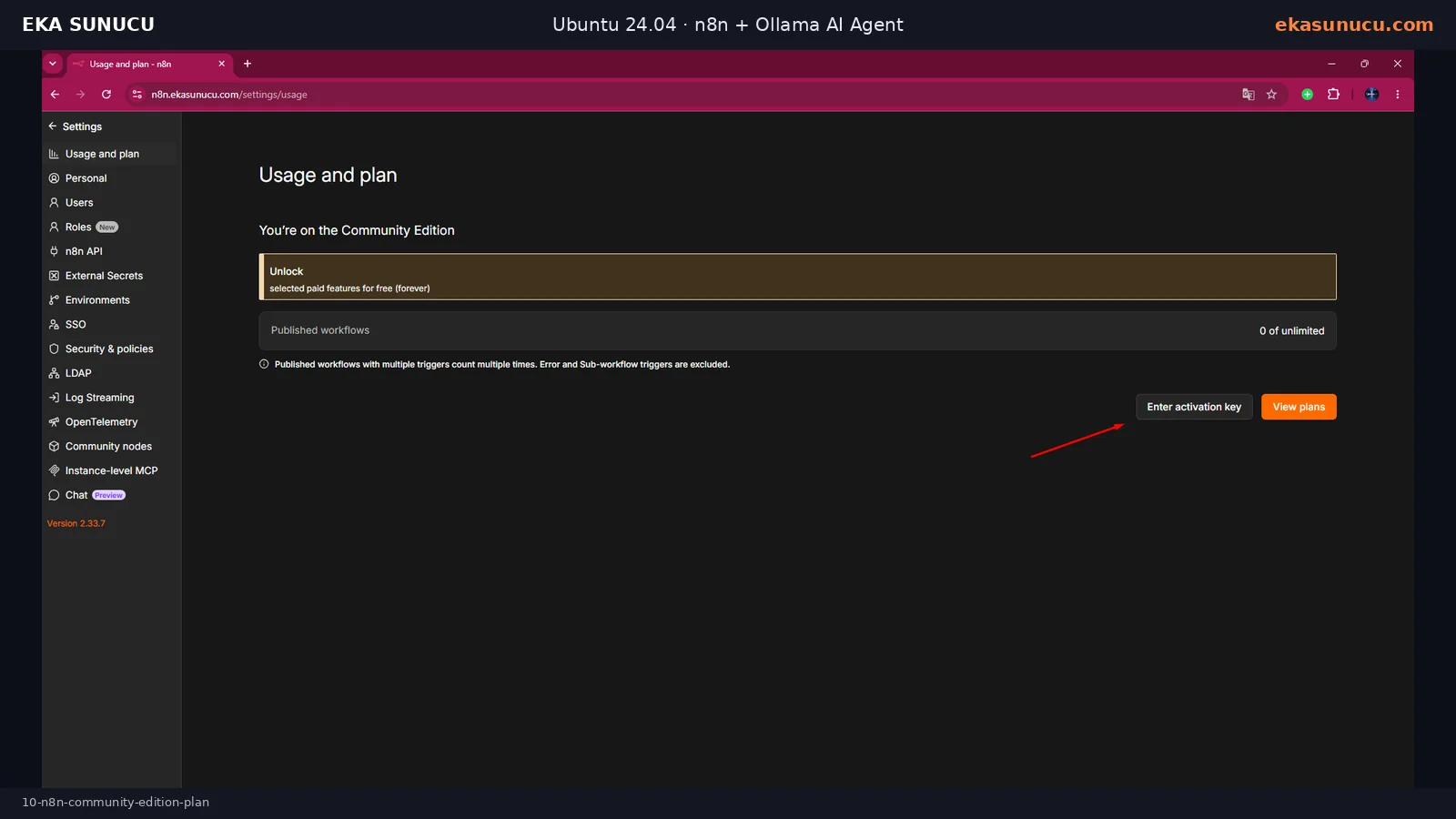
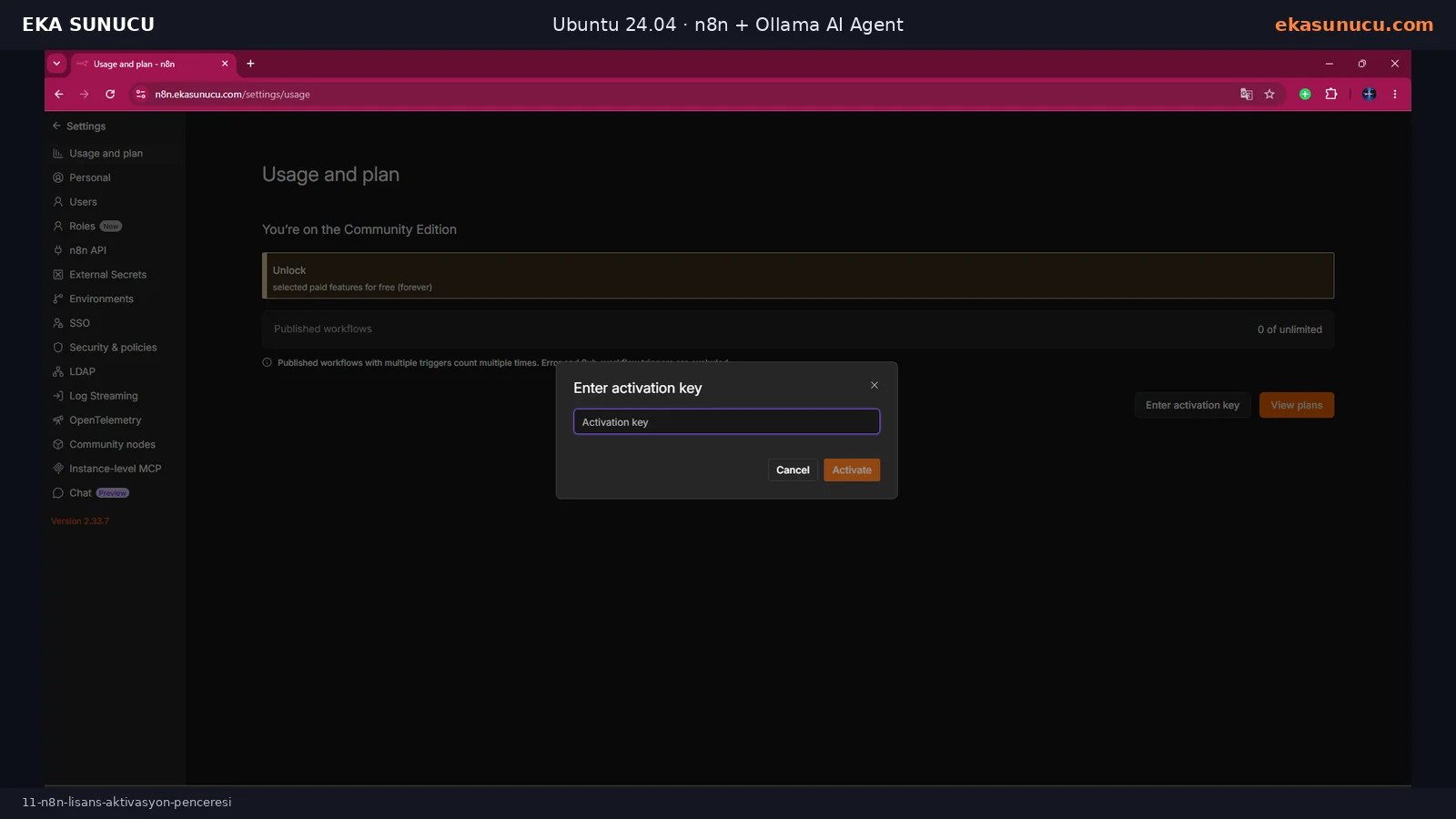
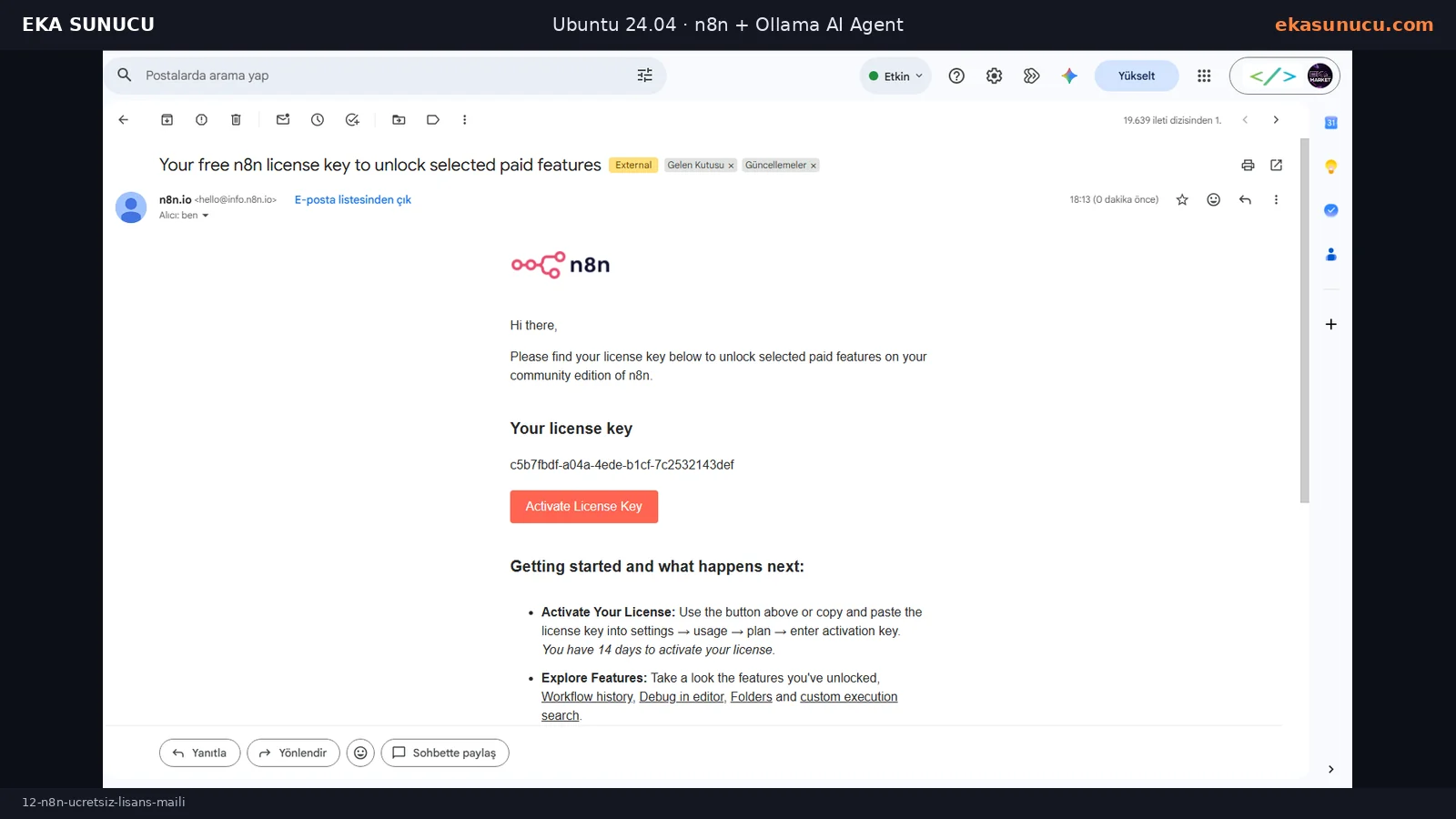
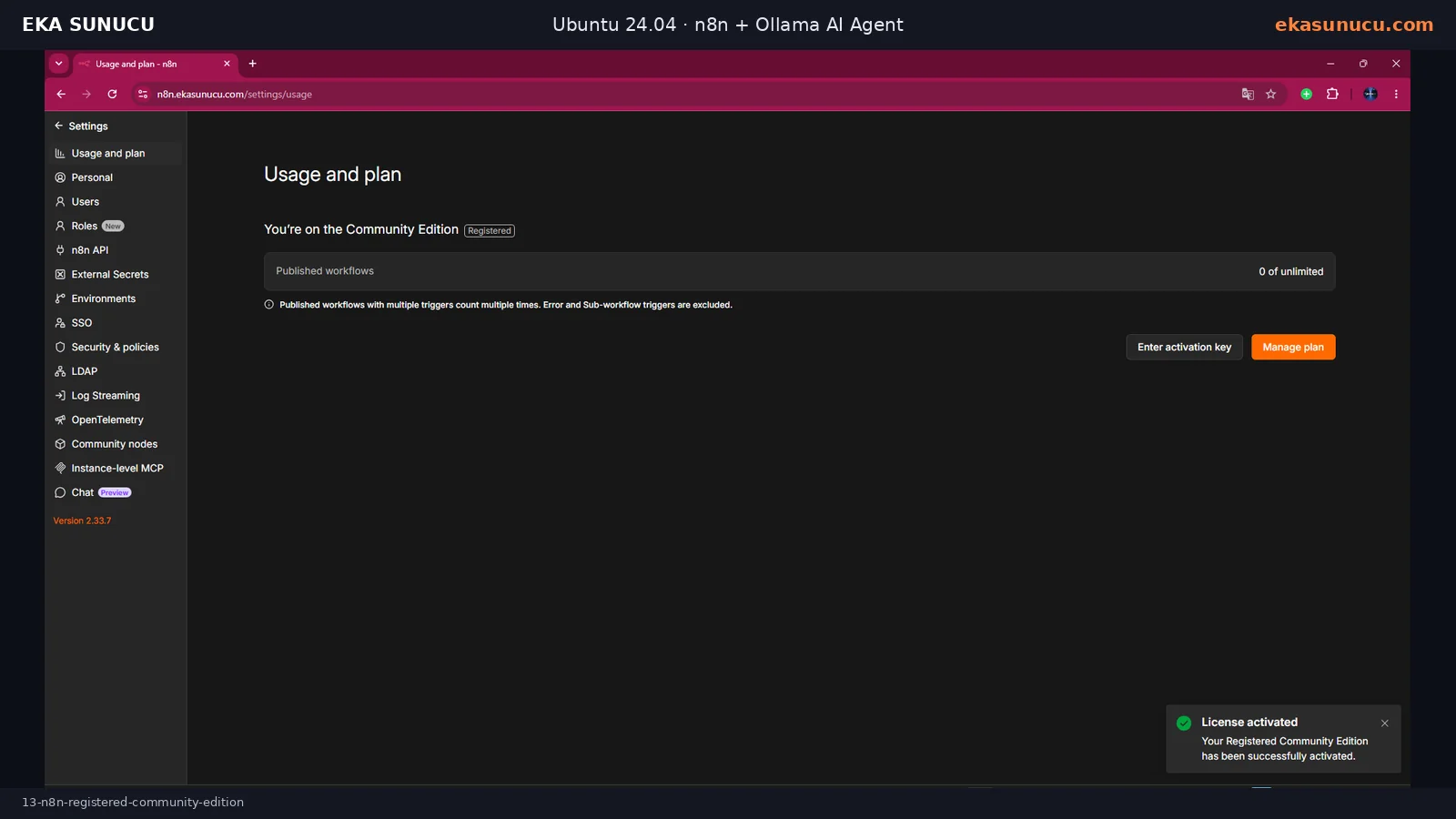
The instance can run as Community Edition without this optional step. In our test we requested the free registration key from Usage and plan, received it by email, entered it in the activation dialog and the UI switched to Registered.
This was used to unlock the selected free registration features offered by n8n at the time of the test. Licensing terms and the included feature set can change, so rely on the current UI and official licensing information.
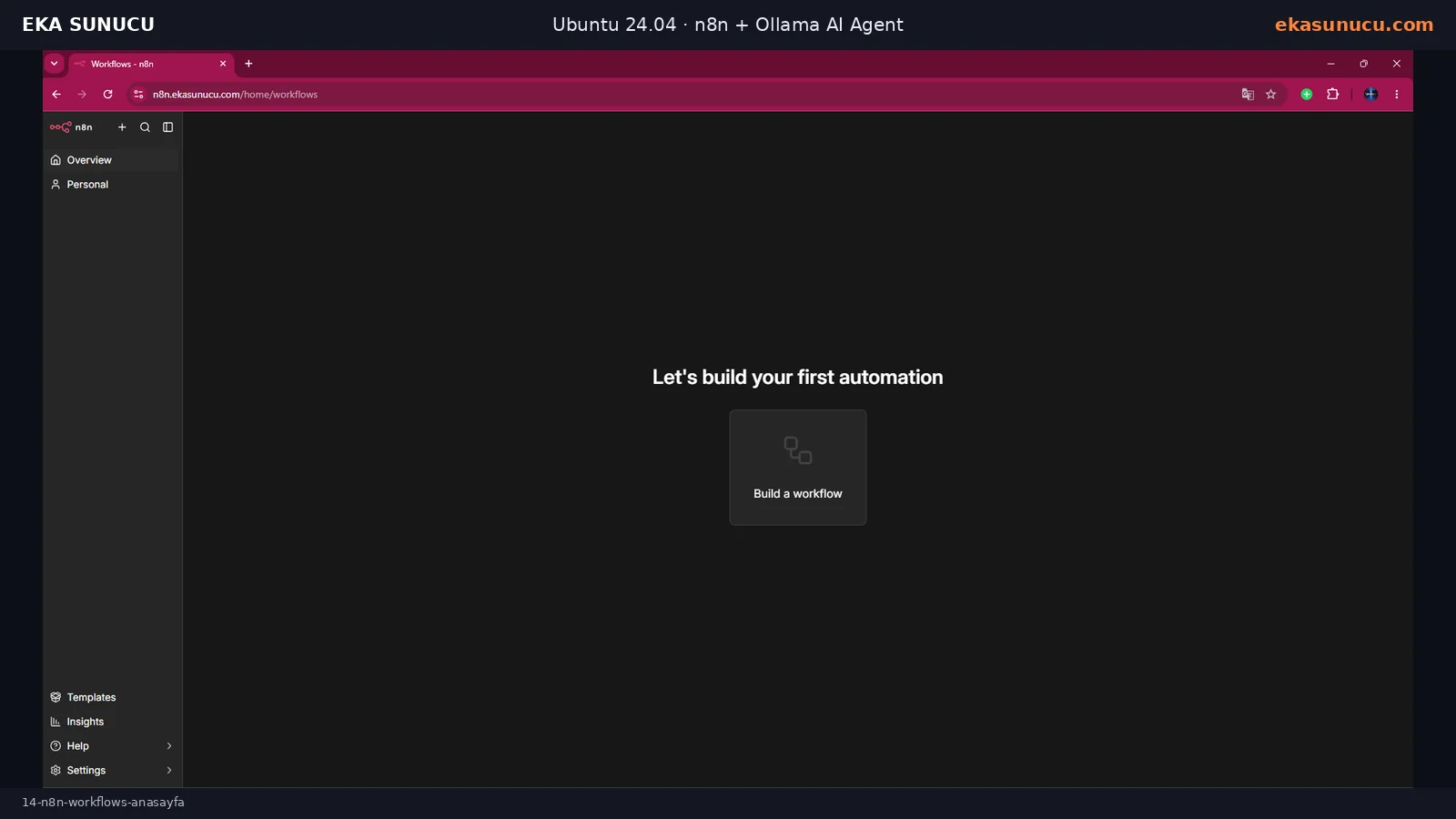
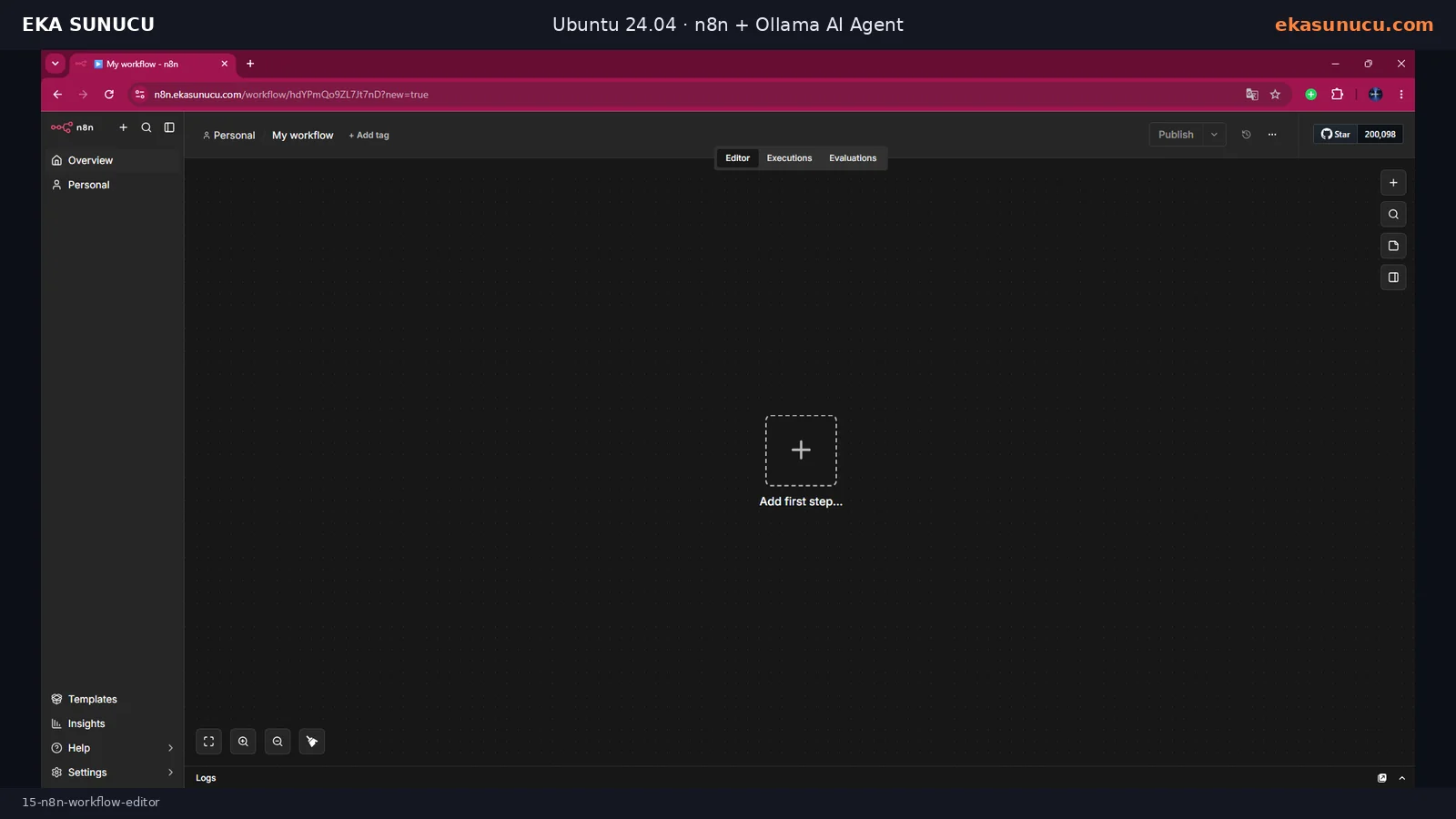
From the Workflows page we created a new workflow. Chat Trigger became the user entry point and AI Agent became the root node responsible for model and tool calls.
The initial graph used Chat Trigger, AI Agent, Ollama Chat Model and Simple Memory. Calculator and HTTP Request Tool were added later through the AI Agent Tool input.
In the exported workflow, Chat Trigger connects to the AI Agent main input, Ollama Qwen3 4B connects through ai_languageModel, and Simple Memory connects through ai_memory. The system prompt instructs the agent to answer in Turkish and identify the real model as qwen3:4b.
Workflow exports should not be treated as a secure way to distribute credentials. Create the Ollama credential on the target instance and select it on the model node.
Chat Trigger → AI Agent
Ollama Qwen3 4B ──ai_languageModel──▶ AI Agent
Simple Memory ──ai_memory────────────▶ AI AgentOn the first imported run the Chat Trigger succeeded but the AI Agent and Ollama sub-node failed. The workflow did not have a usable Ollama credential selected.
We created an Ollama credential and used http://ollama:11434 as Base URL. Do not use localhost:11434 when n8n and Ollama are separate containers; localhost would point back to the n8n container.
Ollama Credential Base URL:
http://ollama:11434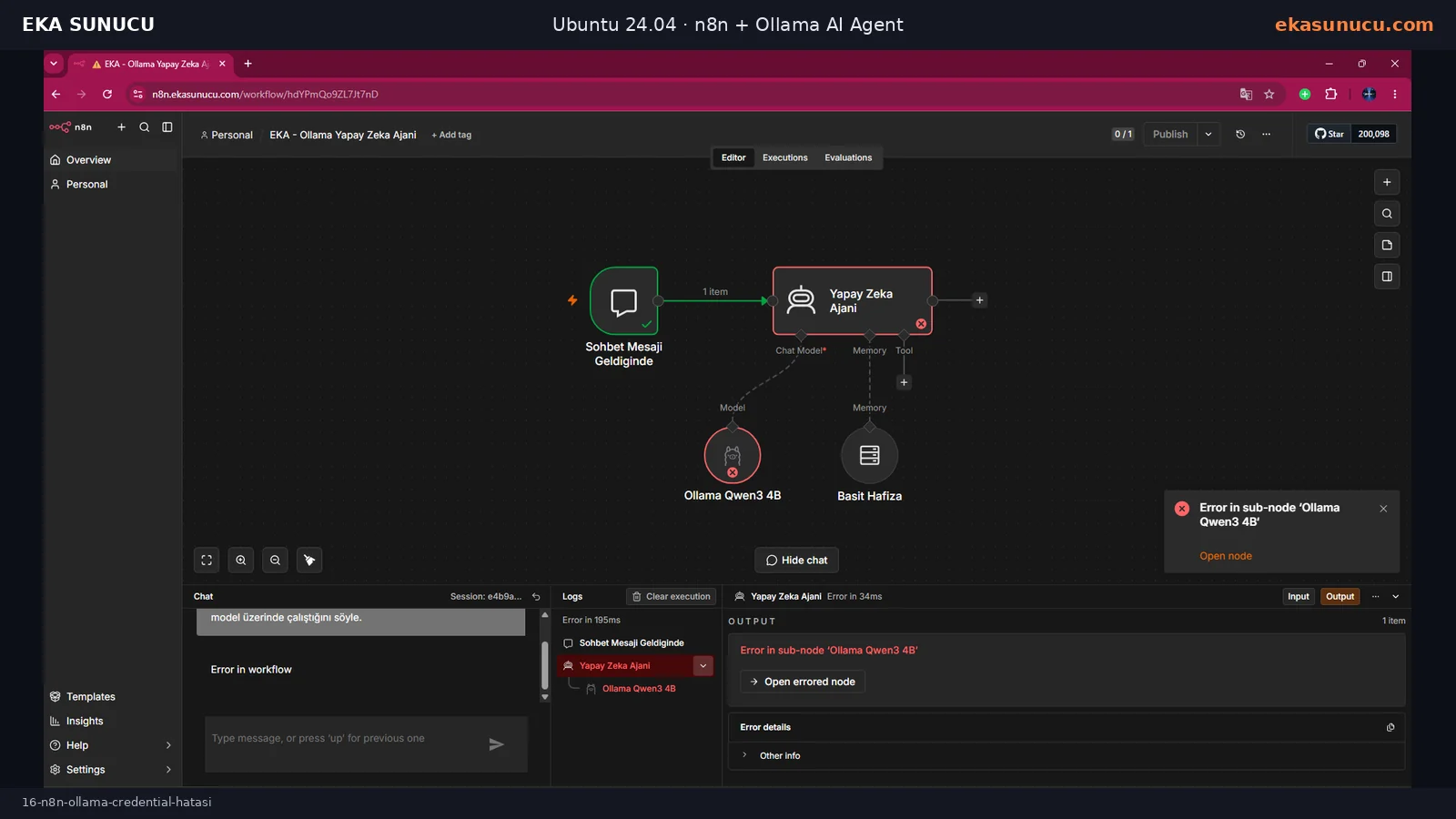
After saving the credential, Chat Trigger, AI Agent, Ollama Qwen3 4B and Simple Memory all completed successfully and n8n showed Workflow executed successfully.
The first answer invented a model name, so we tightened the system prompt. The next run correctly stated that Ollama was the runtime and qwen3:4b was the model.
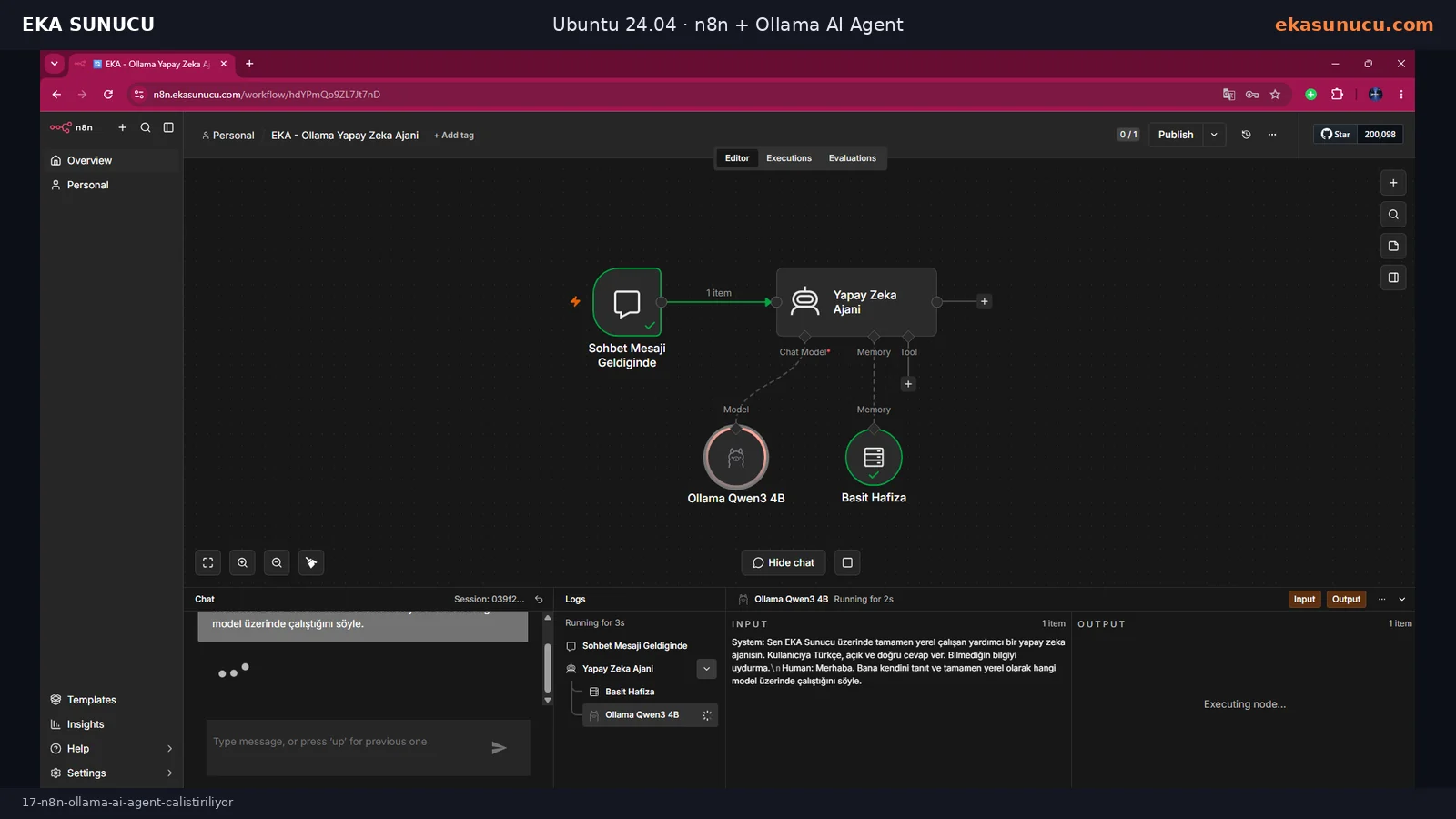
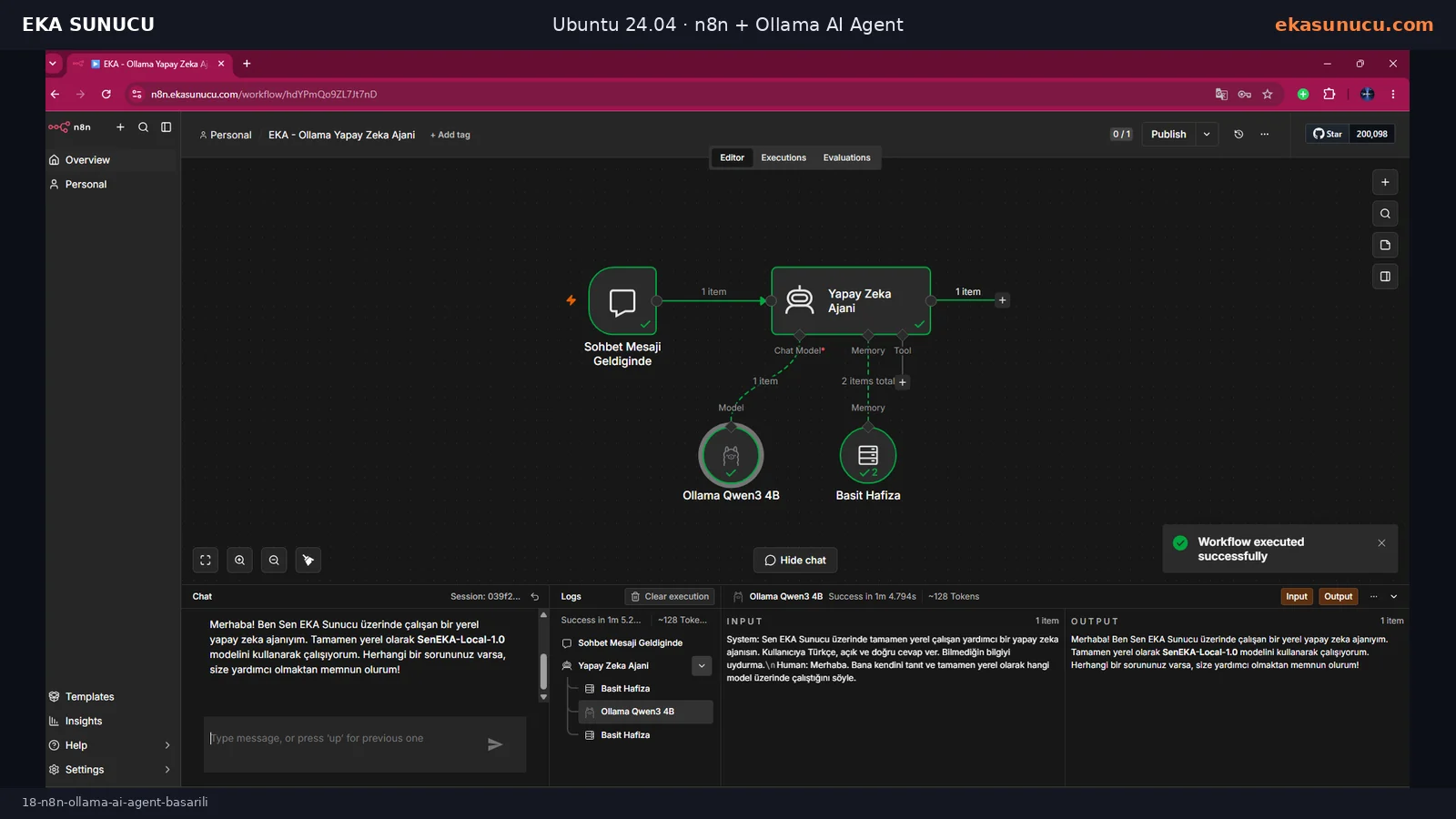
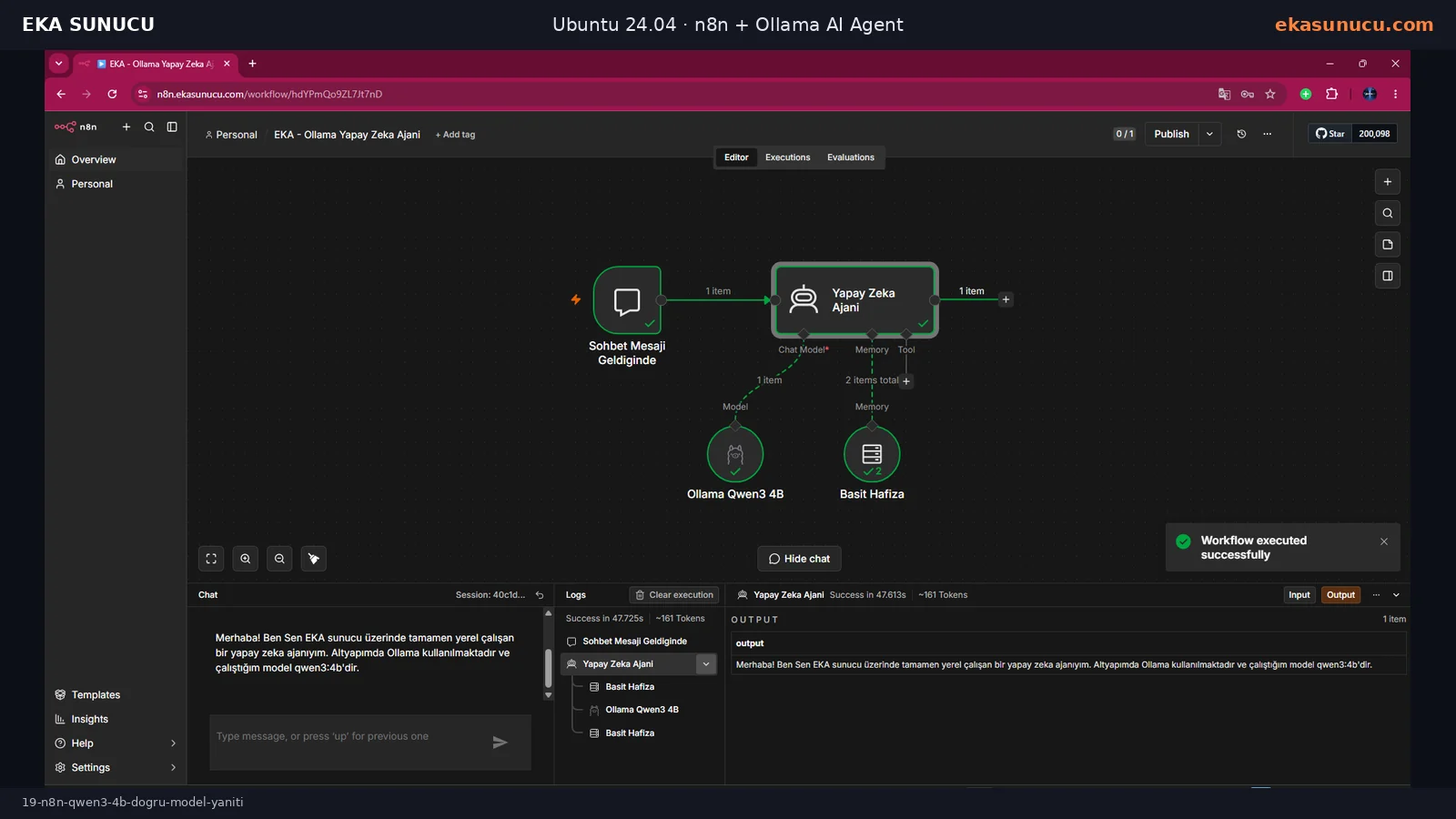
An LLM does not automatically have reliable introspection into the runtime configuration. In the first test it invented a name such as SenEKA-Local-1.0. This was a prompt-grounding issue, not an Ollama connectivity failure.
We explicitly stated that the runtime is Ollama, the model is qwen3:4b, and the agent must not invent another model name. Technical identity claims should be grounded in the actual workflow configuration.
You are a fully local AI agent running on EKA Sunucu.
Your runtime is Ollama and your language model is qwen3:4b.
If asked for the model name, answer only qwen3:4b.
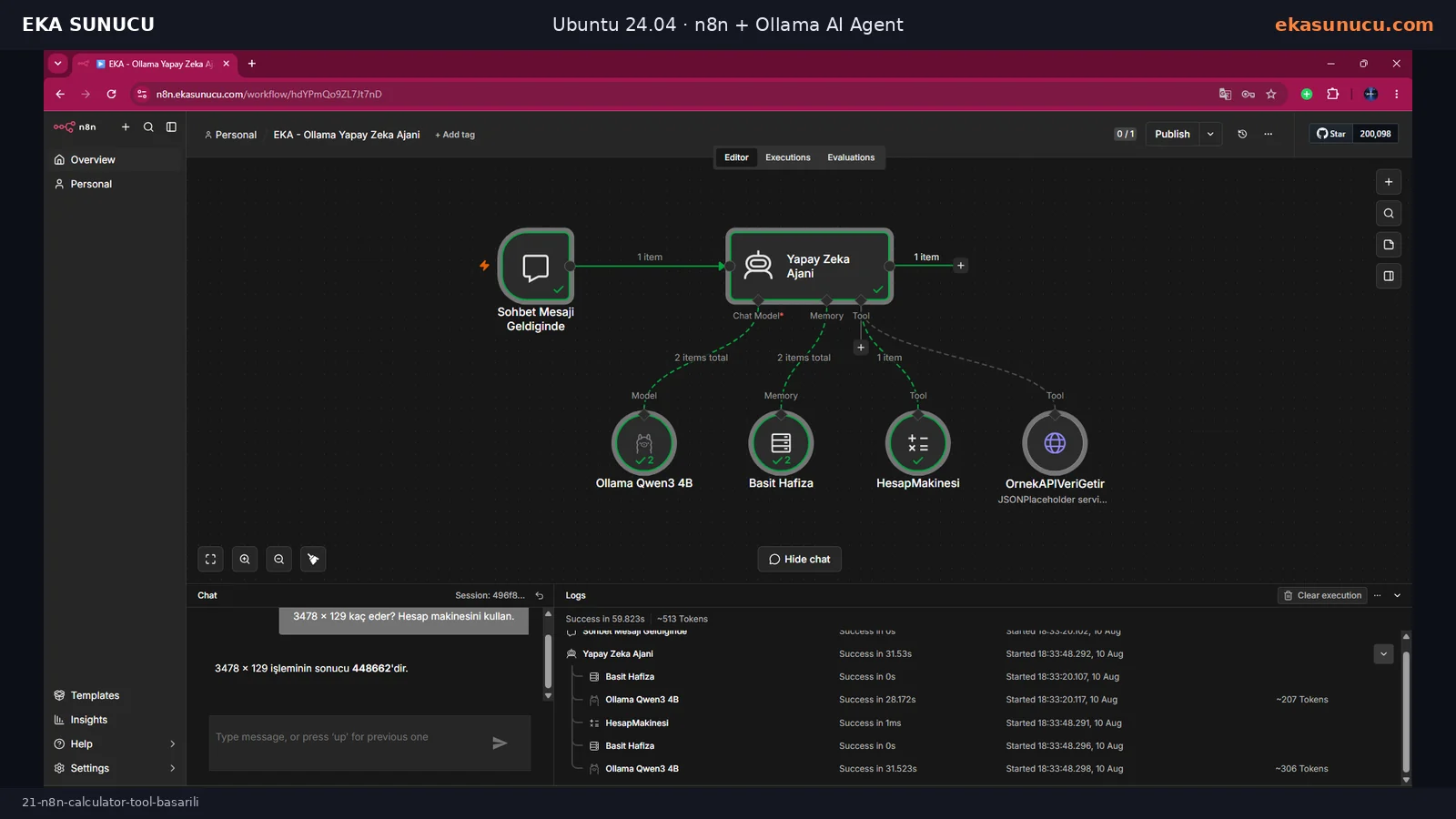
Do not invent another model identity.Calculator was connected to the AI Agent Tool input and the system prompt told the agent to use it for arithmetic.
For the message “3478 × 129, use the calculator,” the workflow actually invoked Calculator. The tool completed in about 1 ms and the agent returned the correct result: 448662.
Test: 3478 × 129, use the calculator.
Expected: 448662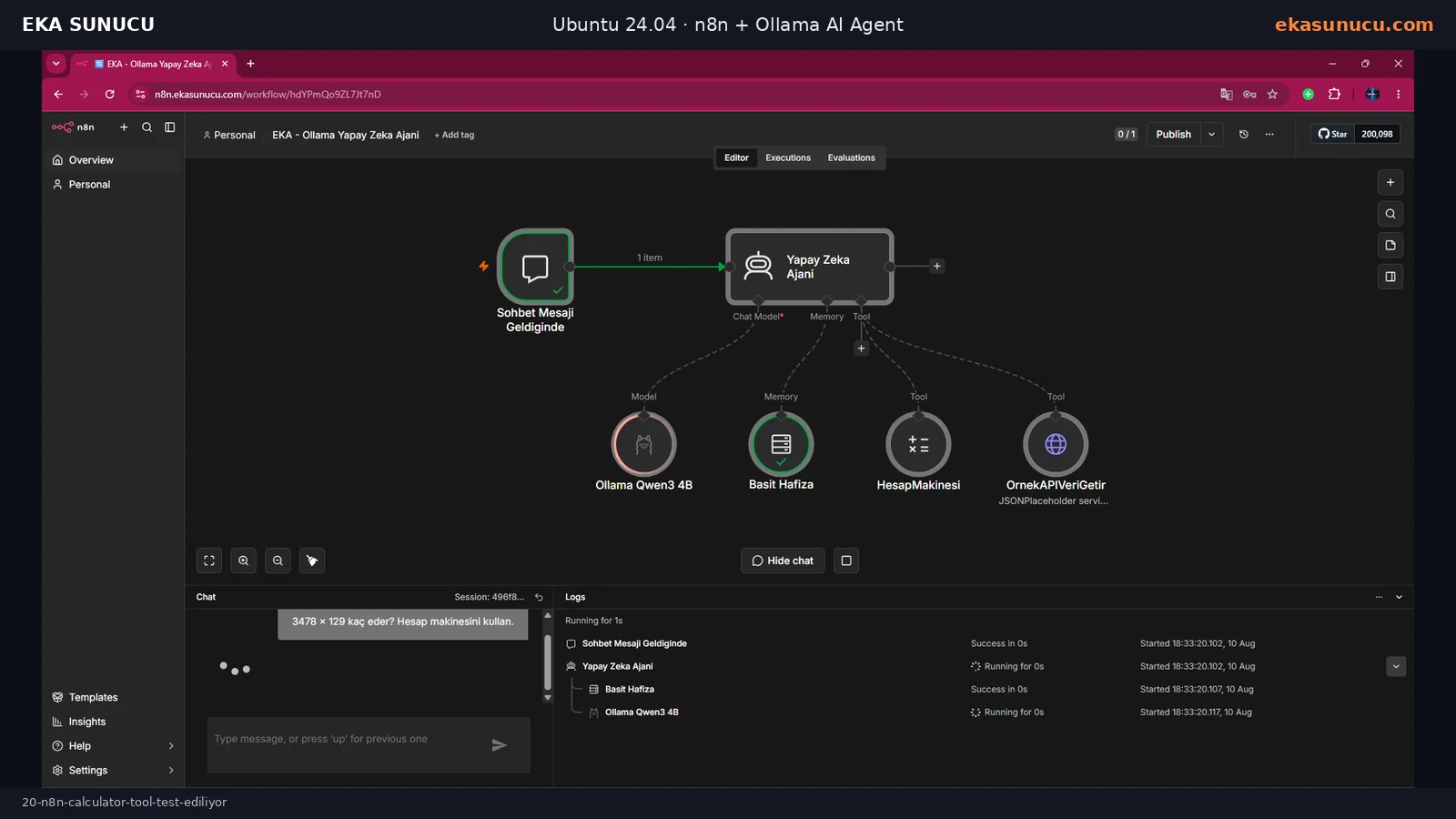
Our first HTTP tool attempt used the old @n8n/n8n-nodes-langchain.toolHttpRequest node type. Execution failed with “has a supplyData method but no execute method” and the tool node turned red.
This was not a network or JSONPlaceholder problem. The node type was incompatible with the running n8n version, so we replaced it with the current HTTP Request Tool implementation.
Error: The node '@n8n/n8n-nodes-langchain.toolHttpRequest' has a 'supplyData' method but no 'execute' method.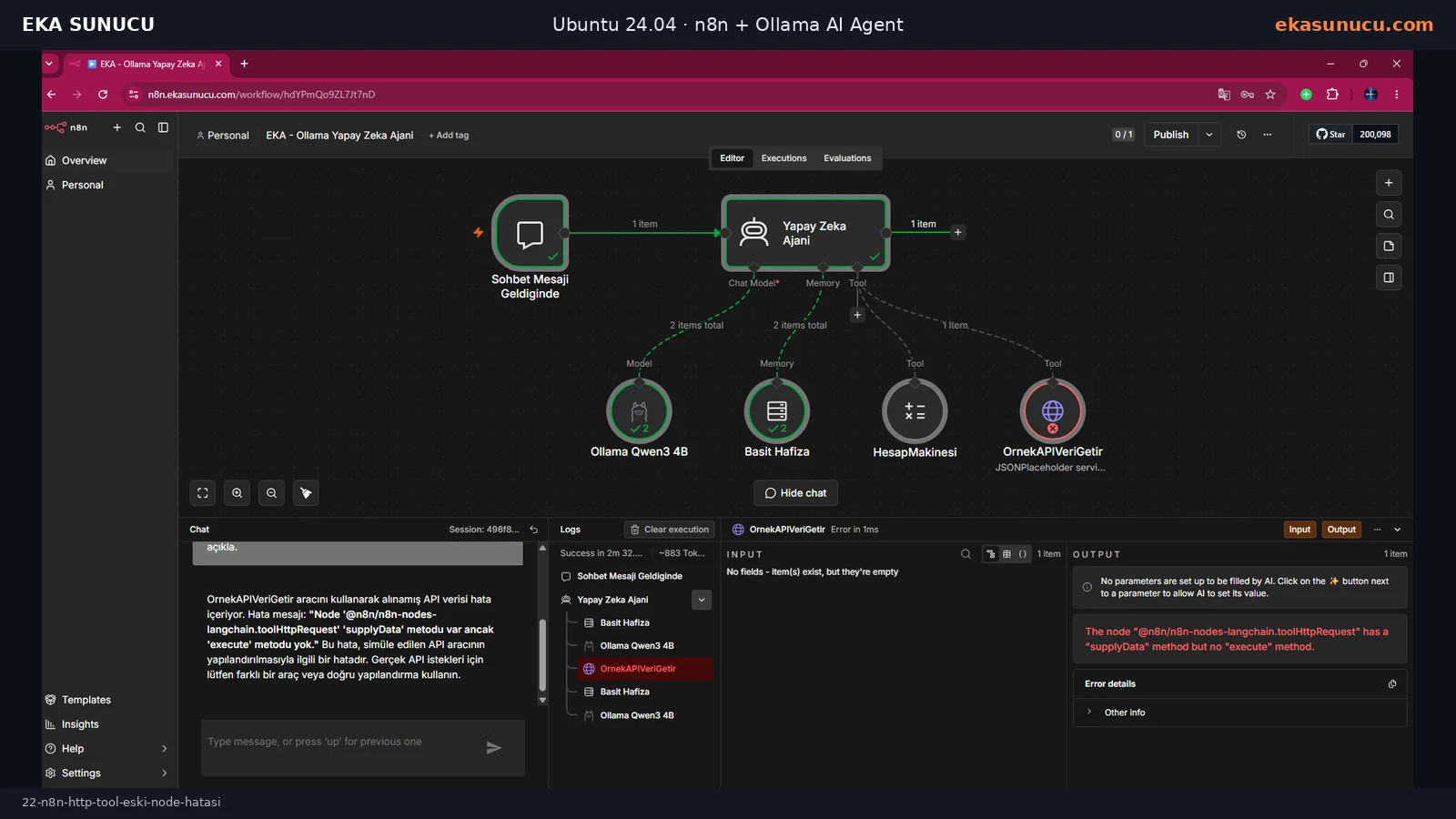
We replaced the old node with the current HTTP Request Tool connected to the AI Agent. For a deterministic test it performed GET https://jsonplaceholder.typicode.com/todos/1.
When asked to use OrnekAPIVeriGetir and explain the response in Turkish, the HTTP tool completed successfully. The agent summarized userId 1, id 1, title “delectus aut autem” and completed false from the real JSON response.
GET https://jsonplaceholder.typicode.com/todos/1Test: Use OrnekAPIVeriGetir and explain the returned API data in Turkish.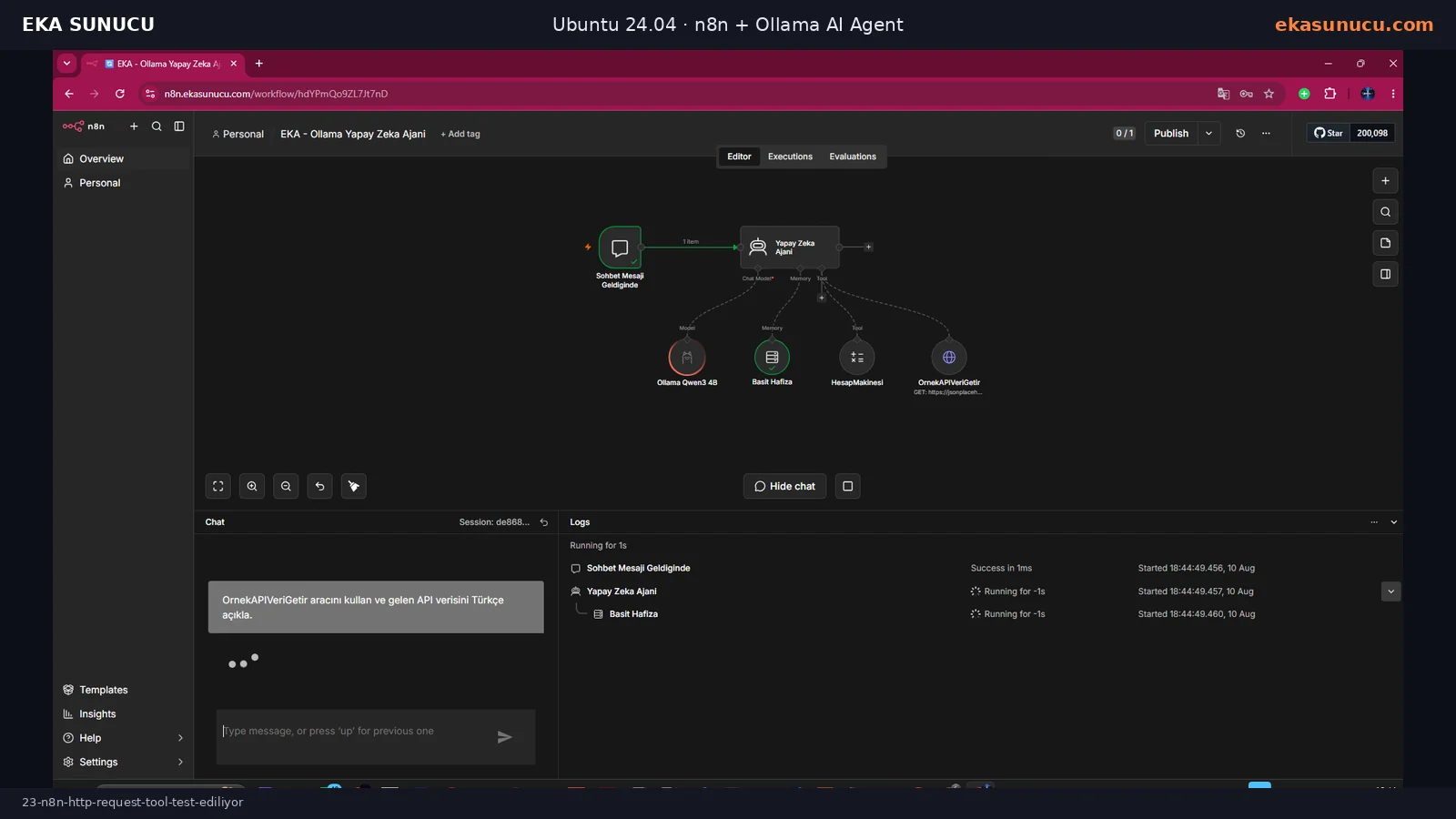
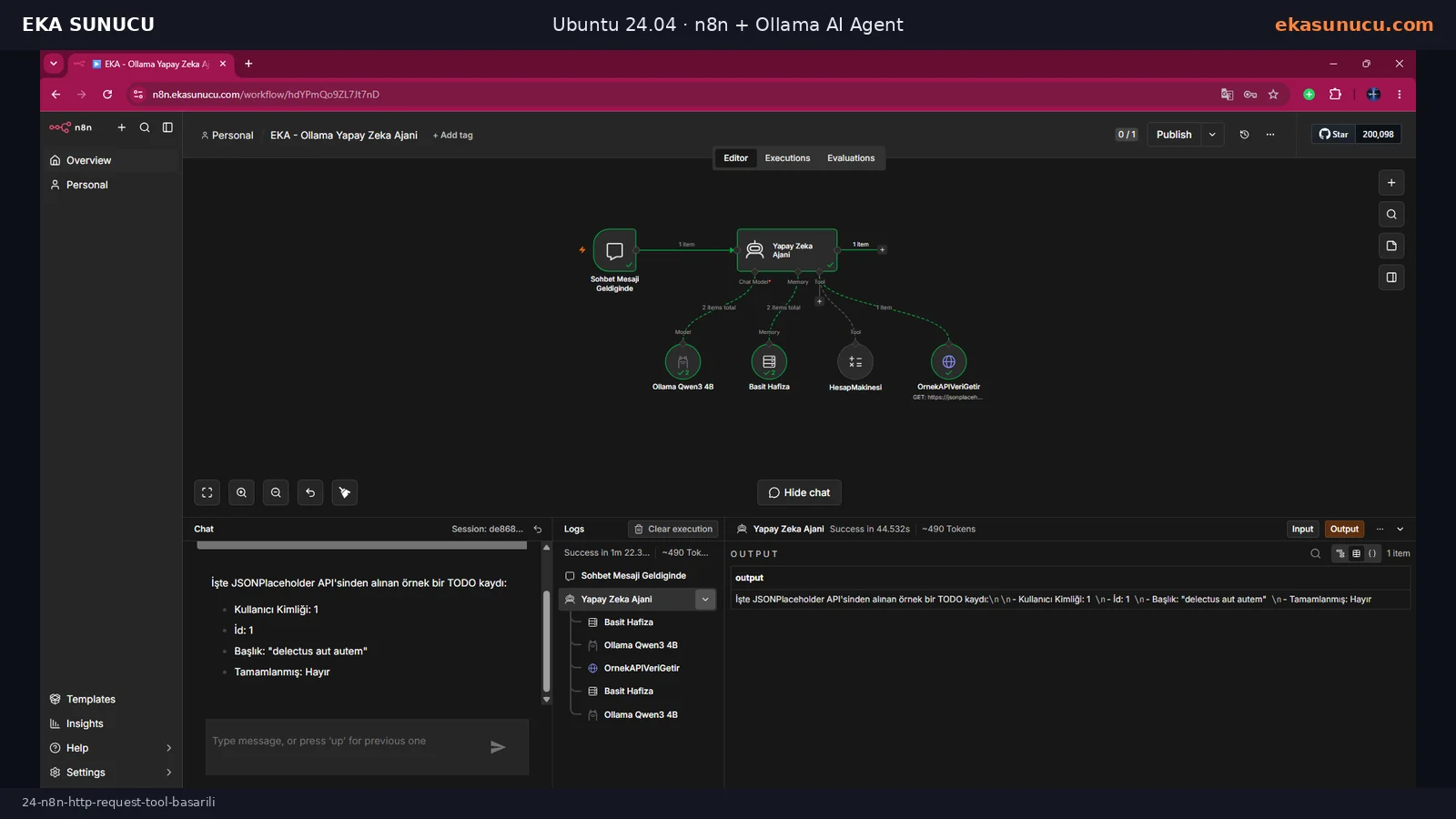
At the end n8n is available through HTTPS while ports 5678 and 11434 remain private. n8n-to-Ollama networking, qwen3:4b inference, memory, Calculator and HTTP API tool calls were all validated with real executions.
For production, pin or deliberately manage image versions, back up n8n_data and Ollama data, preserve N8N_ENCRYPTION_KEY, restrict credential access, and regularly review n8n audit output, service logs and certificate renewal. The next logical step is Qdrant-backed RAG.
docker ps
docker stats n8n ollama --no-stream
curl -sS https://n8n.ekasunucu.com/ -o /dev/null -w '%{http_code}\n'
/snap/bin/certbot renew --dry-run
systemctl --failed --no-pagerYes. Our real test ran n8n 2.33.7 as a Docker container on Ubuntu 24.04.4 LTS.
No. They can run in separate containers on the same Docker network, with n8n using http://ollama:11434.
localhost inside the n8n container points to n8n itself. Ollama is another container, so use its Docker DNS name.
The application port is 5678. We bound it only to 127.0.0.1 and published the service through Nginx on HTTPS 443.
It keeps users, workflows and credentials persistent when the container is recreated.
n8n uses it to protect stored credentials. Losing or changing it can break access to existing credentials.
Self-hosted Community Edition can be used. We also activated the free registration key available in the UI at test time; included extras can change.
It worked in our real Chat Trigger, Memory, Calculator and HTTP Tool tests. More complex agents may benefit from a larger model and more resources.
The model does not automatically know its runtime identity. We grounded the real model name qwen3:4b in the system prompt.
Yes. The 3478 × 129 test invoked Calculator and returned the correct result 448662.
The first workflow used an older LangChain HTTP tool node type. Replacing it with the current HTTP Request Tool fixed the error.
No. Both were restricted to localhost; public n8n access used Nginx HTTPS only.
Use certbot renew --dry-run to simulate the renewal process without replacing the live certificate.
Add Qdrant and an embeddings model to build RAG-based document search and a private knowledge base for the agent.
Run n8n automations, Ollama models, Open WebUI, Qdrant and other self-hosted AI services on your own infrastructure with EKA Sunucu Linux VPS plans.
Updated: 10.08.2026 Turkey (Turkish)
 Germany (German)
 Worldwide (English)

