
 Halkali merkez neighborhood fatih st ozgur apt no 46 , Kucukcekmece , Istanbul , 34303 , TR
This pillar guide combines the full environment we built on a real VPS upgraded from Ubuntu 22.04 to Ubuntu 24.04 LTS: Docker + Portainer, Ollama qwen3:4b, Open WebUI and an n8n AI Agent behind Nginx and TLS. It documents not only successful screens but also real fixes for exit code 141, Portainer timeout, Cloudflare 521, Certbot timeout, Open WebUI health delay, Ollama credentials and the old HTTP Tool node.
Ubuntu 24.04.4 LTS
  ↓
Docker + eka-ai
  ├─ Portainer CE LTS
  ├─ Ollama 0.32.6 → qwen3:4b
  ├─ Open WebUI 0.11.0
  └─ n8n 2.33.7 → AI Agent + Memory + Tools
  ↓
Nginx + Let’s Encrypt + EKA Sunucu domainsThis pillar guide brings together the complete stack we built on one real Ubuntu VPS: Ubuntu 24.04 LTS, Docker Engine + Compose, Portainer, Ollama, qwen3:4b, Open WebUI, n8n, Nginx and Let’s Encrypt. Application services run in separate Docker containers and communicate over a private user-defined bridge network named eka-ai.
Only Nginx exposes public HTTP/HTTPS on ports 80 and 443. Portainer 9443, Ollama 11434, Open WebUI 3000 and n8n 5678 are bound to 127.0.0.1 on the host. Management and AI services therefore are not directly exposed; domain access is provided through reverse proxy and TLS.
Internet :443
  ↓
Nginx + Let's Encrypt
  ├─ portainer.ekasunucu.com → 127.0.0.1:9443
  ├─ openwebui.ekasunucu.com → 127.0.0.1:3000
  └─ n8n.ekasunucu.com → 127.0.0.1:5678

Docker eka-ai
  ├─ Portainer
  ├─ Ollama → qwen3:4b
  ├─ Open WebUI → ollama:11434
└─ n8n AI Agent → ollama:11434Our real test VPS had 8 vCPU, about 31 GiB RAM and a 99 GB root disk. The CPU appeared as AMD Ryzen 9 7950X. No dedicated NVIDIA or ROCm GPU passthrough was available, so Ollama ran in CPU mode. qwen3:4b worked functionally in this environment, although response latency is naturally higher than on a suitable GPU system.
As model size grows, RAM, disk and potentially VRAM requirements increase. Open WebUI may also download embedding and cache data during first startup, so size the server for Docker images, named volumes, execution data and caches in addition to the LLM itself.
lscpu | grep -E 'Model name|CPU\(s\)'
free -h
df -h /
nvidia-smi || true
ls -la /dev/dri 2>/dev/null || true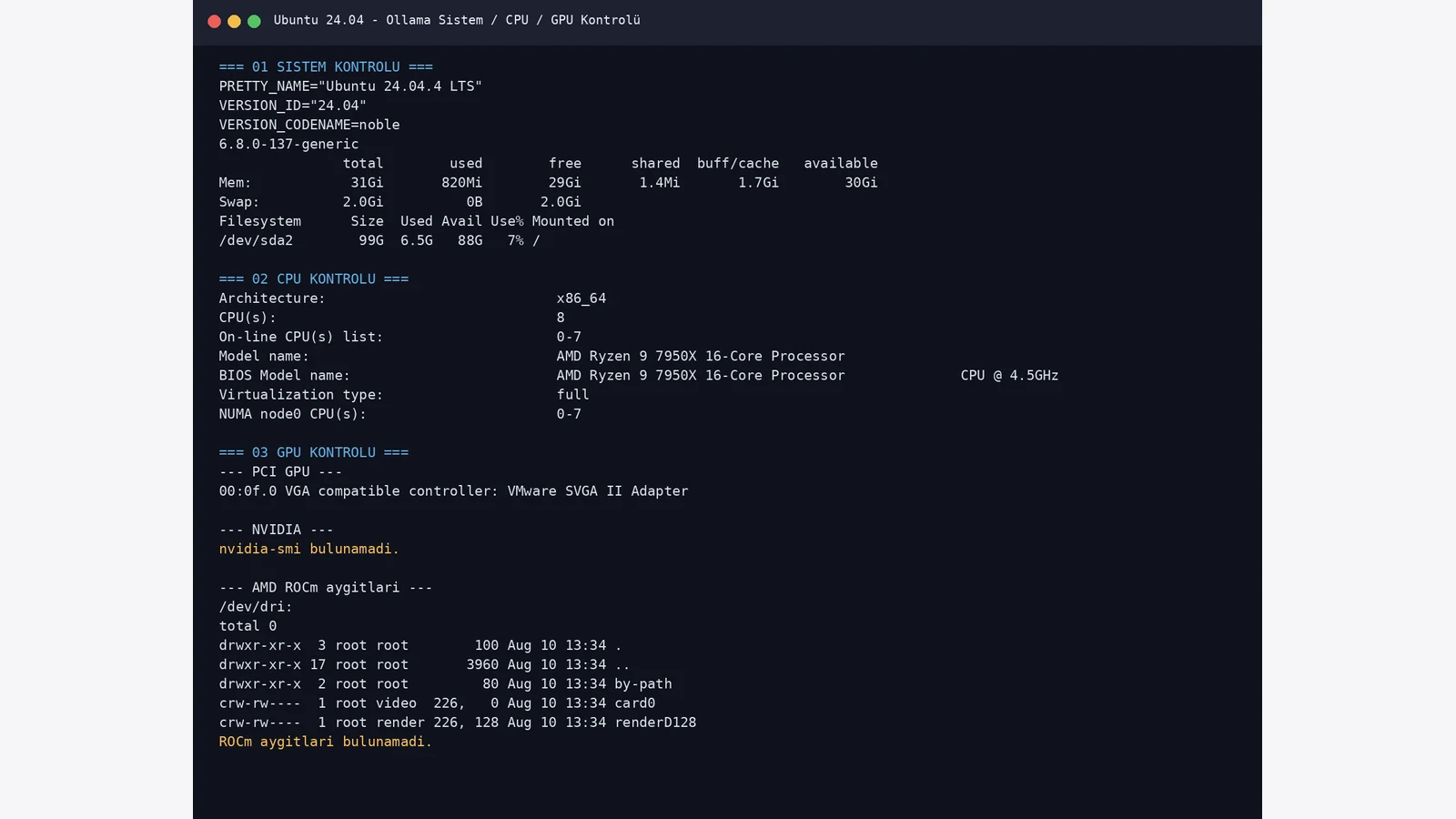
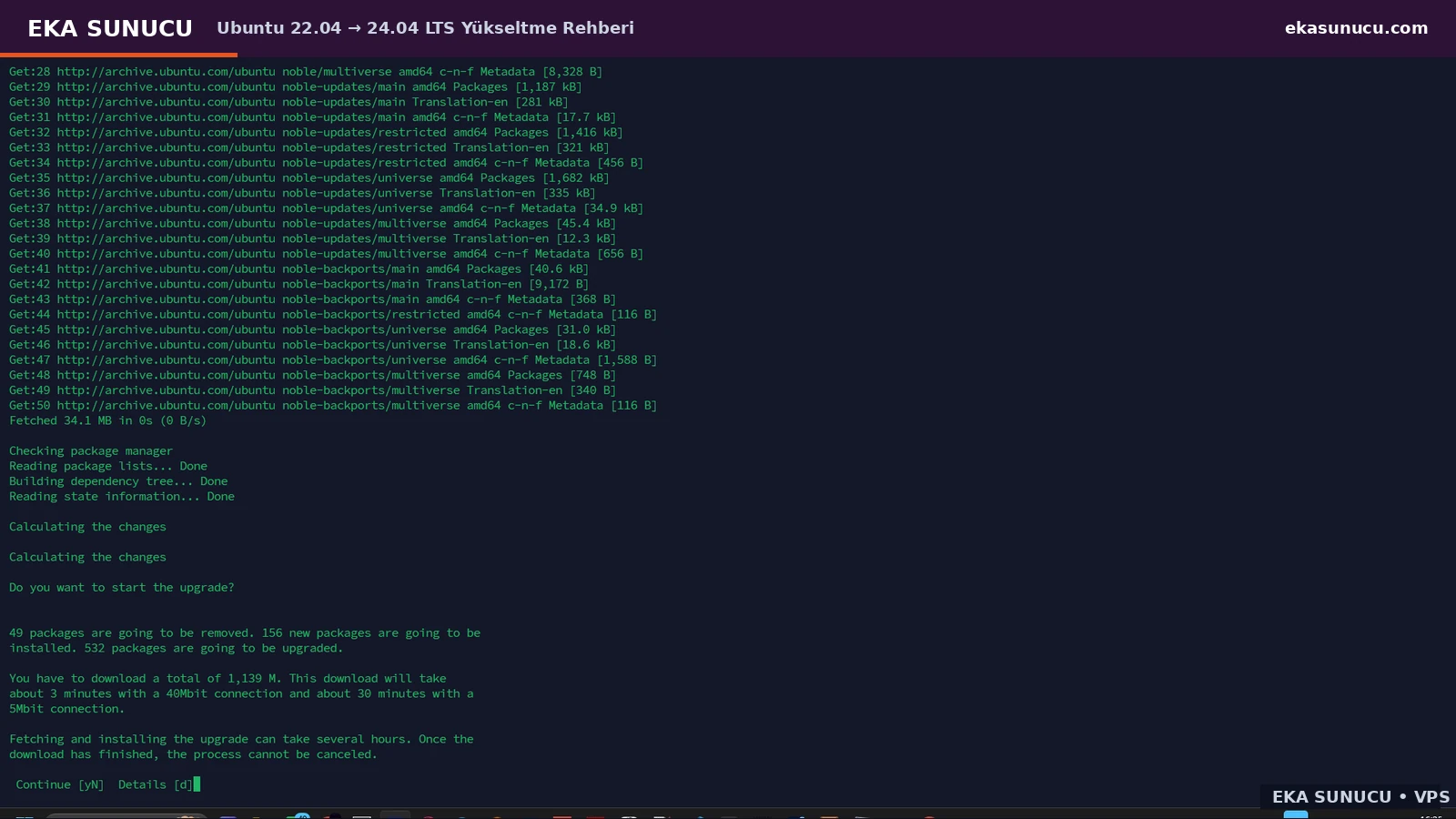
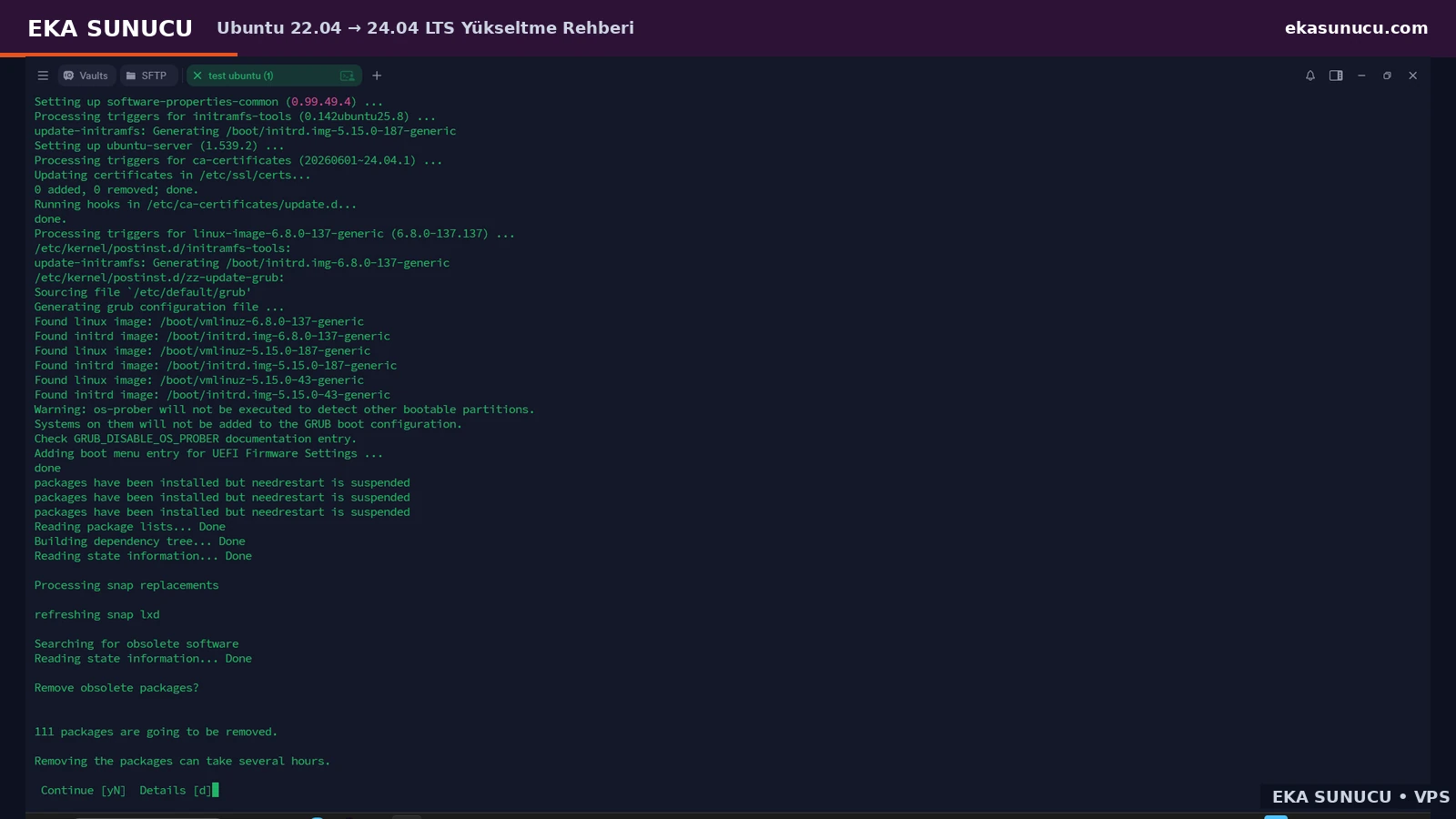
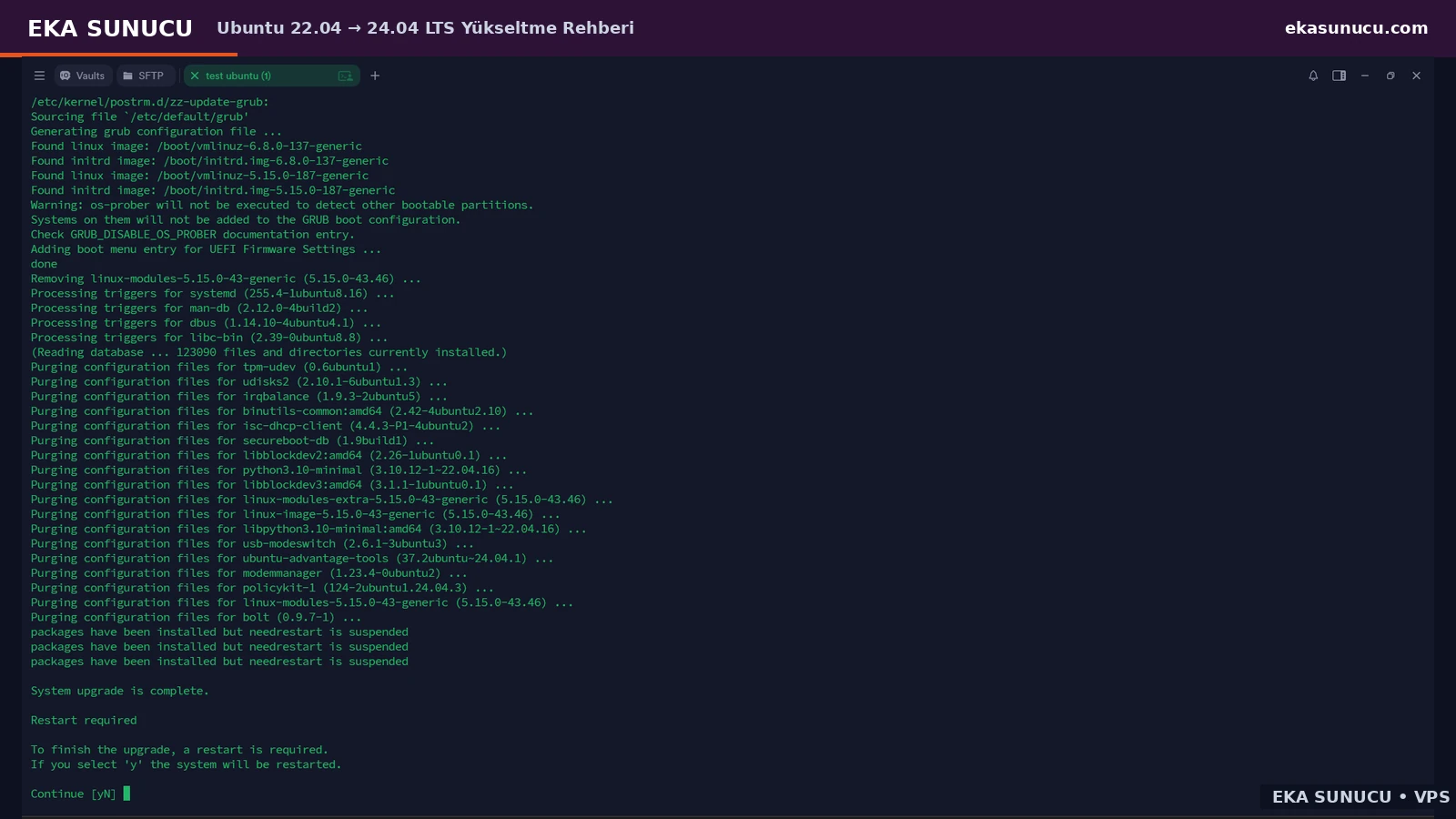
If the VPS still runs Ubuntu 22.04, fully update the current release and take a backup or snapshot first. Ubuntu Server uses do-release-upgrade for major release upgrades and the flow is interactive. In our real upgrade we saw recovery SSH on port 1022, the package plan, an openssh-server configuration prompt, obsolete-package cleanup and the final reboot.
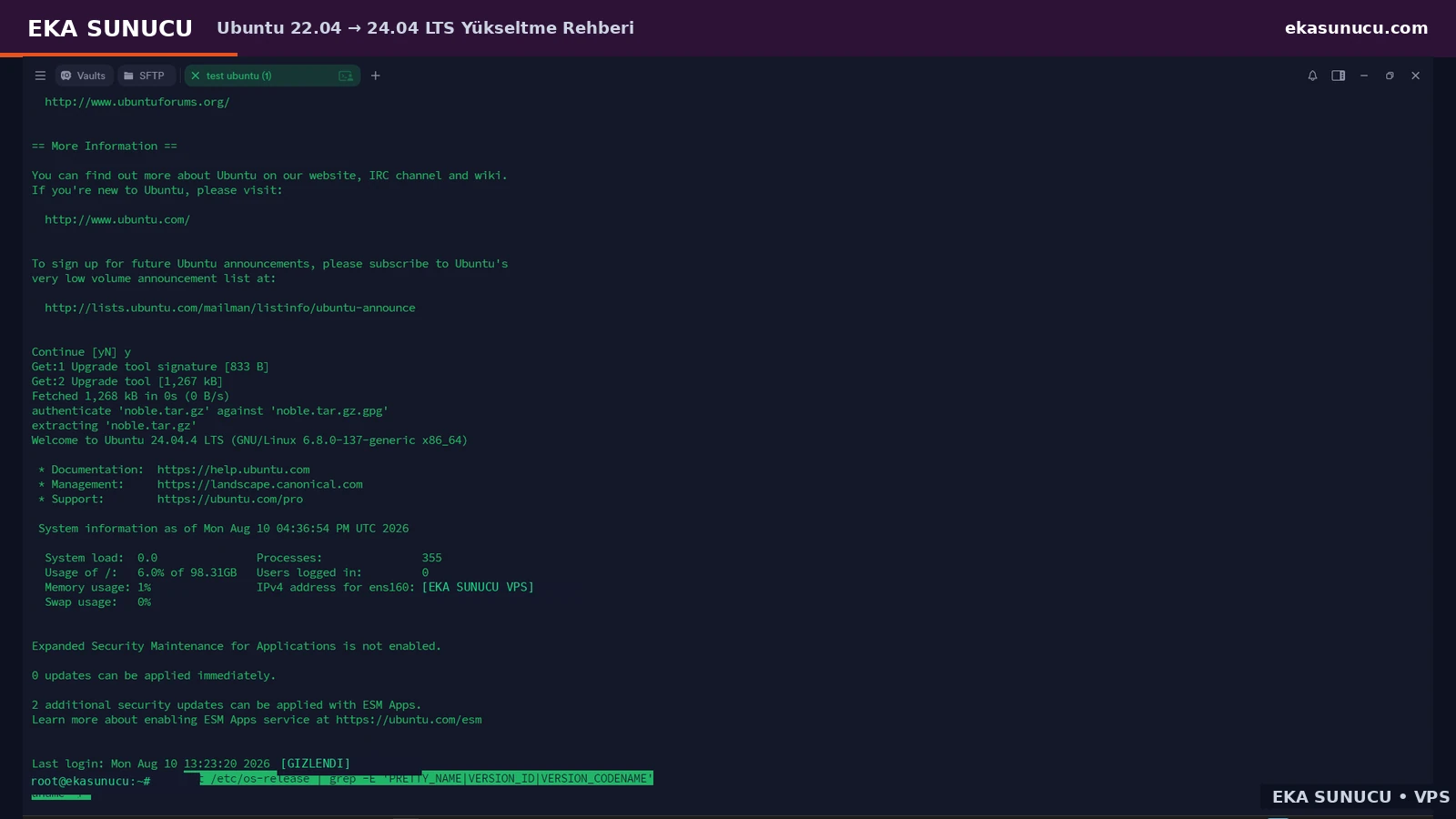
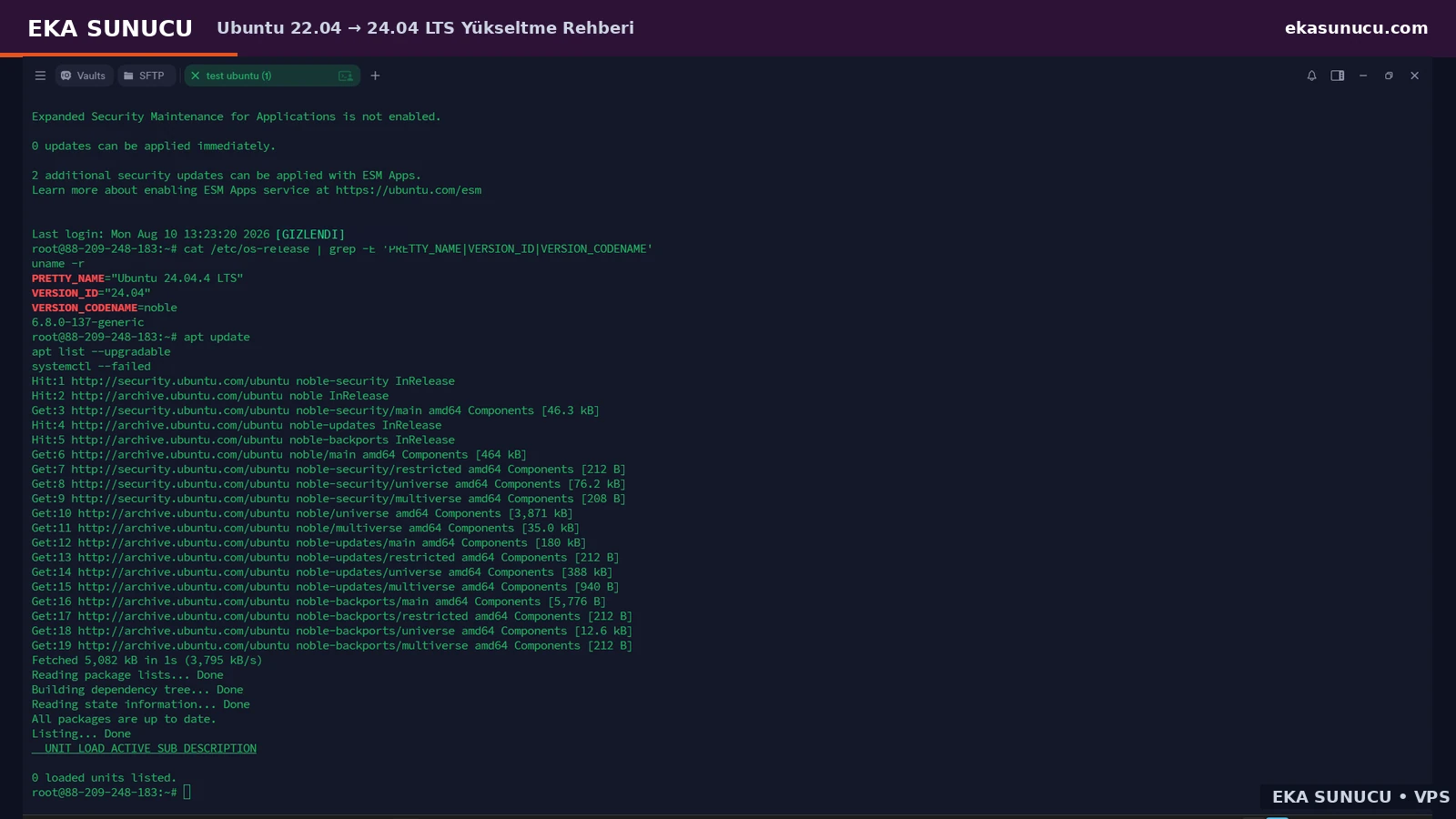
After reboot, verify /etc/os-release, the kernel, APT status and failed systemd units. Our final environment completed on Ubuntu 24.04.4 LTS, Noble and kernel 6.8.0-137-generic.
apt update
apt full-upgrade -y
rebootdo-release-upgradecat /etc/os-release
uname -r
apt update
systemctl --failed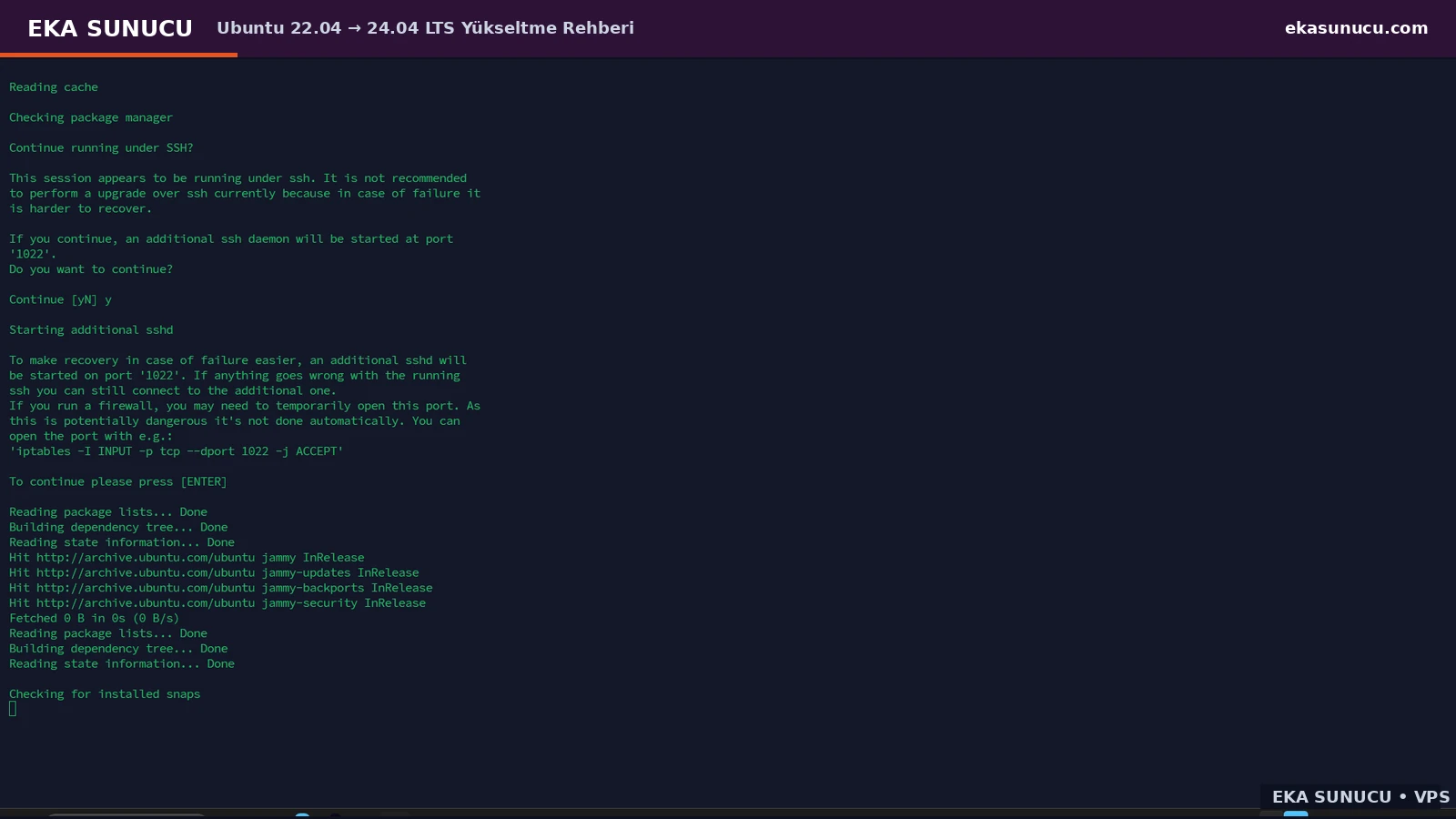
Using Docker’s official Ubuntu APT repository gives a predictable Engine and Compose plugin setup. The real environment used Docker Engine 29.7.2 and Docker Compose v5.4.0; these are recorded test versions, not a claim about the latest release.
Our first automation script exited with code 141 because set -o pipefail was combined with apt-cache policy piped into head, causing SIGPIPE. Docker itself was not broken. Replacing head with sed allowed the script to continue. We then validated Docker with the hello-world container.
docker --version
docker compose version
systemctl is-active dockerdocker run --rm hello-world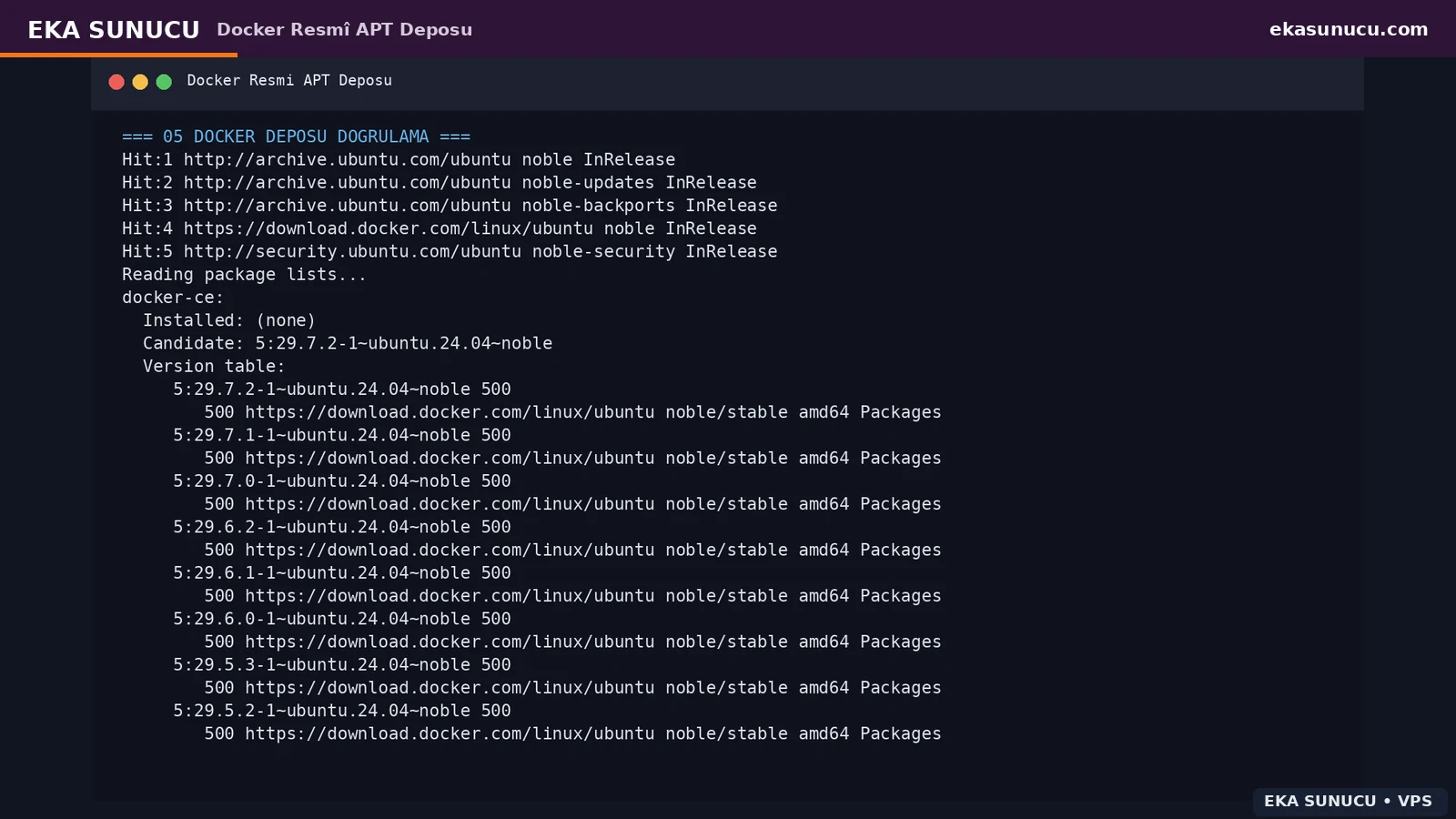
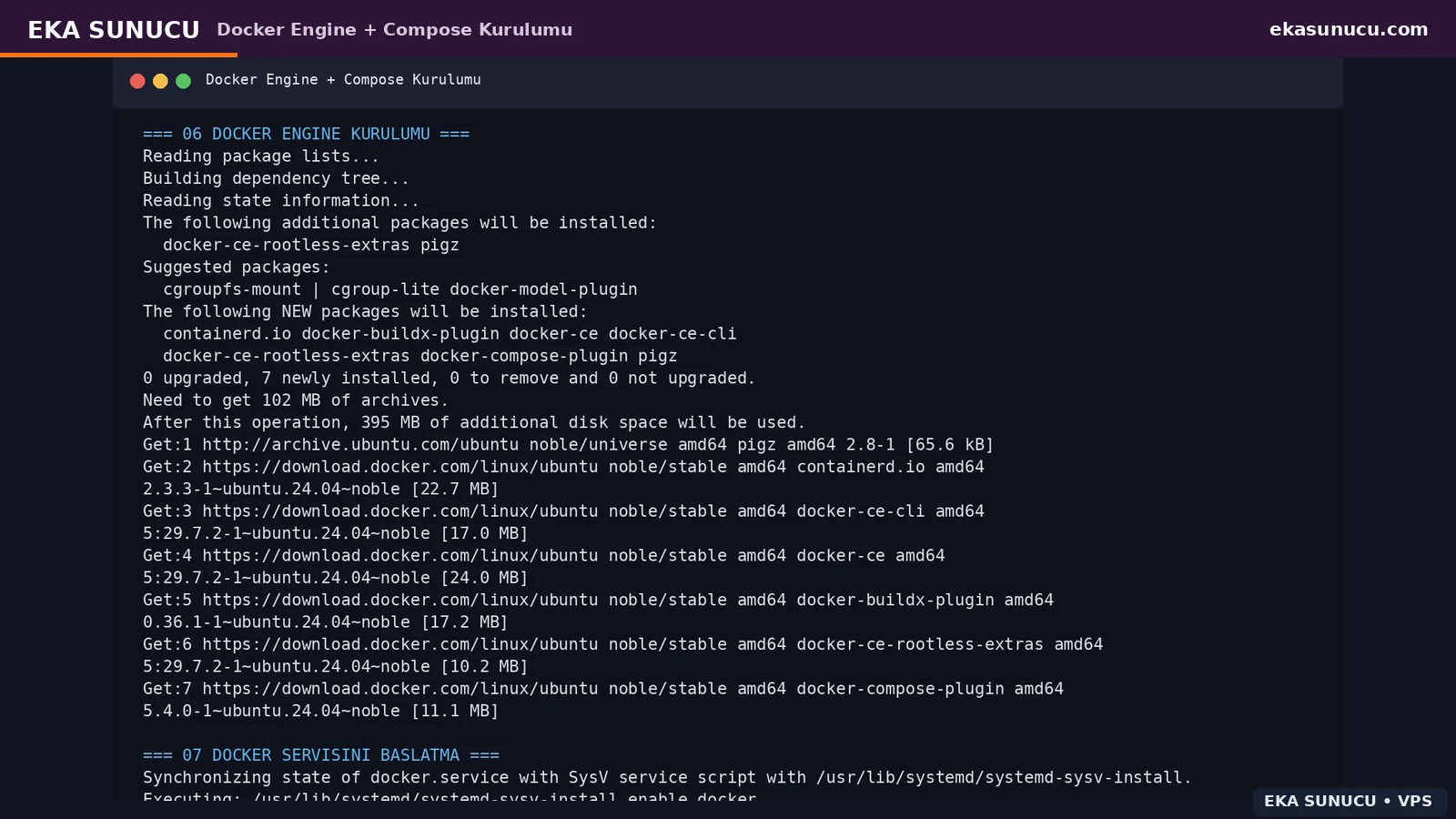
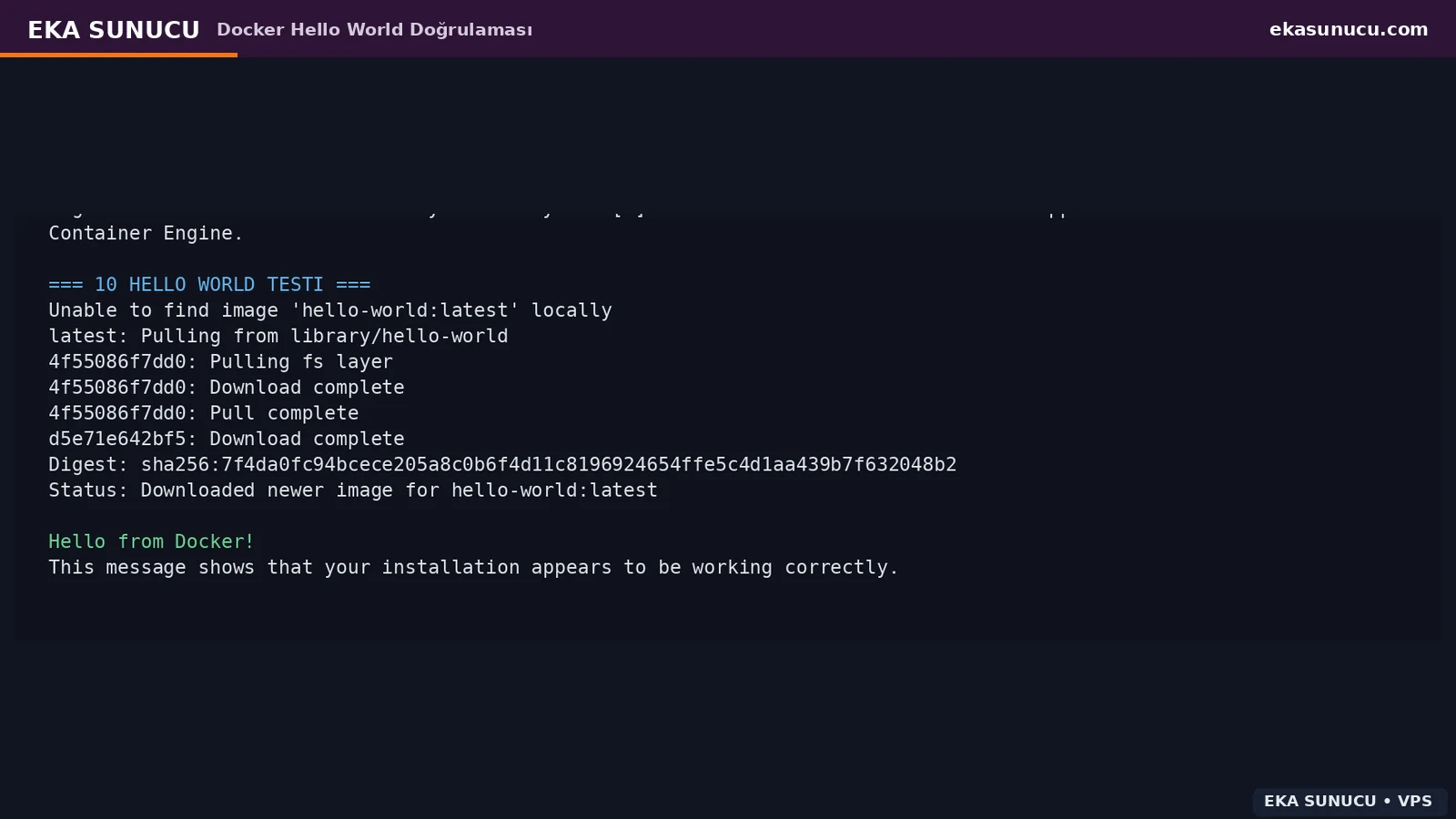
We created the portainer_data named volume and mounted the Docker socket into Portainer. The management UI uses HTTPS on port 9443 inside the container. During first setup we encountered the security timeout/setup-token flow, restarted the container and completed the admin account.
For the final deployment, host port 9443 was bound to 127.0.0.1 instead of 0.0.0.0. Remote access is provided only through portainer.ekasunucu.com behind Nginx and HTTPS.
docker volume create portainer_datadocker run -d --name portainer --restart=always -p 127.0.0.1:9443:9443 -v /var/run/docker.sock:/var/run/docker.sock -v portainer_data:/data portainer/portainer-ce:ltsdocker ps --filter name='^/portainer$'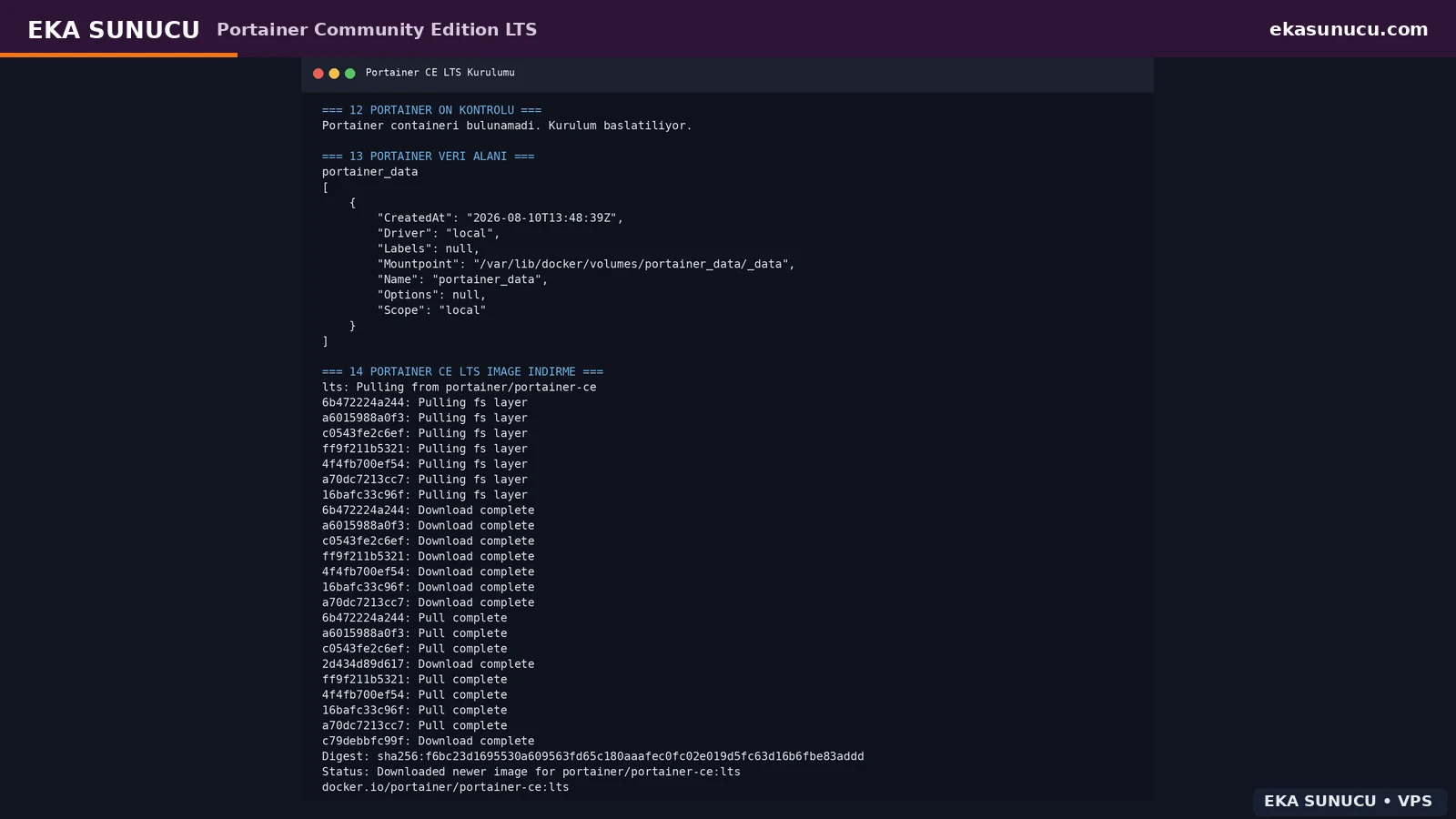
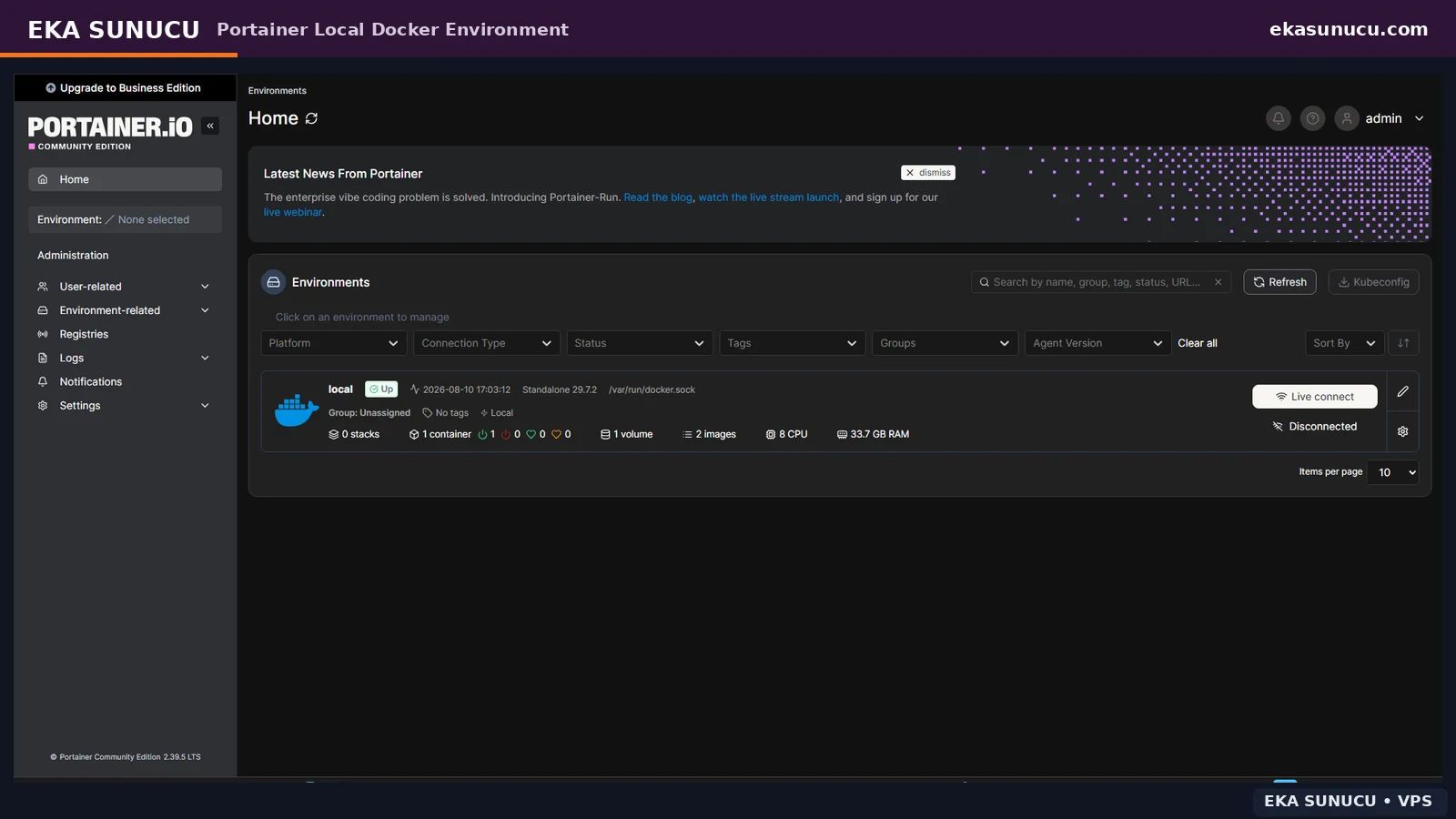
Before the reverse proxy existed, the Portainer domain returned Cloudflare 521. After creating the Nginx server block and pointing upstream traffic to 127.0.0.1:9443, origin access worked. During certificate setup the Certbot snap initially timed out while downloading core24; a later retry succeeded once network access recovered.
We reused the same pattern for Open WebUI and n8n. Preserve Upgrade and Connection headers for WebSocket applications. After issuing certificates, run certbot renew --dry-run to test automated renewal.
nginx -t
systemctl reload nginxcertbot --nginx -d portainer.ekasunucu.comcertbot renew --dry-run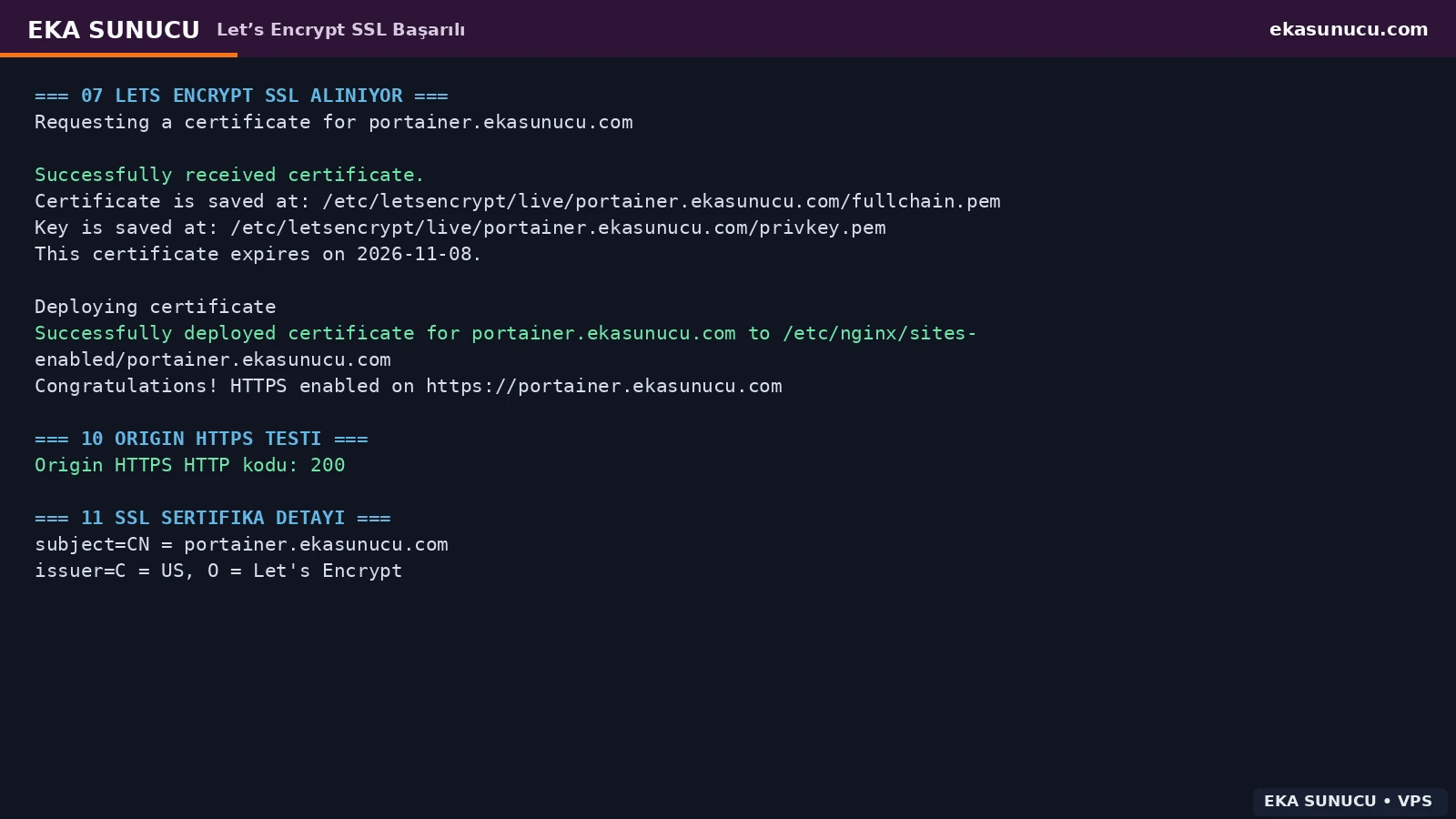
Containers must not use host localhost to reach another container. We created a user-defined bridge network named eka-ai. Because the Ollama container is named ollama, Open WebUI and n8n can reach it through http://ollama:11434 using Docker DNS.
Named volumes ollama_data, openwebui_data and n8n_data keep important data outside container lifecycles. Plan backups before image updates or container recreation.
docker network create eka-ai 2>/dev/null || truedocker volume create ollama_data
docker volume create openwebui_data
docker volume create n8n_datadocker network inspect eka-ai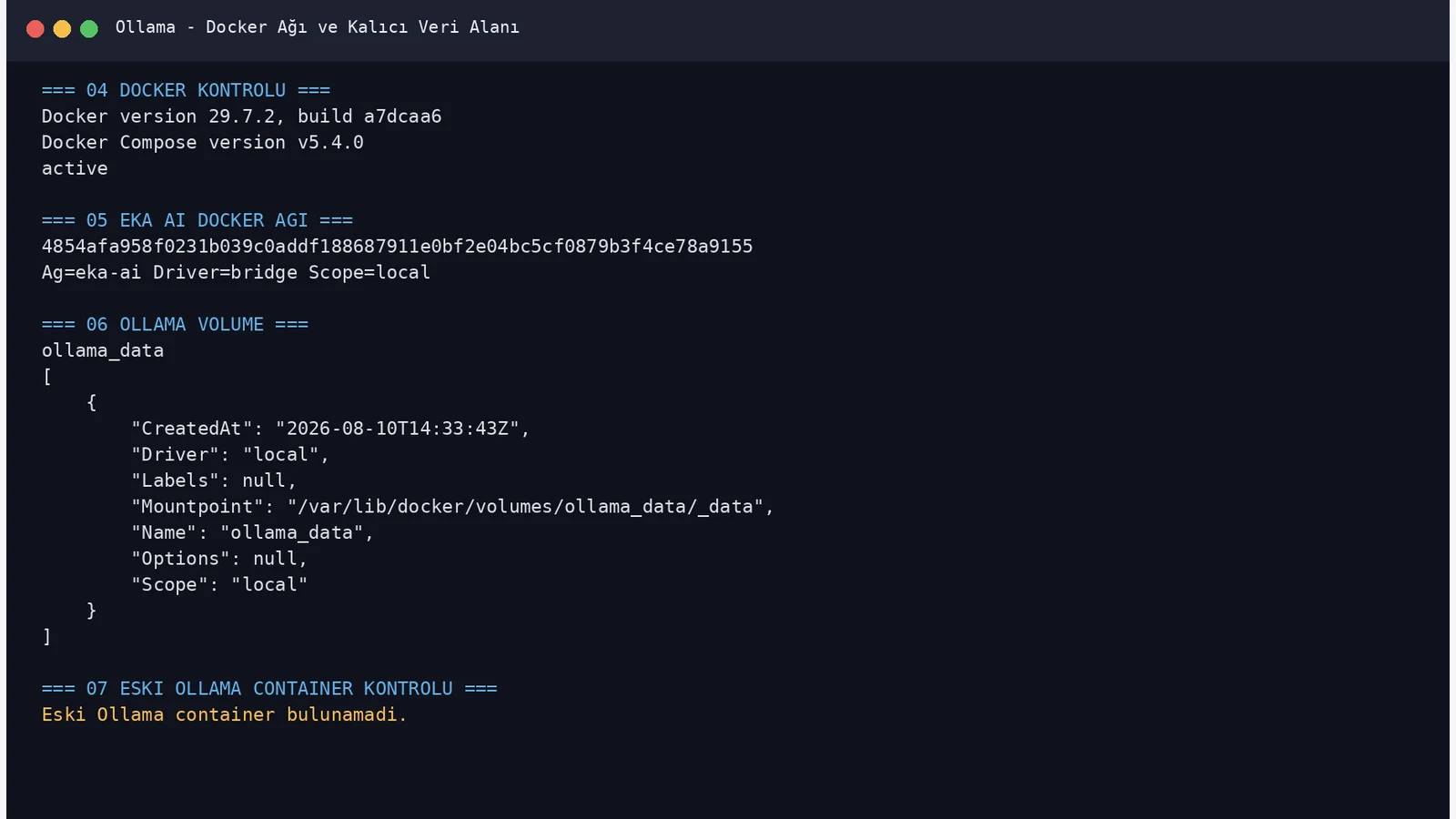
We ran the official Ollama image and attached /root/.ollama to the ollama_data volume. The test VPS had no GPU passthrough, so Ollama selected the CPU backend. Although Ollama listens on 0.0.0.0:11434 inside the container, the host mapping is 127.0.0.1:11434:11434, preventing direct public exposure.
The first /api/tags health check returned HTTP 200 with an empty model list. This is useful because it separates runtime availability from model-download problems.
docker pull ollama/ollama:latestdocker run -d --name ollama --restart=always --network eka-ai -p 127.0.0.1:11434:11434 -v ollama_data:/root/.ollama ollama/ollama:latestcurl -sS http://127.0.0.1:11434/api/tags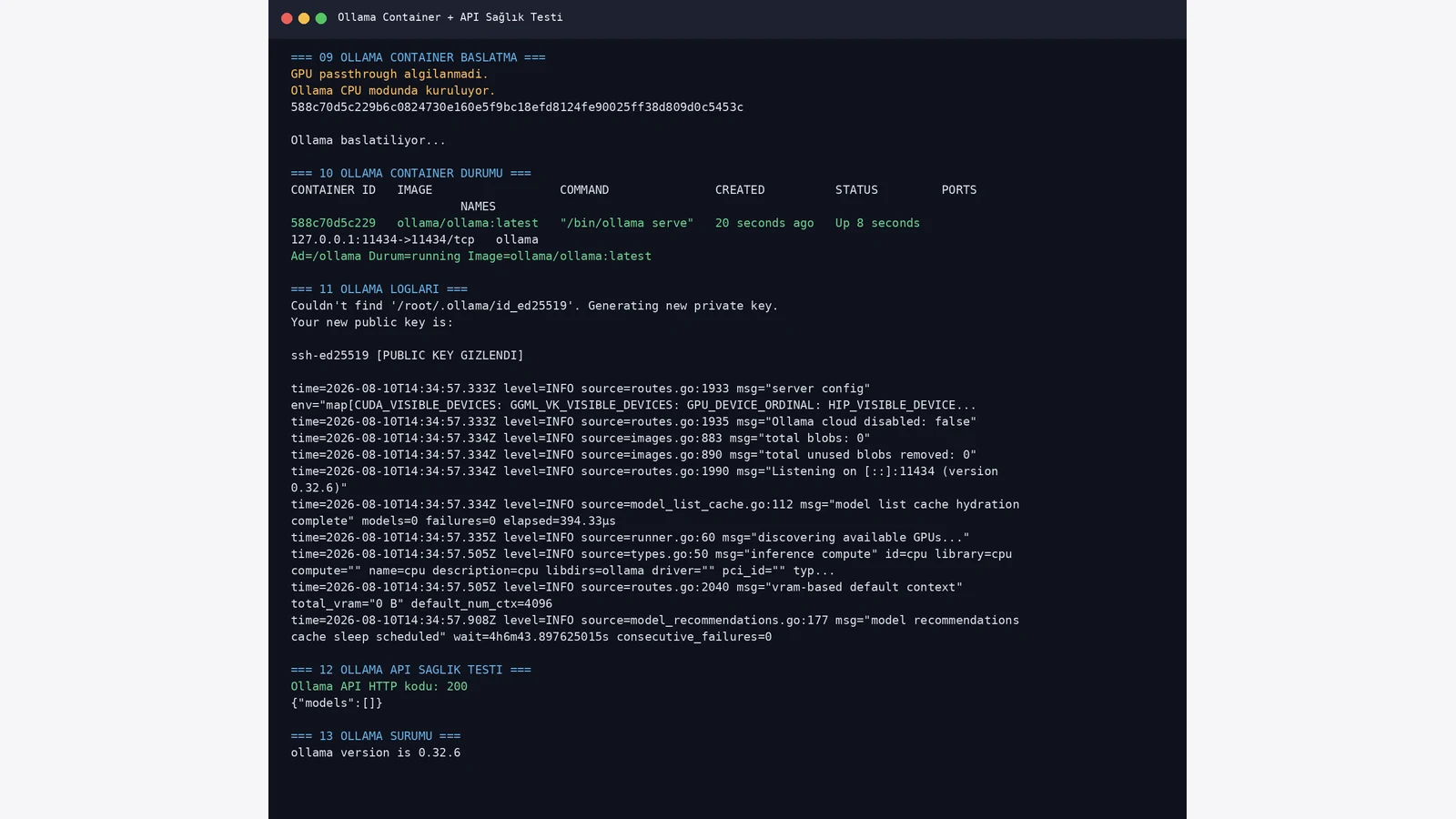
In our real deployment qwen3:4b downloaded at roughly 2.5 GB. Ollama metadata reported the 4.0B parameter class, Q4_K_M quantization and tools/thinking capabilities. Loaded memory usage reached roughly 3 GiB in the CPU test.
Do not stop at ollama list. We sent a real /api/chat request and received EKA-OLLAMA-TEST-BASARILI. That test later helped us distinguish Open WebUI or n8n integration issues from the underlying model runtime.
docker exec ollama ollama pull qwen3:4bdocker exec ollama ollama listcurl -sS http://127.0.0.1:11434/api/chat -H 'Content-Type: application/json' -d '{"model":"qwen3:4b","messages":[{"role":"user","content":"Only write EKA-OLLAMA-TEST-BASARILI"}],"stream":false}'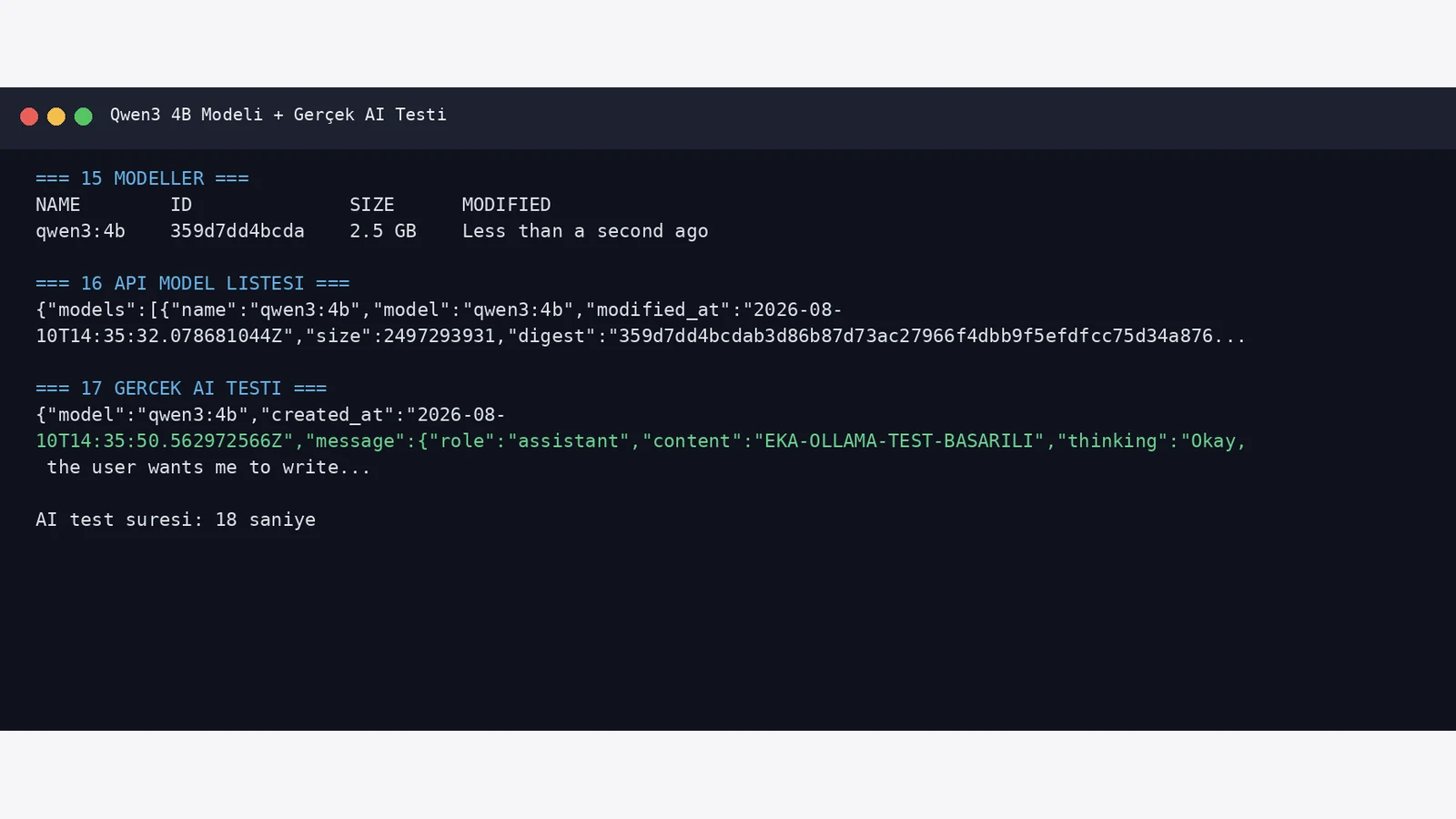
The default local Ollama API is not by itself a complete public-user authentication layer. In this architecture host port 11434 listens only on 127.0.0.1. Open WebUI and n8n reach Ollama privately over Docker DNS on the eka-ai network.
If remote systems must access Ollama, add authentication, TLS, reverse proxy, VPN or a private network instead of simply publishing 11434. Verify the socket with ss.
ss -lntp | grep 11434docker network inspect eka-ai --format '{{range .Containers}}{{.Name}} {{.IPv4Address}}{{println}}{{end}}'Open WebUI was started with persistent openwebui_data, a fixed WEBUI_SECRET_KEY and the eka-ai network. The host port was restricted to 127.0.0.1:3000 and the Ollama provider pointed to http://ollama:11434.
The /health endpoint did not immediately return 200. The container was running database migrations and downloading sentence-transformers/all-MiniLM-L6-v2 files from Hugging Face. After the initial preparation period, health returned 200 and the container became healthy. A short first-start health timeout therefore does not automatically mean the install failed.
docker run -d --name open-webui --restart=always --network eka-ai -p 127.0.0.1:3000:8080 -e OLLAMA_BASE_URL=http://ollama:11434 -v openwebui_data:/app/backend/data ghcr.io/open-webui/open-webui:maincurl -sS http://127.0.0.1:3000/health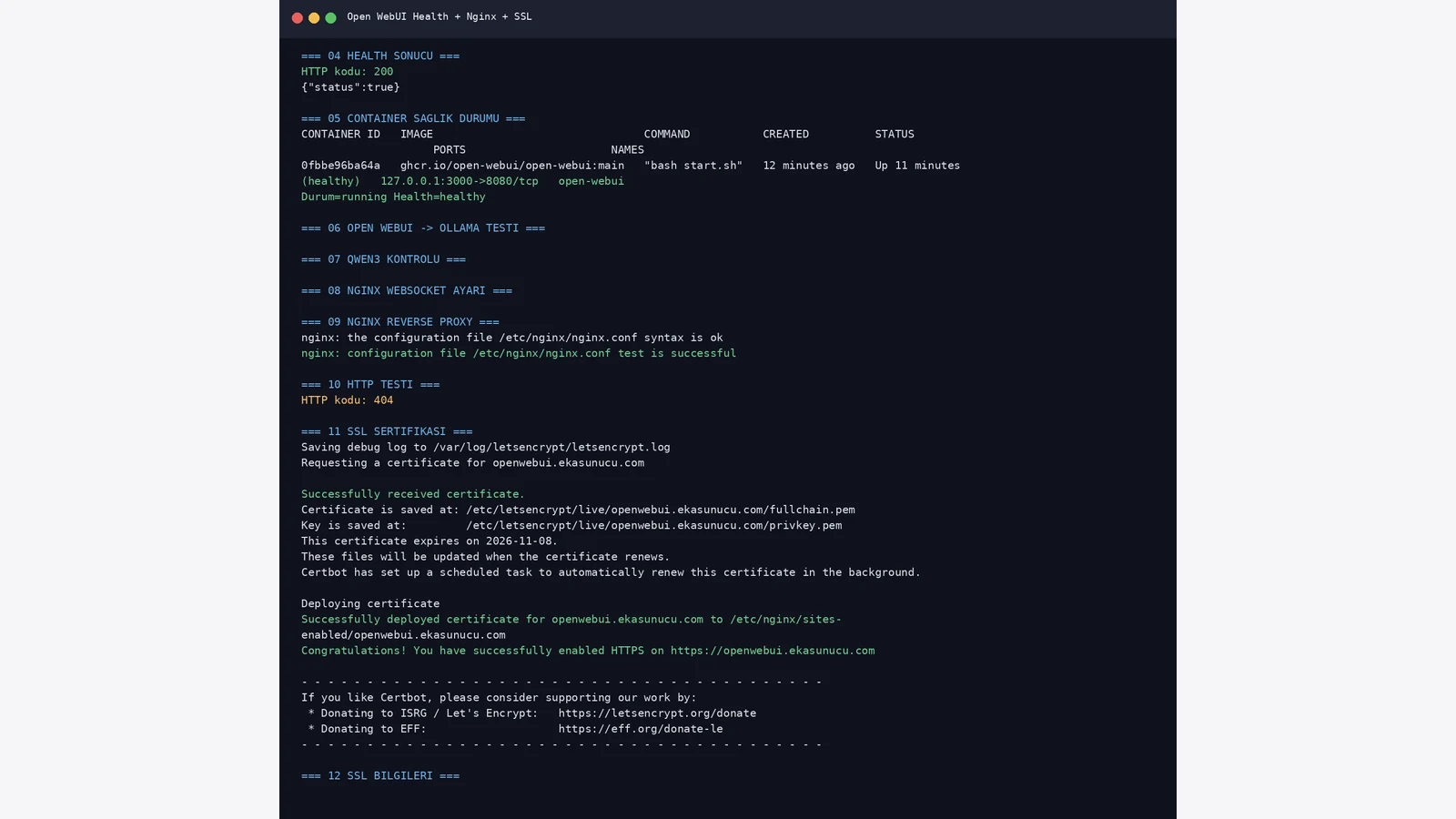
Once Open WebUI was healthy, Nginx proxied openwebui.ekasunucu.com to localhost:3000 with WebSocket headers. Let’s Encrypt deployed the certificate successfully and both origin HTTPS and domain HTTPS returned 200.
The first Open WebUI account became administrator. Seeing qwen3:4b in the model selector visually confirmed that Open WebUI could reach Ollama.
nginx -t
systemctl reload nginxcertbot --nginx -d openwebui.ekasunucu.comcurl -I https://openwebui.ekasunucu.com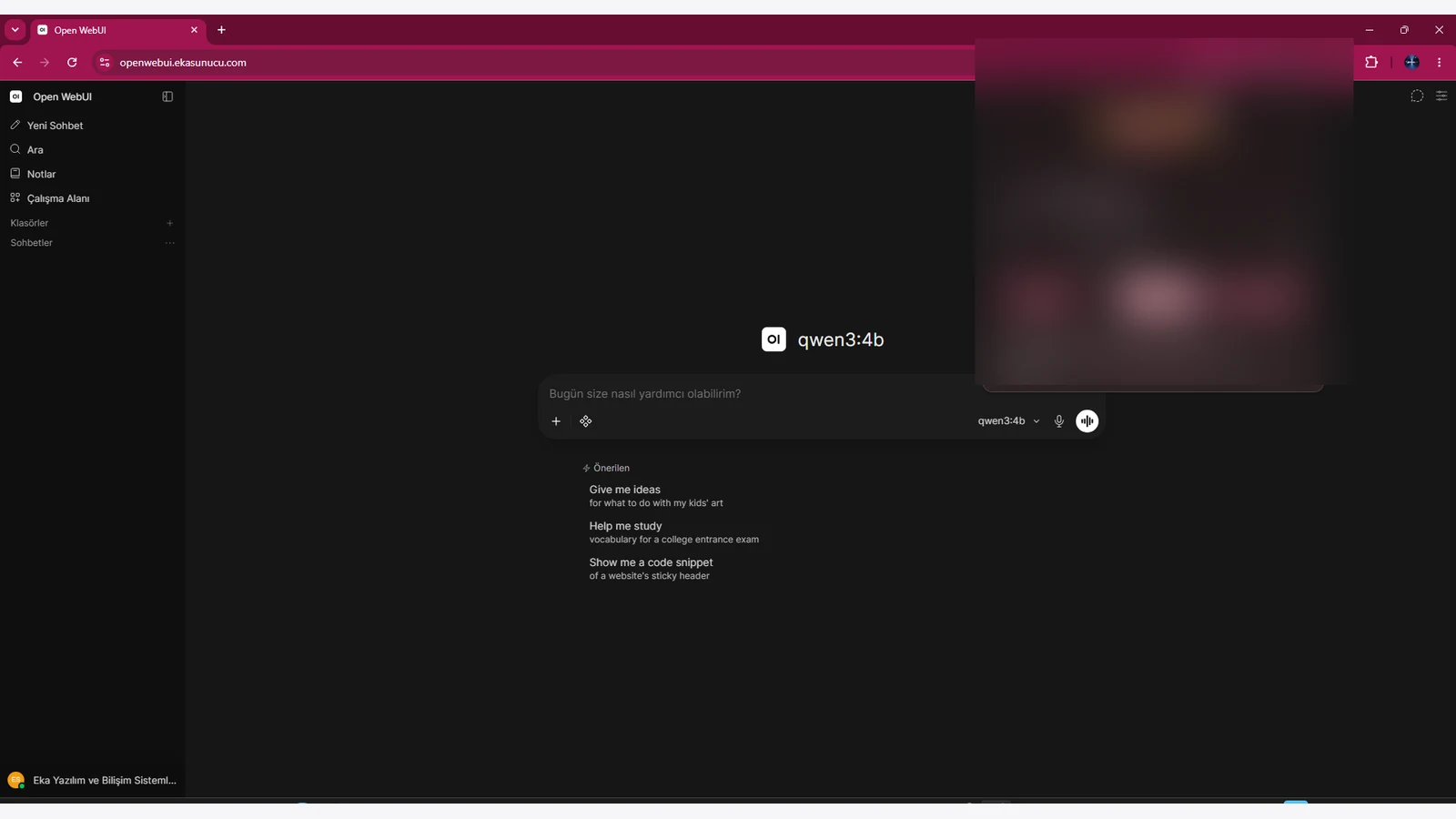
We created n8n_data and a stable N8N_ENCRYPTION_KEY. n8n joined eka-ai and exposed its host port only at 127.0.0.1:5678. Host, protocol, editor URL, proxy/webhook and timezone values were stored in the environment file for reverse-proxy operation.
The tested n8n version was 2.33.7 and /healthz returned status ok. Startup logs contained Python task-runner and future-configuration warnings, but they did not block the Chat Trigger + AI Agent workflow used here.
docker volume create n8n_dataopenssl rand -hex 32docker run -d --name n8n --restart=always --network eka-ai --env-file /root/n8n.env -p 127.0.0.1:5678:5678 -v n8n_data:/home/node/.n8n docker.n8n.io/n8nio/n8n:latestcurl -sS http://127.0.0.1:5678/healthz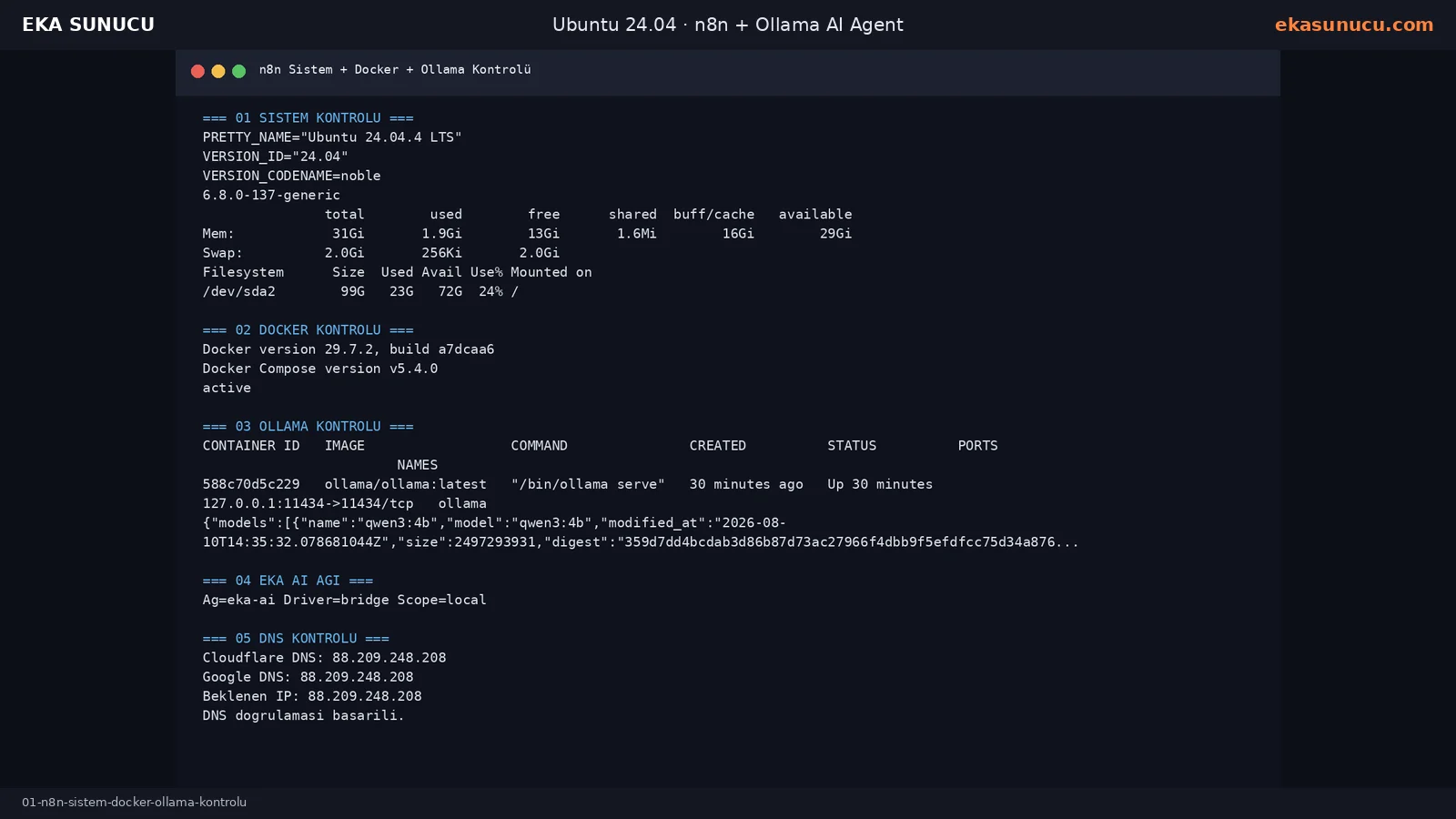
n8n port 5678 was not published directly to the Internet. Nginx proxied n8n.ekasunucu.com to localhost:5678 with forwarded and WebSocket headers. After Let’s Encrypt setup the domain returned HTTPS 200.
Use ss to verify that 5678, 11434, 3000 and 9443 remain loopback-only while Nginx owns public 80/443.
certbot --nginx -d n8n.ekasunucu.comss -lntp | grep -E ':80 |:443 |:9443 |:11434 |:3000 |:5678 '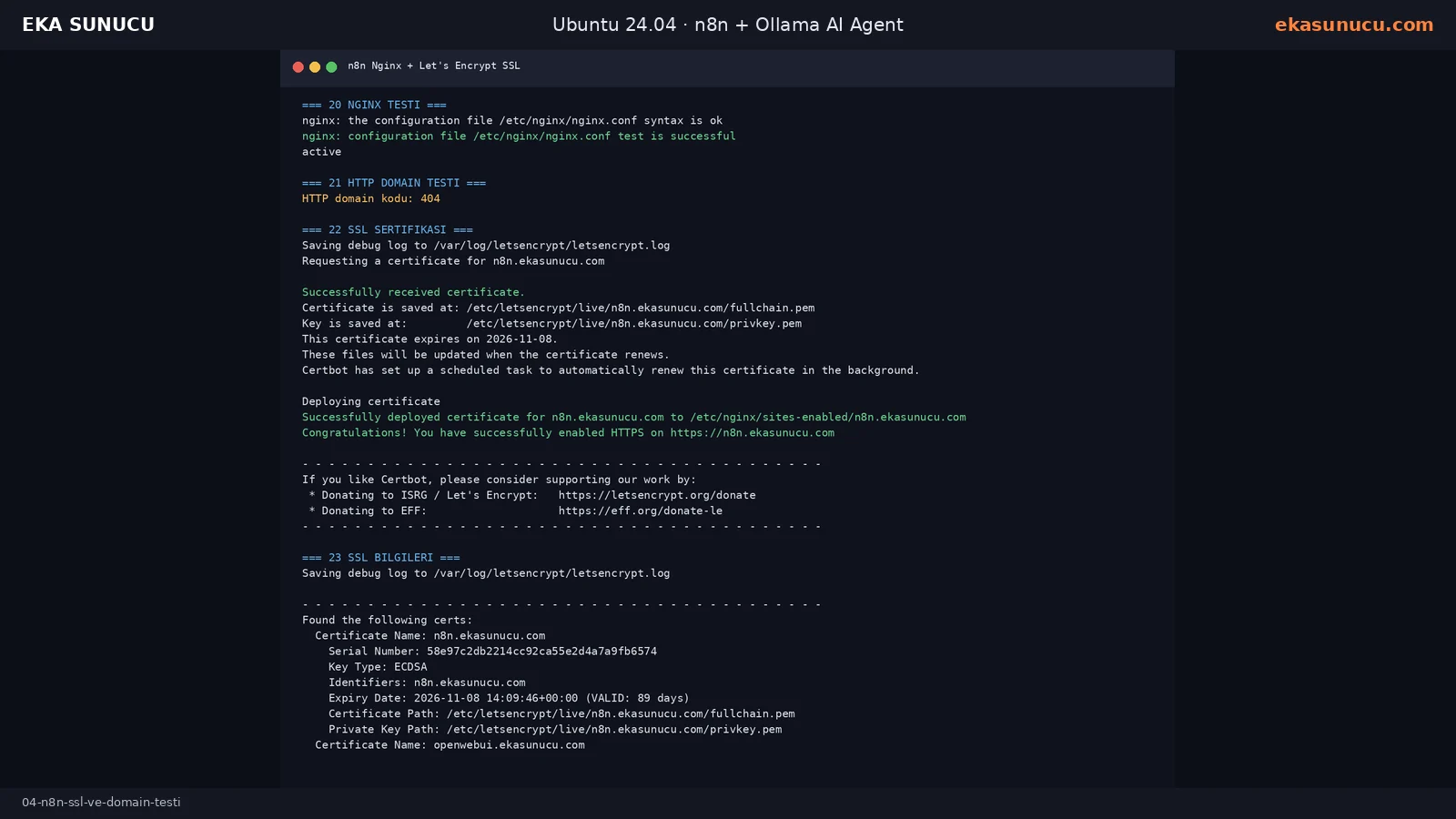
Because n8n and Ollama are separate containers, localhost:11434 inside n8n points back to n8n itself. Both containers share eka-ai, so we used http://ollama:11434. A request from inside the n8n container to /api/tags returned HTTP 200 and qwen3:4b was present.
The first imported workflow lacked an Ollama credential reference, so the Ollama Qwen3 4B sub-node failed. After creating the credential with the correct Docker DNS address, the workflow succeeded.
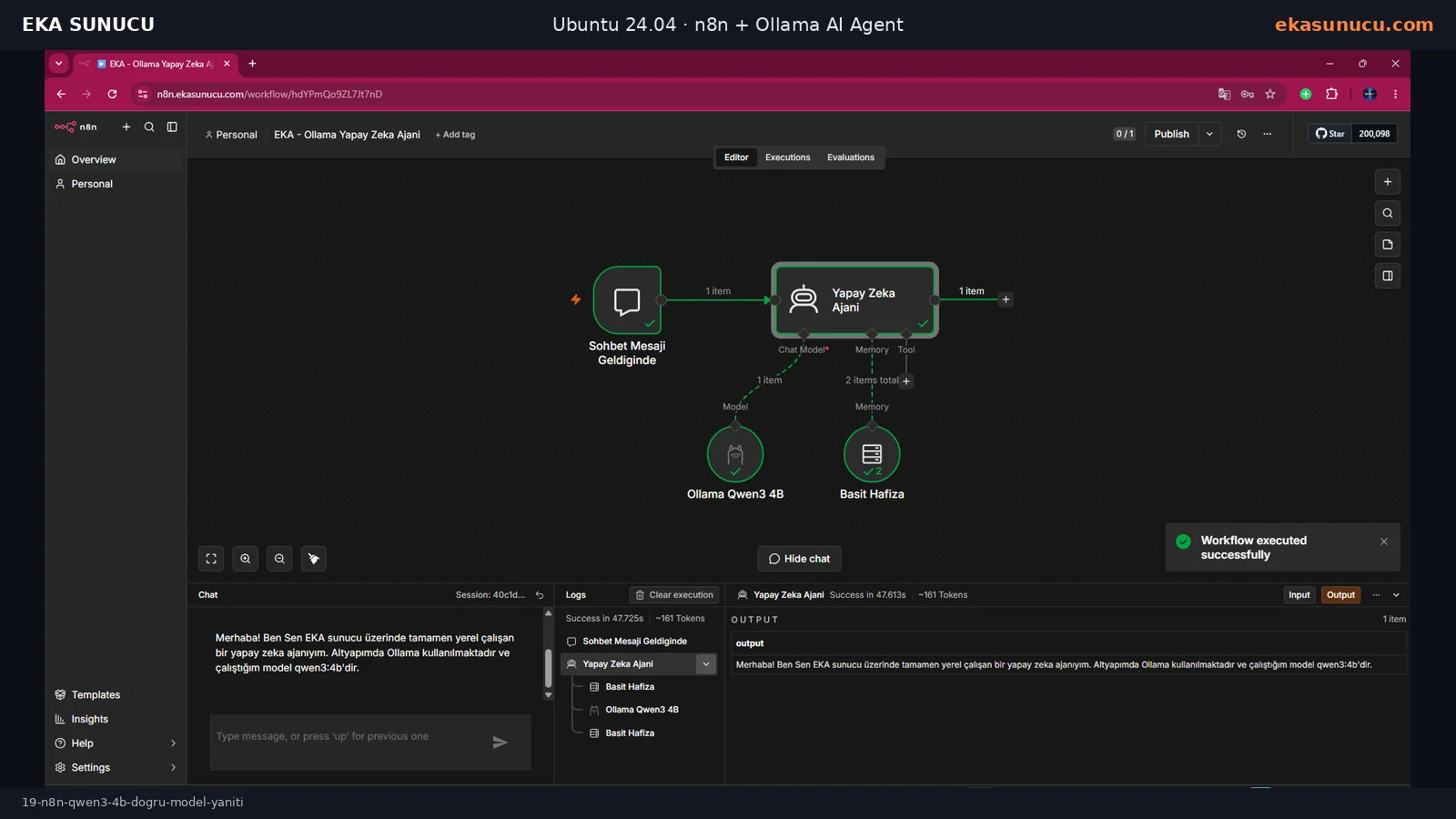
docker exec n8n node -e "fetch('http://ollama:11434/api/tags').then(r=>r.text()).then(console.log)"The main workflow connects Chat Trigger to AI Agent. Ollama qwen3:4b is attached to the Chat Model input and Simple Memory to the Memory input. The system message explicitly identifies the real runtime model as qwen3:4b so the model does not invent a deployment/model name.
In the final execution Chat Trigger, AI Agent, Ollama Chat Model and Memory all completed successfully. The agent correctly stated that it runs through Ollama with qwen3:4b.
Prompt: {{ $json.chatInput }}Ollama Base URL: http://ollama:11434
Model: qwen3:4b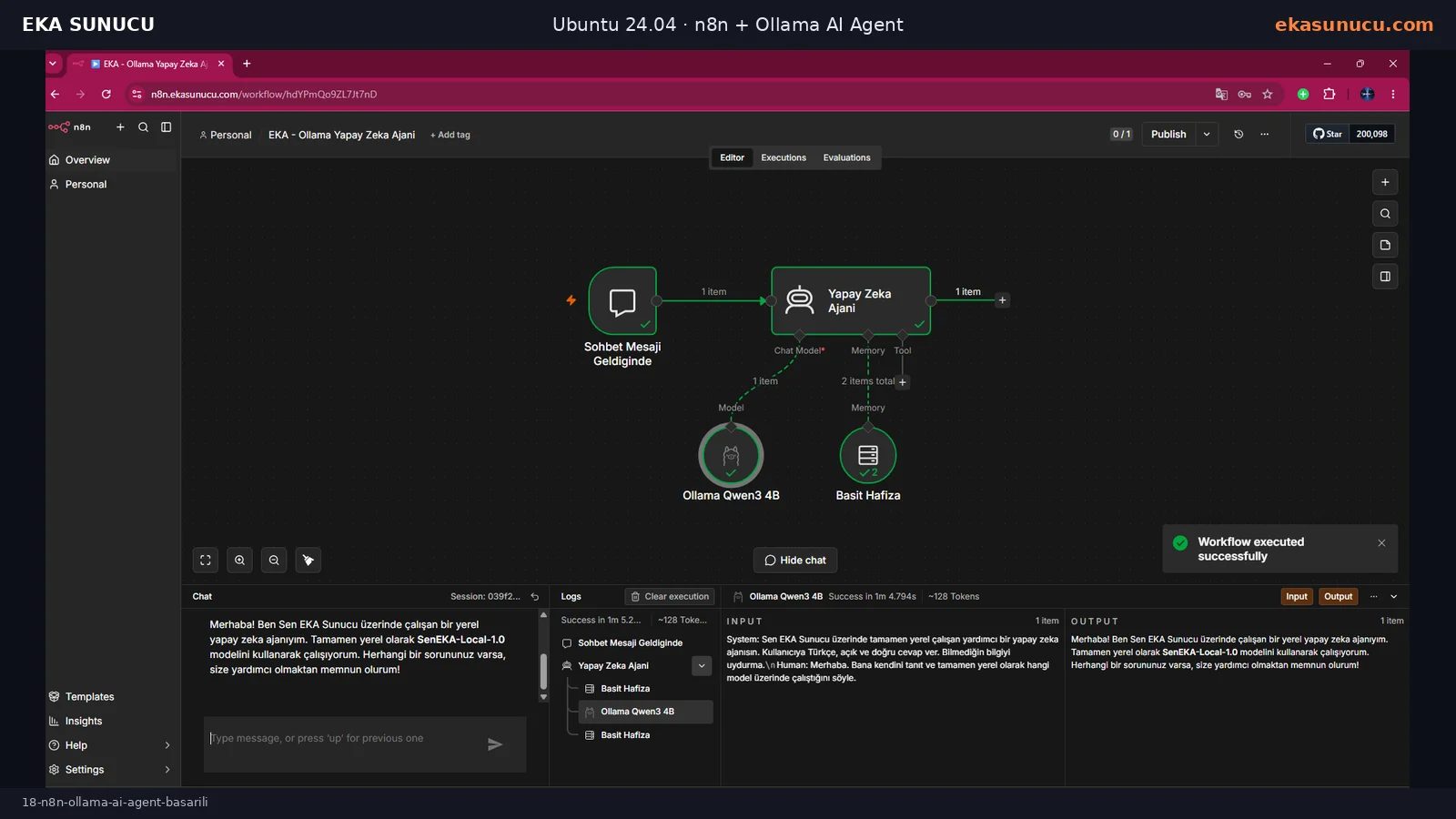
We connected Calculator to the AI Agent Tool input. For 3478 × 129 the agent called the tool and returned the deterministic result 448662 rather than relying on mental arithmetic.
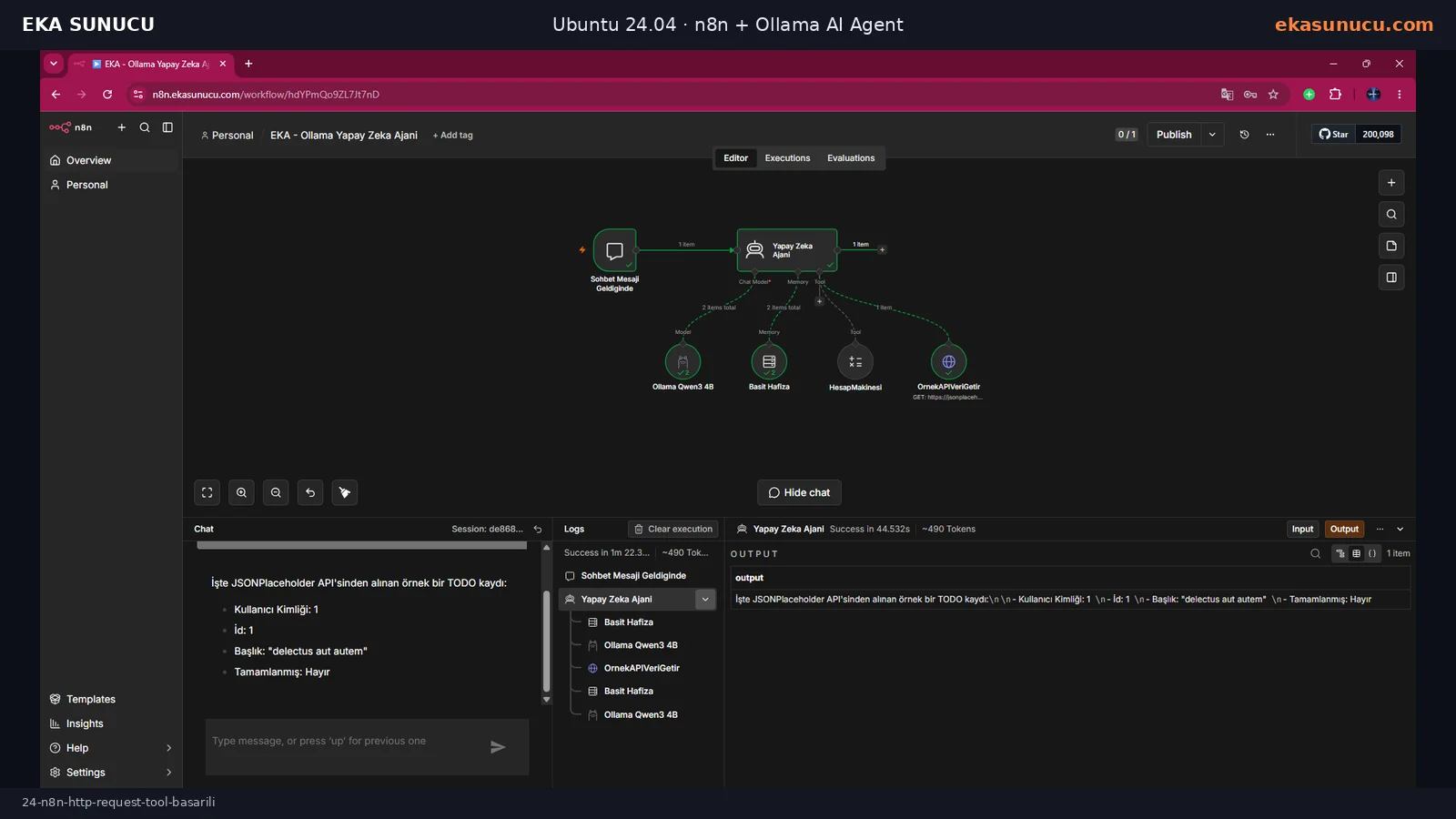
The first HTTP test used an older @n8n/n8n-nodes-langchain.toolHttpRequest node type and failed with “supplyData method but no execute method”. Switching to the current n8n HTTP Request Tool fixed the execution. The agent fetched a real JSONPlaceholder TODO response and summarized the JSON in Turkish.
3478 × 129 kaç eder? Hesap makinesini kullan.OrnekAPIVeriGetir aracını kullan ve gelen API verisini Türkçe açıkla.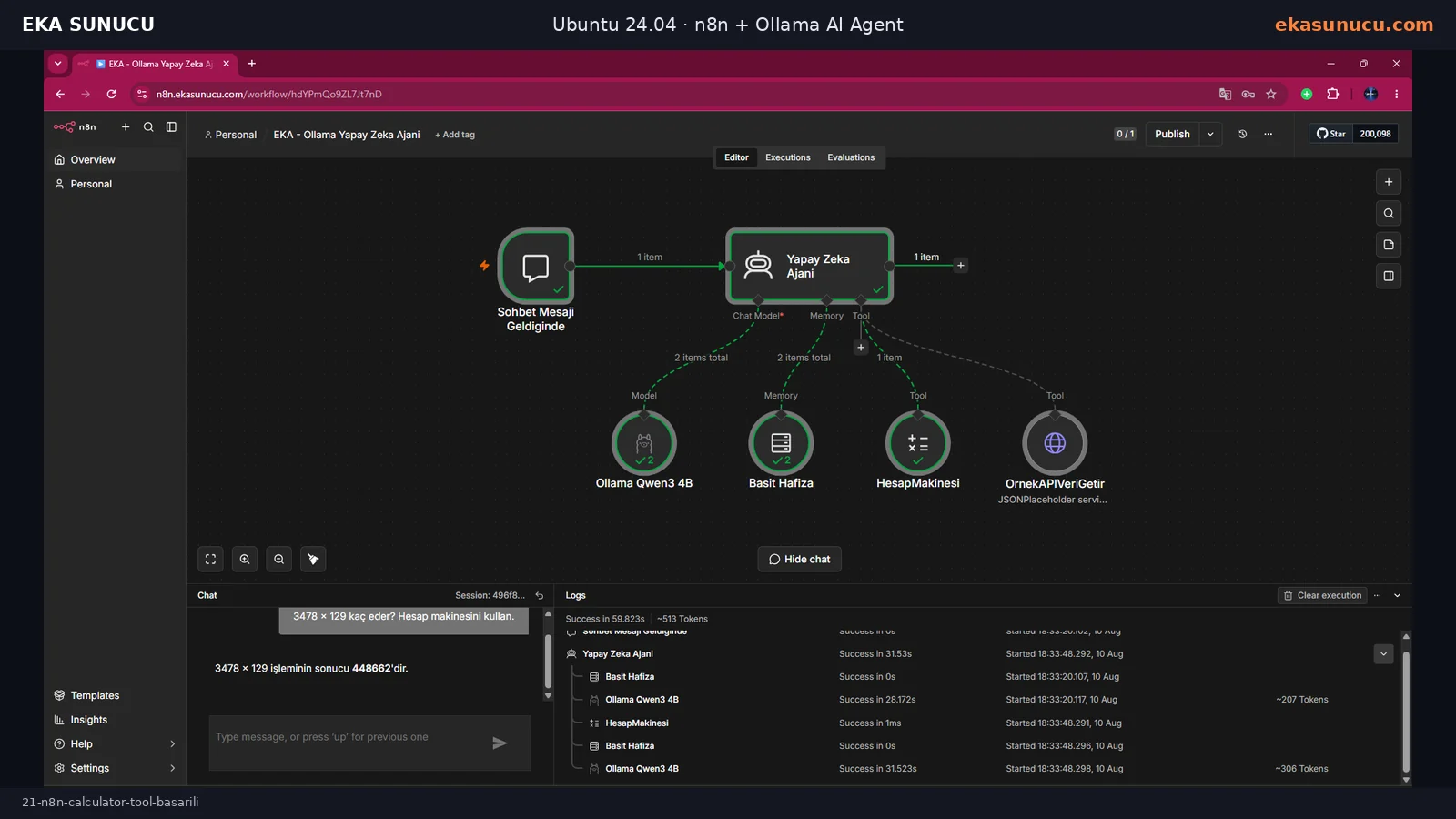
A complete validation goes beyond browser screenshots. Check Docker container status, local health endpoints, public domain status, loopback port bindings, named volumes, failed systemd units and Certbot renewal. Reboot the VPS and confirm restart policies bring the containers back.
Back up portainer_data, ollama_data, openwebui_data and n8n_data together with Nginx site files, Let’s Encrypt data and the n8n encryption key. LLM model files can be re-downloaded, but n8n credentials/workflows and Open WebUI user data are usually more valuable.
docker ps --format 'table {{.Names}}\t{{.Status}}\t{{.Ports}}'curl -fsS http://127.0.0.1:11434/api/tags >/dev/null && echo OLLAMA_OK
curl -fsS http://127.0.0.1:3000/health >/dev/null && echo WEBUI_OK
curl -fsS http://127.0.0.1:5678/healthz >/dev/null && echo N8N_OKcertbot renew --dry-runsystemctl --failedAt this point the infrastructure layers are ready: Portainer manages containers, Ollama provides the local LLM, Open WebUI provides browser chat and n8n provides automation and agent orchestration. The next logical step is a vector database such as Qdrant plus an embedding model to build RAG over your own documents.
The RAG guide will separate document ingestion, chunking, embeddings, vector storage, retrieval and source-aware answers. qwen3:4b can then work with your current private knowledge base instead of relying only on its general model knowledge.
Docker / eka-ai
  ├─ Ollama → qwen3:4b
  ├─ Open WebUI
  ├─ n8n AI Agent
└─ Qdrant + Embeddings + RAG ← next guideYes. Ollama, Open WebUI and n8n run as Docker containers on your Ubuntu VPS. Workflows or optional model features that call external services can still create outbound connections.
Yes. Our real test VPS had no dedicated GPU passthrough and qwen3:4b ran on CPU. A suitable GPU provides much better performance for heavier workloads.
The tested machine was upgraded from Ubuntu 22.04 to Ubuntu 24.04.4 LTS and the complete container stack was validated on that environment.
Most services were validated with docker run while the Compose plugin was also installed. Compose is useful for repeatable multi-container production management.
Not in this architecture. It is bound to 127.0.0.1 and exposed remotely only through the Nginx HTTPS domain.
No. A safer default is loopback/private Docker networking unless you add a deliberate authentication and network-security layer.
Initial database migrations and embedding/cache downloads can delay readiness. In our test /health became 200 after the first preparation period.
When both containers share eka-ai, use http://ollama:11434.
localhost inside the n8n container means the n8n container itself. Use the Ollama container DNS name on the shared Docker network.
Yes in this tested workflow: Calculator and HTTP Request Tool both executed successfully and Ollama metadata exposed tools capability.
3478 × 129 executed through Calculator Tool and returned 448662.
An older LangChain HTTP tool node type was incompatible with the running n8n version. The current HTTP Request Tool fixed the execution.
Certbot installs scheduled renewal, but you should still periodically run certbot renew --dry-run.
Prioritize portainer_data, openwebui_data, n8n_data, the n8n encryption key, Nginx/Let’s Encrypt configuration and ollama_data when model data is expensive to re-download.
Add Qdrant, an embedding model and a RAG workflow so your AI Agent can answer from your own documents.
Yes when the Linux VPS has enough CPU, RAM and storage. Model size and concurrent usage determine the actual resource requirement.
Run Docker, Portainer, Ollama, Open WebUI, n8n, Qdrant and local AI models on your own server with an EKA Sunucu Linux VPS sized for your workload.
Updated: 10.08.2026 Turkey (Turkish)
 Germany (German)
 Worldwide (English)

