
 Halkali merkez neighborhood fatih st ozgur apt no 46 , Kucukcekmece , Istanbul , 34303 , TR
In this real Ubuntu 24.04.4 LTS VPS deployment we ran Ollama in Docker on a localhost-only API, downloaded qwen3:4b and performed a real inference test, attached Open WebUI to the same private Docker network, enabled Nginx + Let's Encrypt HTTPS for openwebui.ekasunucu.com, and kept ports 11434/3000 off the public Internet.
Ubuntu 24.04.4 LTS
   ↓ Docker / eka-ai
Ollama 0.32.6 :11434
   ↓ qwen3:4b
Open WebUI :8080
   ↓ 127.0.0.1:3000
Nginx + Let's Encrypt :443
   ↓
openwebui.ekasunucu.comThis guide documents the local-AI stack we built on a real Ubuntu 24.04.4 LTS VPS. Ollama provides model inference, qwen3:4b is the local language model, and Open WebUI is the browser interface; both application containers share one Docker network.
In the final layout the Ollama API is bound to 127.0.0.1:11434 and Open WebUI to 127.0.0.1:3000. Nginx on HTTPS 443 is the only public web entry point, while Open WebUI reaches Ollama privately at http://ollama:11434 over the eka-ai Docker network.
Internet :443
     ↓
Nginx + Let's Encrypt
     ↓
127.0.0.1:3000 → Open WebUI :8080
     ↓ eka-ai Docker network
ollama:11434 → qwen3:4b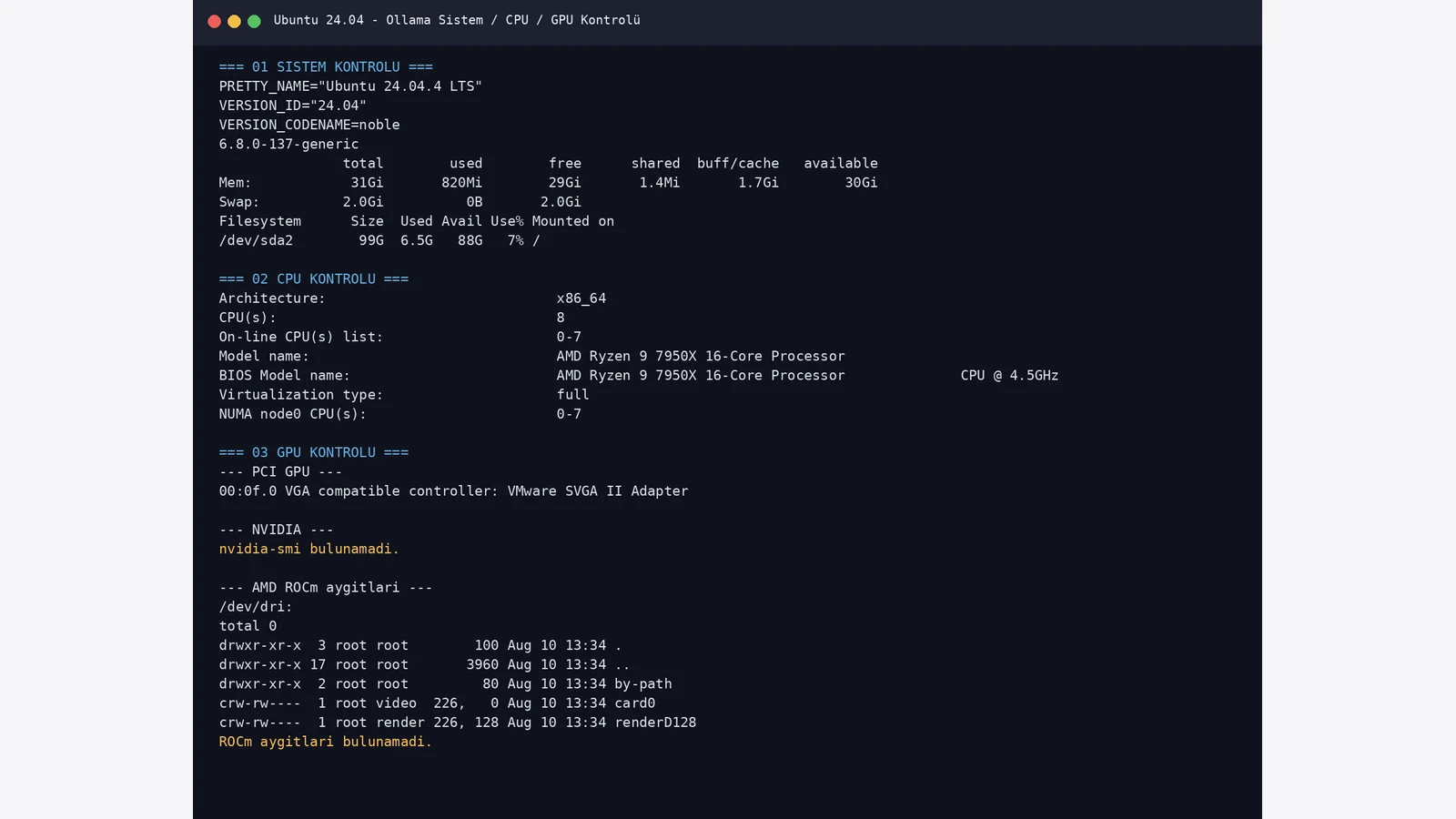
The test VPS ran Ubuntu 24.04.4 LTS with 8 vCPUs and about 31 GiB RAM. The exposed processor was based on AMD Ryzen 9 7950X. No NVIDIA driver or usable ROCm compute device was present, so the first deployment was validated in CPU mode.
Local models consume RAM and disk. Size the server using quantization, context window, concurrent users and operating-system overhead instead of looking only at parameter count.
cat /etc/os-release | grep -E 'PRETTY_NAME|VERSION_ID|VERSION_CODENAME'
uname -r
free -h
df -h /lscpu | grep -E 'Architecture|CPU\(s\)|Model name'
nvidia-smi 2>/dev/null || true
ls -la /dev/dri 2>/dev/null || trueBecause both Ollama and Open WebUI run in Docker, we first verified the Docker daemon and Compose plugin. The real test used Docker Engine 29.7.2 and Docker Compose v5.4.0.
If Docker is not installed yet, complete the Ubuntu 24.04 Docker and Portainer guide first using Docker's official repository.
docker --version
docker compose version
systemctl is-active dockerWe created a dedicated bridge network named eka-ai so Open WebUI can resolve Ollama by container name. A named volume called ollama_data keeps downloaded models independent from the container lifecycle.
Containers can be recreated during upgrades while model data remains in the named volume. Do not remove the volume without a verified backup.
docker network inspect eka-ai >/dev/null 2>&1 || docker network create eka-ai
docker volume create ollama_datadocker network inspect eka-ai --format 'Network={{.Name}} Driver={{.Driver}} Scope={{.Scope}}'
docker volume inspect ollama_data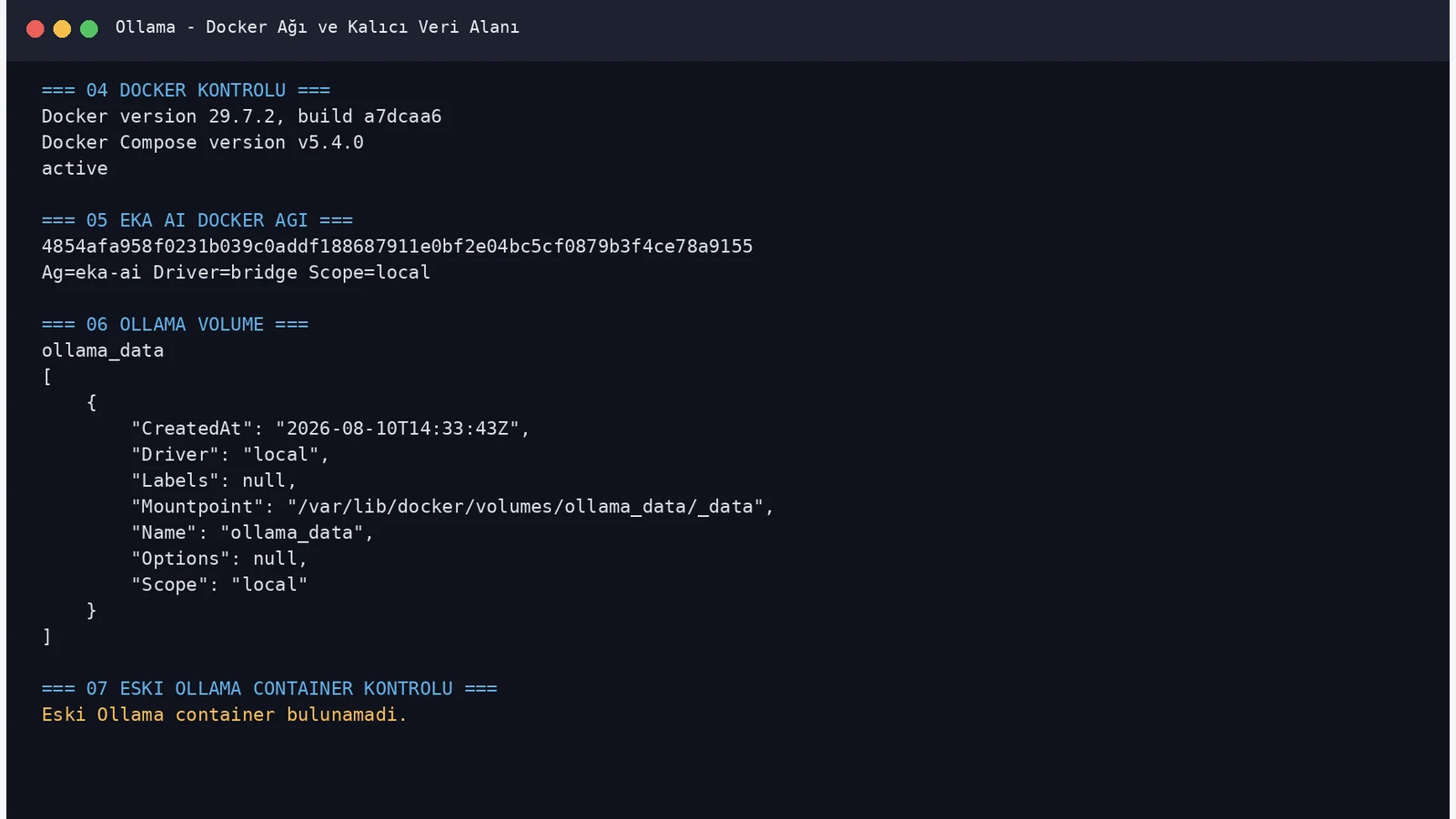
No GPU passthrough was detected in the test, so we ran the official Ollama Docker image in CPU mode. Host port 11434 was published on 127.0.0.1 rather than 0.0.0.0, preventing direct Internet exposure of the Ollama API.
The container also joined eka-ai. Open WebUI can therefore reach it as ollama:11434 without exposing that private service to users.
docker pull ollama/ollama:latestdocker run -d --name ollama --restart unless-stopped --network eka-ai -p 127.0.0.1:11434:11434 -v ollama_data:/root/.ollama ollama/ollama:latestdocker ps --filter name='^/ollama$'
curl -sS http://127.0.0.1:11434/api/tags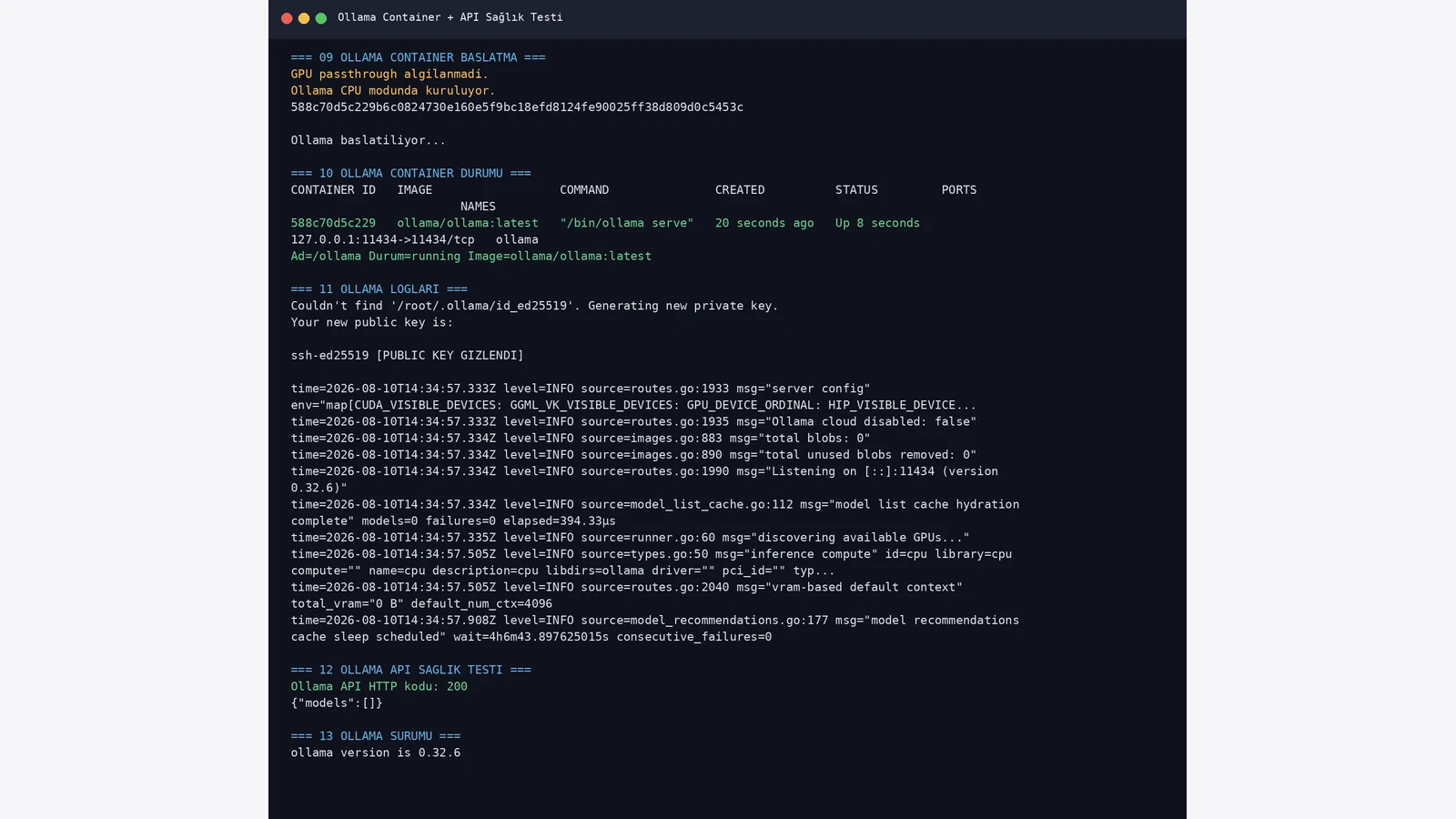
After Ollama became available we pulled qwen3:4b inside the container. In the real API output the model occupied about 2.5 GB and reported parameter_size 4.0B with Q4_K_M quantization.
Download time depends on disk and network performance. Wait for the pull to finish before expecting the model to appear in Open WebUI.
docker exec ollama ollama pull qwen3:4bdocker exec ollama ollama list
curl -sS http://127.0.0.1:11434/api/tags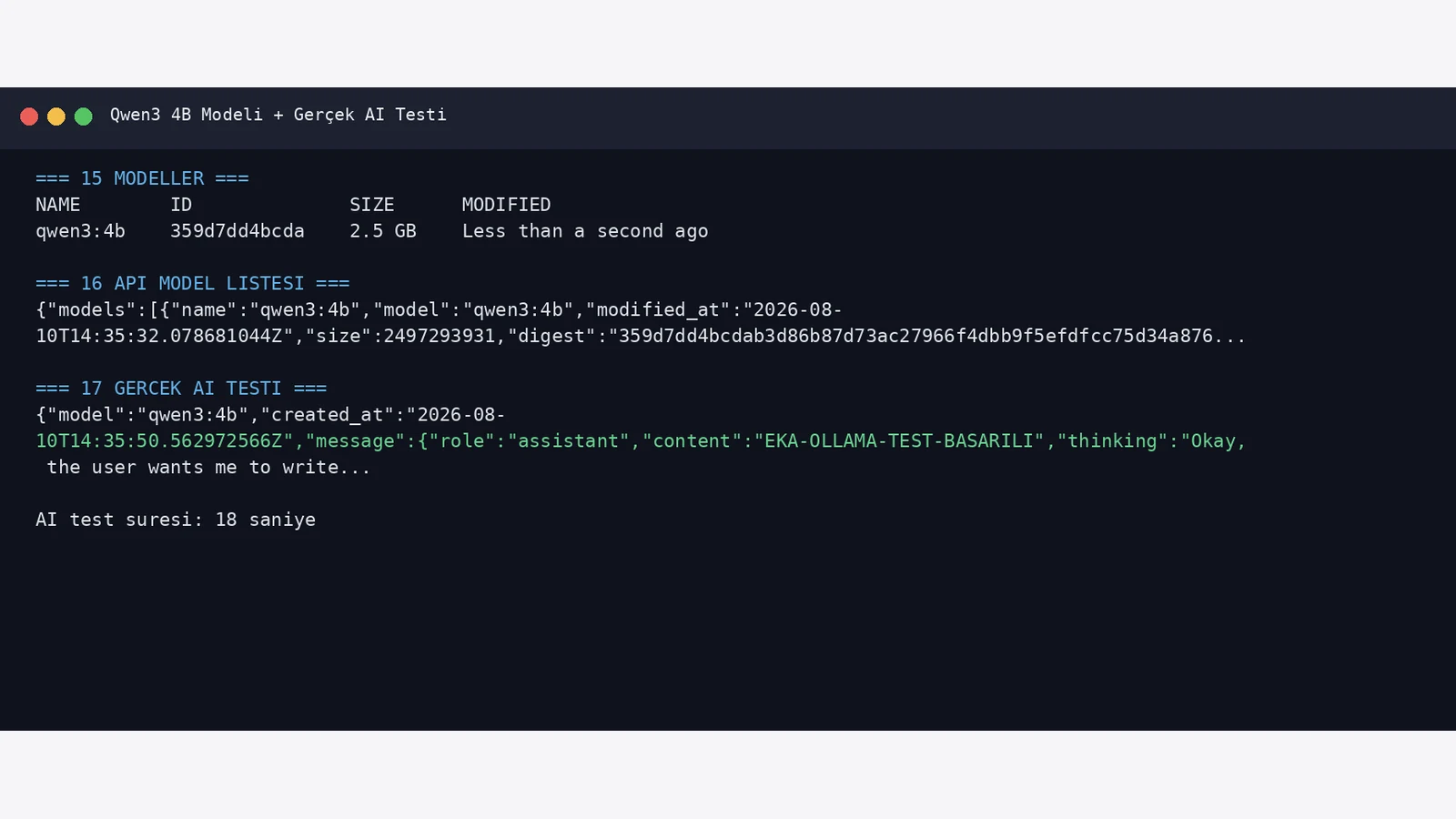
Seeing a model in the inventory does not prove inference works, so we sent a real request to /api/chat and confirmed qwen3:4b returned the expected test phrase.
With the model loaded in our CPU test, Ollama used roughly 3 GiB RAM and ollama ps reported 100% CPU. These figures describe only the captured test moment; longer context and concurrent requests change resource usage.
curl -sS http://127.0.0.1:11434/api/chat -d '{"model":"qwen3:4b","messages":[{"role":"user","content":"Write only EKA-OLLAMA-TEST-BASARILI."}],"stream":false}'docker exec ollama ollama ps
docker stats --no-stream ollama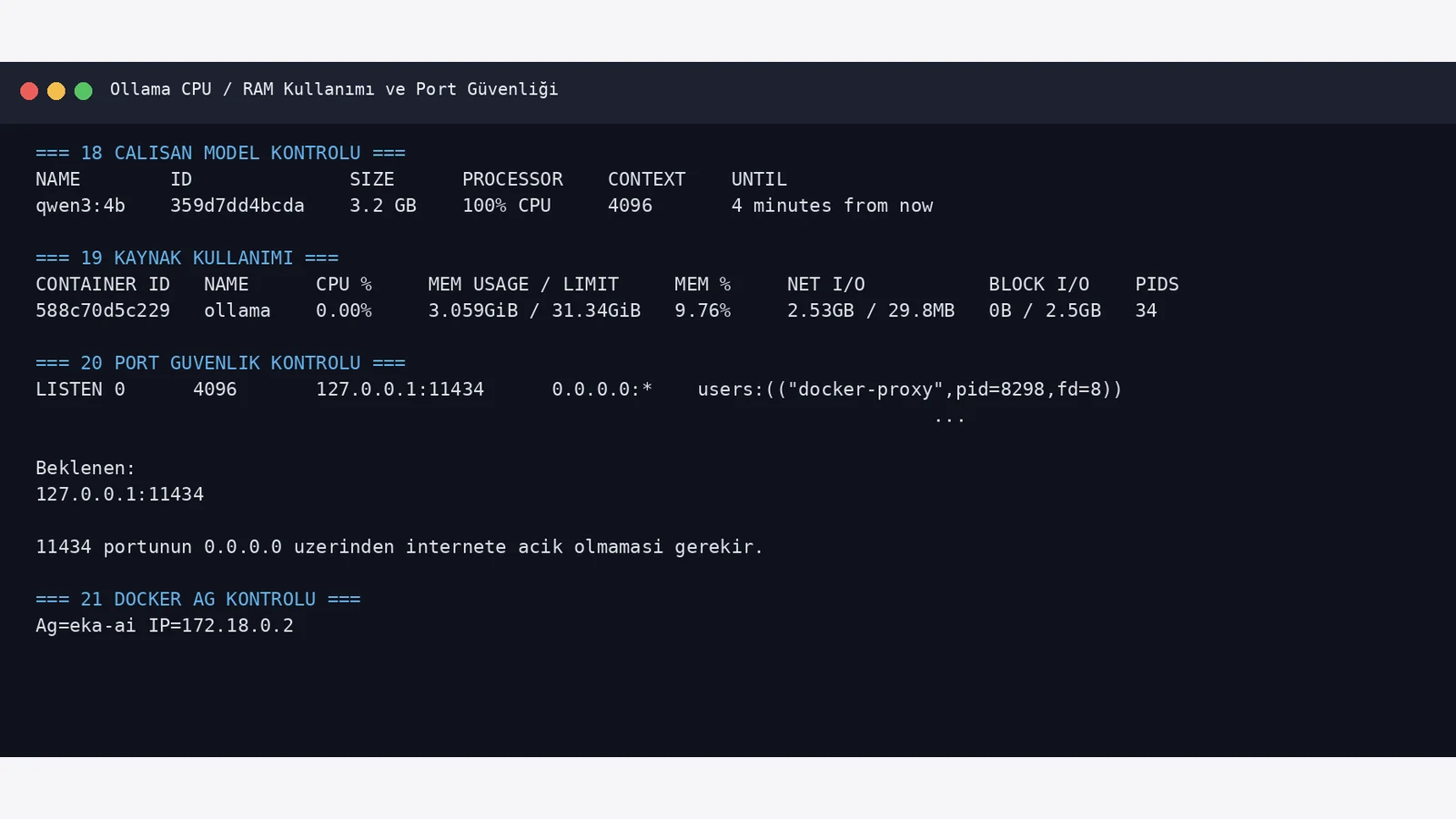
The final Ollama layout used http://127.0.0.1:11434 from the host and http://ollama:11434 inside the Docker network. Port 11434 listened only on loopback.
This lets Open WebUI access Ollama privately while preventing Internet clients from reaching the raw Ollama API directly.
ss -lntp | grep ':11434'docker network inspect eka-ai --format '{{range .Containers}}{{.Name}} {{.IPv4Address}}{{println}}{{end}}'docker exec ollama ollama list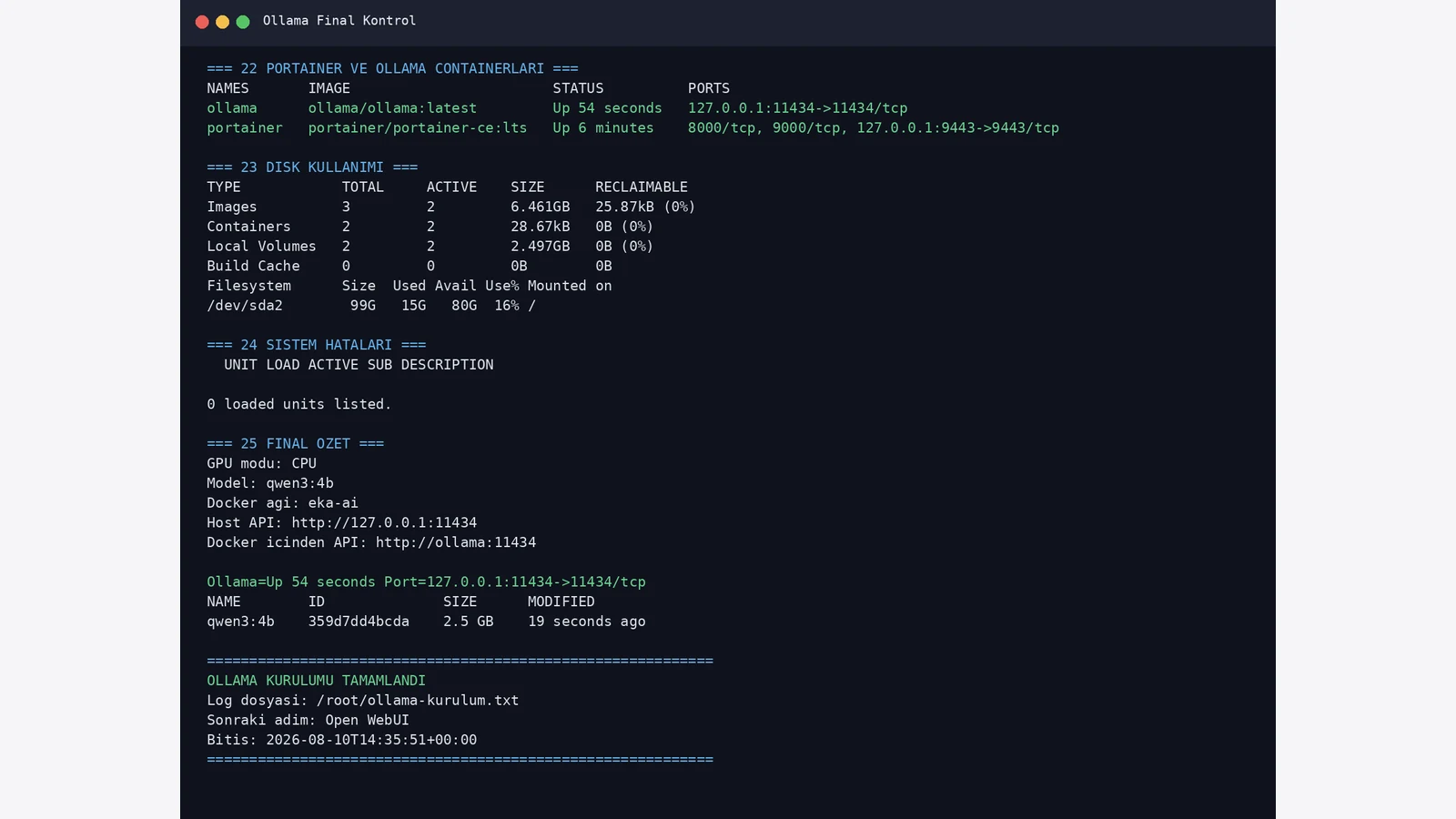
We pointed openwebui.ekasunucu.com to the test VPS and verified DNS resolution. A named volume called openwebui_data was created for application data.
A WEBUI_SECRET_KEY was also generated. For production, persist this value securely in a protected file or secret manager and reuse it when the container is recreated.
dig +short openwebui.ekasunucu.com @1.1.1.1
dig +short openwebui.ekasunucu.com @8.8.8.8docker volume create openwebui_dataumask 077
[ -s /root/.openwebui_secret_key ] || openssl rand -hex 32 > /root/.openwebui_secret_key
WEBUI_SECRET_KEY="$(cat /root/.openwebui_secret_key)"The real test used ghcr.io/open-webui/open-webui:main. Host port 3000 was limited to 127.0.0.1, the application kept its internal port 8080, and openwebui_data was mounted at /app/backend/data.
Because Ollama shared the eka-ai network, OLLAMA_BASE_URL was set to http://ollama:11434. Docker DNS resolves the container name without making Ollama public.
docker pull ghcr.io/open-webui/open-webui:mainWEBUI_SECRET_KEY="$(cat /root/.openwebui_secret_key)"
docker run -d --name open-webui --restart unless-stopped --network eka-ai -p 127.0.0.1:3000:8080 -e OLLAMA_BASE_URL=http://ollama:11434 -e WEBUI_SECRET_KEY="$WEBUI_SECRET_KEY" -v openwebui_data:/app/backend/data ghcr.io/open-webui/open-webui:maindocker ps --filter name='^/open-webui$'On first start Open WebUI may run database migrations and prepare local helper models. During our test the first few minutes produced connection-reset and HTTP 000 results even though the container process was running.
After migrations and the embedding model load completed, /health returned HTTP 200 with {"status":true}. Monitoring logs is better than repeatedly recreating the container during this initialization window.
docker logs -f --tail 150 open-webuiuntil [ "$(curl -s -o /dev/null -w '%{http_code}' http://127.0.0.1:3000/health || true)" = "200" ]; do sleep 5; done
curl -sS http://127.0.0.1:3000/healthdocker inspect open-webui --format 'State={{.State.Status}} Health={{if .State.Health}}{{.State.Health.Status}}{{else}}none{{end}}'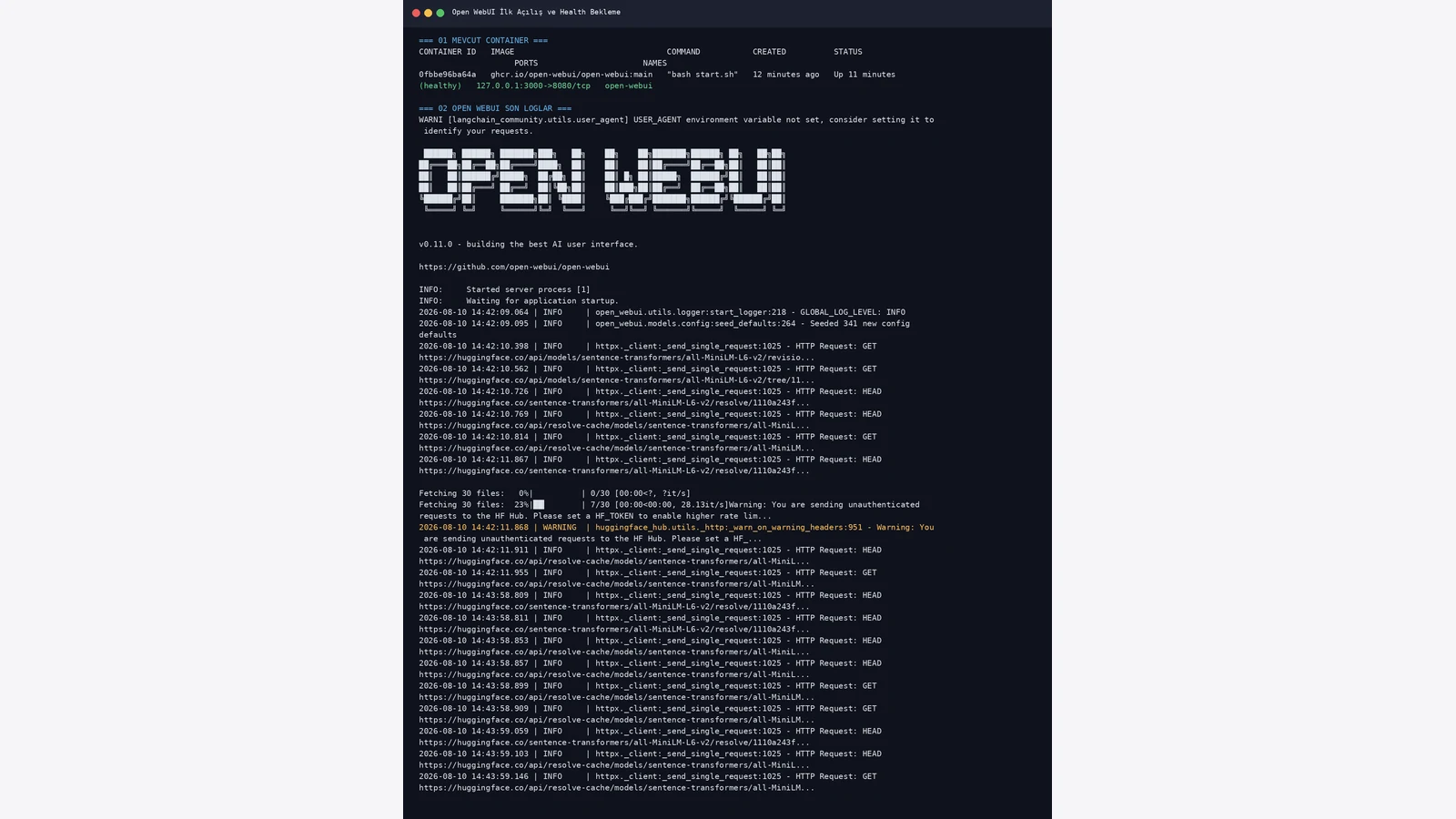
A successful host-side Ollama test is not enough; the Open WebUI container must be able to reach it too. On the shared Docker network the target is ollama:11434.
Open WebUI retrieves models through that connection. If qwen3:4b is missing, check Ollama /api/tags, the Open WebUI connection setting and membership of both containers in eka-ai.
docker exec open-webui python -c "import urllib.request; print(urllib.request.urlopen('http://ollama:11434/api/tags').read().decode())"docker network inspect eka-ai --format '{{range .Containers}}{{.Name}} {{.IPv4Address}}{{println}}{{end}}'Instead of publishing Open WebUI's host port to the Internet, Nginx became the public entry layer. Nginx listens on 80/443, forwards traffic to 127.0.0.1:3000 and preserves WebSocket upgrade headers.
Use the correct server_name and always run nginx -t before reloading the service.
cat >/etc/nginx/sites-available/openwebui.ekasunucu.com <<'EOF'
server {
    listen 80;
    listen [::]:80;
    server_name openwebui.ekasunucu.com;

    location / {
        proxy_pass http://127.0.0.1:3000;
        proxy_http_version 1.1;
        proxy_set_header Host $host;
        proxy_set_header X-Real-IP $remote_addr;
        proxy_set_header X-Forwarded-For $proxy_add_x_forwarded_for;
        proxy_set_header X-Forwarded-Proto $scheme;
        proxy_set_header Upgrade $http_upgrade;
        proxy_set_header Connection "upgrade";
        proxy_read_timeout 3600;
    }
}
EOF
ln -sfn /etc/nginx/sites-available/openwebui.ekasunucu.com /etc/nginx/sites-enabled/openwebui.ekasunucu.com
nginx -t
systemctl reload nginxOnce the Nginx reverse proxy was ready, Certbot issued a Let's Encrypt certificate for openwebui.ekasunucu.com and deployed it to Nginx successfully.
Both origin HTTPS and the public domain returned HTTP 200 in the final checks, so users access the secure hostname rather than a Docker port.
certbot --nginx -d openwebui.ekasunucu.comcurl -I https://openwebui.ekasunucu.comcertbot certificates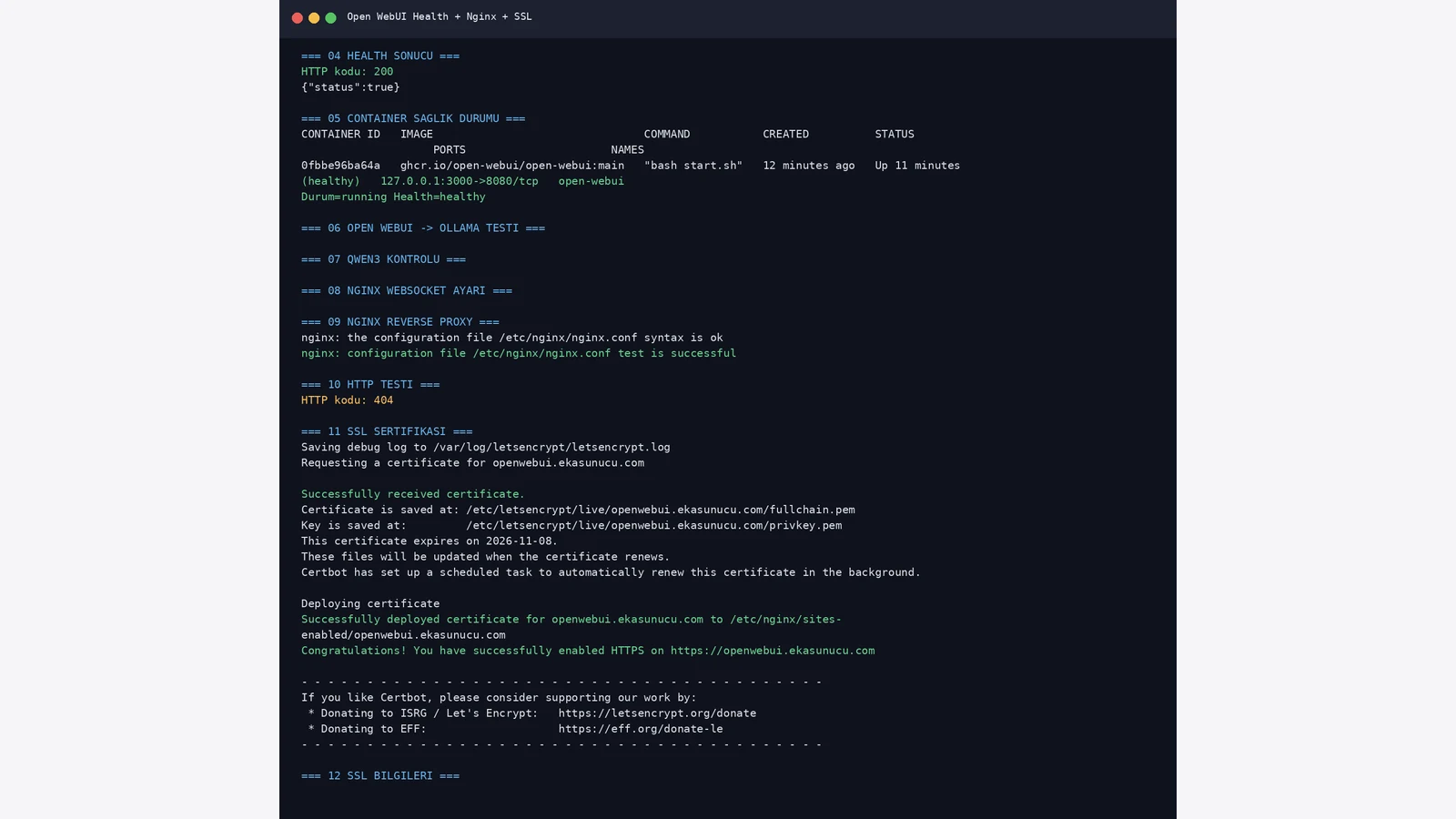
At the end of the deployment Ollama listened on 127.0.0.1:11434 and Open WebUI on 127.0.0.1:3000, while Nginx listened publicly on 80 and 443. This separation avoids exposing the raw Ollama API to the Internet.
Docker publishing can interact with firewall rules, so inspect actual listening sockets with ss and published ports with docker ps instead of relying on only one firewall view.
ss -lntp | grep -E ':80 |:443 |:3000 |:11434' || truedocker ps --format 'table {{.Names}}\t{{.Image}}\t{{.Status}}\t{{.Ports}}'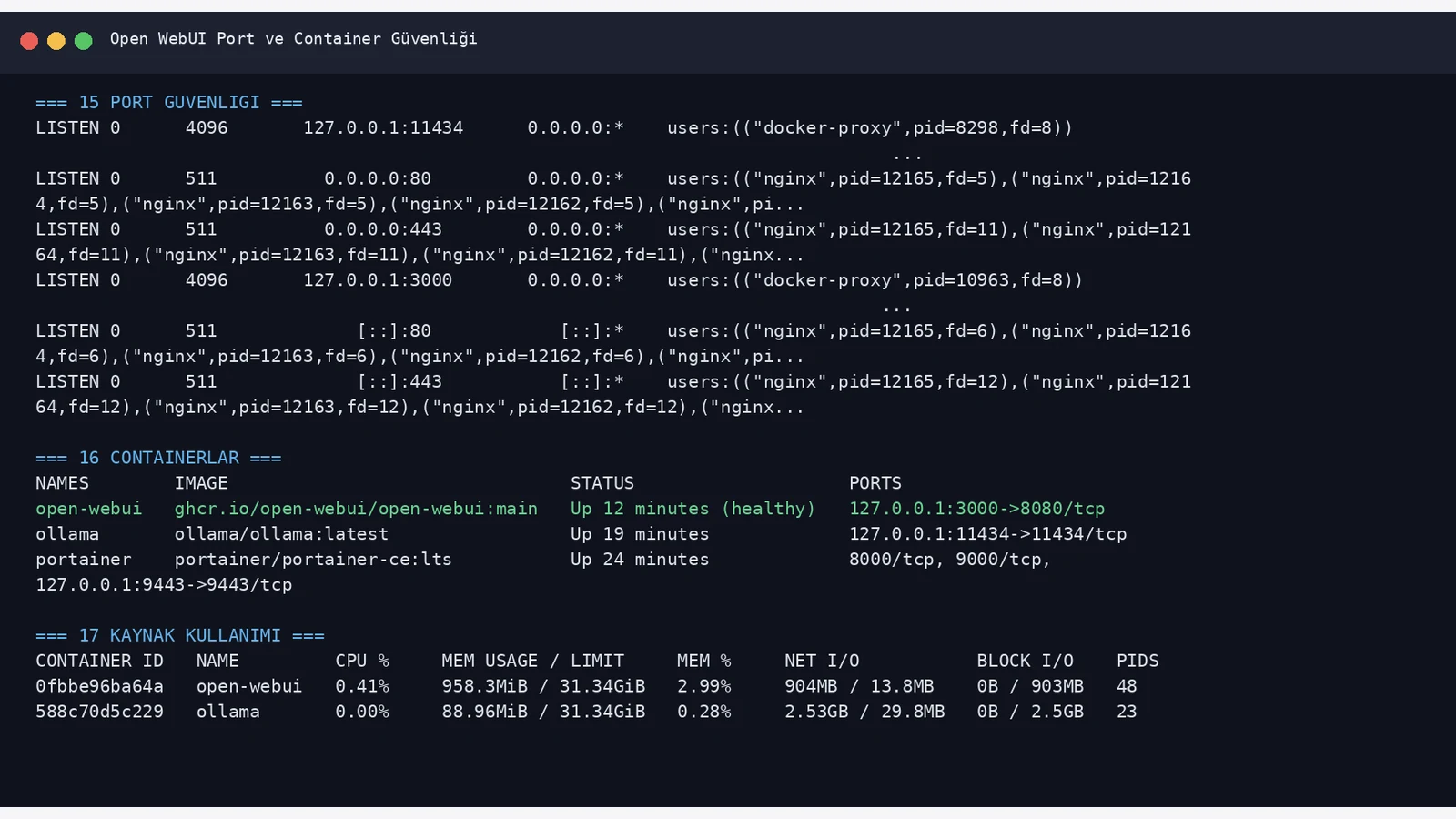
We ran certbot renew --dry-run instead of assuming automatic renewal would work. The simulated renewals for Open WebUI and Portainer completed successfully.
The final state showed a healthy Open WebUI container, running Ollama, HTTP 200 on the HTTPS domain and no failed systemd units.
certbot renew --dry-runcurl -sS -o /dev/null -w '%{http_code}\n' https://openwebui.ekasunucu.comdocker ps --format 'table {{.Names}}\t{{.Status}}\t{{.Ports}}'
systemctl --failed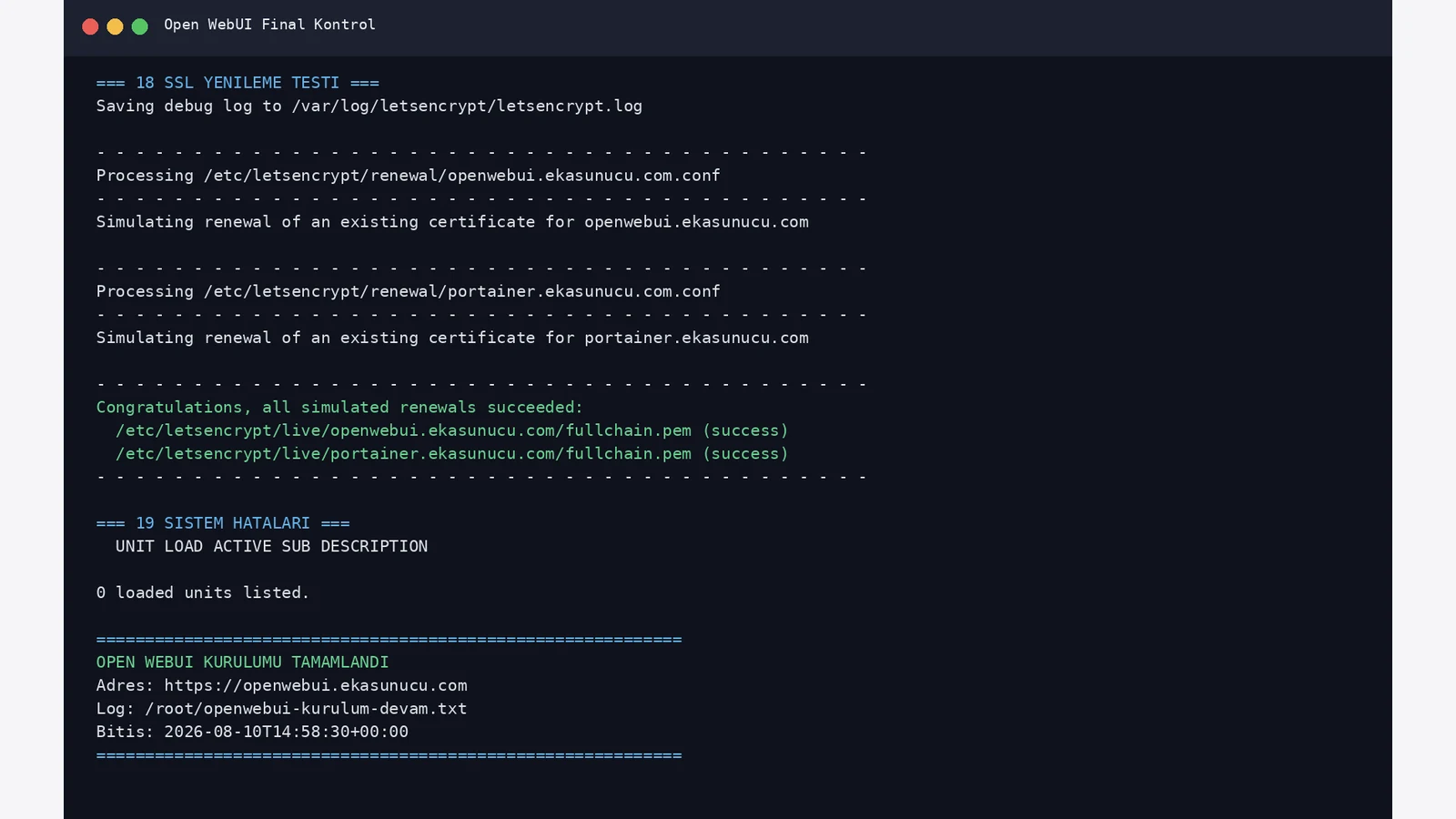
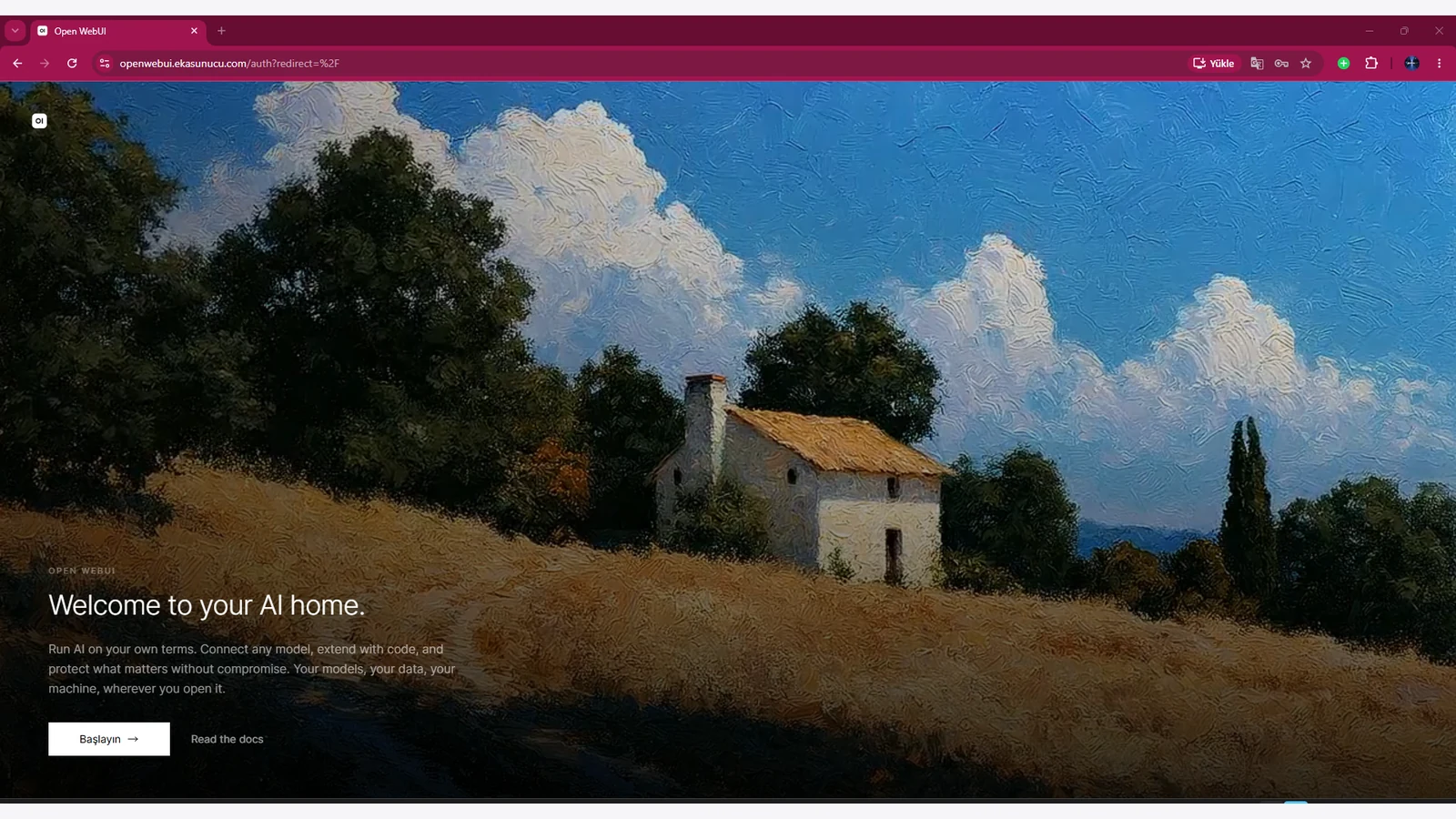
After the infrastructure was complete, we opened https://openwebui.ekasunucu.com and reached the Open WebUI welcome page. The Get Started action led to the account setup flow.
The browser should use the hostname directly. There should be no need for public access to port 3000 because Nginx and TLS terminate user traffic.
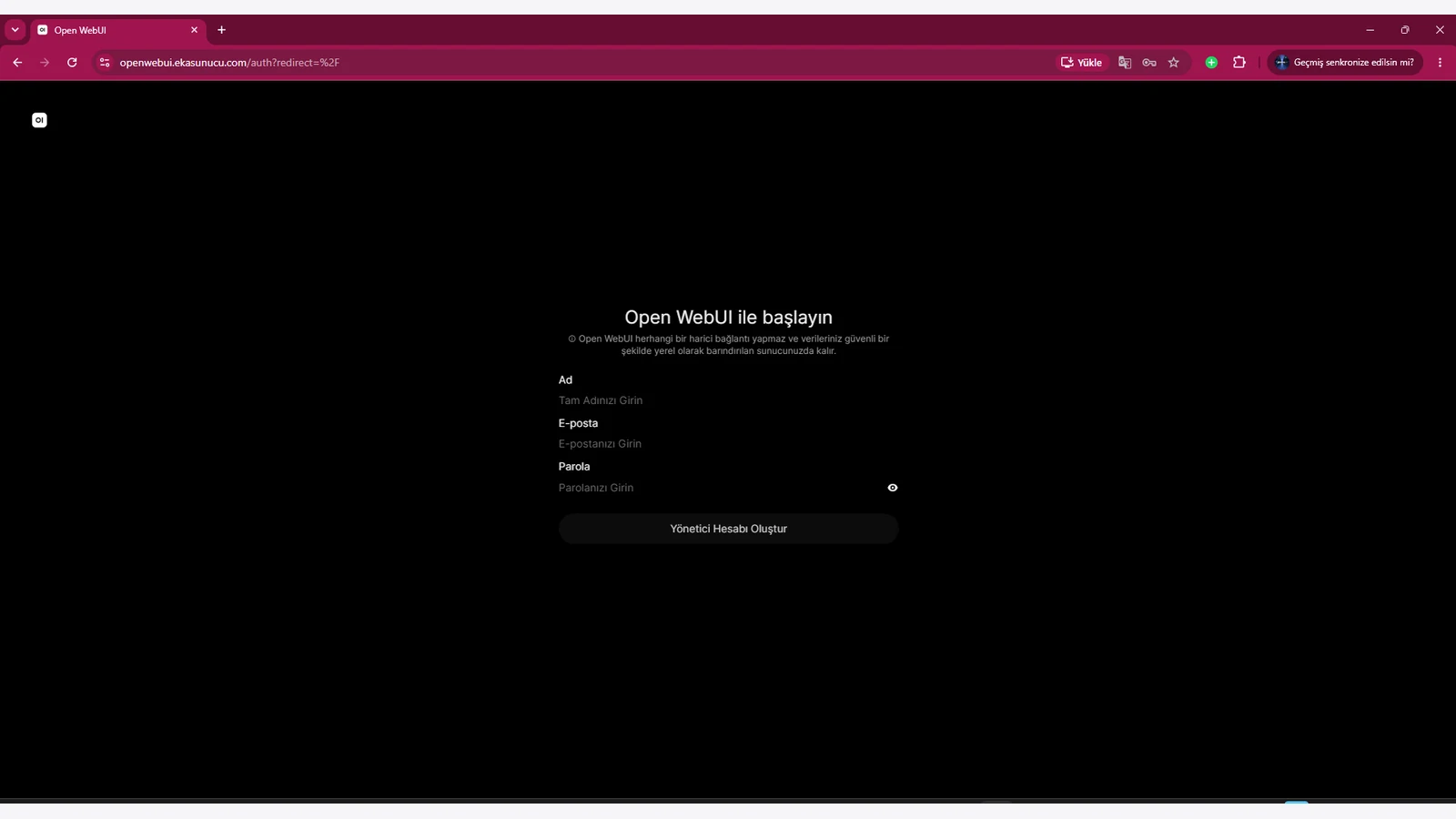
On the first registration screen we created the administrator with a name, email address and strong password. The first account controls administrative settings.
Use a unique production password and review the registration/approval policy before allowing additional users.
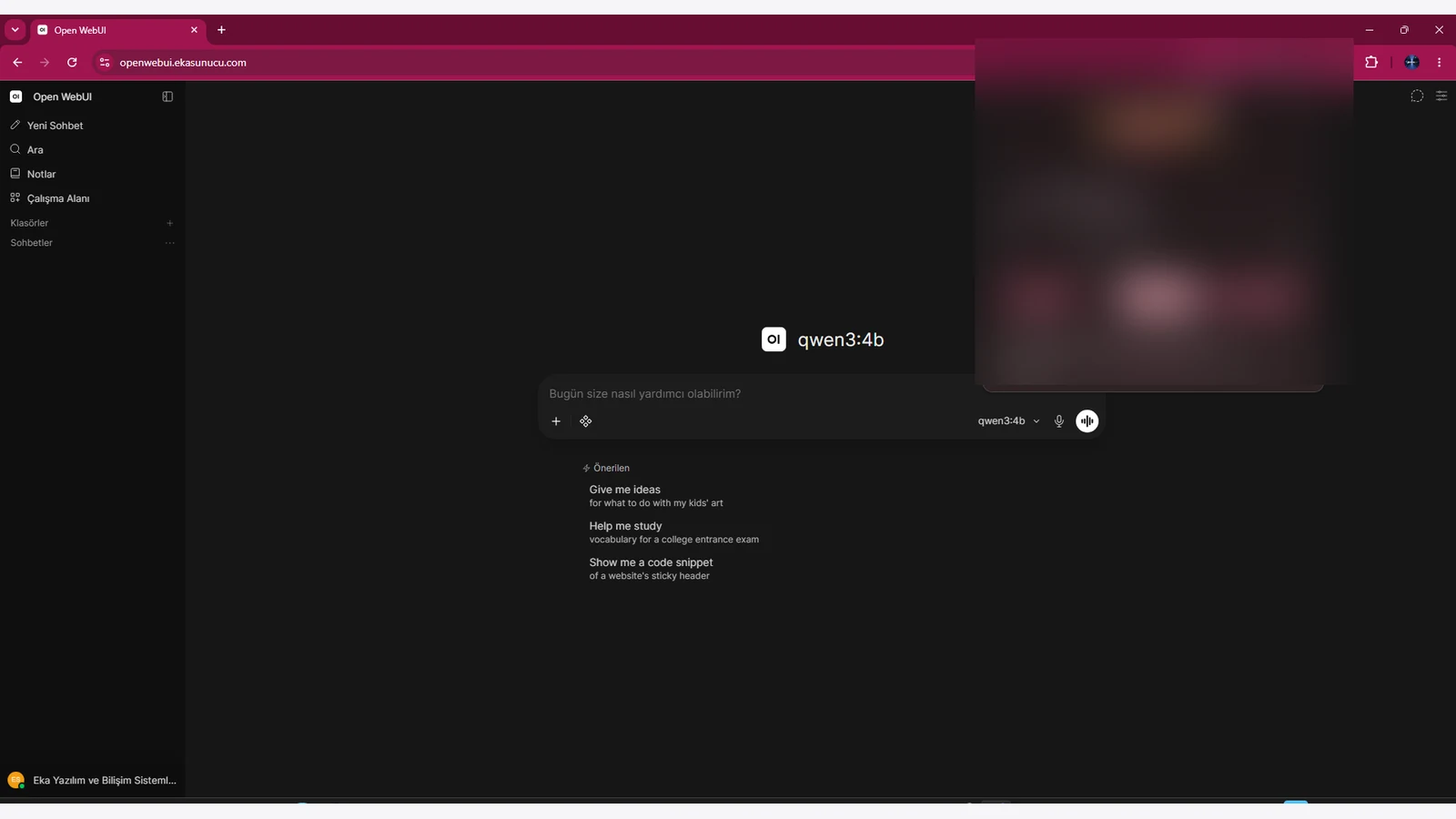
After account setup, qwen3:4b became available in the Open WebUI model selector. This completed the browser → Open WebUI → Ollama → qwen3:4b chain end to end.
Inference runs on the Ollama side of the server while Open WebUI provides the interface, user and conversation layer. Recalculate CPU/RAM/GPU capacity before moving to larger models or more concurrent users.
Ollama model data lives in ollama_data and Open WebUI application data in openwebui_data. A VPS snapshot plus volume backups before upgrades makes rollback safer.
The real test used :main. Before production updates, record or pin the image version, back up data, recreate containers deliberately, then re-test /health, Ollama /api/tags, HTTPS, local-only port binds and startup after reboot.
docker run --rm -v ollama_data:/source -v /root:/backup alpine sh -c 'tar czf /backup/ollama_data-$(date +%F).tar.gz -C /source .'docker run --rm -v openwebui_data:/source -v /root:/backup alpine sh -c 'tar czf /backup/openwebui_data-$(date +%F).tar.gz -C /source .'docker restart ollama open-webui
curl -sS http://127.0.0.1:3000/health
curl -sS http://127.0.0.1:11434/api/tagsYes. In this real test Ollama 0.32.6 ran as a Docker container on Ubuntu 24.04.4 LTS in CPU mode.
No. CPU inference works, although speed depends on the model and processor. Our qwen3:4b deployment was validated without GPU passthrough.
The Ollama model list showed about 2.5 GB; API metadata reported 4.0B and Q4_K_M quantization.
The default Ollama API port is 11434. In this architecture it was bound only to 127.0.0.1:11434 on the host.
It used port 8080 inside the container and only 127.0.0.1:3000 on the host. Public access was provided through Nginx on 443.
On the shared eka-ai Docker network we used http://ollama:11434. If Ollama runs on the host, Open WebUI documentation also describes host.docker.internal:11434 for Docker.
First boot can include database migrations and embedding-model preparation. In our test /health returned 200 with status true after initialization finished.
The real test used :main. It is a rolling tag; pinning a tested version can make production updates more predictable.
No. Both were restricted to localhost in this guide; only Nginx 80/443 listened publicly.
Yes. A reverse proxy should preserve HTTP/1.1 Upgrade and Connection headers.
The first account created receives administrator privileges. Review the registration and approval policy before adding more users.
Yes if the openwebui_data named volume is preserved. Removing the volume can destroy application data.
Use certbot renew --dry-run to simulate renewal without replacing the live certificate. The real deployment passed this test.
Yes if the server has sufficient RAM, disk and preferably suitable GPU resources. Larger models increase inference time and memory requirements.
Run Ollama, Qwen3, Open WebUI, n8n and other self-hosted AI services on your own infrastructure with EKA Sunucu Linux VPS plans.
Updated: 10.08.2026 Turkey (Turkish)
 Germany (German)
 Worldwide (English)

