
 Halkali merkez neighborhood fatih st ozgur apt no 46 , Kucukcekmece , Istanbul , 34303 , TR
This guide documents a real Ubuntu 24.04.4 LTS VPS installation: Docker Engine from the official repository, Compose and Buildx validation, a real hello-world container test, Portainer CE LTS with persistent storage, Nginx reverse proxy and Let's Encrypt for portainer.ekasunucu.com, a real Certbot snap timeout, and the final security step that binds Portainer 9443 only to 127.0.0.1.
Ubuntu 24.04.4 LTS
   ↓ Docker Engine + Compose
Docker socket /var/run/docker.sock
   ↓
Portainer CE LTS :9443
   ↓ localhost only
Nginx :443 + Let's Encrypt
   ↓
portainer.ekasunucu.comThis guide records a real installation on an Ubuntu 24.04.4 LTS VPS. Docker Engine 29.7.2, Docker Compose v5.4.0 and Portainer Community Edition 2.39.5 LTS were used in the test environment; these version numbers describe the tested system rather than a permanent requirement.
The goal was not merely to open Portainer. Docker was installed from the official repository, Portainer data was persisted in a named volume, Nginx was placed in front as a reverse proxy, Let's Encrypt TLS was enabled, and the final Portainer 9443 mapping was restricted to 127.0.0.1 so the raw management port was no longer exposed to the Internet.
Internet :443
     ↓
Nginx + Let's Encrypt
     ↓
https://127.0.0.1:9443
     ↓
Portainer CE LTS
     ↓
/var/run/docker.sock → Docker Engine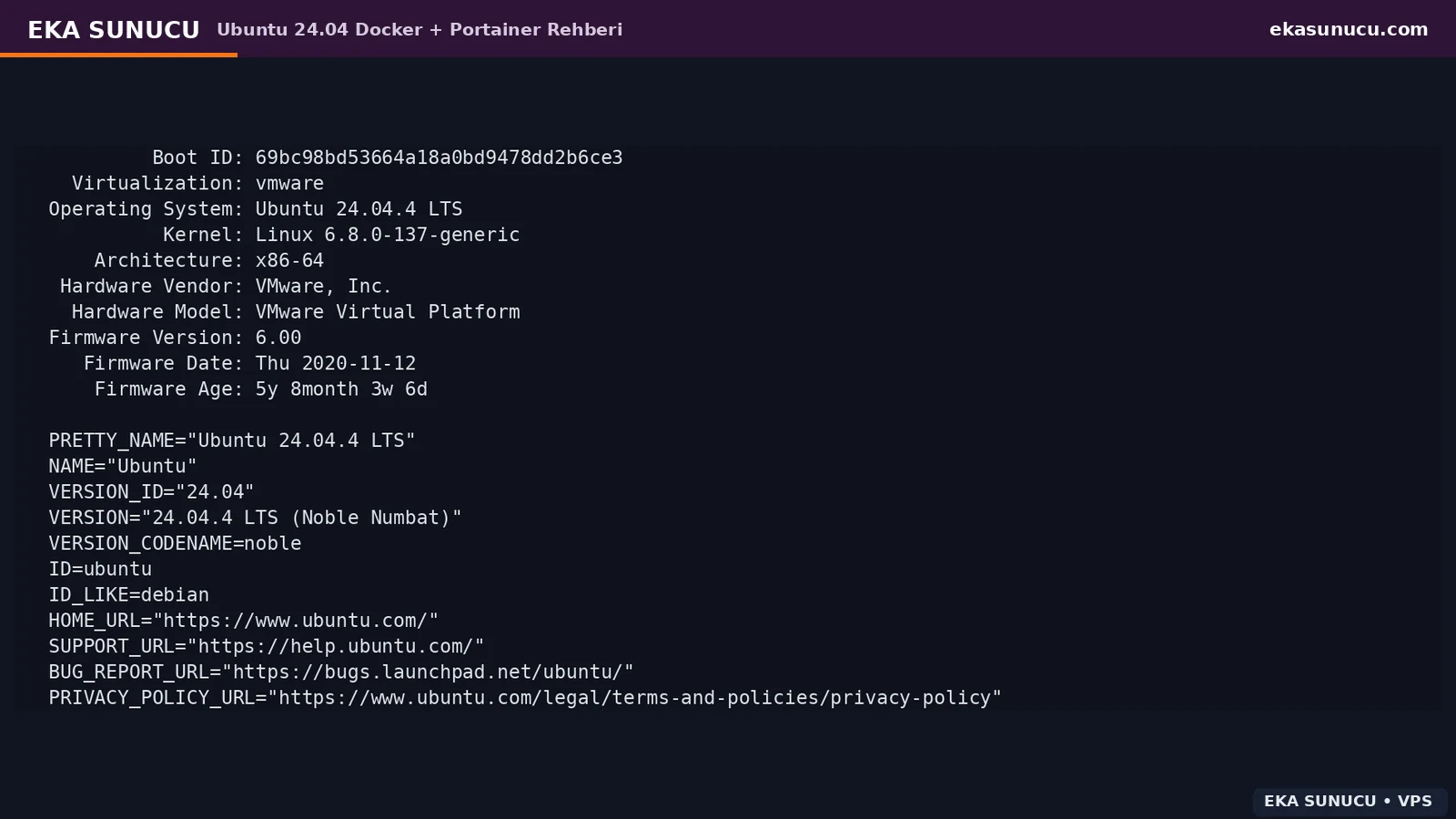
Before installation, record the Ubuntu release, kernel, architecture, memory and disk capacity. The test VPS ran Ubuntu 24.04.4 LTS Noble, kernel 6.8.0-137-generic and x86-64 architecture.
If you plan to use Docker's official packages, first inspect existing docker.io, docker-compose, containerd, runc or podman-docker packages. On production servers, do not remove packages blindly without checking running workloads.
cat /etc/os-release | grep -E 'PRETTY_NAME|VERSION_ID|VERSION_CODENAME'
uname -r
dpkg --print-architecturefree -h
df -h /dpkg --get-selections | grep -E 'docker|containerd|runc|podman' || trueWe installed Docker Engine from Docker's official Ubuntu repository. ca-certificates and curl were prepared, the signing key was stored at /etc/apt/keyrings/docker.asc and a deb822 docker.sources file was created.
A docker-ce candidate from the Noble stable repository in apt-cache policy confirms that the repository layer is working. The candidate in our test was Docker CE 29.7.2.
apt-get update
apt-get install -y ca-certificates curl
install -m 0755 -d /etc/apt/keyrings
curl -fsSL https://download.docker.com/linux/ubuntu/gpg -o /etc/apt/keyrings/docker.asc
chmod a+r /etc/apt/keyrings/docker.asccat >/etc/apt/sources.list.d/docker.sources <<EOF
Types: deb
URIs: https://download.docker.com/linux/ubuntu
Suites: $(. /etc/os-release && echo "${UBUNTU_CODENAME:-$VERSION_CODENAME}")
Components: stable
Architectures: $(dpkg --print-architecture)
Signed-By: /etc/apt/keyrings/docker.asc
EOF
apt-get update
apt-cache policy docker-ce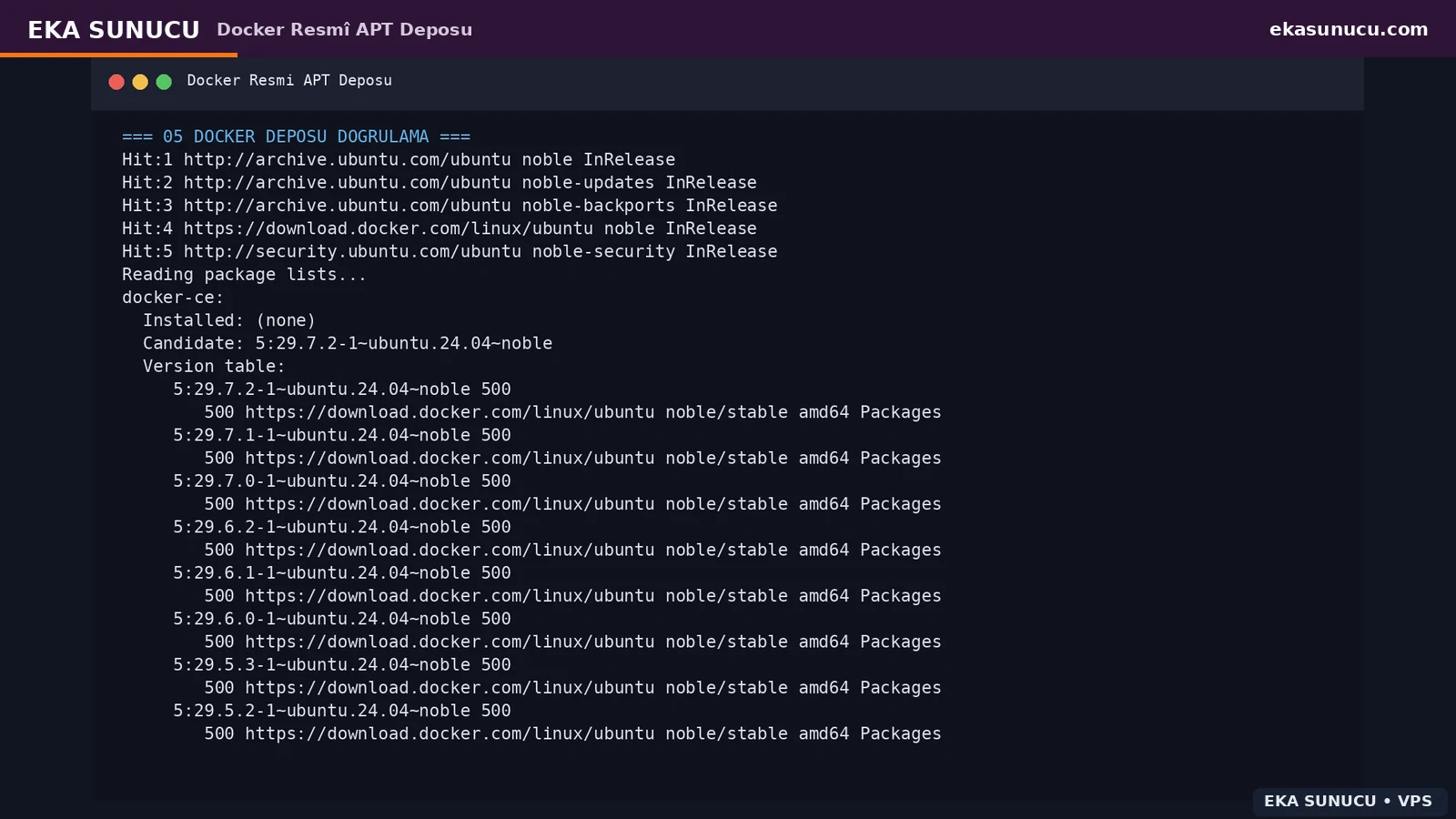
After repository validation, we installed docker-ce, docker-ce-cli, containerd.io, docker-buildx-plugin and docker-compose-plugin. The test session downloaded 102 MB; the amount varies by release and system state.
We enabled and started Docker through systemd, then checked Docker, Compose and Buildx versions individually so that both the engine and required CLI plugins were verified.
apt-get install -y docker-ce docker-ce-cli containerd.io docker-buildx-plugin docker-compose-pluginsystemctl enable --now docker
systemctl is-active dockerdocker --version
docker compose version
docker buildx version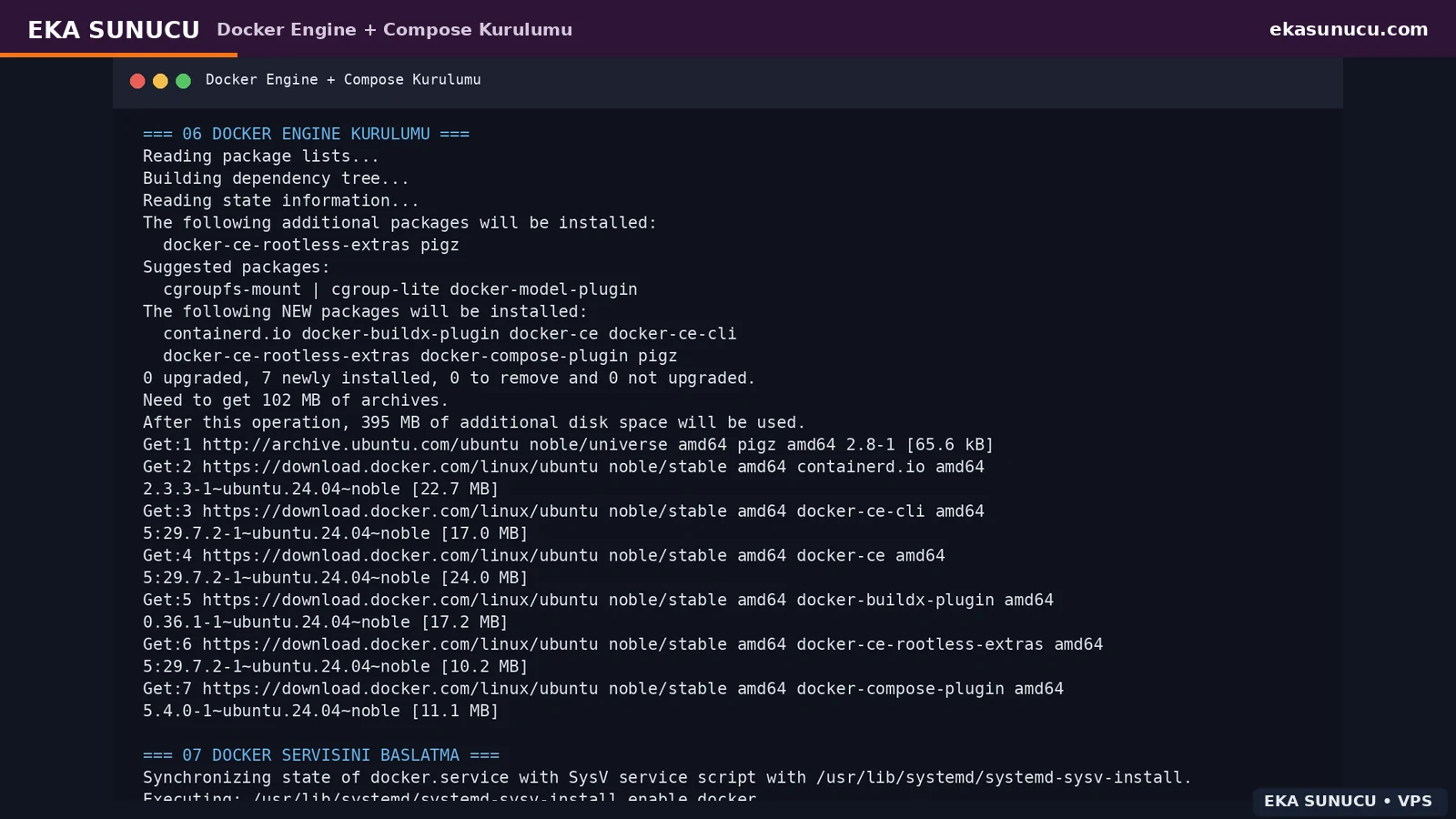
Our first automation script stopped with exit code 141 on a head -n 20 line even though the Docker repository was healthy. Because head closed the pipe early, the upstream command received SIGPIPE and set -o pipefail treated it as a script failure.
For display-only pipelines you can use sed -n, or append || true only when you have confirmed the failure is harmless. Never hide failures from installation, validation or state-changing commands this way.
apt-cache policy docker-ce | sed -n '1,20p'apt-cache policy docker-ce | head -n 20 || truedocker --version proves only that the client exists. We therefore pulled and ran hello-world. The 'Hello from Docker!' result confirmed the client, daemon, image pull and container execution path together.
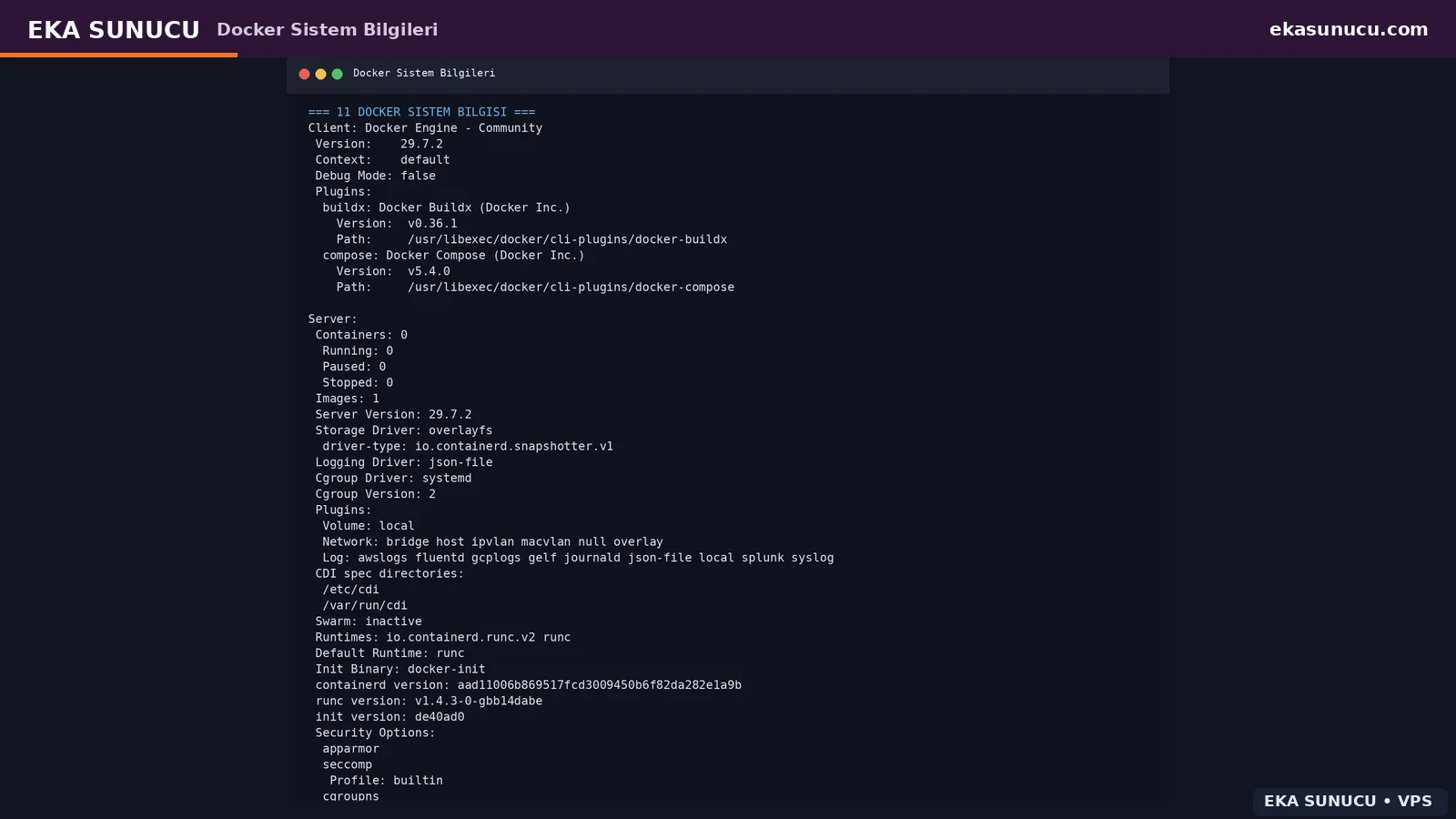
docker info was then used to record the storage driver, cgroup mode, security options, Docker Root Dir and server resources. The test showed overlayfs, cgroup v2, AppArmor and seccomp.
docker run --rm hello-worlddocker infosystemctl --failed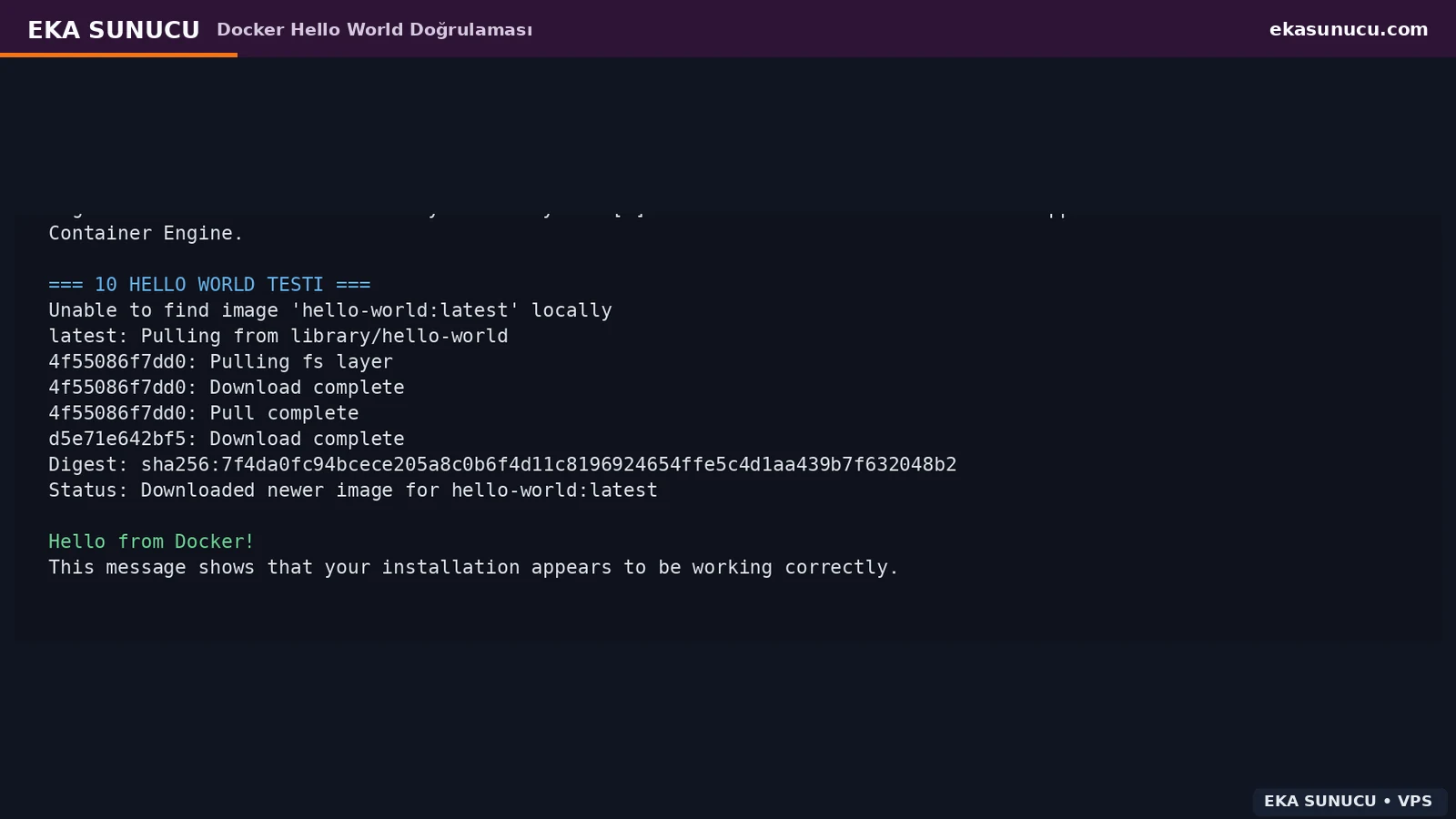
We created a Docker named volume called portainer_data so Portainer configuration survives container replacement. The portainer/portainer-ce:lts image was pulled and the local Docker socket was mounted into the container.
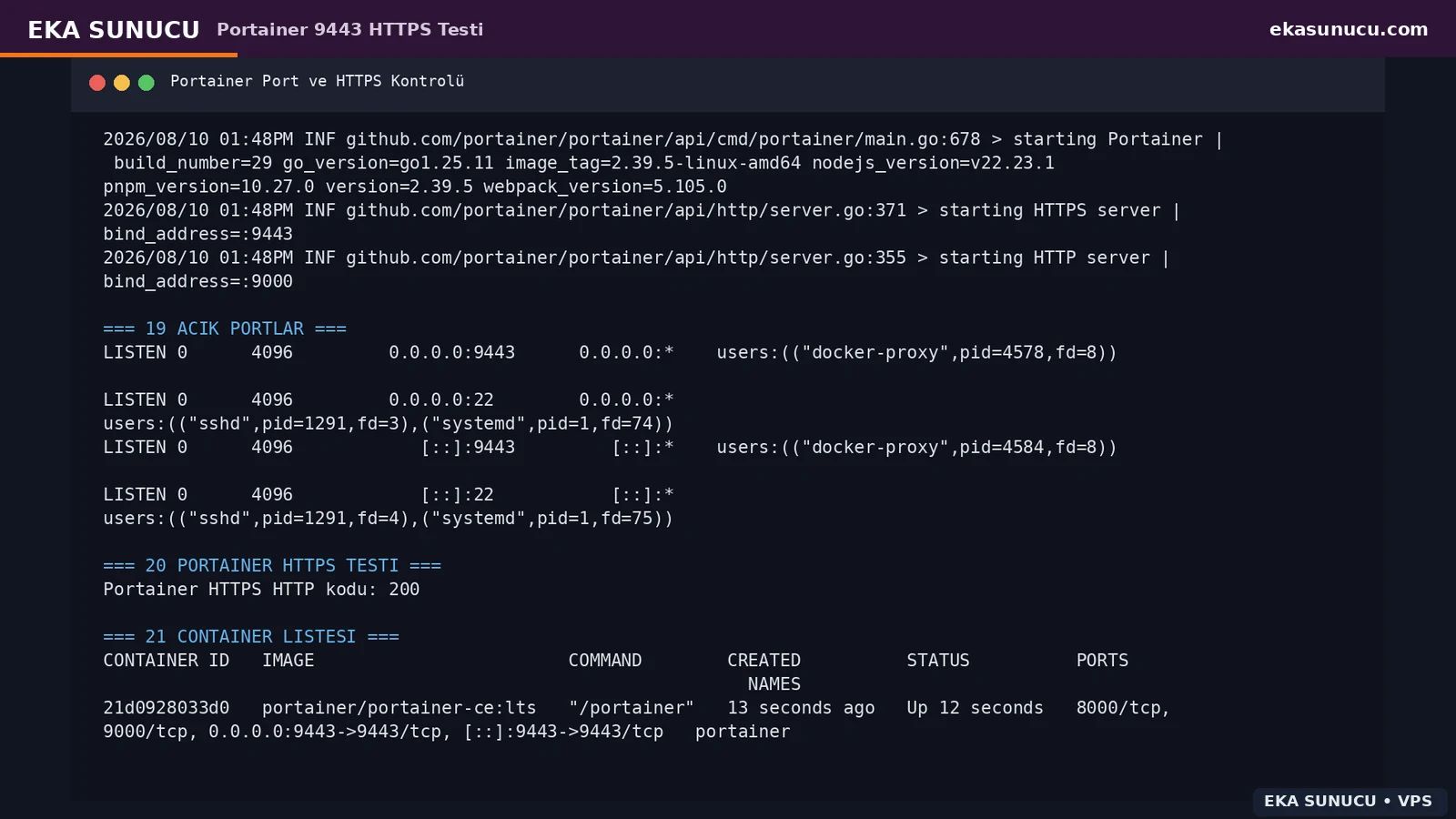
During the real first validation, port 9443 was briefly published on the host to confirm the HTTPS endpoint. This was not the final security posture; after Nginx and the domain were ready, Portainer was recreated with 127.0.0.1:9443 only.
docker volume create portainer_data
docker pull portainer/portainer-ce:ltsdocker run -d --name portainer --restart=always -p 9443:9443 -v /var/run/docker.sock:/var/run/docker.sock -v portainer_data:/data portainer/portainer-ce:ltsdocker ps --filter name='^/portainer$'
curl -k -sS -o /dev/null -w '%{http_code}\n' https://127.0.0.1:9443/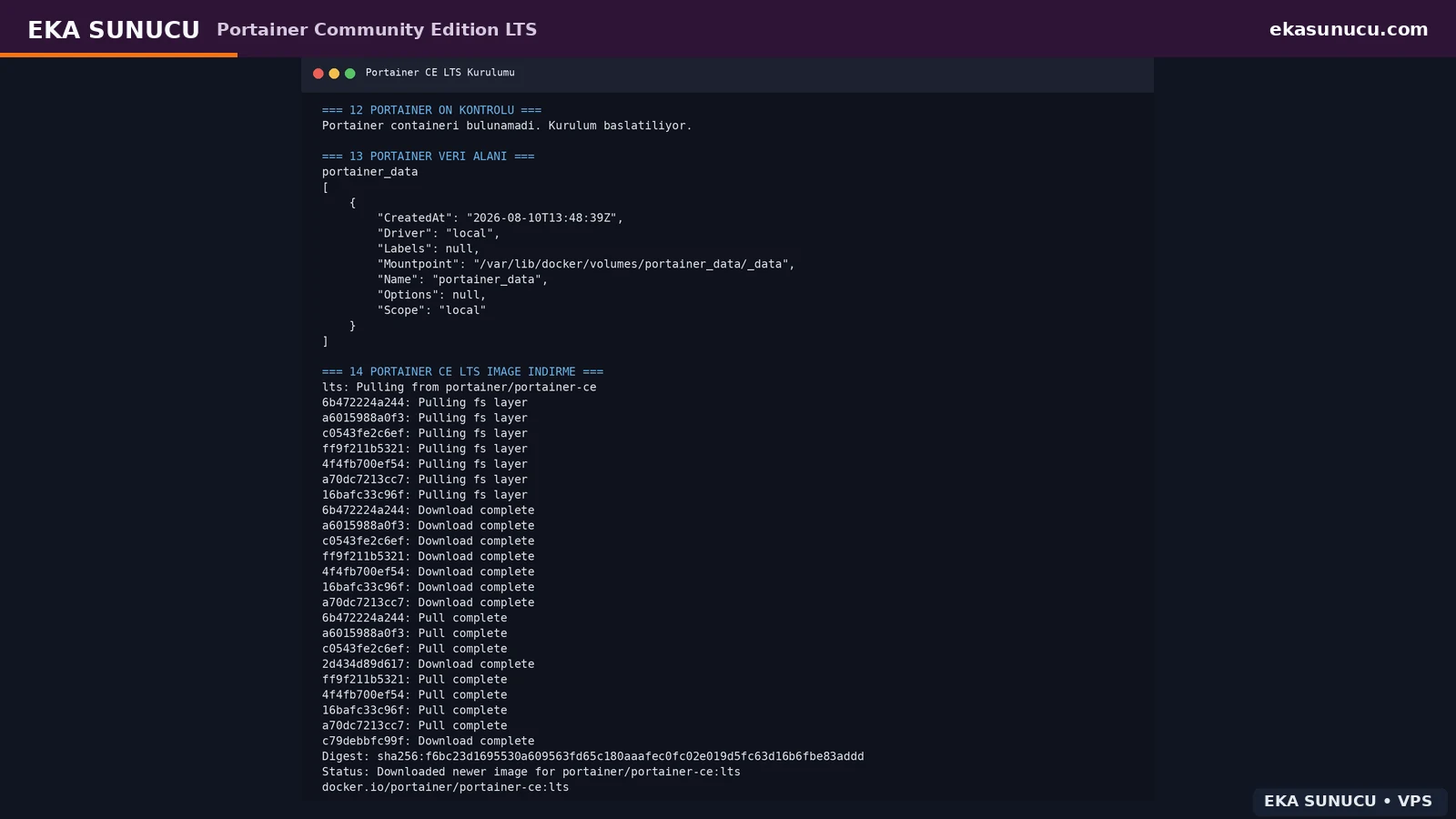
A fresh Portainer database shows the administrator-account setup page. In our test, Portainer logs also generated a temporary setup token for initial administration. Treat it like a password or API secret and never publish it in screenshots.
After the administrator is created, the Environment Wizard can detect the local Docker environment. If an initial setup session expires after being left idle, restart the Portainer container and continue.
docker logs portainer --tail 100docker restart portainer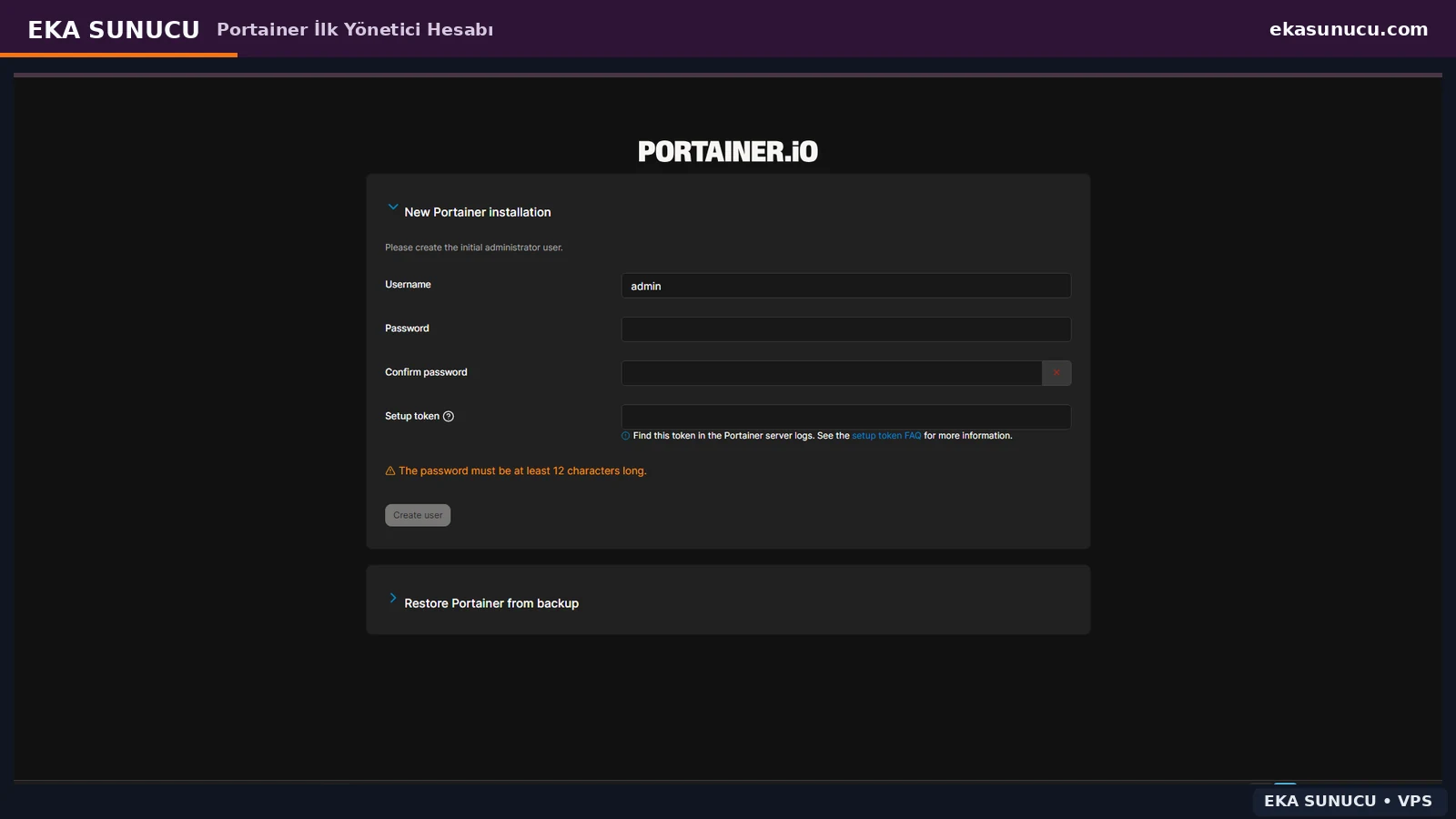
We installed Nginx and dnsutils to serve Portainer through portainer.ekasunucu.com instead of a raw IP and port. Reverse-proxy configuration began only after Cloudflare DNS and Google DNS resolved the hostname to the expected origin.
Nginx proxies requests to Portainer's HTTPS service on 127.0.0.1:9443. Portainer uses a self-signed certificate for this local upstream, so proxy_ssl_verify off is limited to that localhost hop while public TLS is terminated by Nginx with Let's Encrypt.
apt-get update
apt-get install -y nginx dnsutils
systemctl enable --now nginxdig +short A portainer.ekasunucu.com @1.1.1.1
dig +short A portainer.ekasunucu.com @8.8.8.8cat >/etc/nginx/conf.d/portainer-websocket.conf <<'EOF'
map $http_upgrade $connection_upgrade {
default upgrade;
'' close;
}
EOFcat >/etc/nginx/sites-available/portainer.ekasunucu.com <<'EOF'
server {
listen 80;
listen [::]:80;
server_name portainer.ekasunucu.com;
location / {
proxy_pass https://127.0.0.1:9443;
proxy_http_version 1.1;
proxy_set_header Host $host;
proxy_set_header X-Real-IP $remote_addr;
proxy_set_header X-Forwarded-For $proxy_add_x_forwarded_for;
proxy_set_header X-Forwarded-Proto $scheme;
proxy_set_header Upgrade $http_upgrade;
proxy_set_header Connection $connection_upgrade;
proxy_ssl_verify off;
}
}
EOF
ln -sfn /etc/nginx/sites-available/portainer.ekasunucu.com /etc/nginx/sites-enabled/portainer.ekasunucu.com
nginx -t
systemctl reload nginxcurl -sS -o /dev/null -w '%{http_code}\n' -H 'Host: portainer.ekasunucu.com' http://127.0.0.1/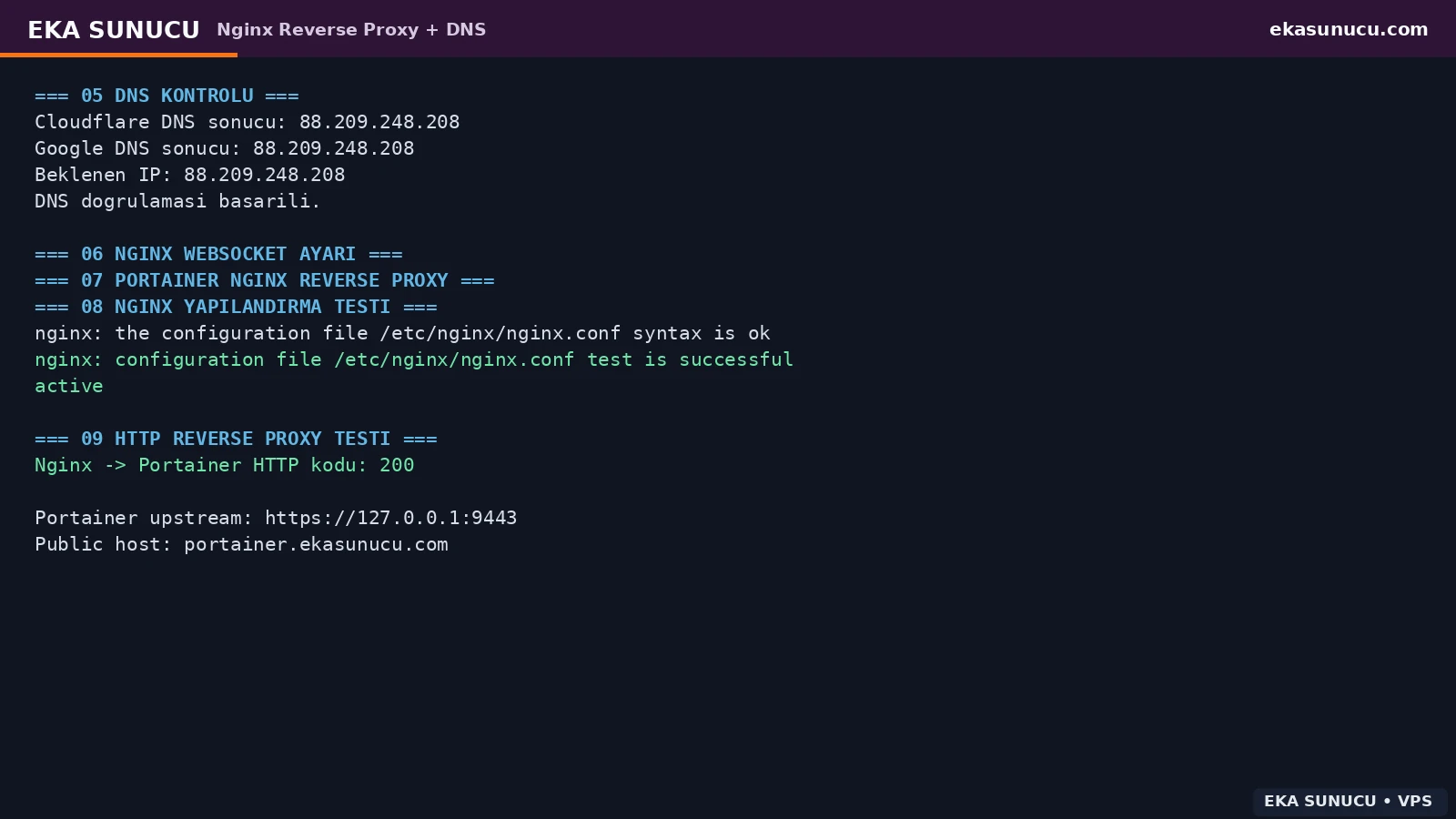
The first snap install --classic certbot attempt timed out while downloading core24 from Canonical's CDN. The error was in the snap download path, not in the working Nginx-to-Portainer reverse proxy.
We checked snap changes and snapd status. A later retry installed Certbot 5.7.0 successfully. For temporary CDN/network errors, retry and diagnose connectivity before changing unrelated application configuration.
snap changes
systemctl is-active snapdsnap install --classic certbotsnap list certbot
/snap/bin/certbot --version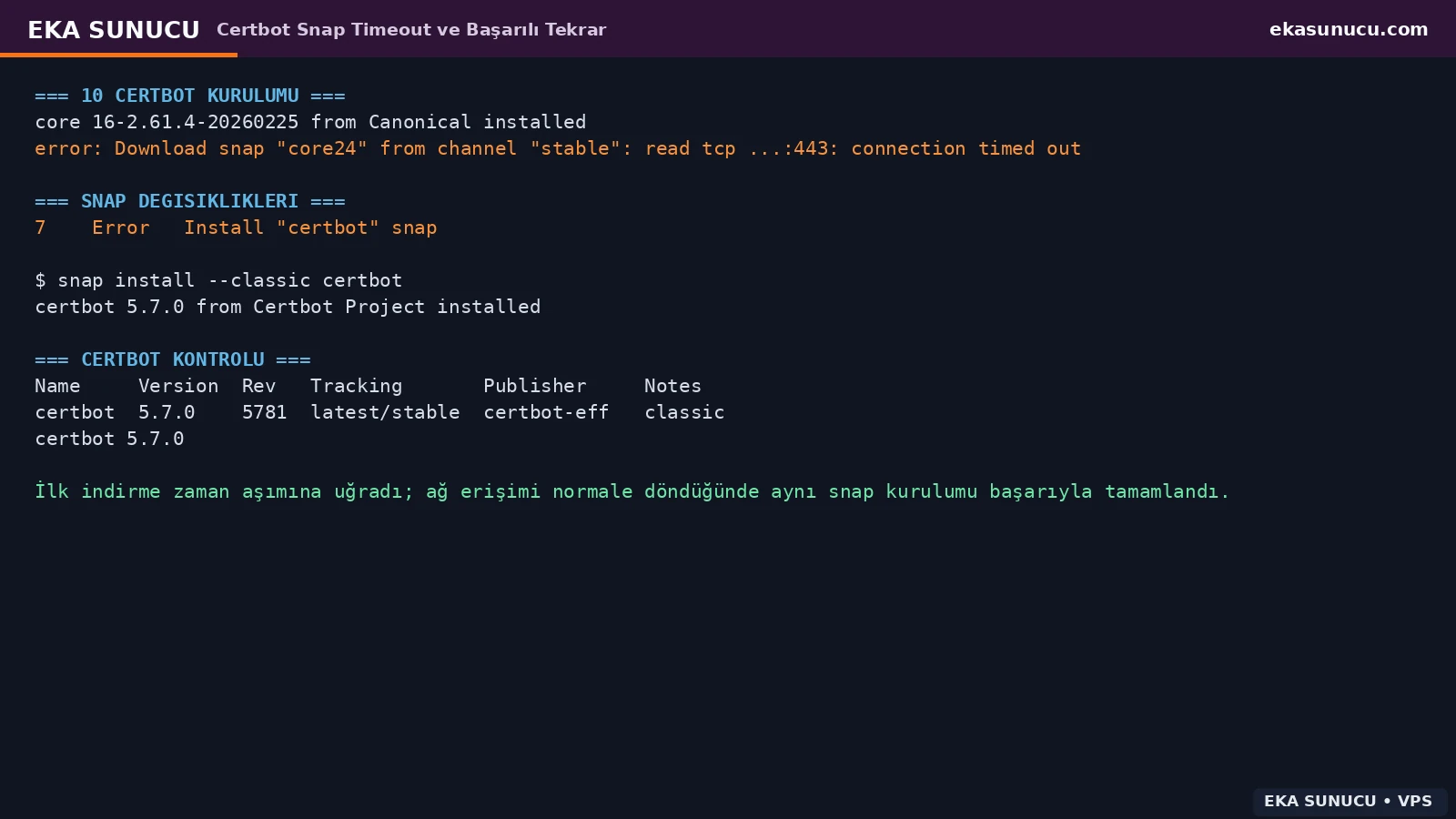
During troubleshooting we briefly tested Ubuntu's APT Certbot packages. In the final setup, APT certbot, python3-certbot and python3-certbot-nginx were removed and the server was standardized on the snap build of Certbot 5.7.0.
Using one binary and one renewal mechanism makes troubleshooting simpler. On an existing production server, inspect certificate and renewal configuration before removing packages.
apt-get remove -y certbot python3-certbot python3-certbot-nginx python3-certbot || truesnap install --classic certbot
ln -sfn /snap/bin/certbot /usr/local/bin/certbot
certbot --versionOnce the HTTP reverse proxy returned 200, we issued the Let's Encrypt certificate. Certbot stored it under /etc/letsencrypt/live/portainer.ekasunucu.com and updated Nginx for HTTPS.
After issuance we verified nginx -t, the HTTPS response and certificate subject, issuer and validity dates with openssl instead of relying only on the browser.
certbot --nginx -d portainer.ekasunucu.com -m [email protected] --agree-tos --no-eff-email --redirectnginx -t
systemctl is-active nginxcurl -I https://portainer.ekasunucu.com/openssl s_client -connect portainer.ekasunucu.com:443 -servername portainer.ekasunucu.com </dev/null 2>/dev/null | openssl x509 -noout -subject -issuer -dates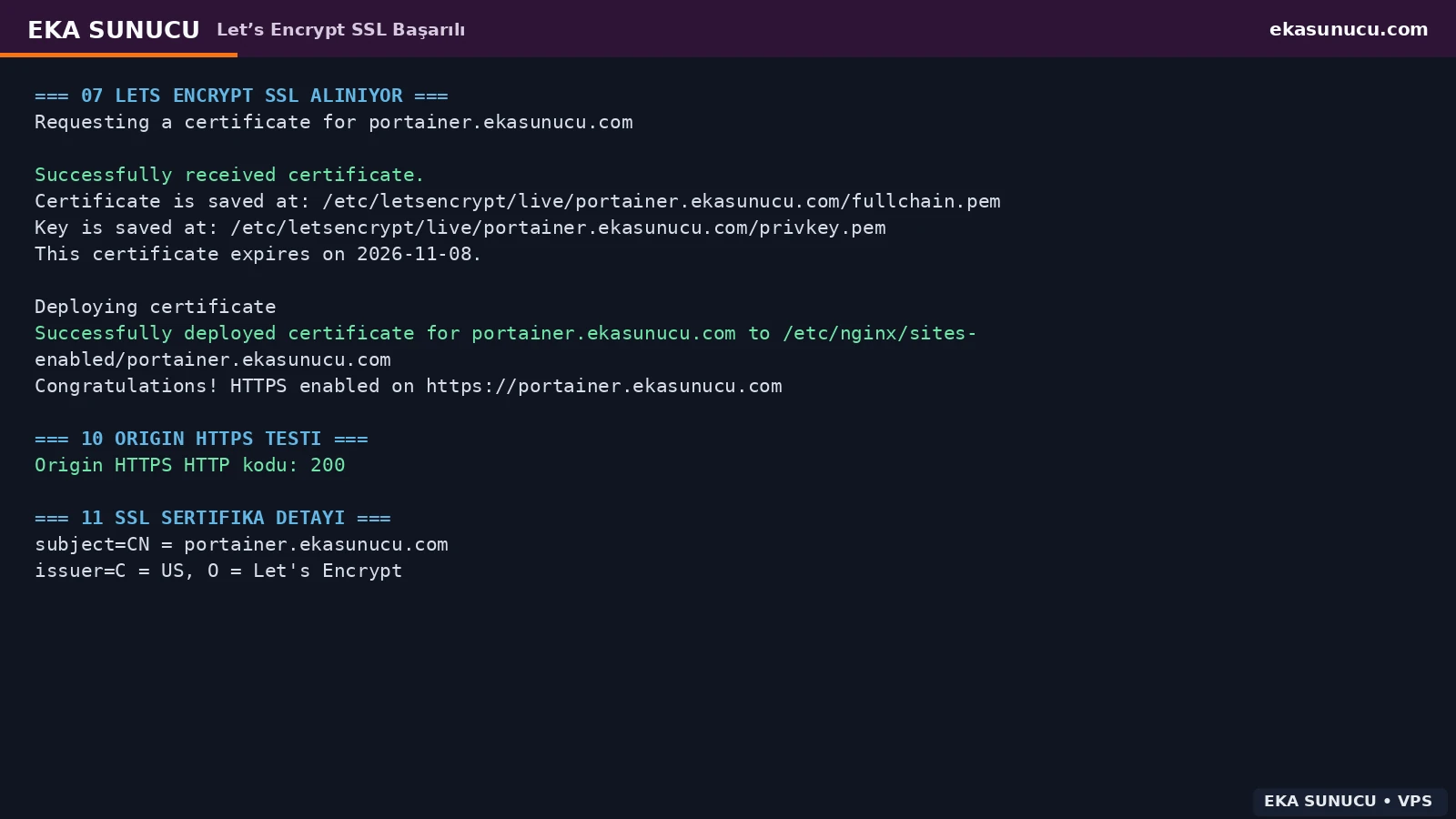
After the domain and Nginx TLS path worked, we recreated the Portainer container with the same portainer_data volume and changed the host mapping to 127.0.0.1:9443:9443. The management port therefore stopped listening on the server's public interfaces.
The named volume preserves the Portainer database across container replacement. In the final socket listing, 9443 should be loopback-only while public 80/443 belong to Nginx.
docker stop portainer
docker rm portainerdocker run -d --name portainer --restart=always -p 127.0.0.1:9443:9443 -v /var/run/docker.sock:/var/run/docker.sock -v portainer_data:/data portainer/portainer-ce:ltsdocker ps --filter name='^/portainer$'
ss -lntp | grep -E ':(80|443|9443)\b'curl -k -sS -o /dev/null -w '%{http_code}\n' https://127.0.0.1:9443/
curl -sS -o /dev/null -w '%{http_code}\n' https://portainer.ekasunucu.com/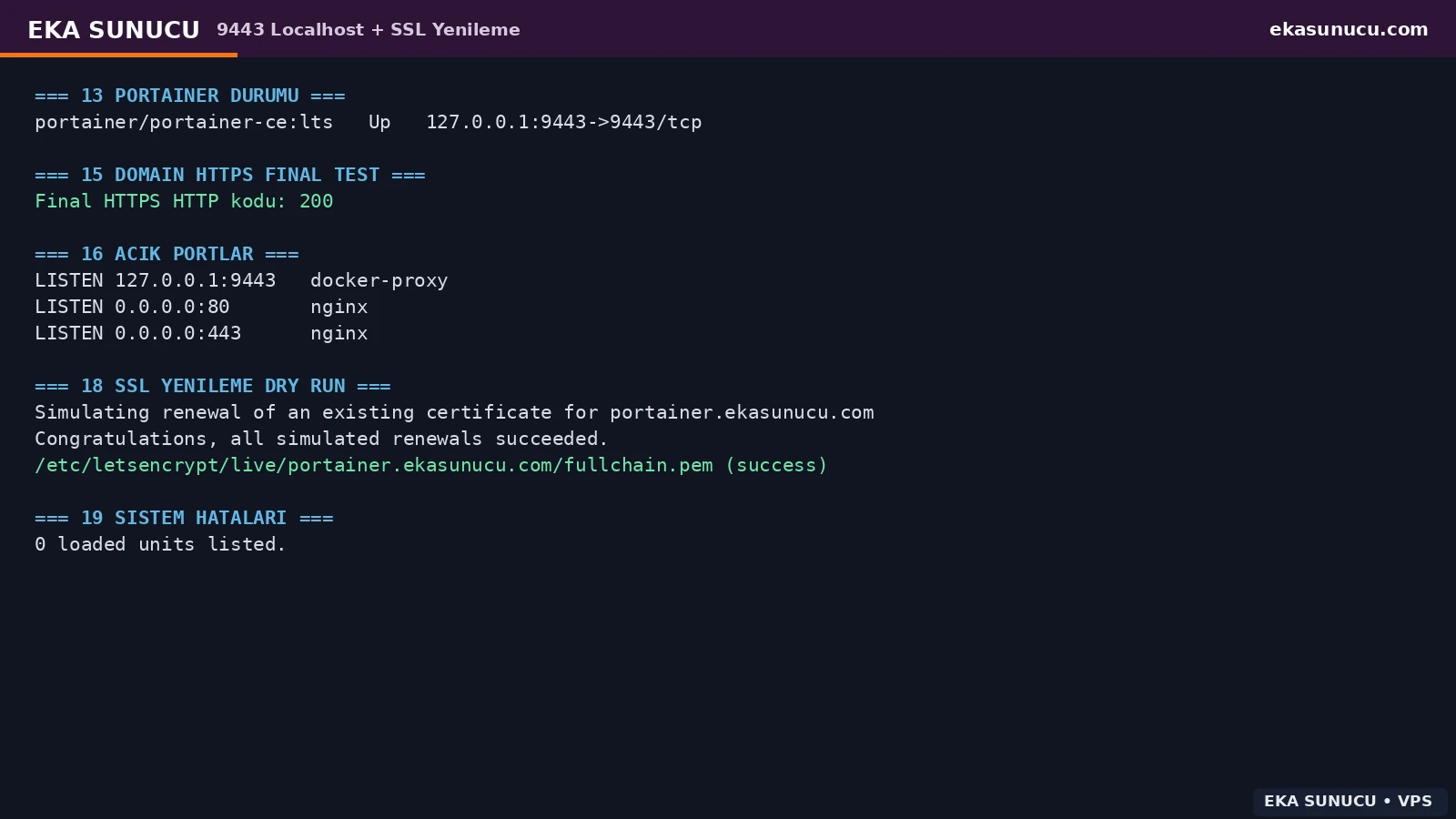
A certificate that works today still needs a verified renewal path. We checked the snap.certbot.renew timer and executed certbot renew --dry-run.
The simulated renewal succeeded. Combined with nginx -t, this is an important production check before leaving the TLS setup unattended.
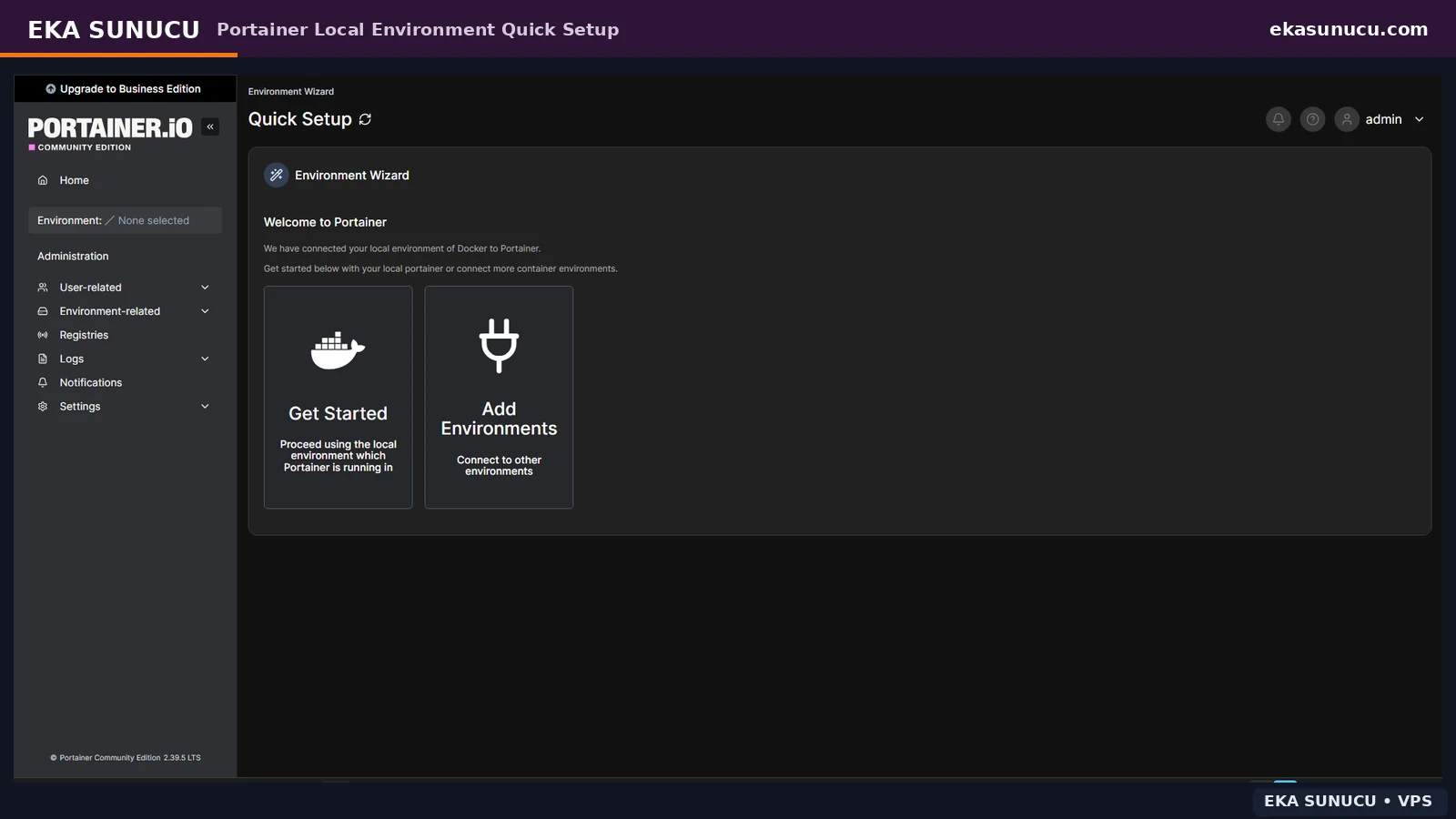
systemctl list-timers --all | grep -i certbot || truecertbot renew --dry-runnginx -tThe final Portainer login page was reached only through https://portainer.ekasunucu.com. After login, the Environment Wizard detected the local Docker socket and offered the local environment through the Get Started flow.
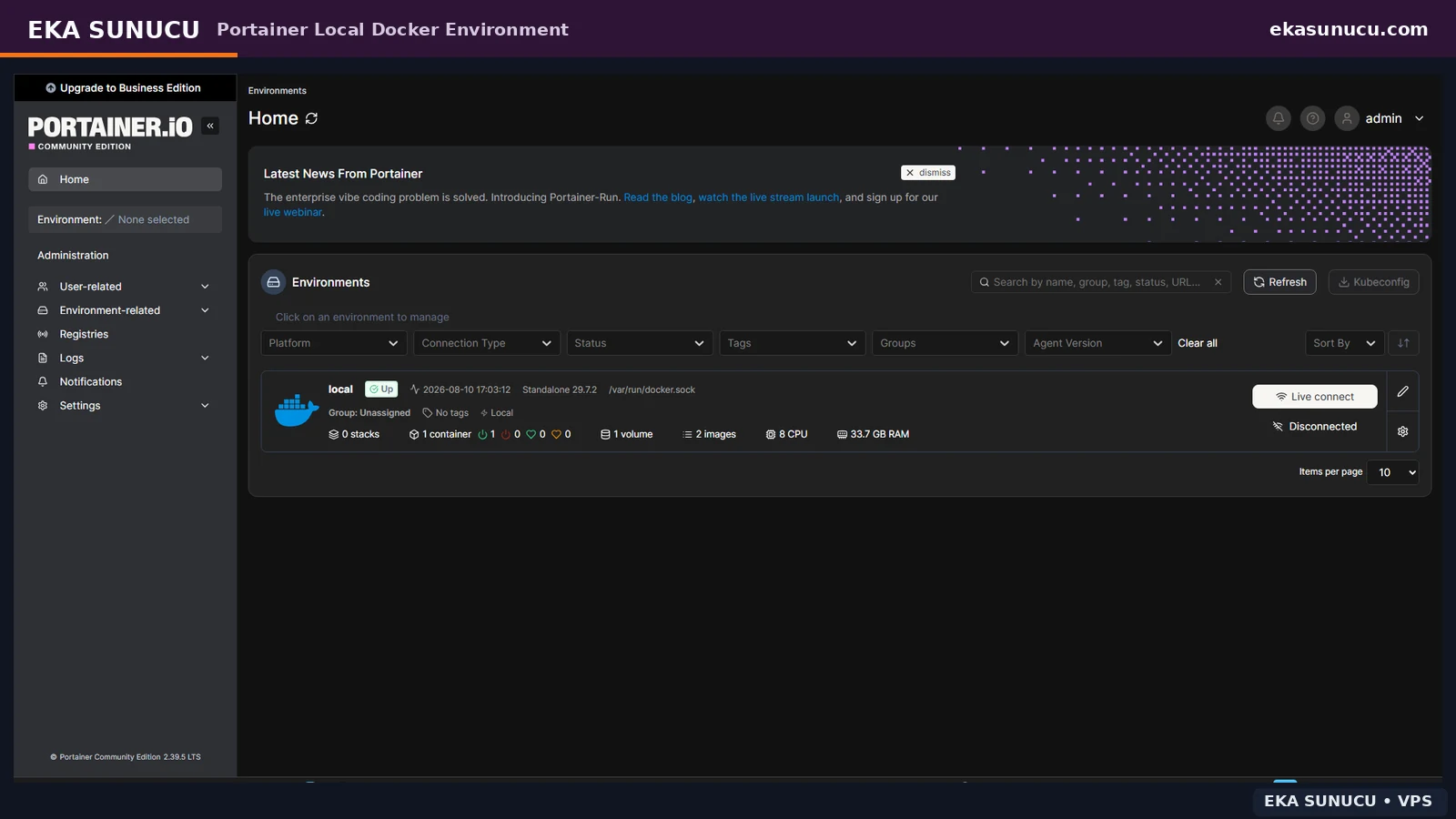
The Portainer home screen showed the local environment as Up along with container, volume, image, CPU and RAM information, confirming that the UI could actually manage Docker Engine.
https://portainer.ekasunucu.com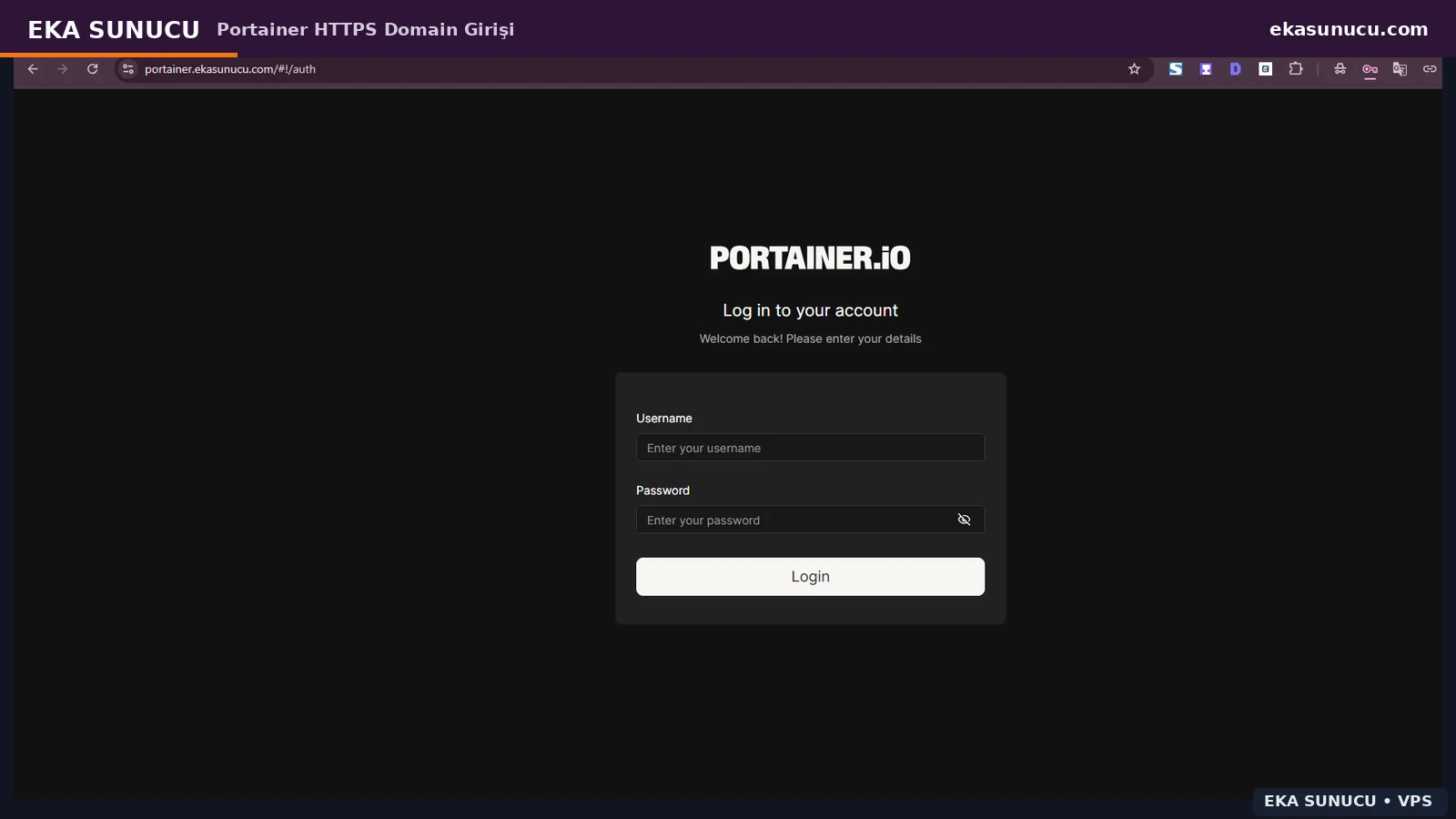
At the end, verify Docker and Nginx services, the Portainer container, named volume, Docker disk use, HTTPS status code and failed systemd units separately. Our test ended with HTTP 200 and zero failed systemd units.
Repeat these checks after a reboot. Docker restart policy, Nginx auto-start, Portainer state and domain TLS should not depend on an interactive SSH session.
systemctl is-active docker nginx
docker ps
docker volume lsdocker system dfcurl -sS -o /dev/null -w 'HTTPS %{http_code}\n' https://portainer.ekasunucu.com/ss -lntp | grep -E ':(80|443|9443)\b'
systemctl --failedYes. This guide records Docker Engine 29.7.2 running on Ubuntu 24.04.4 LTS Noble. For new deployments, use the currently supported versions from Docker's official Ubuntu documentation.
It provides Docker CE, Compose and Buildx through Docker's own Ubuntu package channel and keeps the related plugin packages aligned.
docker --version checks only the client. hello-world verifies daemon connectivity, image pull, container creation and output end to end.
Portainer provides HTTPS on 9443. In the final configuration here, the host listens only on 127.0.0.1:9443 and public access is served by Nginx on 443.
It is used only on the localhost upstream hop in this design. Public TLS is terminated by Nginx with a Let's Encrypt certificate.
Not if the portainer_data named volume is preserved. Do not delete the volume when replacing the container.
It is a sensitive temporary value protecting initial administration on a fresh installation. Treat it like a password and do not publish it.
Check snap changes, snapd and outbound HTTPS. In our test a Canonical CDN download timed out and a later retry succeeded.
Not in the final setup documented here. We removed the APT Certbot packages and standardized on the snap build.
Nginx already provides secure domain access on 443, so there is no need to leave the raw Portainer management port exposed on the public IP.
Run certbot renew --dry-run to simulate the renewal path without replacing the active certificate. Our test completed successfully.
With /var/run/docker.sock mounted into Portainer, Environment Wizard can detect the local Docker host and offer it through Get Started.
In this architecture Nginx listens publicly on 80/443 while Portainer 9443 is loopback-only. Manage SSH and other services according to your own security policy.
The same architecture can be used on a suitable Ubuntu VPS with root/SSH access, enough RAM and disk, and an appropriate security policy. Resource needs depend on the containers you run.
Run Docker Engine, Portainer, Nginx, Ollama, Open WebUI, n8n and other self-hosted services on your own infrastructure with EKA Server Linux VPS plans.
Updated: 10.08.2026 Turkey (Turkish)
 Germany (German)
 Worldwide (English)

