
 Halkali merkez neighborhood fatih st ozgur apt no 46 , Kucukcekmece , Istanbul , 34303 , TR
This guide isolates one of the most important security patterns from our real Ubuntu 24.04 self-hosted AI stack: keep application ports on 127.0.0.1 instead of publishing them on 0.0.0.0, then provide public access through Nginx and HTTPS. We applied this to Portainer 9443, Ollama 11434, Open WebUI 3000 and n8n 5678.
Internet :443
   ↓
Nginx + TLS
   ├─ 127.0.0.1:9443  → Portainer
   ├─ 127.0.0.1:3000  → Open WebUI
   ├─ 127.0.0.1:5678  → n8n
└─ Ollama 127.0.0.1:11434 + private Docker networkA publish command such as -p 8080:80 without a host IP can bind the port on all Docker-host addresses by default. That can expose an administration or API port outside the host.
When you explicitly publish to 127.0.0.1, the published port is accessible only from the Docker host. This is the core host-port decision in our self-hosted AI stack.
docker run -p 8080:80 nginxdocker run -p 127.0.0.1:8080:80 nginx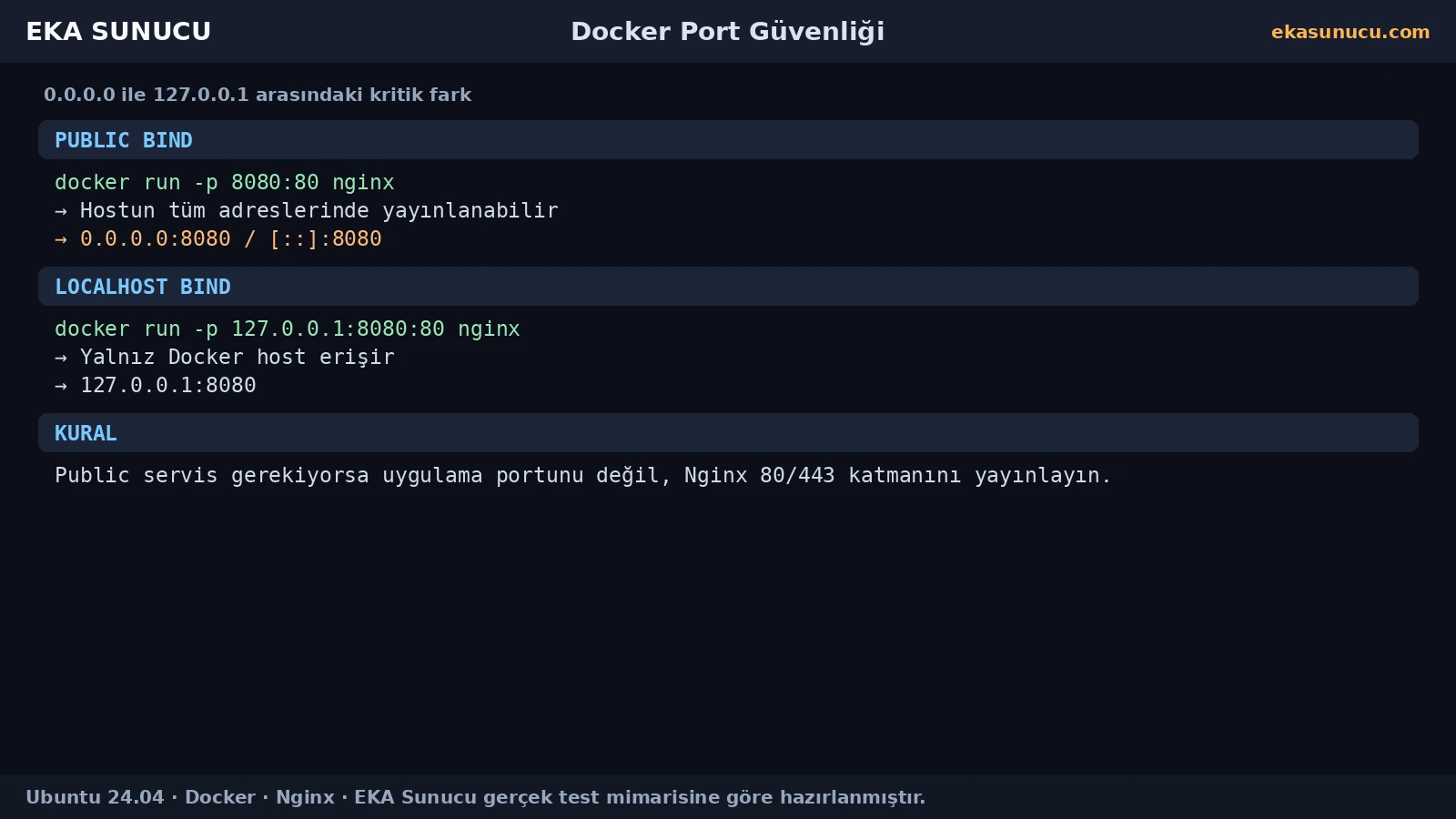
In our real Ubuntu 24.04 stack, Portainer 9443, Ollama 11434, Open WebUI 3000 and n8n 5678 were bound only to 127.0.0.1 on the host. We did not publish those application ports directly to the Internet.
Web applications that needed public access were published through Nginx on ports 80/443. Ollama remained a backend API on localhost and the private Docker network.
127.0.0.1:9443 → Portainer127.0.0.1:11434 → Ollama127.0.0.1:3000 → Open WebUI127.0.0.1:5678 → n8n0.0.0.0:80 / :443 → Nginx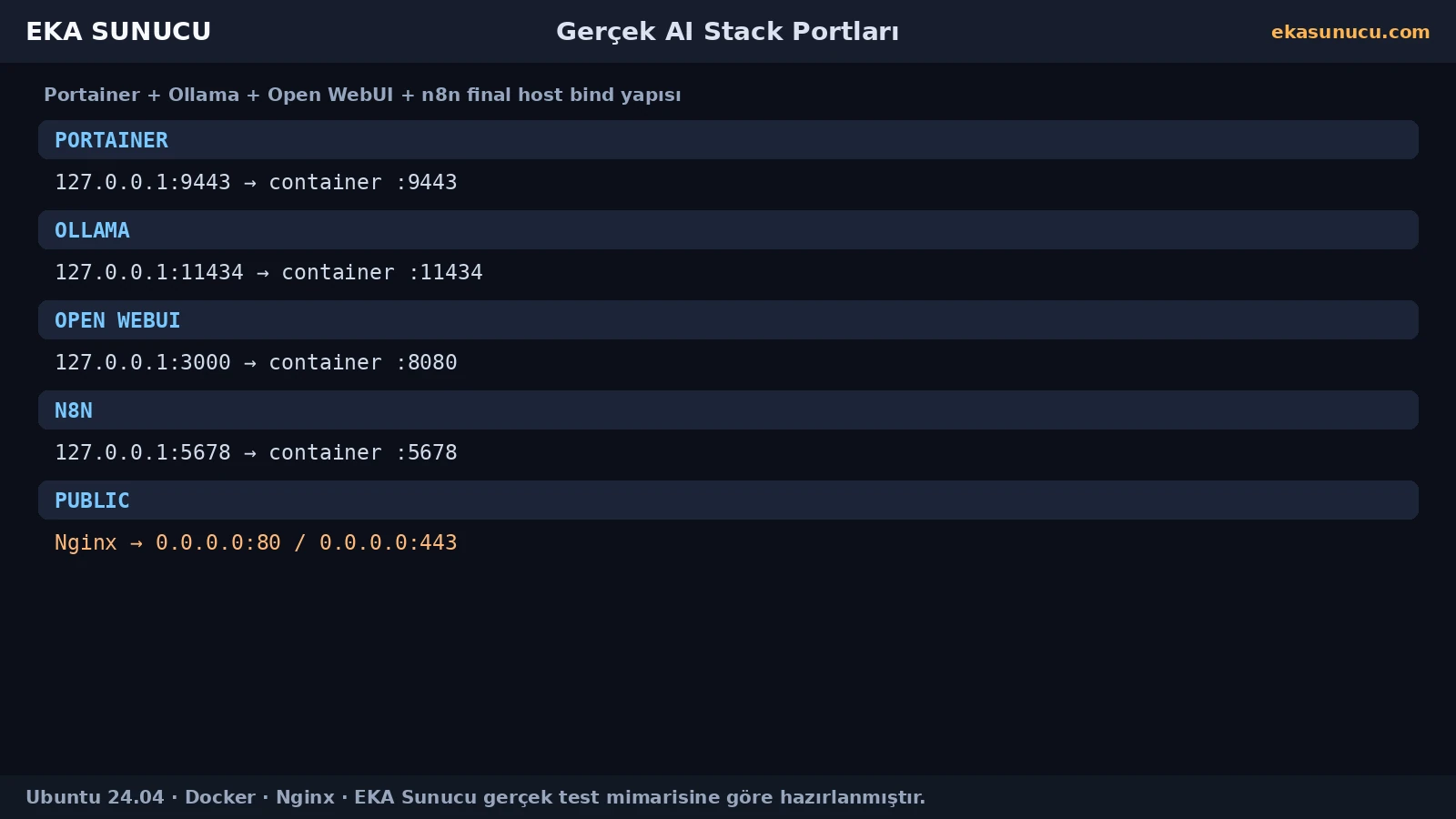
The Ports column in docker ps is a fast security audit. 127.0.0.1:5678->5678/tcp means loopback-only binding. 0.0.0.0:5678->5678/tcp means the port is published on all IPv4 host interfaces.
Make this check routine for admin panels, databases, local LLM APIs and automation editors.
docker ps --format 'table {{.Names}}\t{{.Ports}}'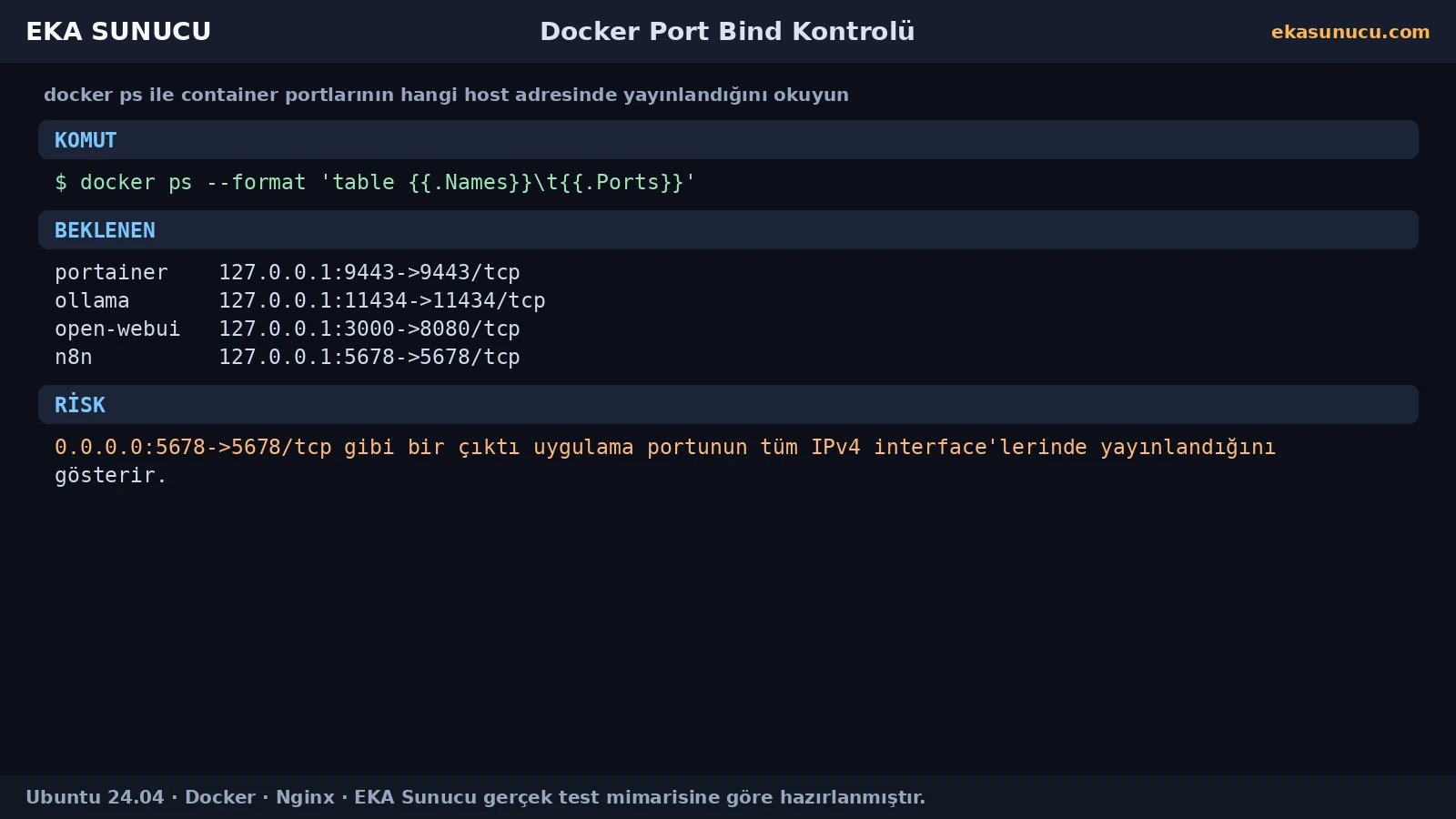
In addition to Docker output, inspect Linux listening sockets. In our final design the application ports listen on 127.0.0.1 while Nginx exposes 80/443 on public interfaces.
Using both checks confirms that Docker publishing and the operating-system socket view match the intended architecture.
ss -lntp | grep -E ':80|:443|:9443|:11434|:3000|:5678'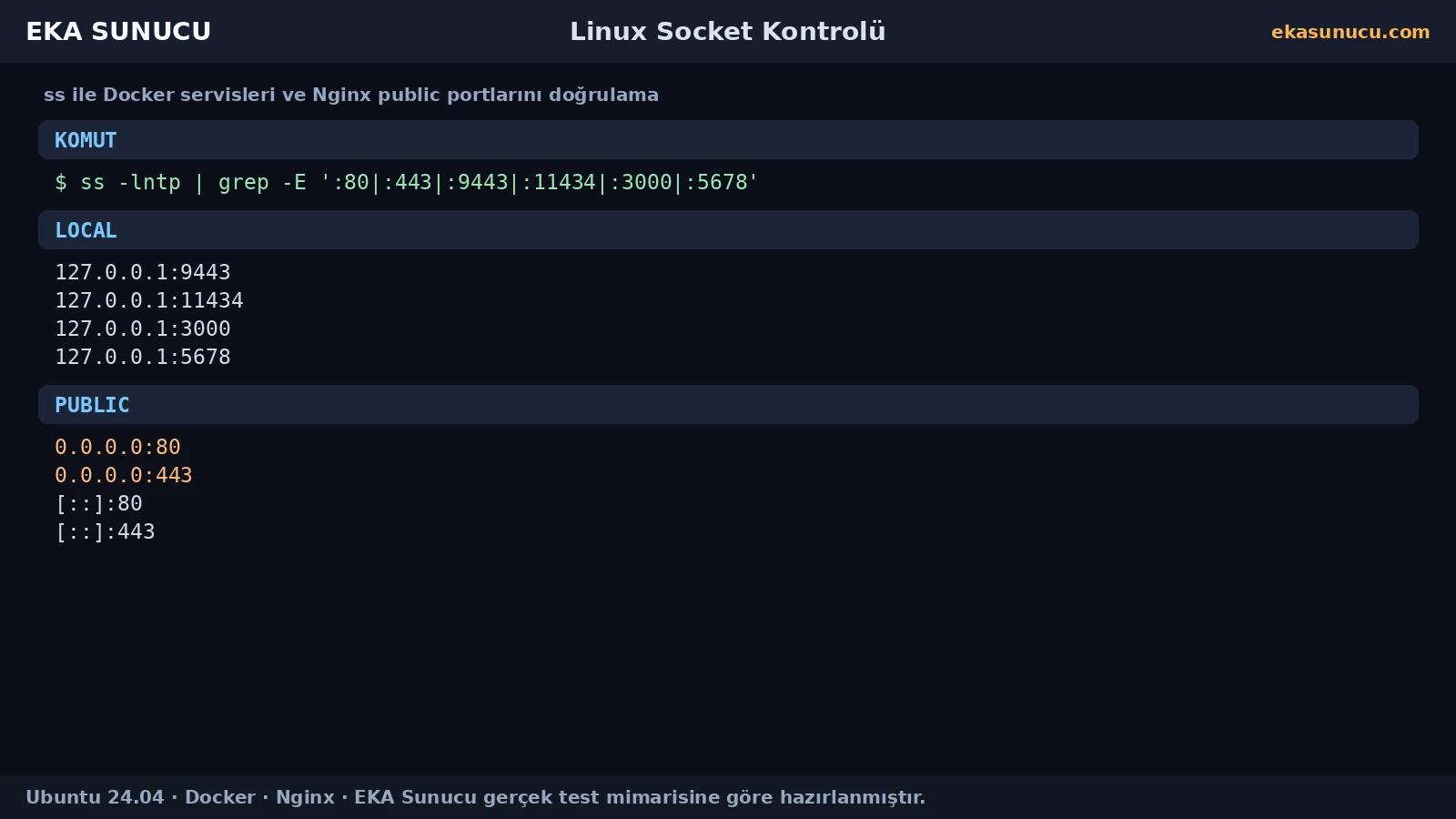
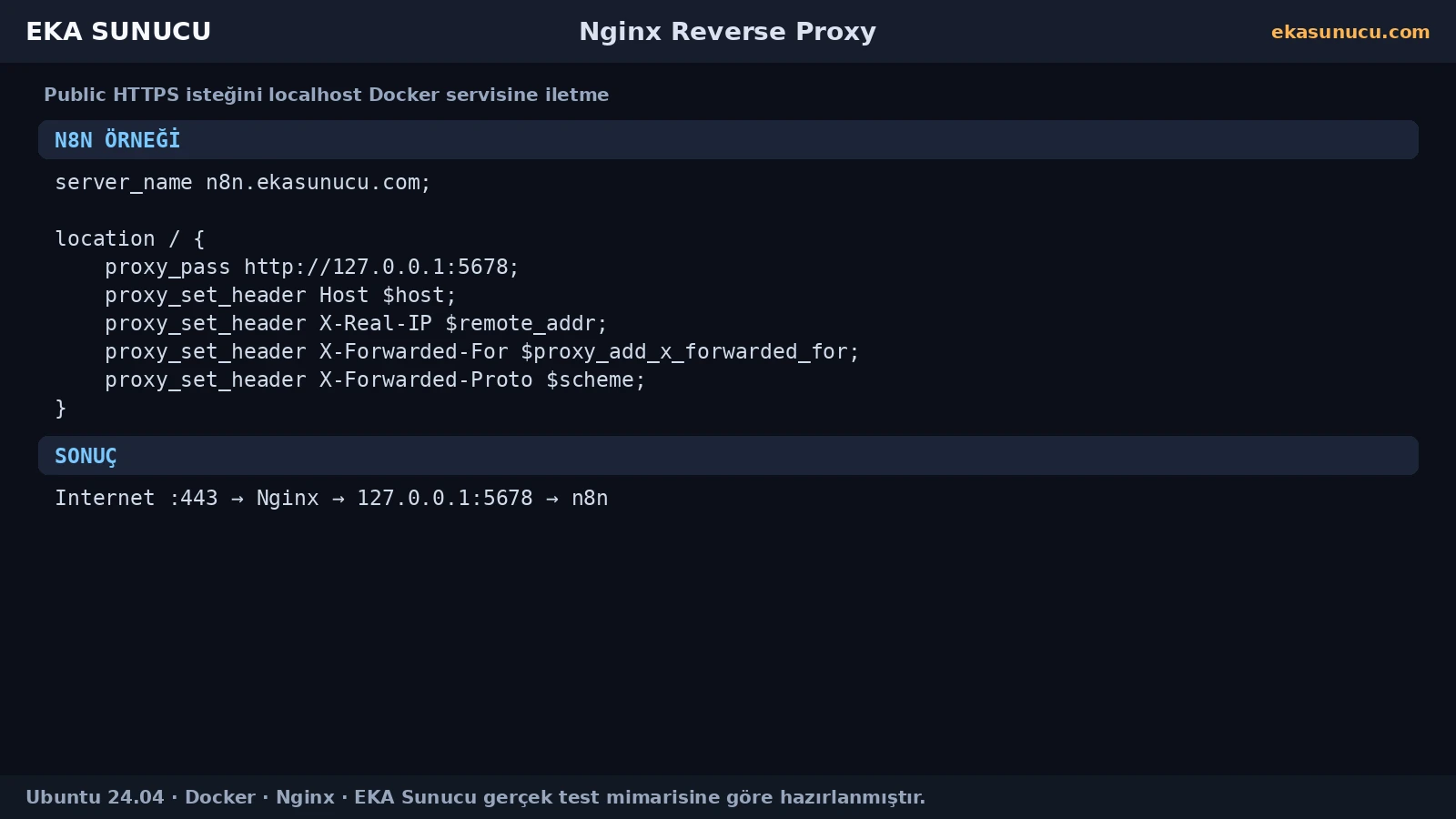
With the app listening on localhost, Nginx can accept public HTTPS traffic and forward it to a local upstream. Our n8n layout used proxy_pass http://127.0.0.1:5678; Open WebUI used the same pattern on 127.0.0.1:3000.
This model centralizes TLS, domains, access logs, rate limiting and optional authentication at one public entry layer.
location / {
    proxy_pass http://127.0.0.1:5678;
    proxy_set_header Host $host;
    proxy_set_header X-Real-IP $remote_addr;
    proxy_set_header X-Forwarded-For $proxy_add_x_forwarded_for;
    proxy_set_header X-Forwarded-Proto $scheme;
}
WebSocket Upgrade and Connection headers are hop-by-hop, so a reverse proxy must pass the necessary upgrade information explicitly. This matters for real-time web apps such as n8n and Open WebUI.
We used an Nginx map for connection_upgrade and forwarded HTTP/1.1, Upgrade and Connection headers inside the proxied location.
map $http_upgrade $connection_upgrade {
    default upgrade;
    '' close;
}proxy_http_version 1.1;
proxy_set_header Upgrade $http_upgrade;
proxy_set_header Connection $connection_upgrade;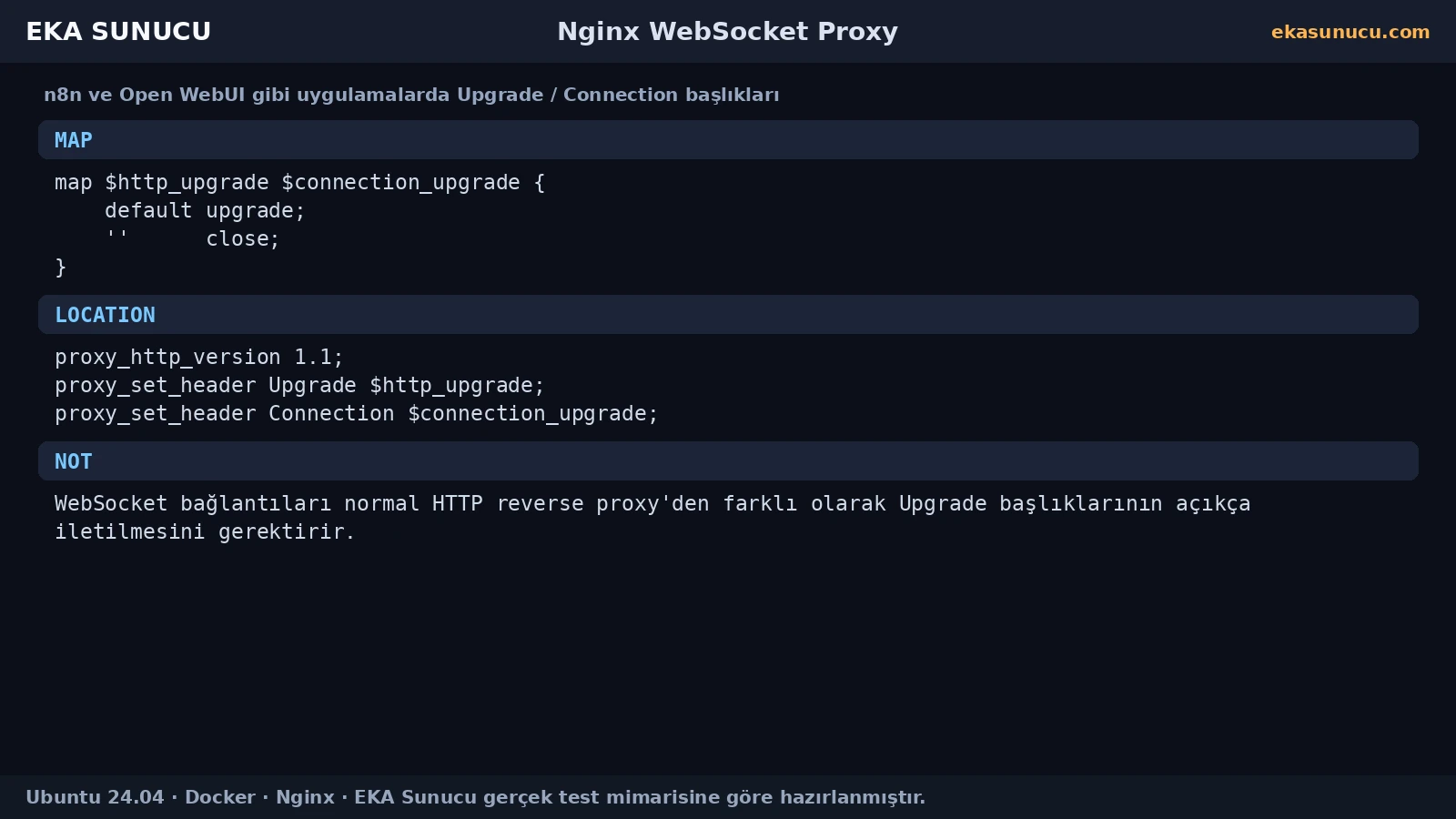
A localhost-only app port needs a public domain layer when users must reach it. We installed certificates after validating Nginx configuration and then confirmed successful HTTPS responses.
certbot renew --dry-run is a practical way to test the renewal path without replacing the live certificate.
nginx -tcurl -I https://n8n.ekasunucu.comcertbot renew --dry-run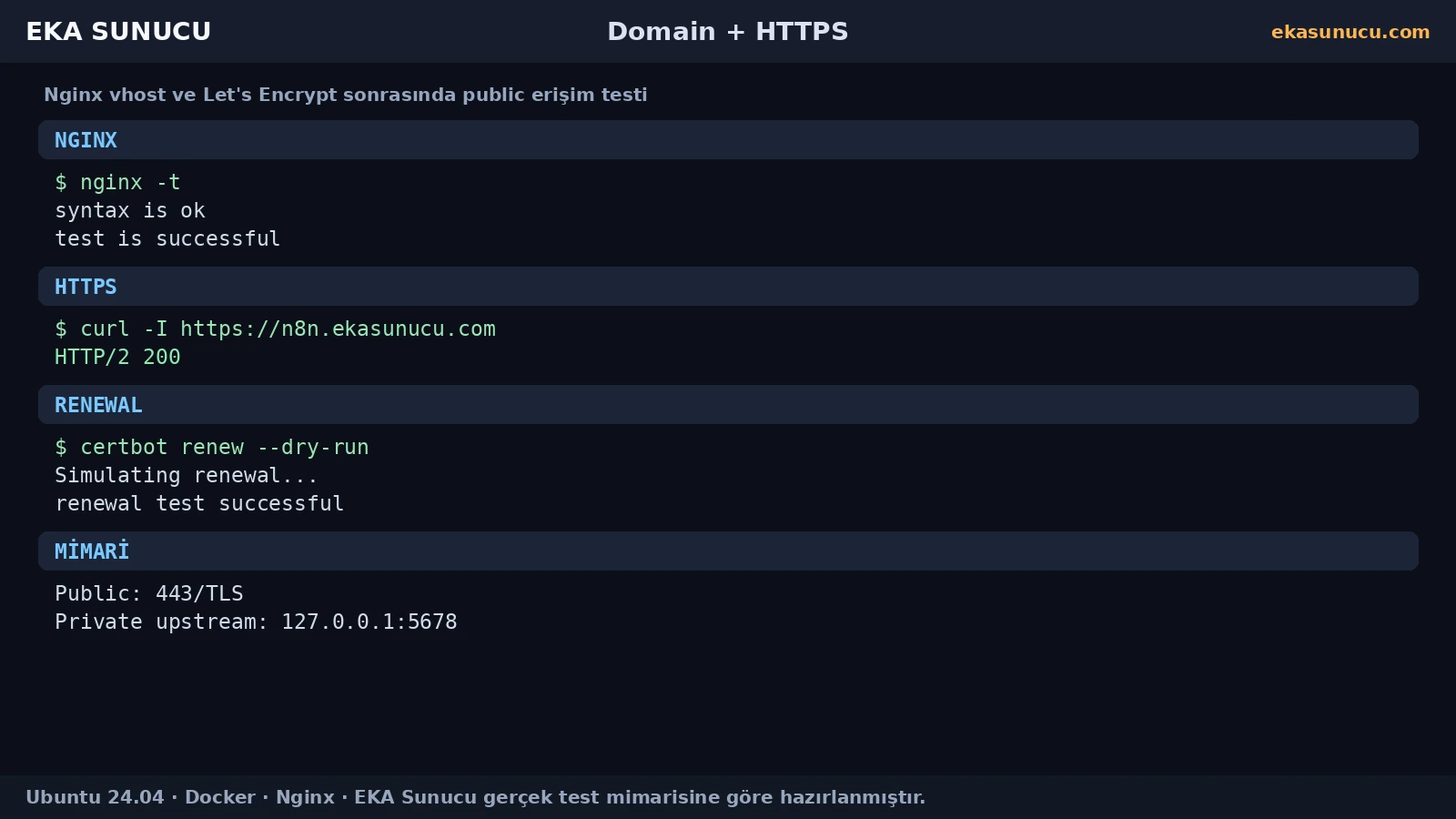
Docker manages firewall and NAT rules for published ports. Docker's official documentation warns that a port published without a host IP may be reachable externally and that Docker's iptables handling can bypass expectations based only on UFW configuration.
Make the primary decision in the Docker publish expression itself: -p 127.0.0.1:HOST:CONTAINER. Treat the host firewall as an additional layer.
-p 5678:5678-p 127.0.0.1:5678:5678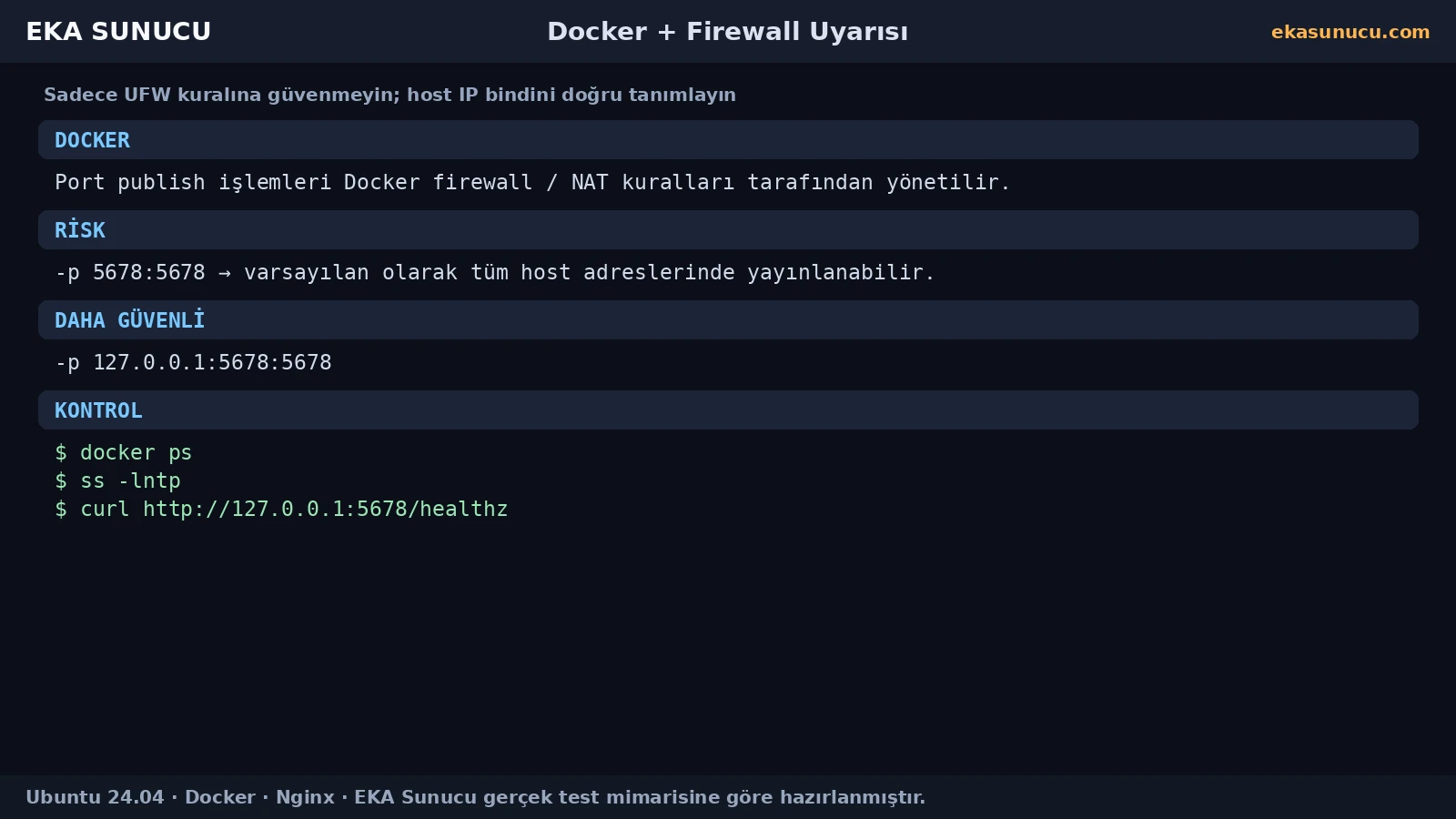
Portainer, Open WebUI and n8n need browser access, so we used localhost application ports plus Nginx domain HTTPS. Public users see only the TLS entry point.
Ollama remained a backend API. The host uses 127.0.0.1:11434 and Docker services use ollama:11434; no public 11434 listener is required.
portainer.ekasunucu.com → Nginx → 127.0.0.1:9443openwebui.ekasunucu.com → Nginx → 127.0.0.1:3000n8n.ekasunucu.com → Nginx → 127.0.0.1:5678Ollama → 127.0.0.1:11434 + eka-ai private network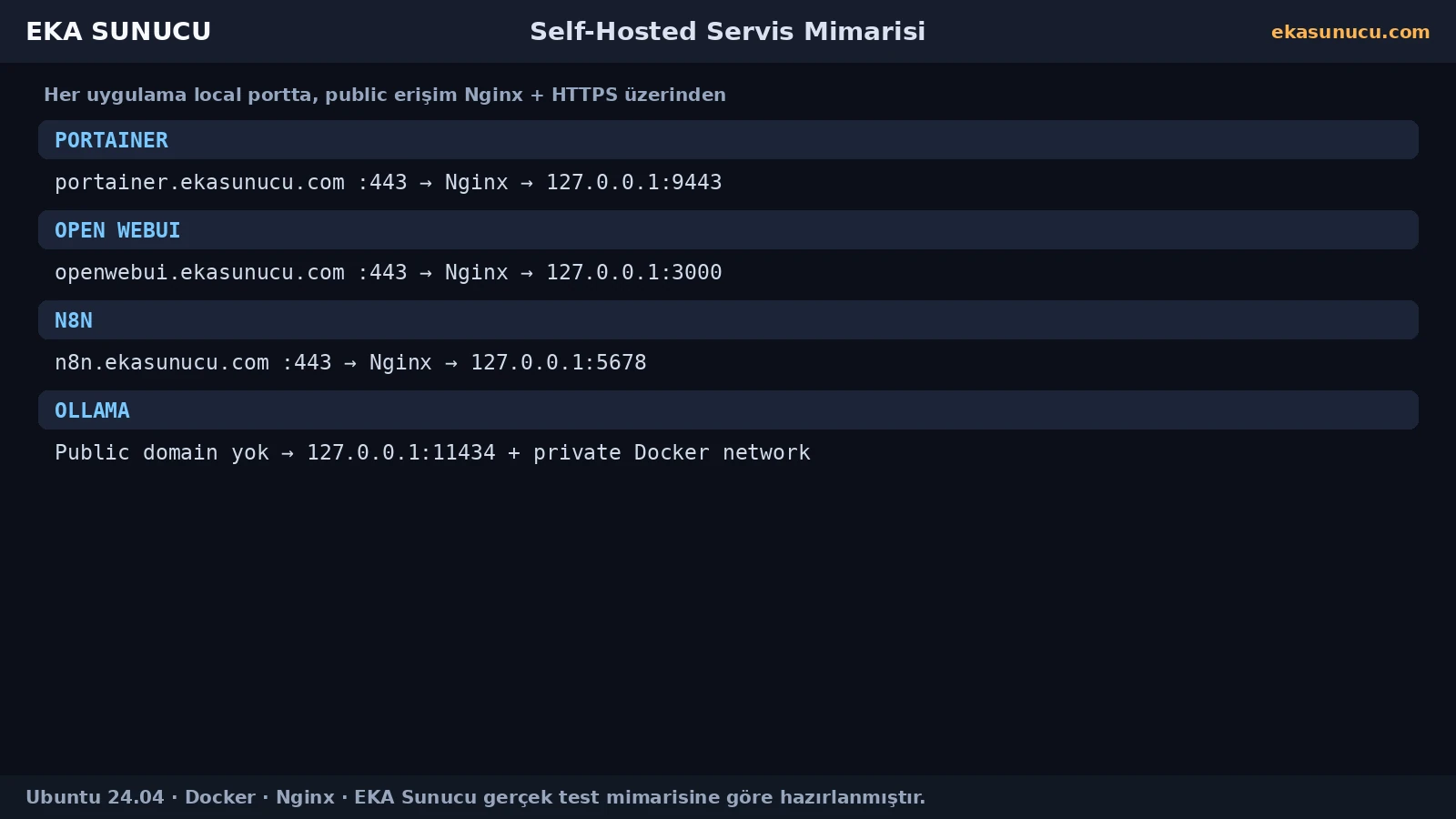
A container's published port mapping is not normally changed in place like a network attachment. Recreate the container with the same volumes, environment and network settings, but use a localhost-only -p mapping.
Capture the existing inspect output first. Named volumes can preserve application data independently of the container lifecycle, but take a backup or snapshot before production recreation.
docker inspect n8n > /root/n8n-before-port-fix.jsondocker rm -f n8ndocker run -d --name n8n --restart=always --env-file /root/n8n.env -p 127.0.0.1:5678:5678 -v n8n_data:/home/node/.n8n docker.n8n.io/n8nio/n8n:latestCheck docker ps for mappings, ss for actual sockets, nginx -t for configuration, a real HTTPS request for the public endpoint and Certbot dry-run for renewal.
The expected design is: application ports on 127.0.0.1, public web entry only through Nginx 80/443, successful HTTPS and a working renewal test.
docker ps --format 'table {{.Names}}\t{{.Ports}}'ss -lntp | grep -E ':80|:443|:9443|:11434|:3000|:5678'nginx -tcurl -I https://n8n.ekasunucu.comcertbot renew --dry-run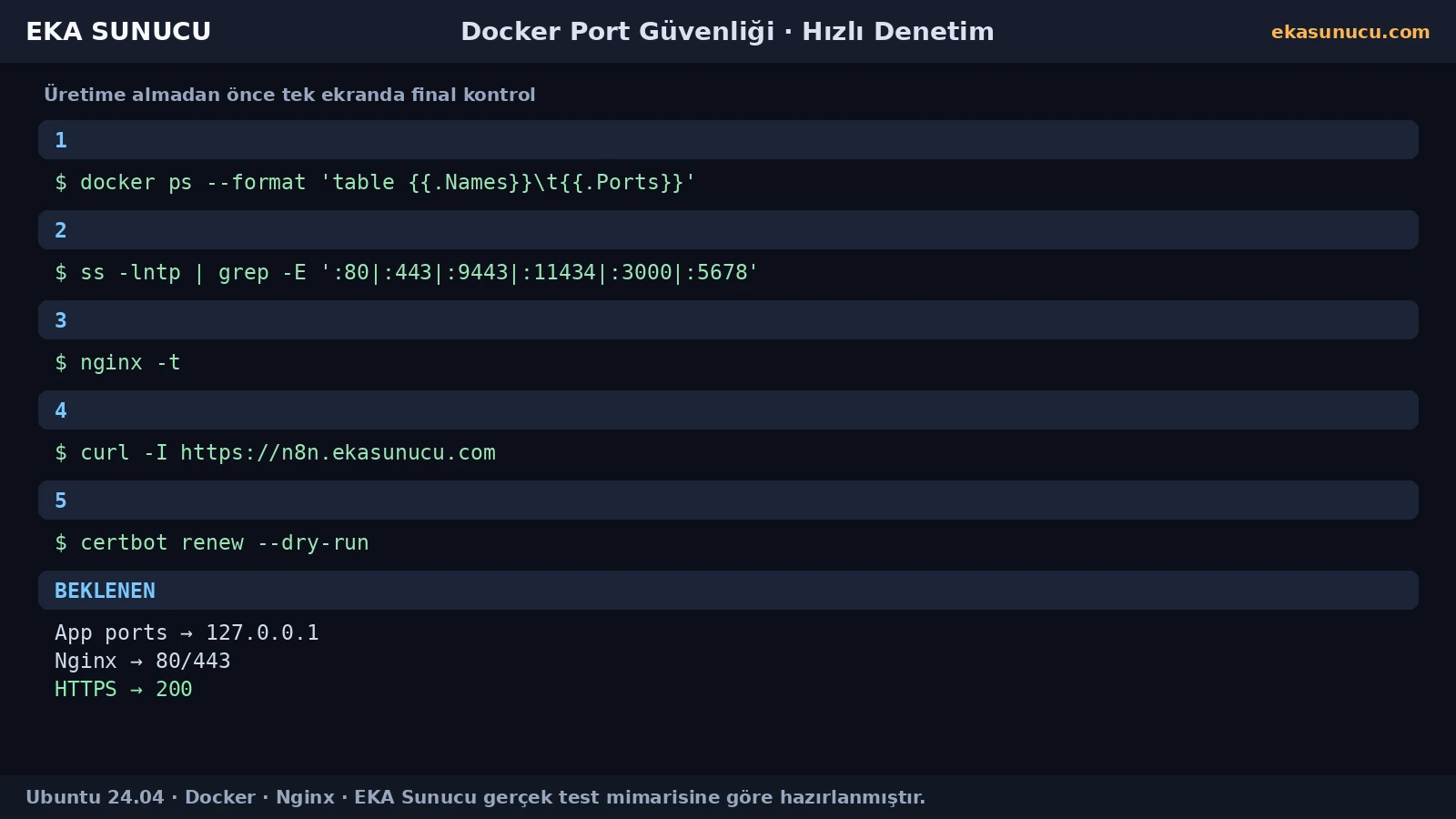
If old docker run parameters are lost during an image update, a recreated service may accidentally be published on 0.0.0.0. Make port-mapping verification a mandatory deployment step.
Verifying bindings, Nginx upstreams, HTTPS health and private Docker networking together reduces accidental public exposure in self-hosted services.
docker ps --format 'table {{.Names}}\t{{.Ports}}'ss -lntpdocker network inspect eka-ainginx -tWithout a host IP, Docker can publish the port on all host addresses by default.
The published port is restricted to the Docker host loopback address.
It generally represents all suitable IPv4 host interfaces for the listening or published port.
Inspect the docker ps Ports column and verify listening sockets with ss -lntp.
Not in this architecture; it stays on 127.0.0.1:5678 and Nginx provides HTTPS access.
We kept it on localhost and published the domain through Nginx.
No in this design; it uses 127.0.0.1 on the host and a private Docker network between containers.
The host binding was restricted to 127.0.0.1:9443 and domain access was proxied by Nginx.
It accepts public domain/TLS traffic and forwards it to a backend application listening on localhost.
Upgrade and Connection information must be passed explicitly by the reverse proxy.
Do not rely on UFW alone; Docker manages its own firewall/NAT rules, so choose the host bind address correctly.
Normally recreate the container with the correct volumes, environment, networks and publish mapping.
Run certbot renew --dry-run.
Re-check docker ps, ss, Nginx configuration, HTTPS health, private networks and certificate renewal.
Run Portainer, Ollama, Open WebUI, n8n and other Docker services behind Nginx and HTTPS on your own EKA Sunucu Linux VPS.
Updated: 10.08.2026 Turkey (Turkish)
 Germany (German)
 Worldwide (English)

