
 Halkali merkez neighborhood fatih st ozgur apt no 46 , Kucukcekmece , Istanbul , 34303 , TR
In this real VPS session we fully updated Ubuntu 22.04.5 LTS, upgraded it to Ubuntu 24.04.4 LTS Noble with do-release-upgrade, documented the SSH recovery daemon on port 1022, approved the 532-package upgrade plan, cleaned obsolete packages and verified the final kernel, apt and systemd state after reboot.
Ubuntu 22.04.5 LTS / Jammy
        ↓  apt + reboot
Ubuntu Release Upgrader
        ↓  SSH recovery :1022
Ubuntu 24.04.4 LTS / Noble
        ↓
apt update + systemctl --failedThis guide documents a real in-place upgrade on an EKA Sunucu test VPS from Ubuntu 22.04.5 LTS to Ubuntu 24.04.4 LTS. The path was to fully update Jammy first, verify the release-upgrader packages, reboot when required, and then run Ubuntu's do-release-upgrade tool.
The release upgrade was performed over SSH. The upgrader explicitly warned about remote-session recovery and started an additional sshd on port 1022. Package download, Noble installation, obsolete-package cleanup, the final reboot and Ubuntu 24.04.4 verification are all documented with real screenshots.
Ubuntu 22.04.5 LTS (Jammy)
        ↓
Fully update packages
        ↓
Reboot
        ↓
do-release-upgrade
        ↓
Ubuntu 24.04.4 LTS (Noble)A release upgrade changes the package manager, kernel, systemd components and many core packages. Create a rollback point first. If your VPS platform supports snapshots, take one and back up application databases and critical configuration separately.
Low disk space, failed systemd units and held packages can interrupt the upgrade. Record root and /boot space, memory, the running kernel and the current distribution before proceeding.
cat /etc/os-release | grep -E 'PRETTY_NAME|VERSION_ID|VERSION_CODENAME'
uname -rdf -h /
df -h /boot 2>/dev/null || true
free -hsystemctl --failed
apt-mark showholdBefore starting the distribution upgrade, we installed every pending Ubuntu 22.04 update. In this real test, apt reported 327 packages to upgrade, 17 new packages and roughly 600 MB of archives.
ubuntu-release-upgrader-core and update-manager-core were also verified. Prompt=lts in /etc/update-manager/release-upgrades tells an LTS installation to follow the next eligible LTS release.
apt updateapt dist-upgrade -y -o APT::Get::Always-Include-Phased-Updates=trueapt install -y update-manager-core ubuntu-release-upgrader-coresed -i 's/^Prompt=.*/Prompt=lts/' /etc/update-manager/release-upgrades
grep '^Prompt=' /etc/update-manager/release-upgradesAfter the Ubuntu 22.04 updates, /run/reboot-required existed on our test VPS. Instead of starting the release upgrade while the old kernel was still running, we rebooted first.
Wait for SSH to return and verify that the machine is still on Ubuntu 22.04 LTS. This reboot only activates the updated Jammy kernel and services; it is not the 24.04 upgrade itself.
if [ -f /run/reboot-required ]; then cat /run/reboot-required; else echo 'No reboot required'; firebootAfter reconnecting, we started the distribution upgrade with do-release-upgrade. The tool detected that the session was running over SSH and warned that recovery can be harder if the connection fails.
After confirmation, the upgrader started an additional sshd on port 1022 and explained that a temporary firewall rule might be required. This is a recovery path during the upgrade, not a replacement for the normal SSH service.
do-release-upgrade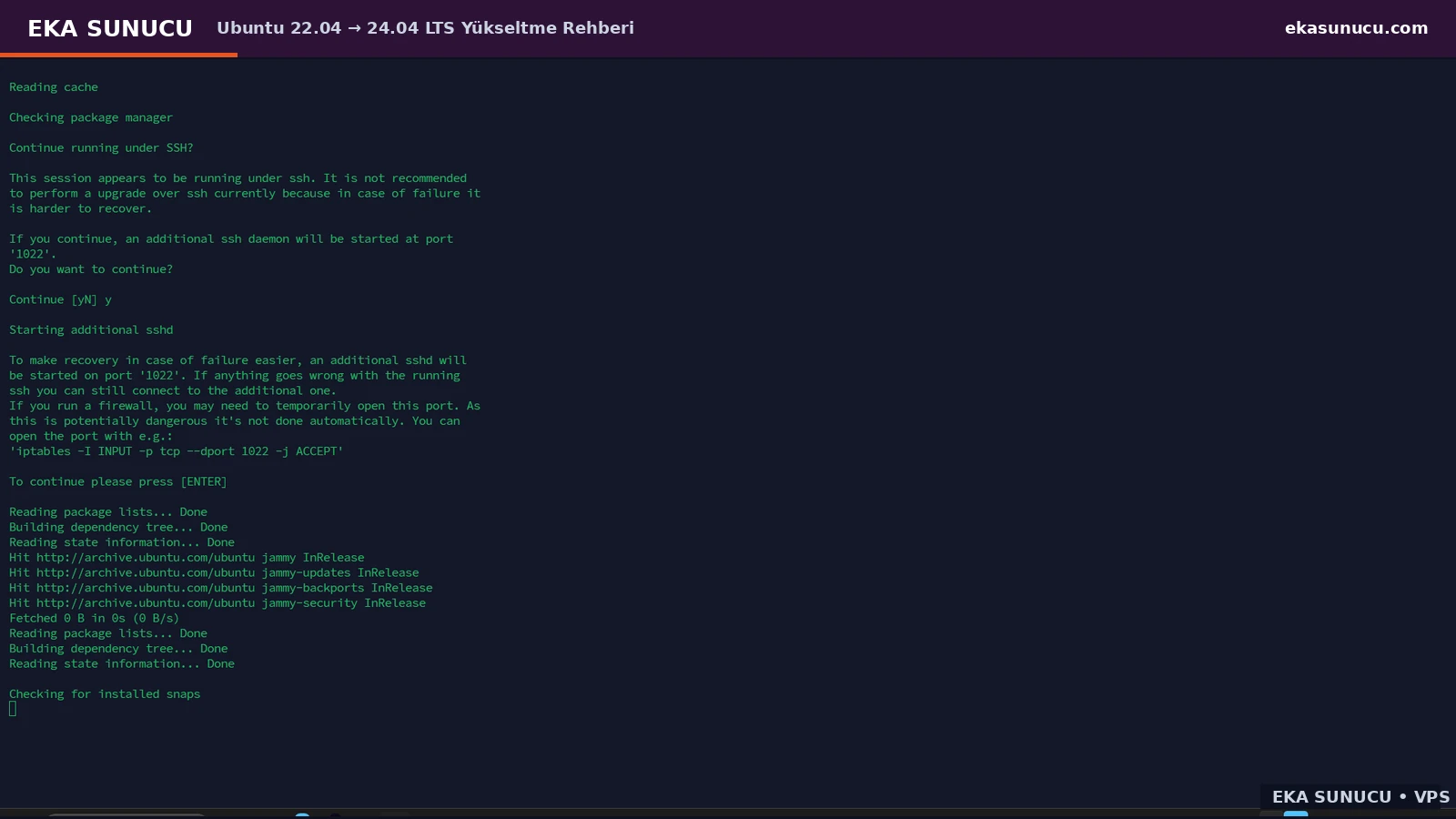
After the SSH check, the upgrader displayed Ubuntu information and resource links. We confirmed the Continue [yN] prompt and the tool moved on to preparing Noble metadata.
Do not close the terminal here. On production systems, review release notes for removed packages, behavior changes and service compatibility that may affect your stack.
y![Confirming Continue [yN] after the Ubuntu 24.04 release information screen.](/templates/website/EkaSunucu/ubuntu-22-24-resimler/02-ubuntu-24-release-notlari-devam.webp)
In our real test, the calculated plan showed 49 packages to be removed, 156 new packages to be installed and 532 packages to be upgraded. The download size was reported as 1,139 MB.
This is one of the most important checkpoints. If packages scheduled for removal include a control panel, custom database, web server or vendor component, use Details and investigate before approving.
y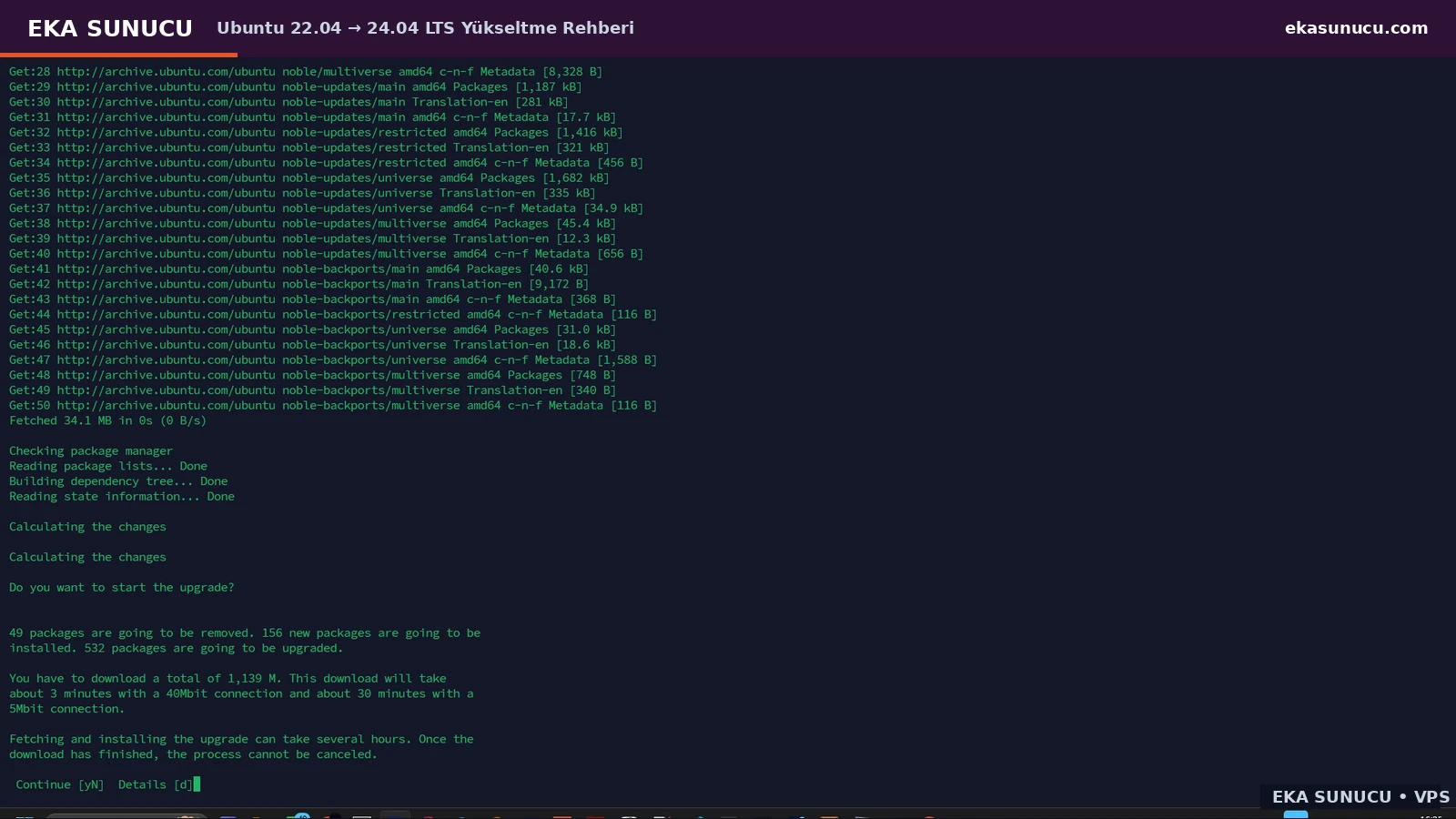
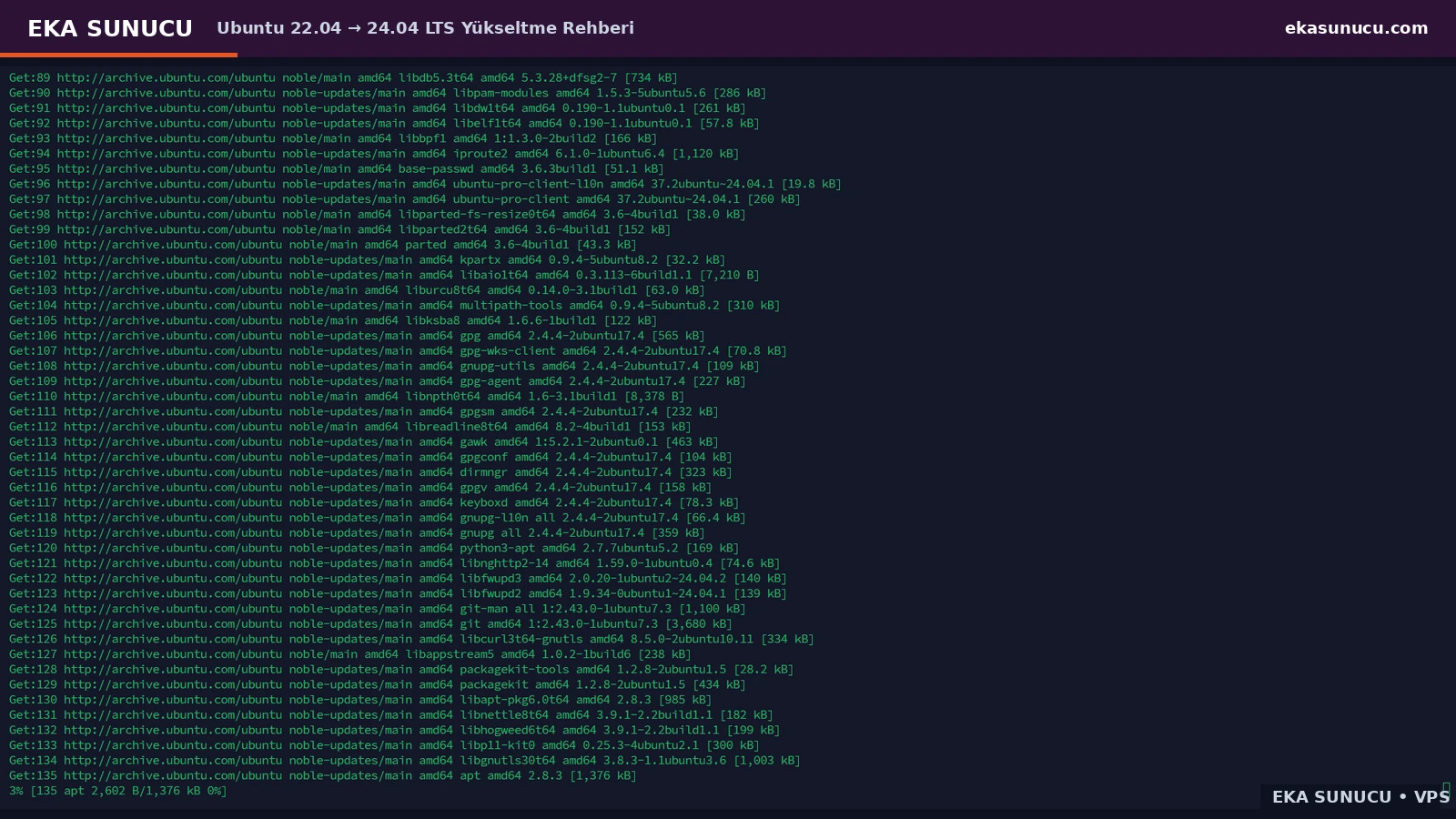
After approval, hundreds of packages were downloaded from the Noble and Noble-updates repositories. The captured session shows apt, iproute2, git, GnuPG and core libraries arriving from the Ubuntu archive.
Duration depends on network speed, disk performance and the package set. Once download and dpkg configuration begin, do not forcibly terminate the process.
After Noble was installed, the upgrader searched for software considered obsolete. In our test, the Remove obsolete packages? screen proposed removing 111 packages.
That can be normal on a relatively clean VPS, but use Details on production systems and review anything installed manually or supplied by a third-party repository.
dy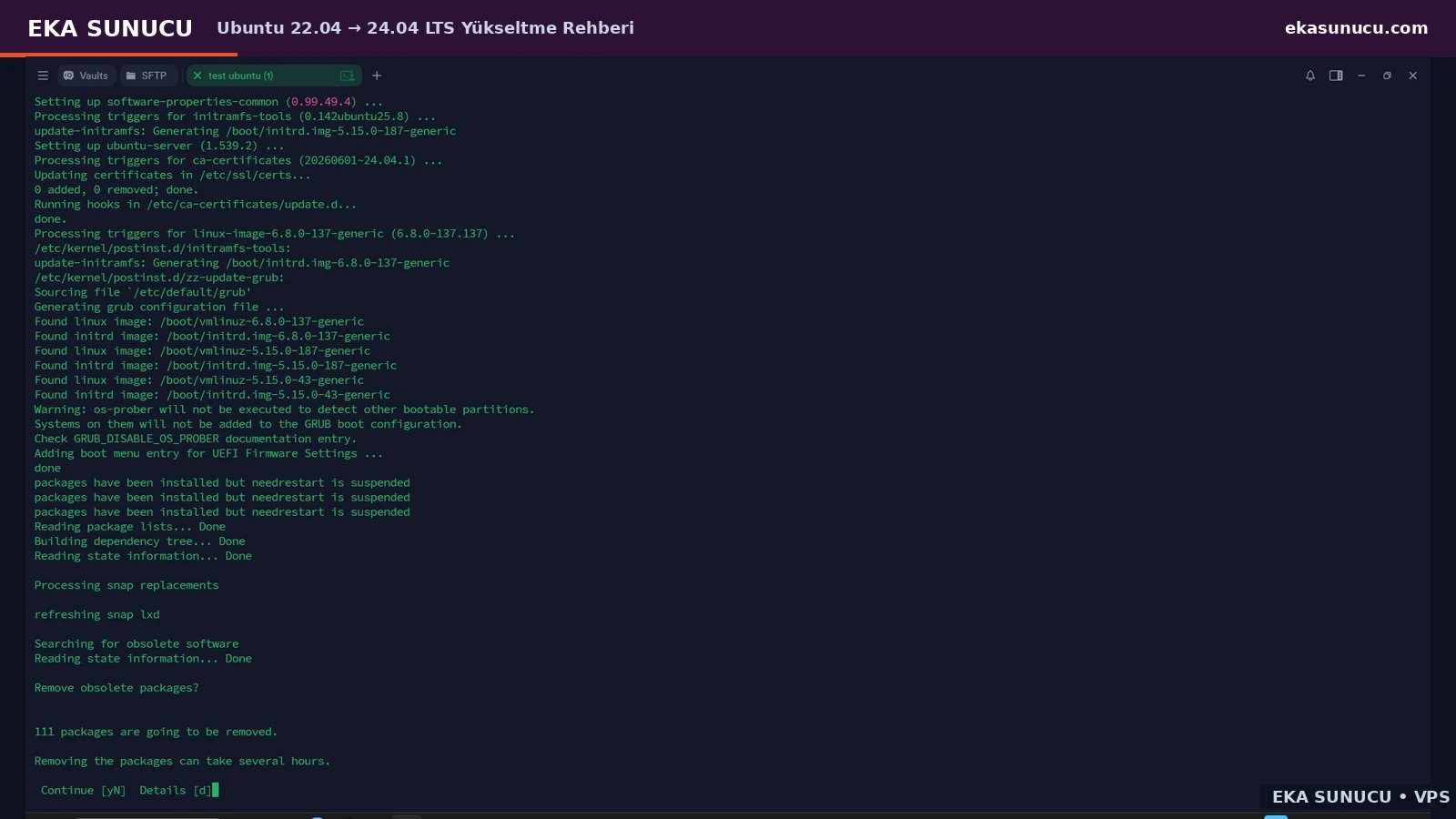
After old packages were cleaned and GRUB/initramfs processing finished, the terminal displayed System upgrade is complete followed by Restart required.
The filesystem may already contain Noble packages, but the running kernel and all services are not fully transitioned until the reboot. We approved the final restart.
y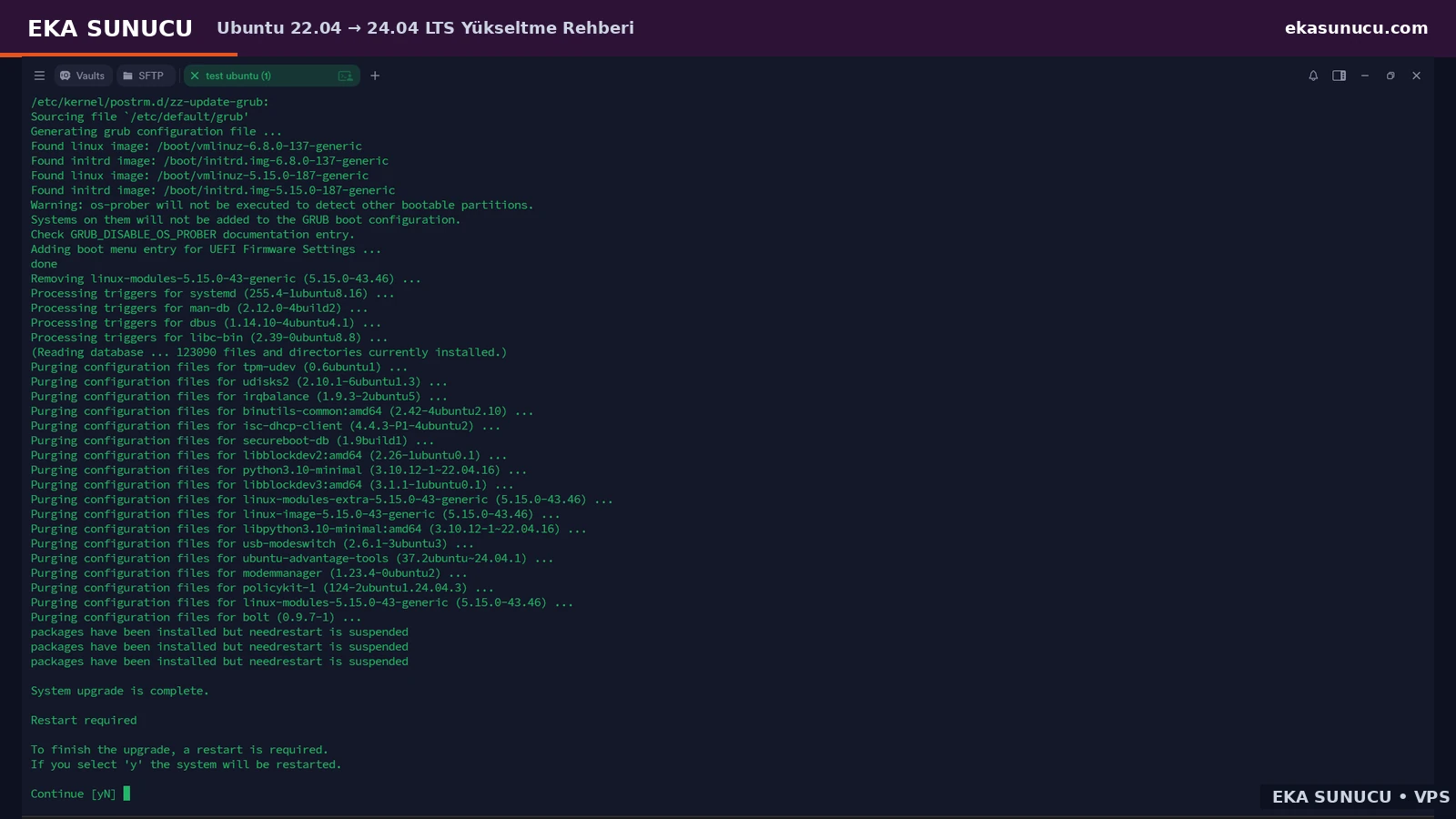
When the VPS became reachable again, the SSH welcome banner reported Ubuntu 24.04.4 LTS and GNU/Linux 6.8.0-137-generic x86_64 in this test.
Do not rely on the banner alone. Check /etc/os-release and uname so the userspace release and the running kernel are both verified.
cat /etc/os-release | grep -E 'PRETTY_NAME|VERSION_ID|VERSION_CODENAME'uname -r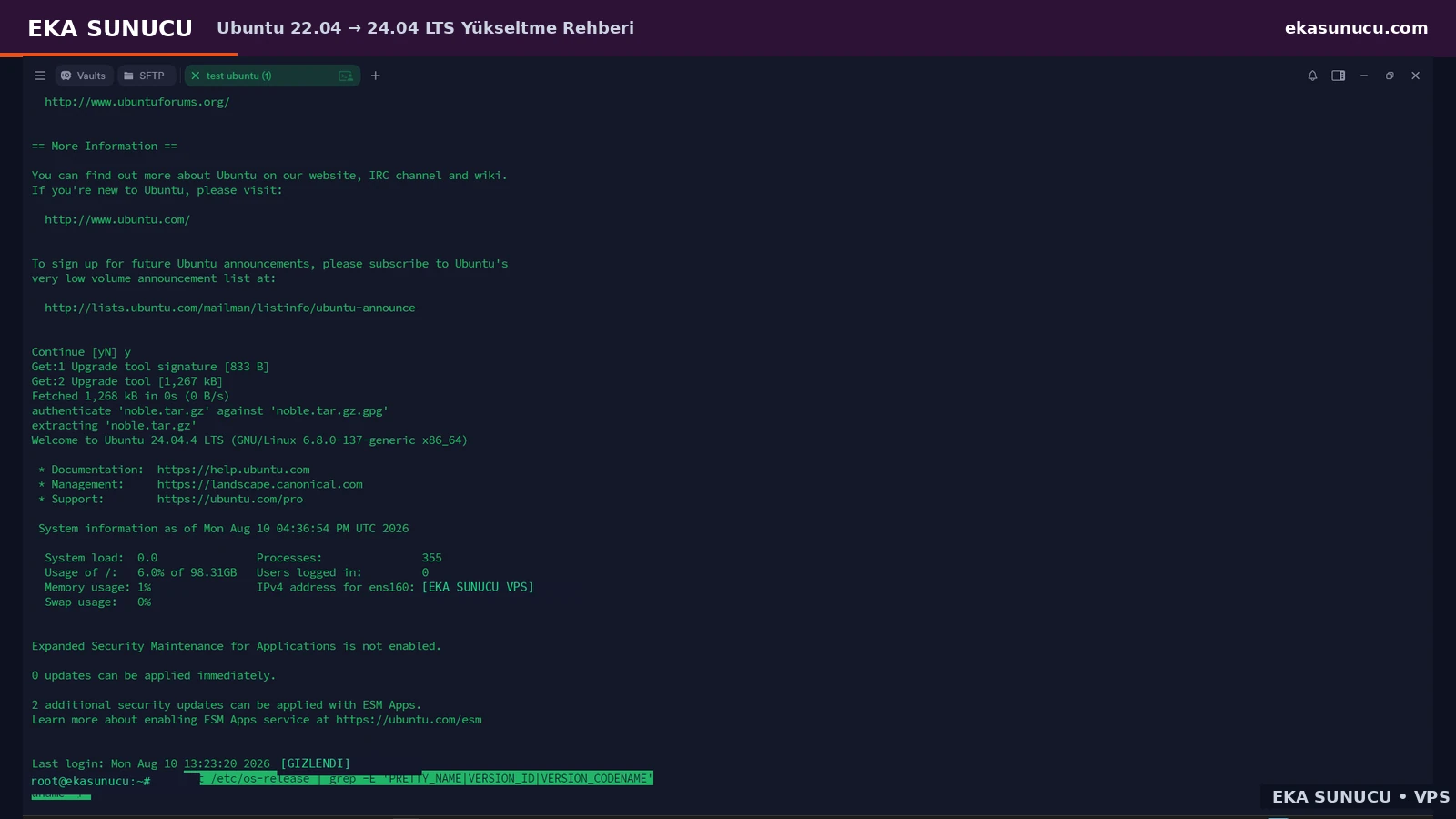
The final check returned Ubuntu 24.04.4 LTS with VERSION_CODENAME=noble. We then ran apt update, apt list --upgradable and systemctl --failed.
On this real test VPS all packages were up to date and systemctl --failed reported 0 loaded units listed. This verifies package metadata access and basic systemd health in addition to the release number.
apt updateapt list --upgradablesystemctl --faileddf -h /
free -h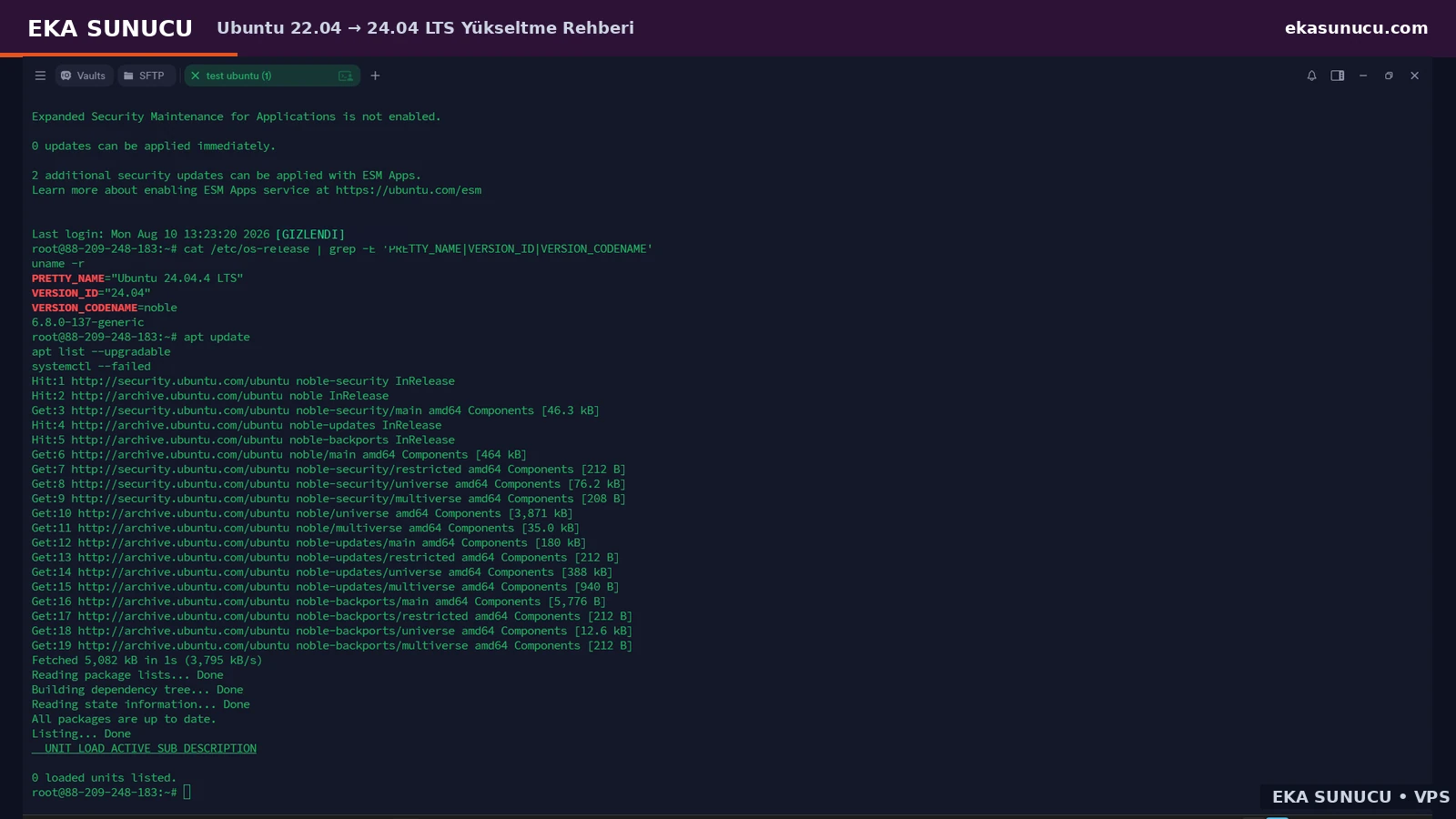
The additional sshd on port 1022 is created by the release upgrader as a temporary recovery path. After the final reboot, verify the normal SSH service on the port you actually operate.
If you manually opened 1022 in a firewall, remove the temporary rule when it is no longer required. Evaluate SSH, UFW, cloud security groups and provider firewall rules together.
ss -lntp | grep -E ':(22|1022)\b' || trueufw status verboseA healthy operating-system check does not automatically prove application health. Test Nginx/Apache, PHP-FPM, MariaDB/PostgreSQL, Docker, cron jobs, firewall rules and any custom services separately.
Third-party repositories may be disabled by the release upgrader or may require explicit Noble support. Verify vendor compatibility before re-enabling them, and keep the rollback snapshot for a short observation period.
systemctl --failedjournalctl -p err -b --no-pager | tail -n 100docker ps 2>/dev/null || trueThis guide documents a real Ubuntu 22.04.5 LTS VPS upgraded directly to Ubuntu 24.04.4 LTS through Ubuntu's release-upgrader flow. Fully update and reboot 22.04 first.
Not on every system, but /run/reboot-required existed in our test. If a new kernel and core updates are pending, rebooting before the distribution upgrade gives a cleaner starting state.
The tool warns when it detects SSH. Our test started an additional sshd on port 1022. Keep provider console/VNC access and a current backup available anyway.
The release upgrader may start an additional sshd as a recovery path if the primary SSH connection fails. It is temporary and should not be treated as your permanent SSH port.
Prompt=lts in /etc/update-manager/release-upgrades tells an LTS installation to follow the next eligible LTS release.
Use Details and review the packages. Our test showed 49 removals in the initial plan and 111 obsolete packages later; those numbers are specific to that server.
It depends on package count, network and disk speed. Our test plan showed 1,139 MB to download, so a universal duration would be misleading.
Not in this guide. The distribution transition was handled by do-release-upgrade. Manually rewriting repository suites bypasses parts of Ubuntu's guided release-upgrade process.
Use cat /etc/os-release, uname -r, apt update and systemctl --failed together. Our test ended on Ubuntu 24.04.4 LTS with kernel 6.8.0-137-generic and zero failed systemd units.
On a suitable Ubuntu 22.04 LTS VPS with root/SSH access, enough disk space and a current backup, the same official release-upgrader approach can be used. Verify application and repository compatibility for production systems.
Explore EKA Sunucu VPS plans for Ubuntu 22.04/24.04 LTS and self-hosted stacks such as Docker, Portainer, Ollama, Open WebUI and n8n.
Updated: 10.08.2026 Turkey (Turkish)
 Germany (German)
 Worldwide (English)

