
 Halkali merkez neighborhood fatih st ozgur apt no 46 , Kucukcekmece , Istanbul , 34303 , TR
This guide documents a real OpenClaw deployment built from scratch on Windows Server 2022. We connect a ChatGPT account with OpenAI Codex OAuth, choose a model, verify the Gateway and Dashboard, pair a Telegram bot, preserve the real troubleshooting steps, and reboot the VPS to prove that OpenClaw and Telegram return automatically without a manual start command.
OpenClaw CLI → OpenAI/Codex OAuth
openai/gpt-5.6-sol → Agent
127.0.0.1:18789 → OpenClaw Gateway
Telegram Bot → Pairing → 7/24
Windows Scheduled Task → reboot recoveryThis guide documents a real OpenClaw deployment on Windows Server 2022. We do more than install the CLI: we complete OpenAI Codex OAuth, select a model, register the Gateway as a managed Windows task, verify the Control UI, pair Telegram and perform a full reboot test without manually starting OpenClaw afterward.
The native PowerShell path was used. The Gateway listened locally on 127.0.0.1:18789 and Telegram used the Gateway. Our test selected openai/gpt-5.6-sol; model names and availability can vary by account and release.
Windows VPS → OpenClaw Gateway :18789 → OpenAI/Codex OAuth
                                      ↓
Telegram BotAdministrator PowerShell makes installer, PATH and managed Gateway operations more predictable on Windows Server.
Take a VPS snapshot before larger runtime changes, especially when other Node or Python services share the same server.
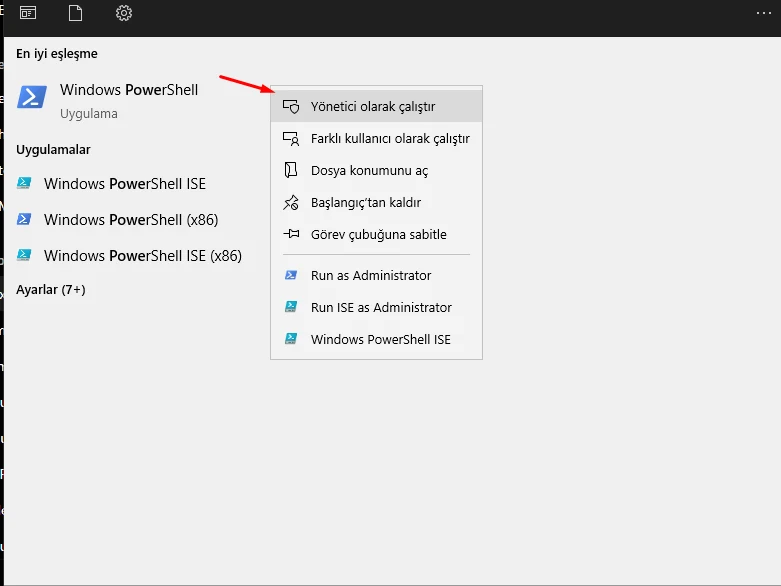
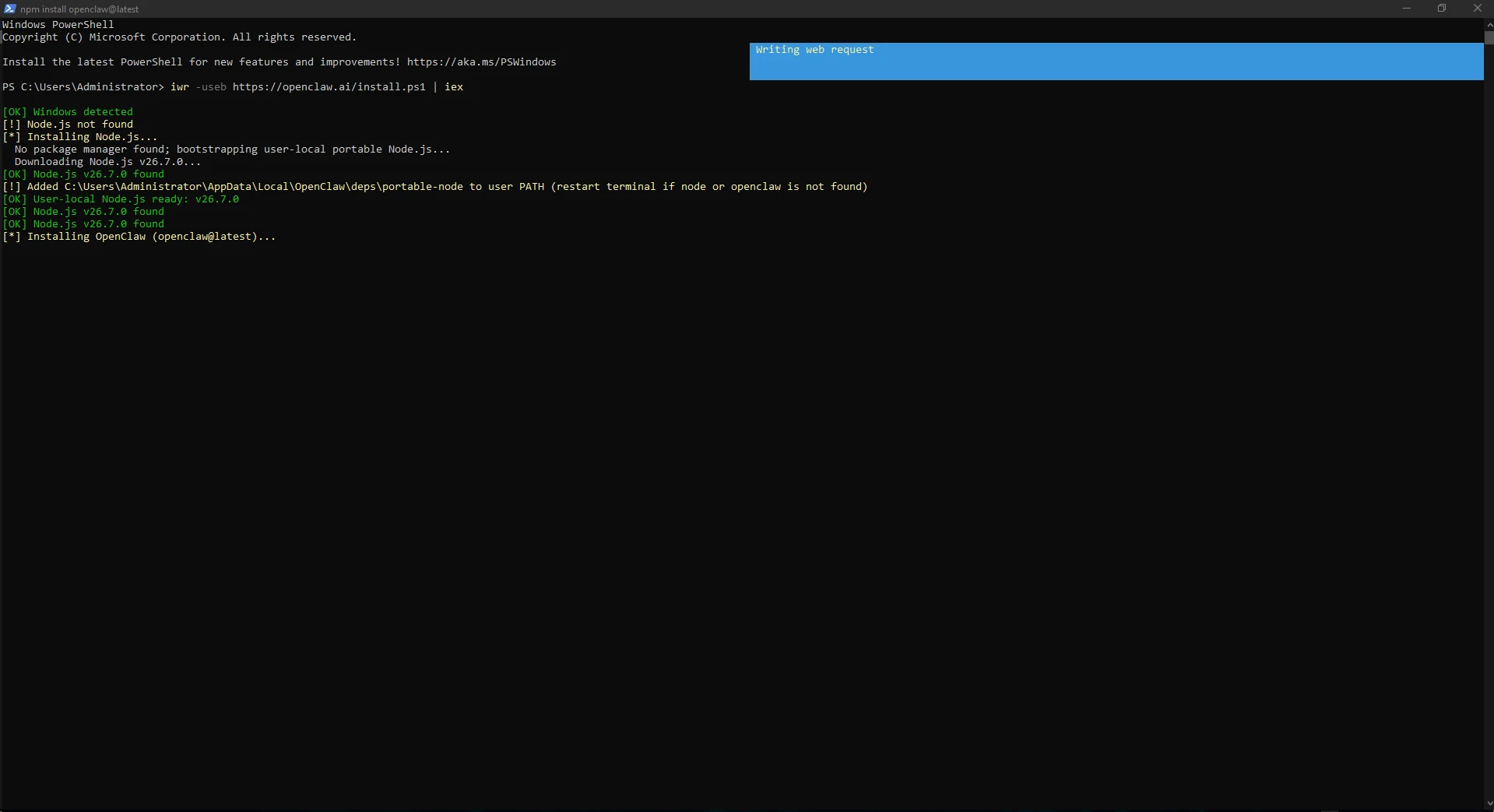
The Windows installer detects the operating system, provisions a supported Node.js runtime when needed and installs OpenClaw. Node.js was missing on our VPS, so a portable runtime was installed under LocalAppData and added to the user PATH.
After Node was ready, the latest OpenClaw package was installed and setup started.
iwr -useb https://openclaw.ai/install.ps1 | iex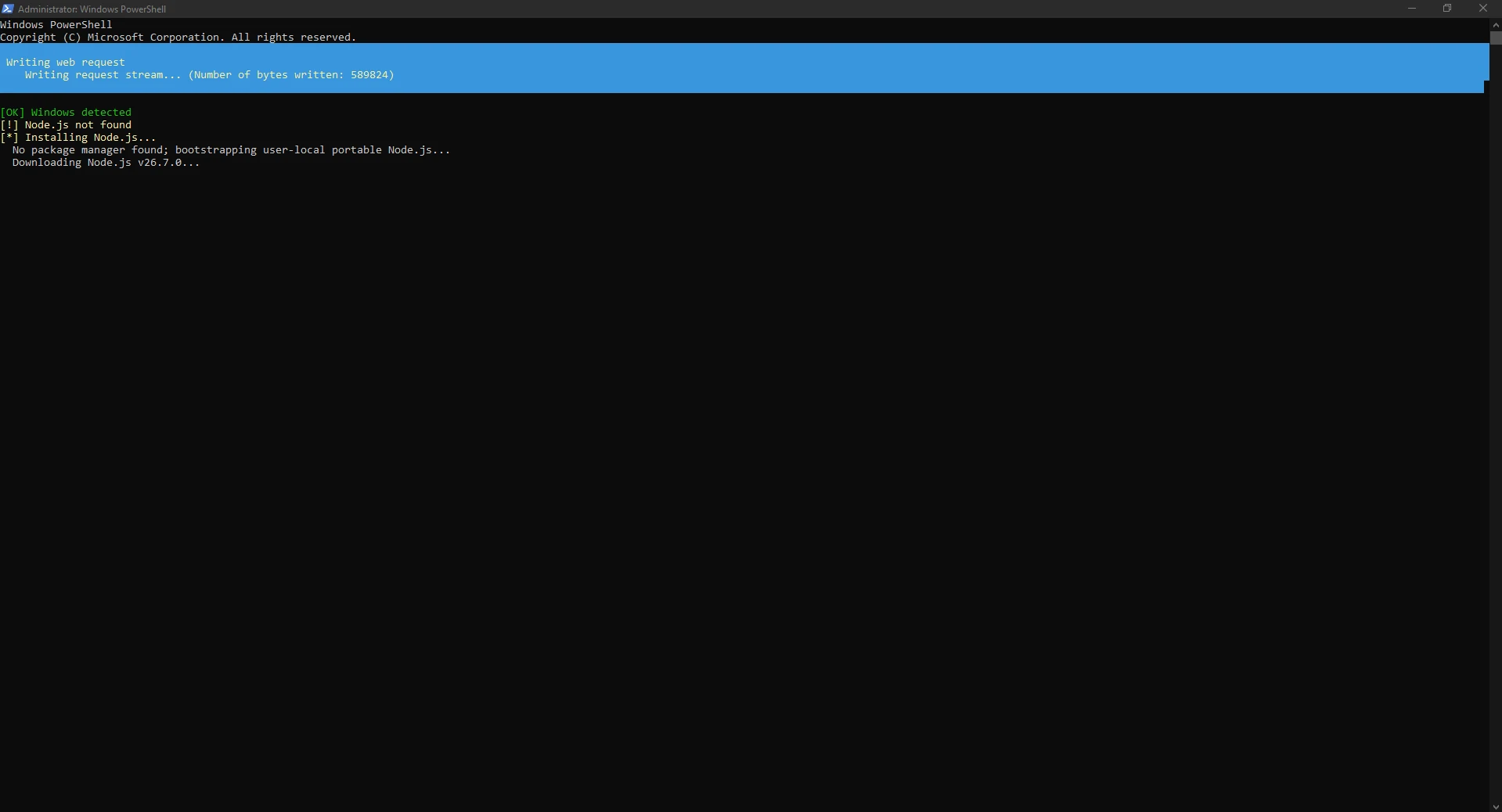
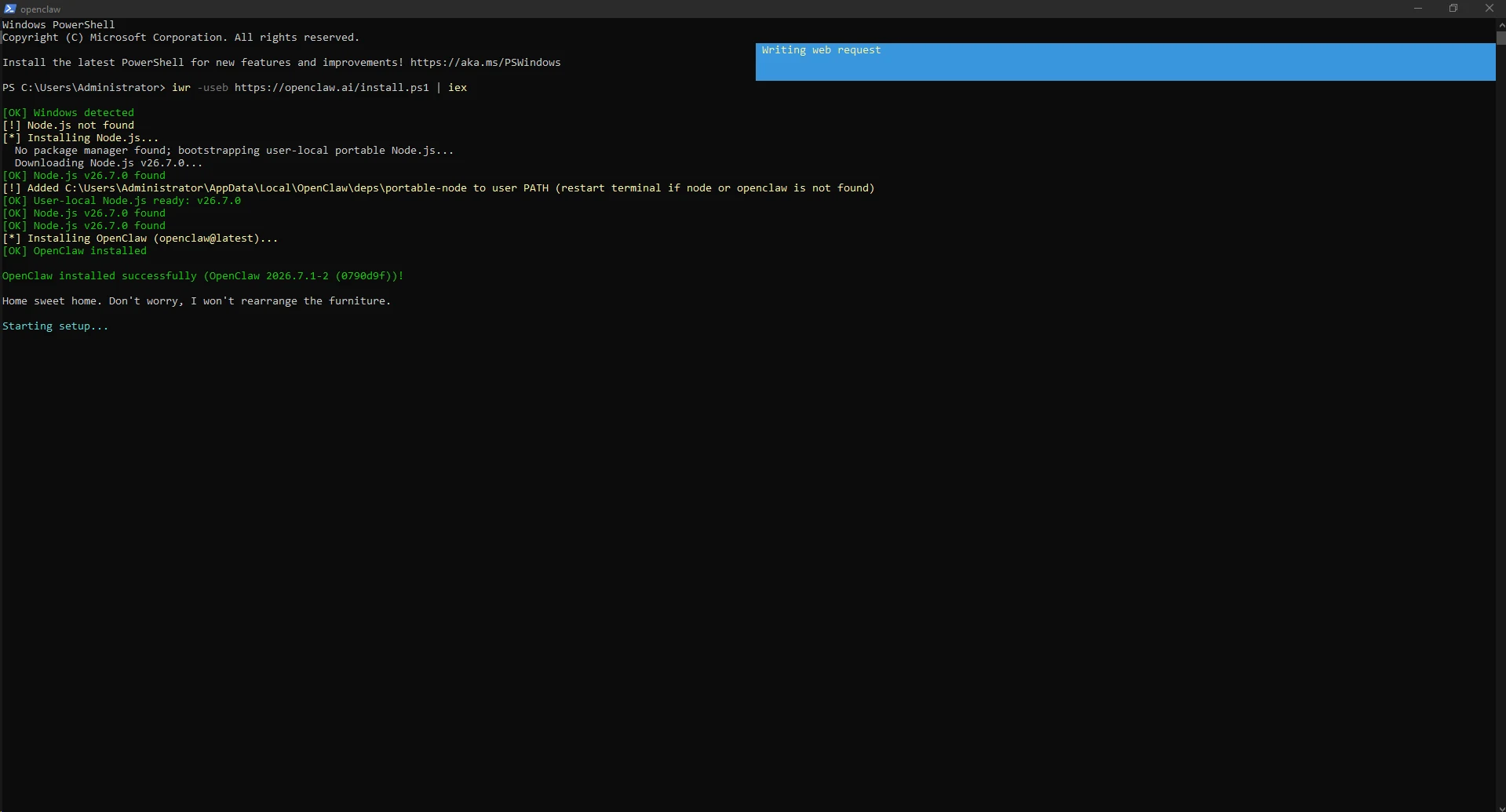
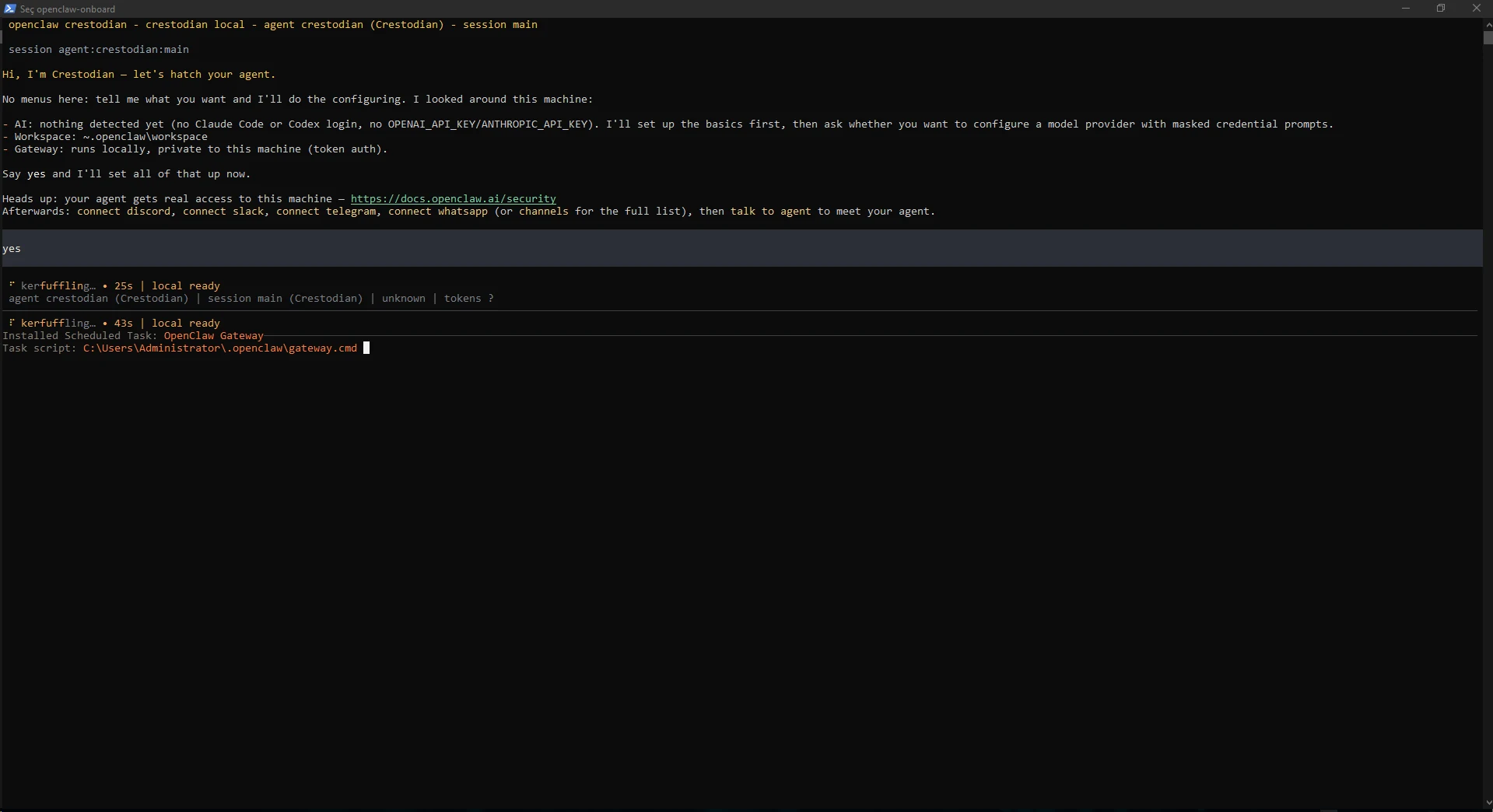
The first onboarding screen reports workspace, model-provider state and Gateway mode. After approving the basic setup, OpenClaw prepared its workspace/session paths and installed a Windows Scheduled Task for the Gateway.
In this test the task was registered as OpenClaw Gateway, allowing managed background startup without a permanently open PowerShell window.
yes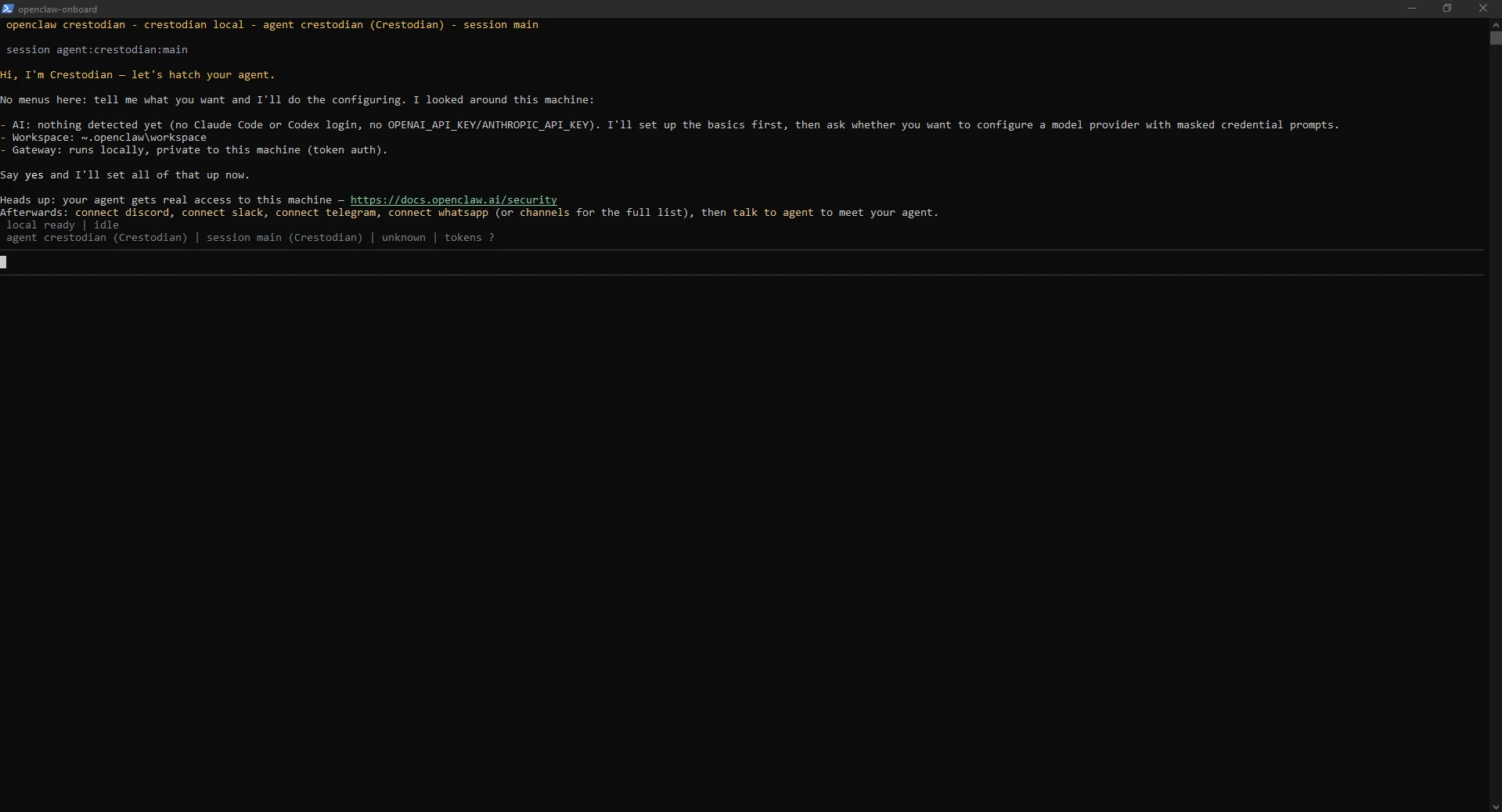
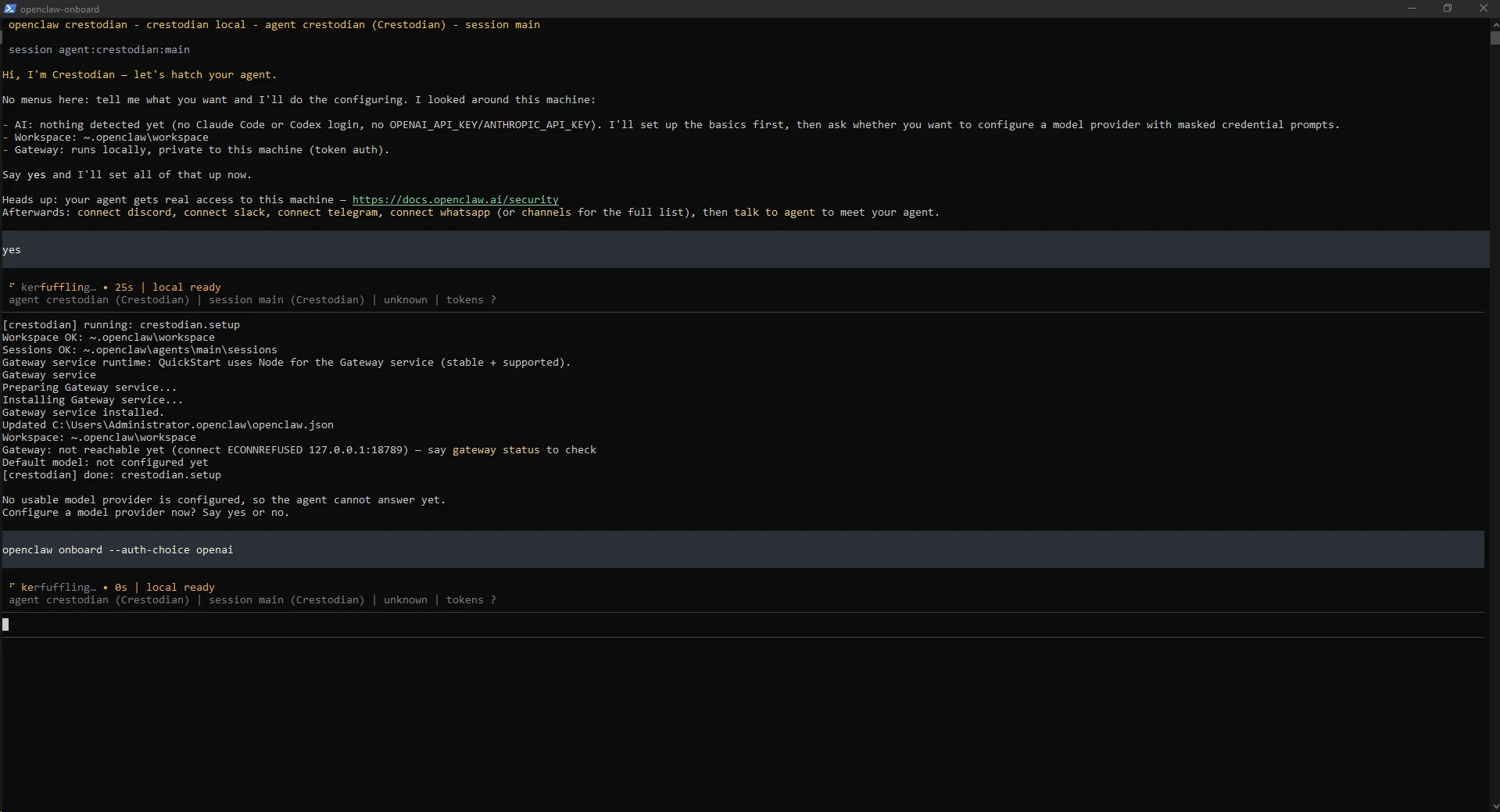
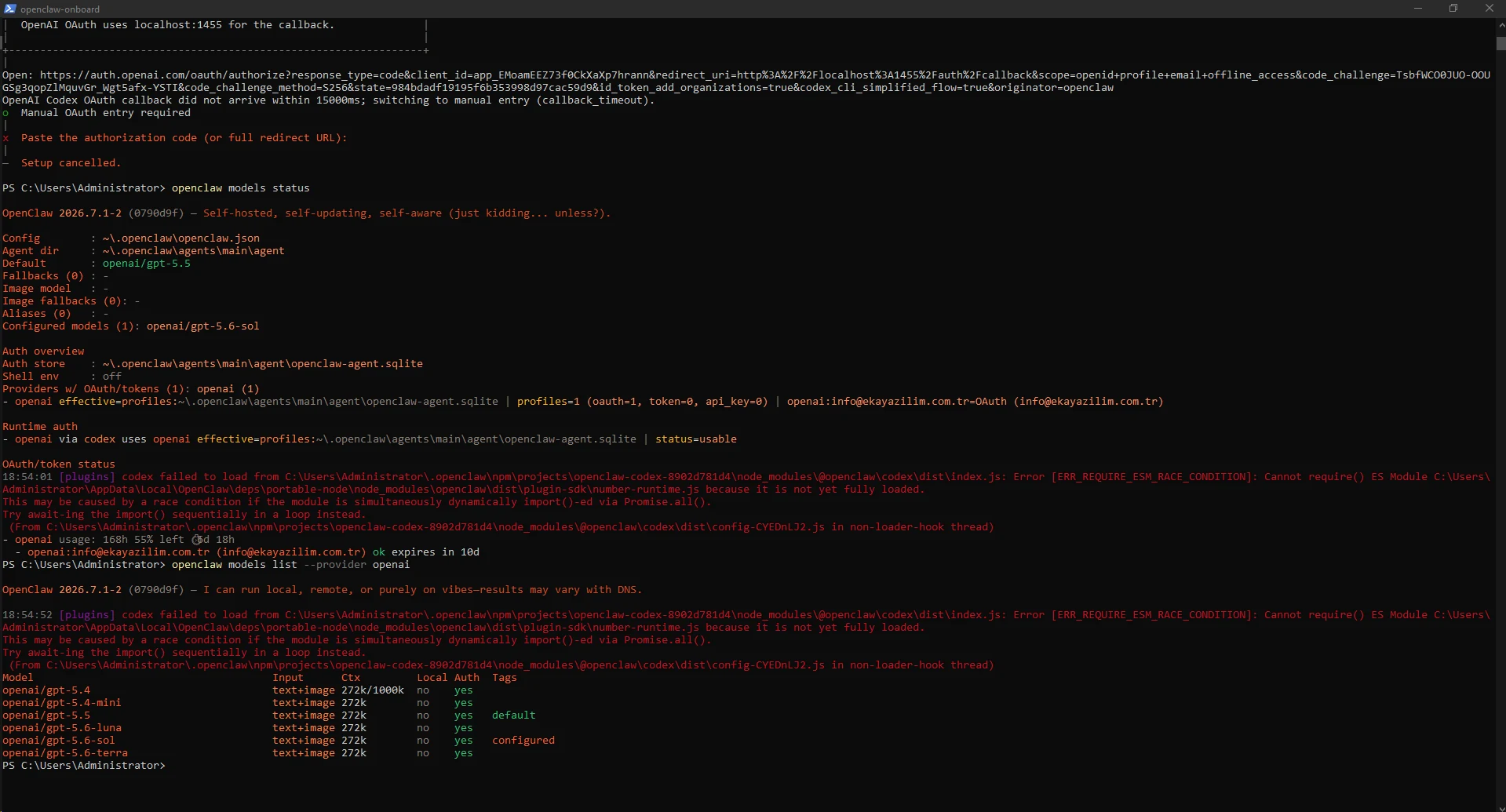
The base setup can finish without a model provider, so the agent could not answer yet. We left the TUI and started OpenAI provider OAuth from a normal PowerShell prompt. OpenClaw opened auth.openai.com and used a localhost callback.
After choosing the ChatGPT account and approving Codex access, Authentication successful confirmed the flow.
openclaw models auth login --provider openai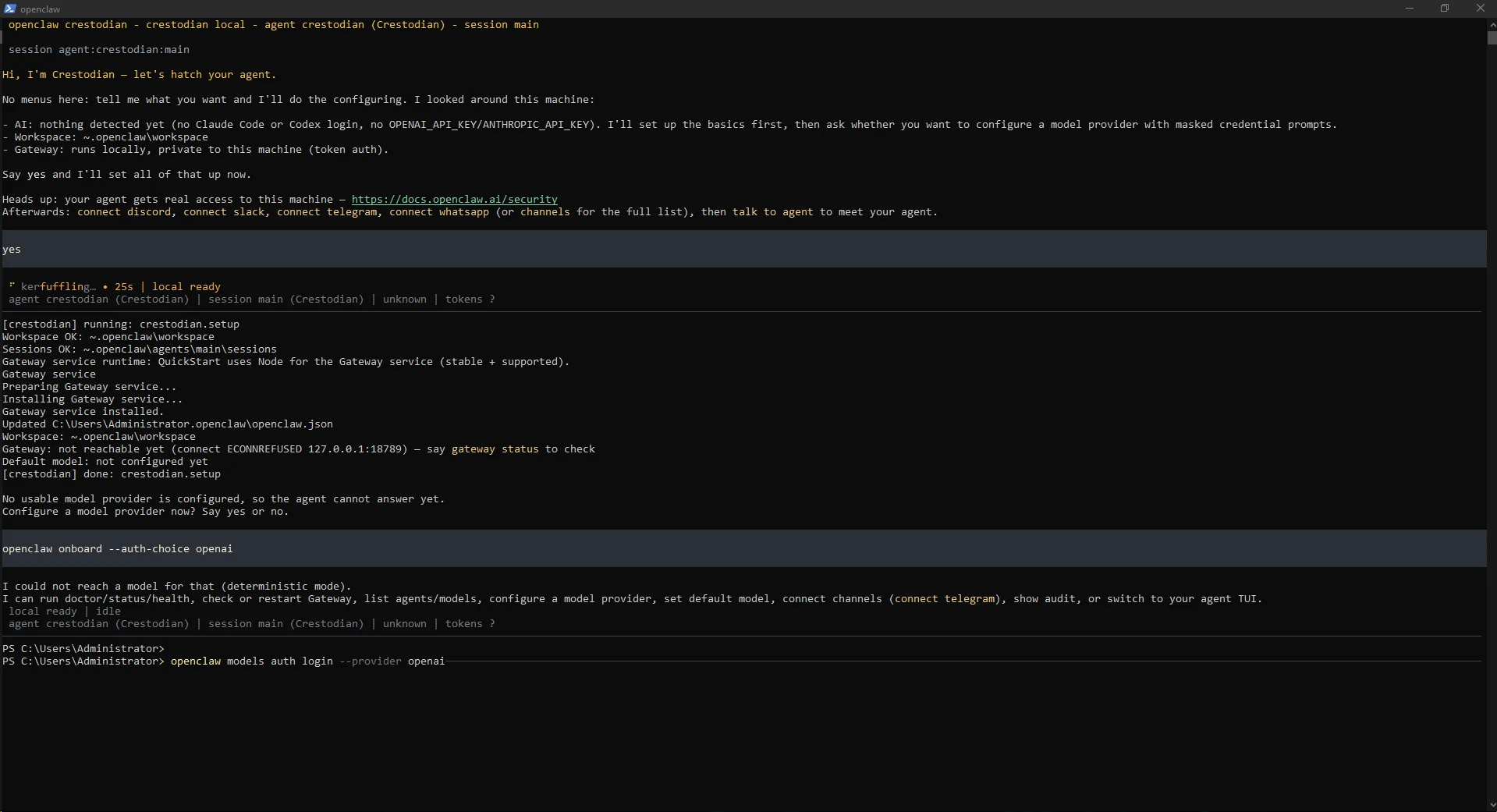
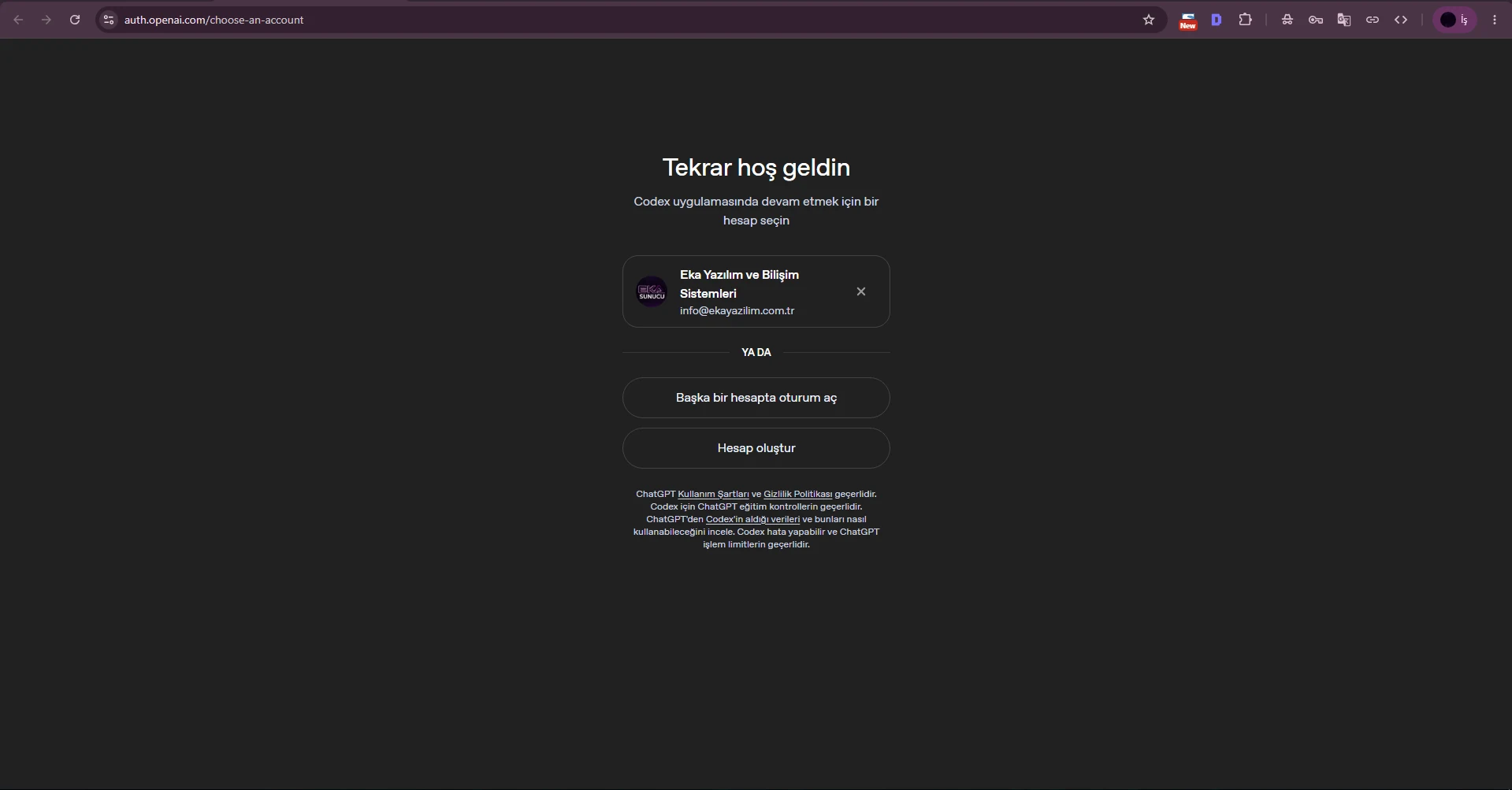
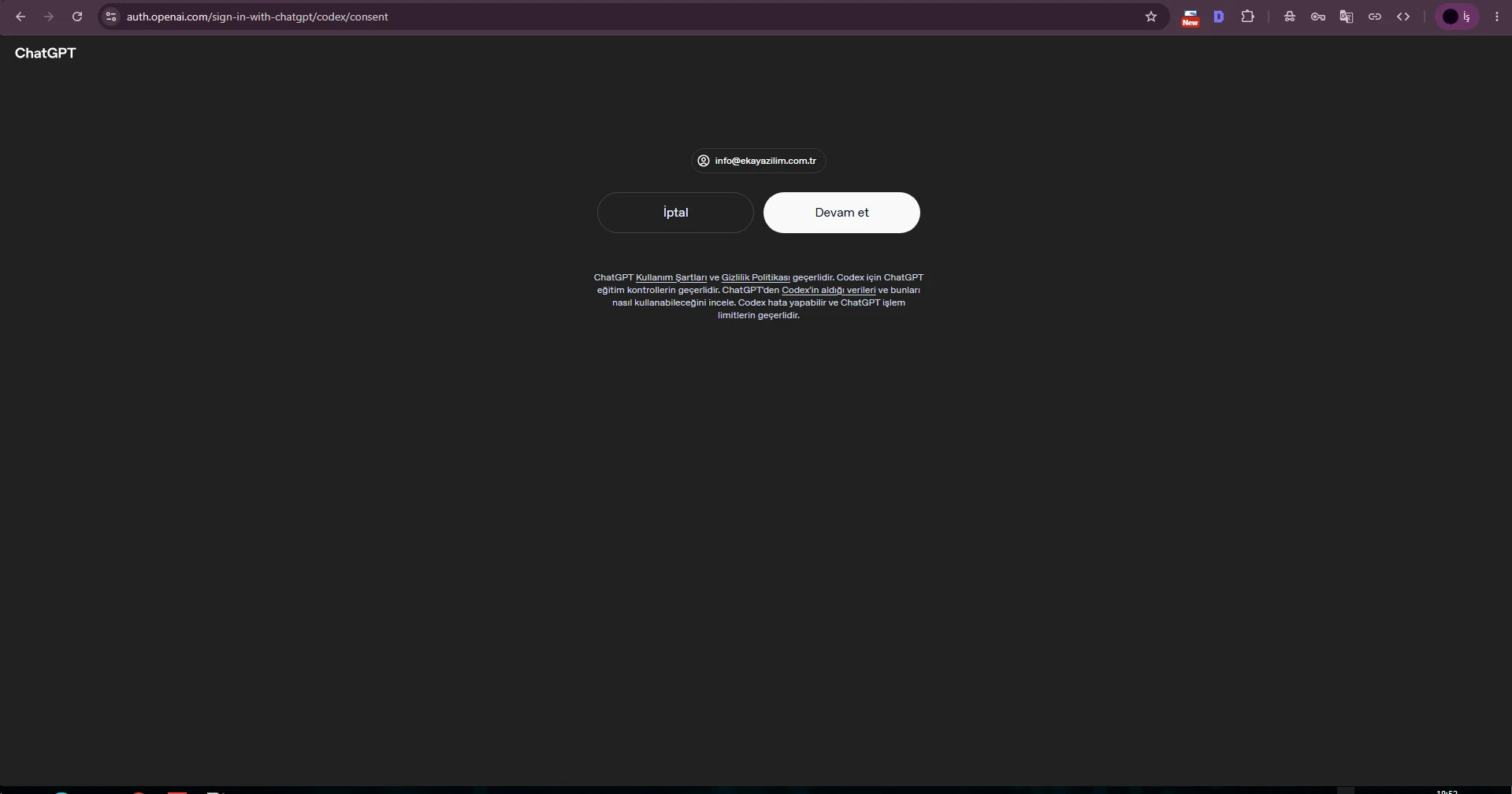
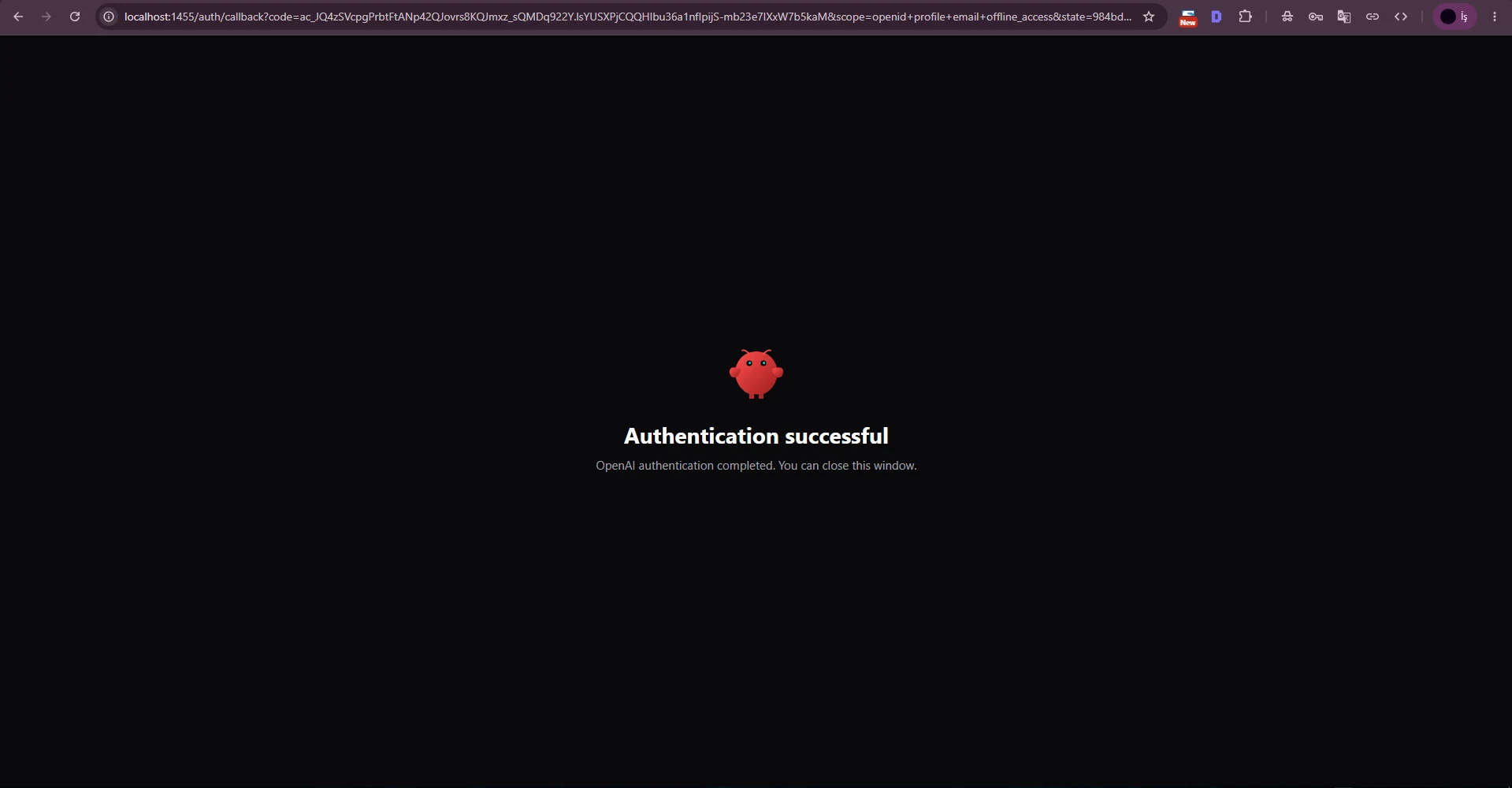
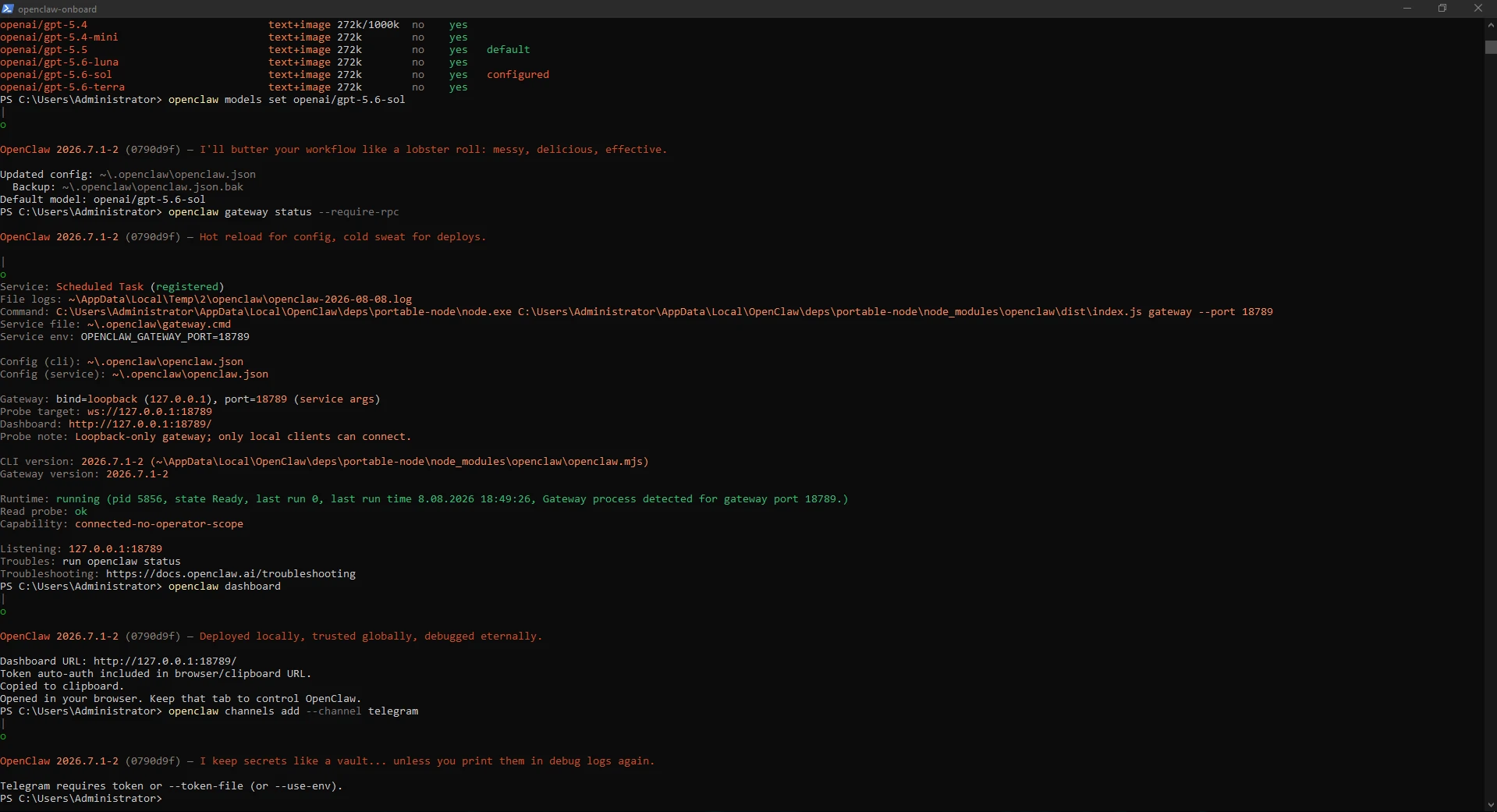
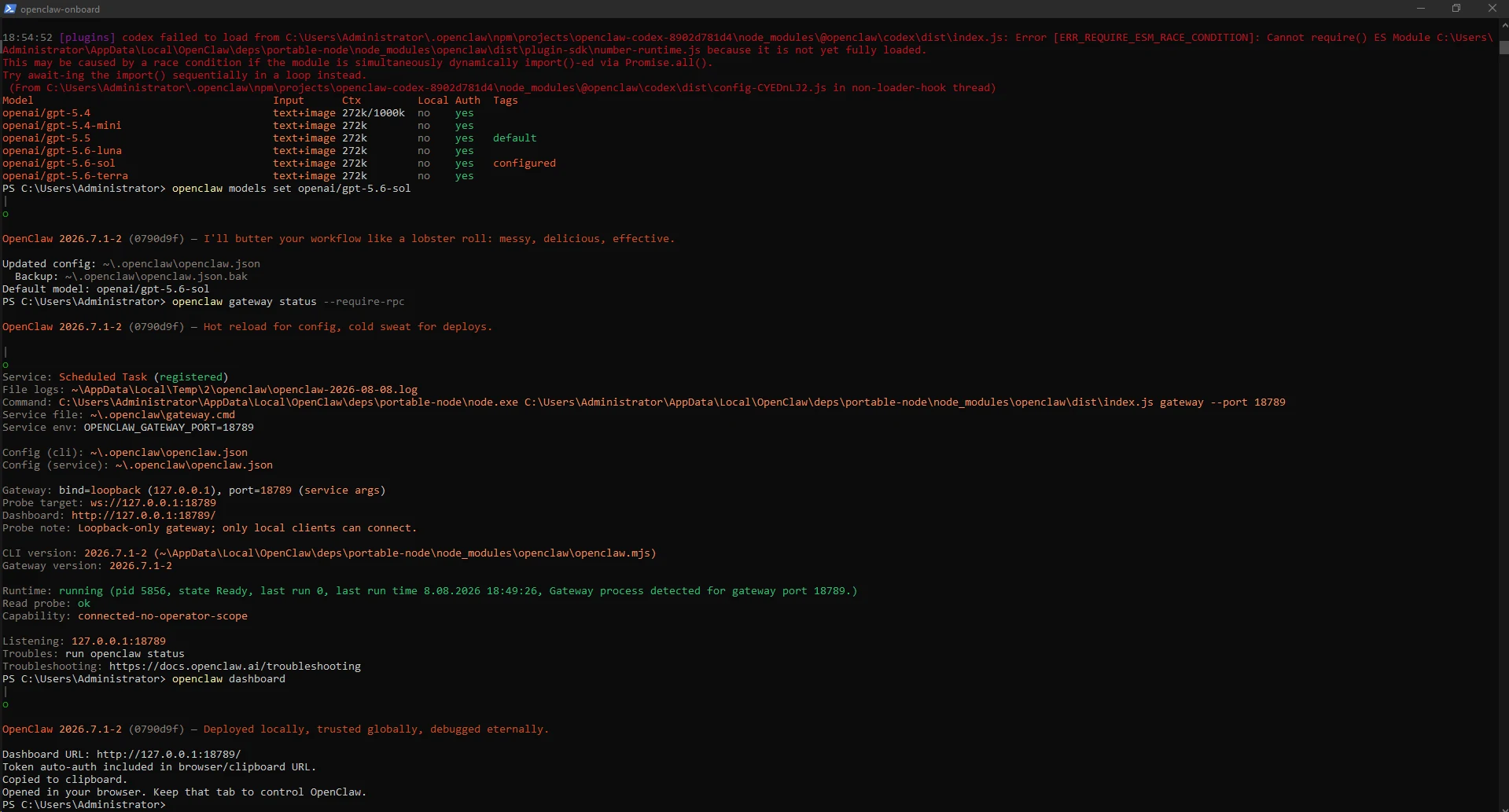
We used openclaw models status to confirm a usable OAuth profile, then listed OpenAI models. openai/gpt-5.6-sol was available and configured during this test.
Do not treat one model identifier as permanent. Select an appropriate model actually available to your account and OpenClaw version.
openclaw models statusopenclaw models list --provider openaiopenclaw models set openai/gpt-5.6-sol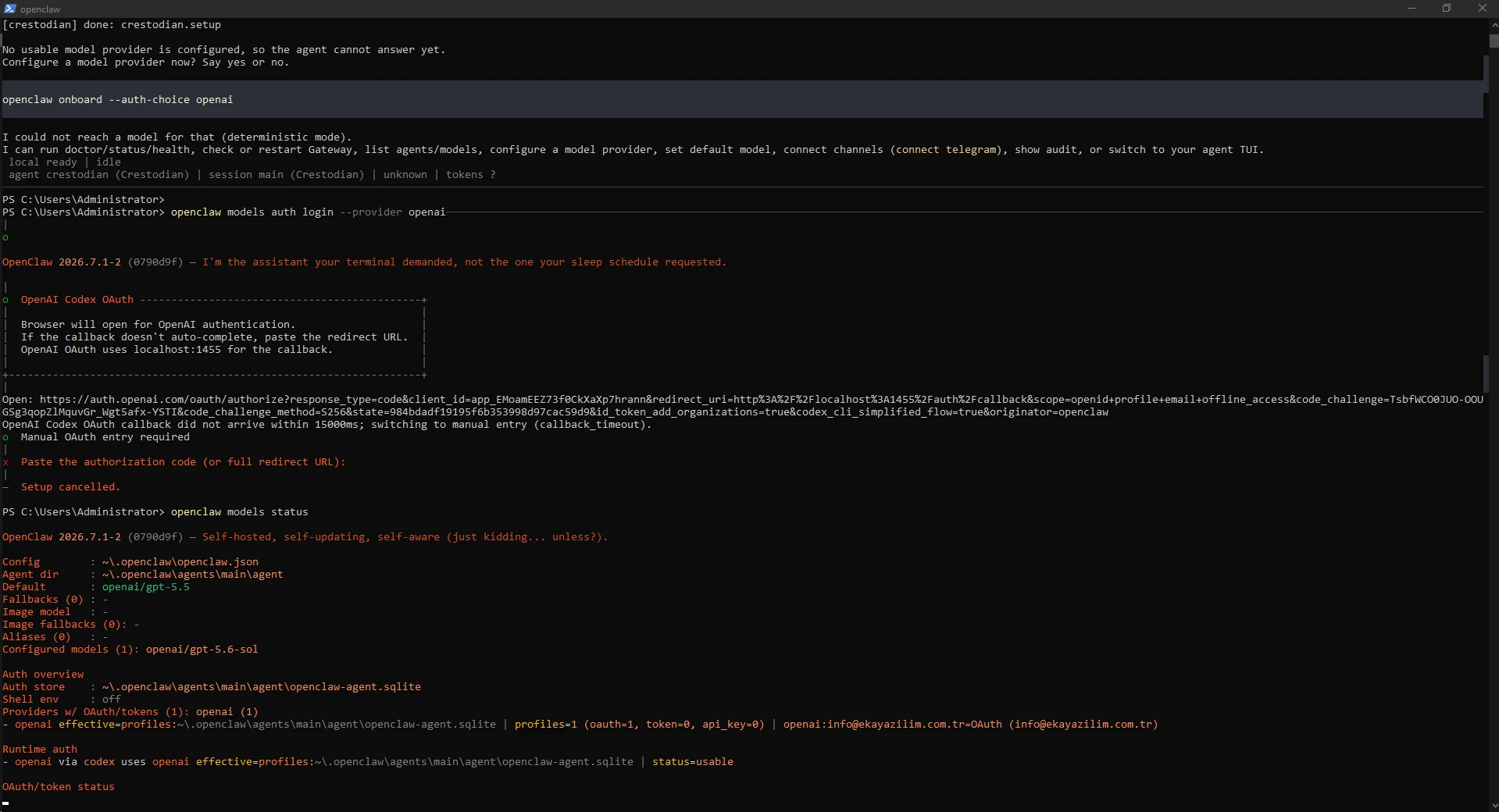
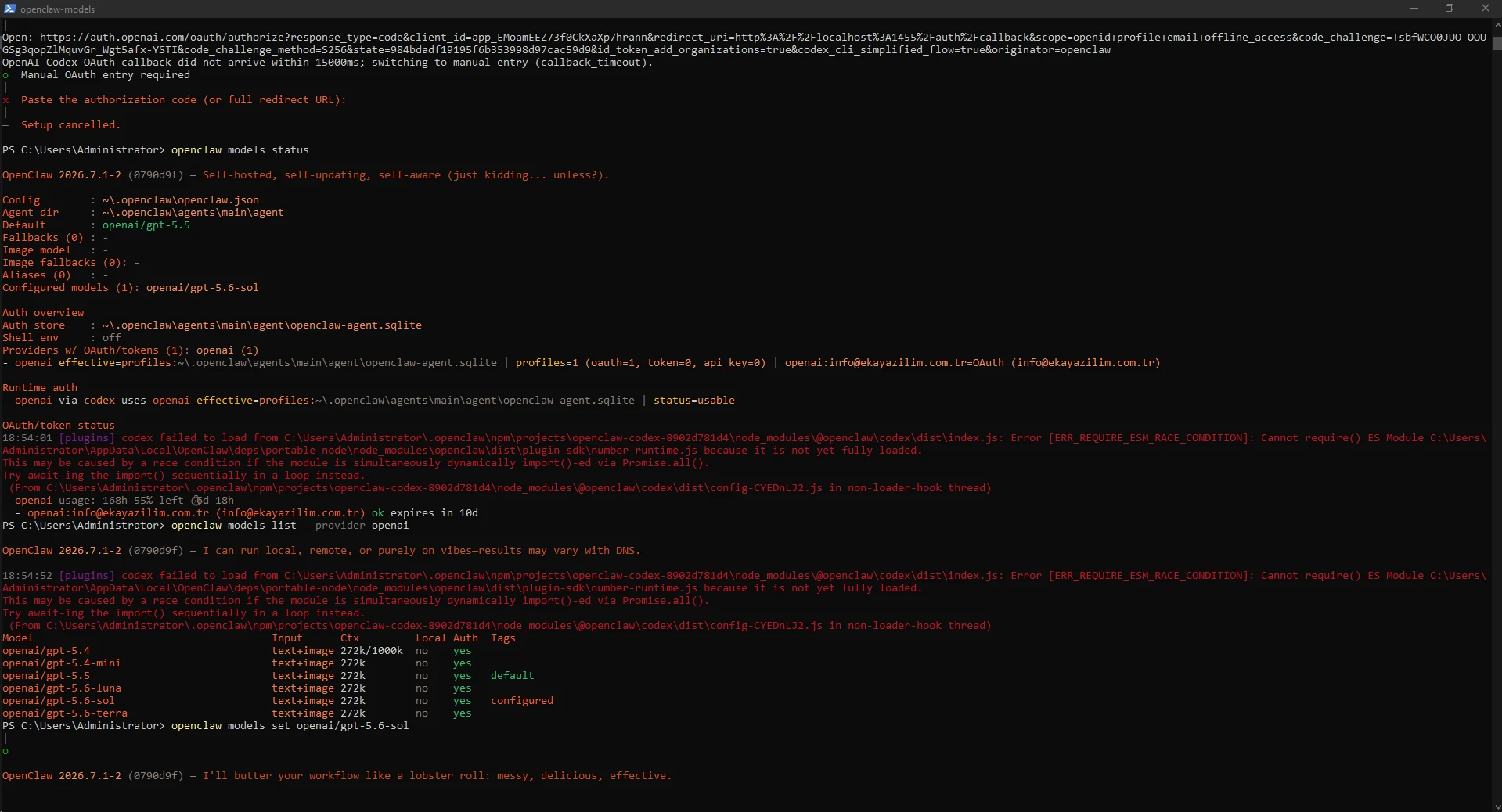
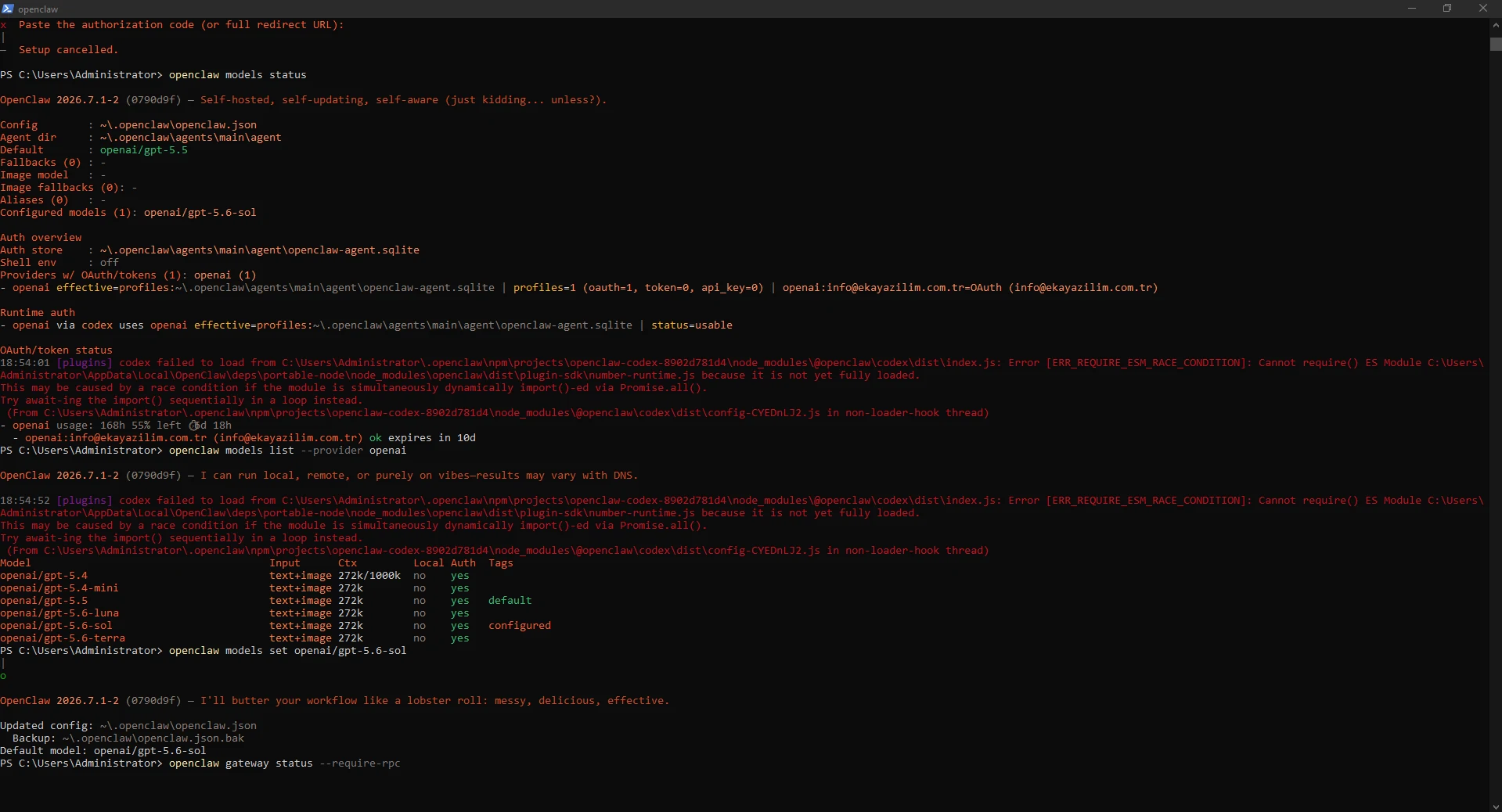
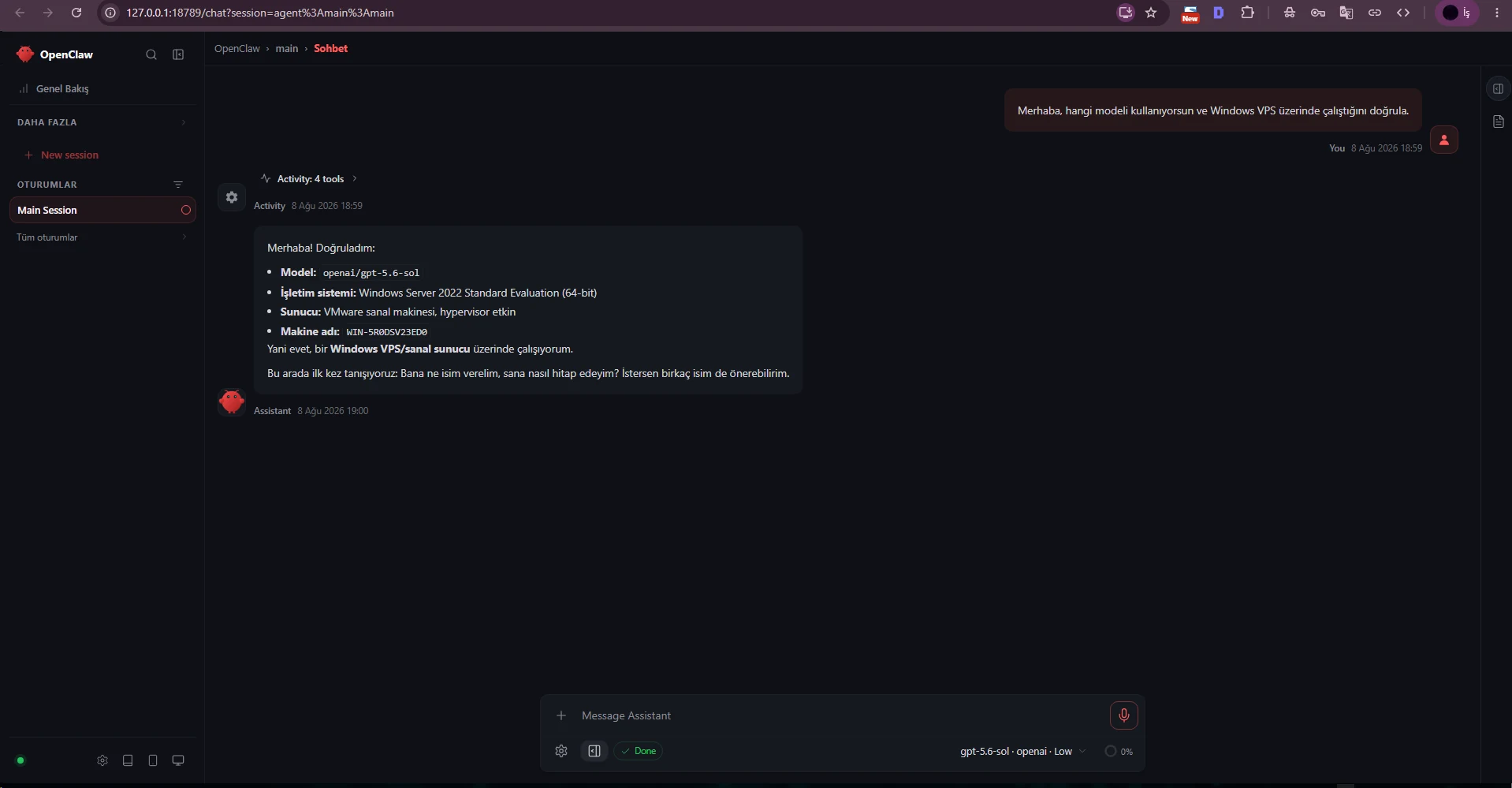
After selecting the model we verified Gateway health and opened the Control UI with openclaw dashboard.
The first message asked the agent to identify the model and Windows VPS environment. The live agent responded successfully.
openclaw gateway status --require-rpcopenclaw dashboard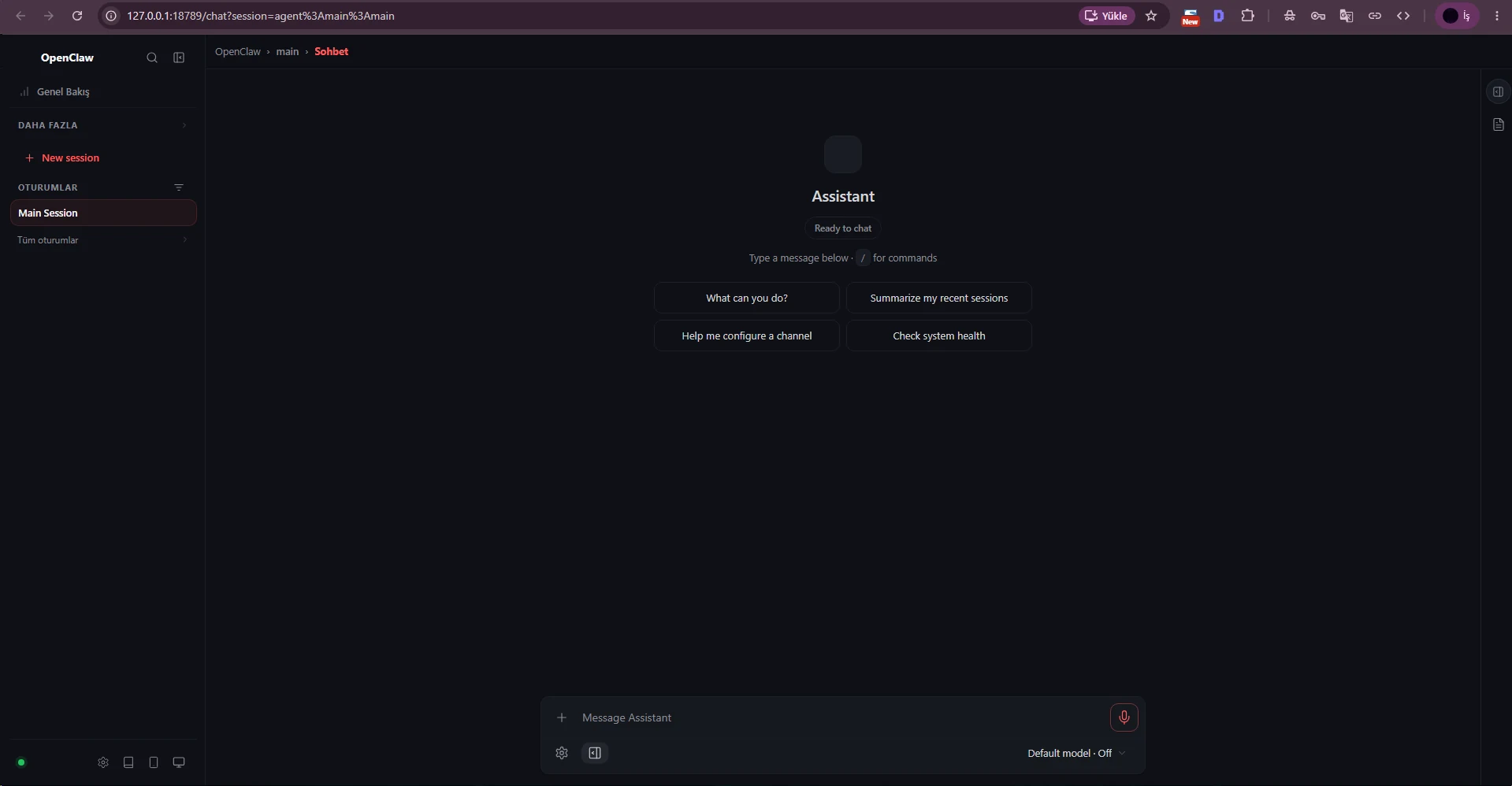
We created a bot with /newbot in BotFather, then selected a display name and a unique username ending in bot.
The returned HTTP Bot API token controls the bot and must be treated as a secret. The test token shown in our screenshots is temporary and should be revoked before publication.
/newbot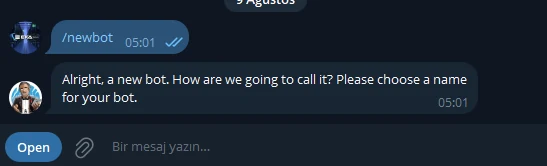
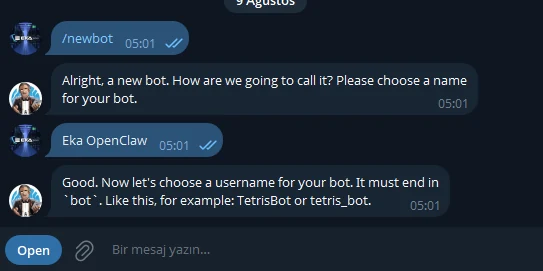
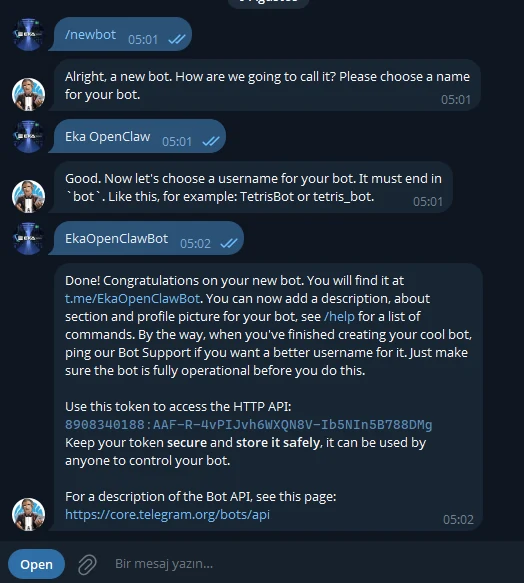
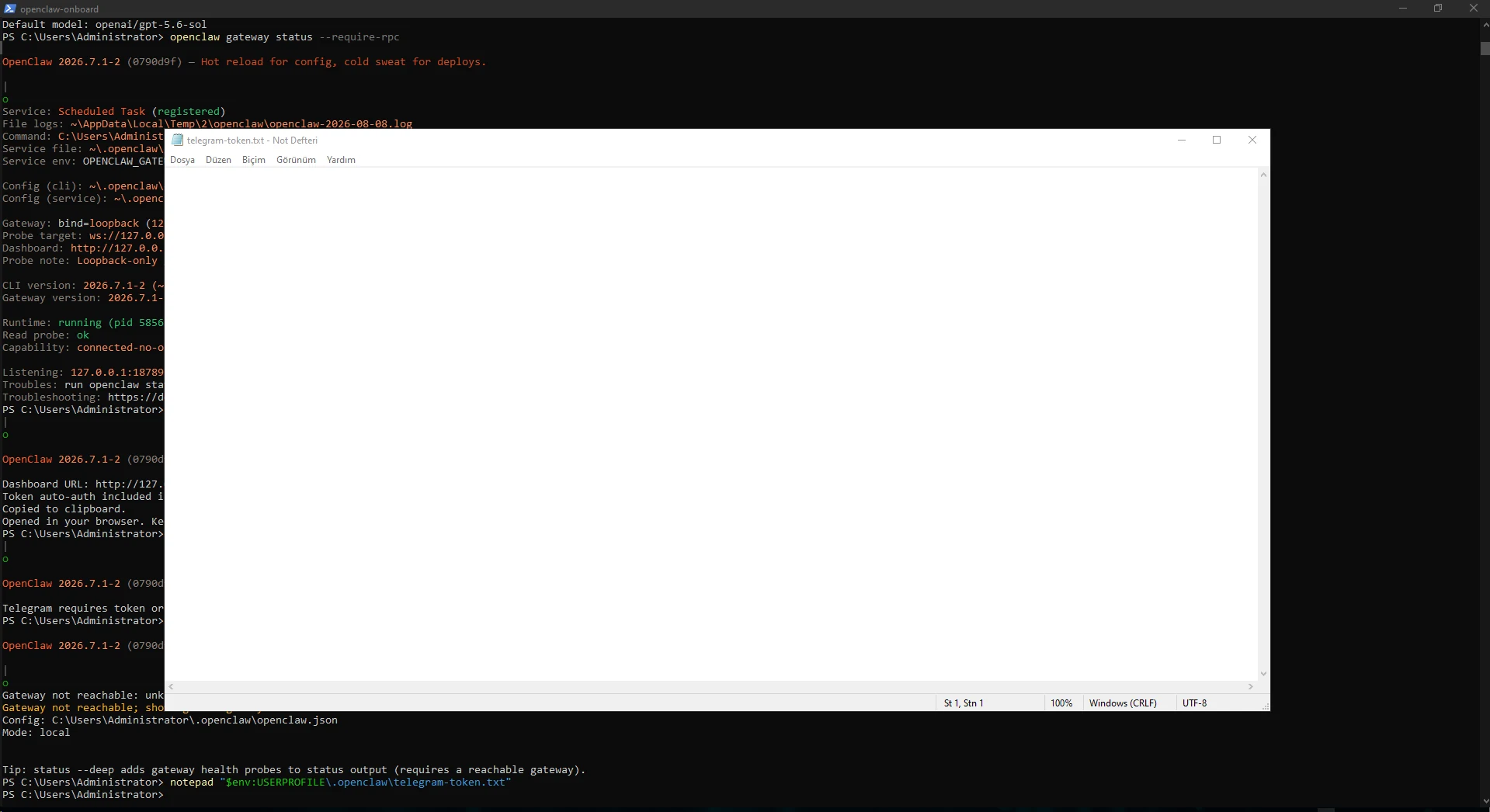
Instead of typing the token into a PowerShell command, we stored it under the user's .openclaw directory and passed only the file path.
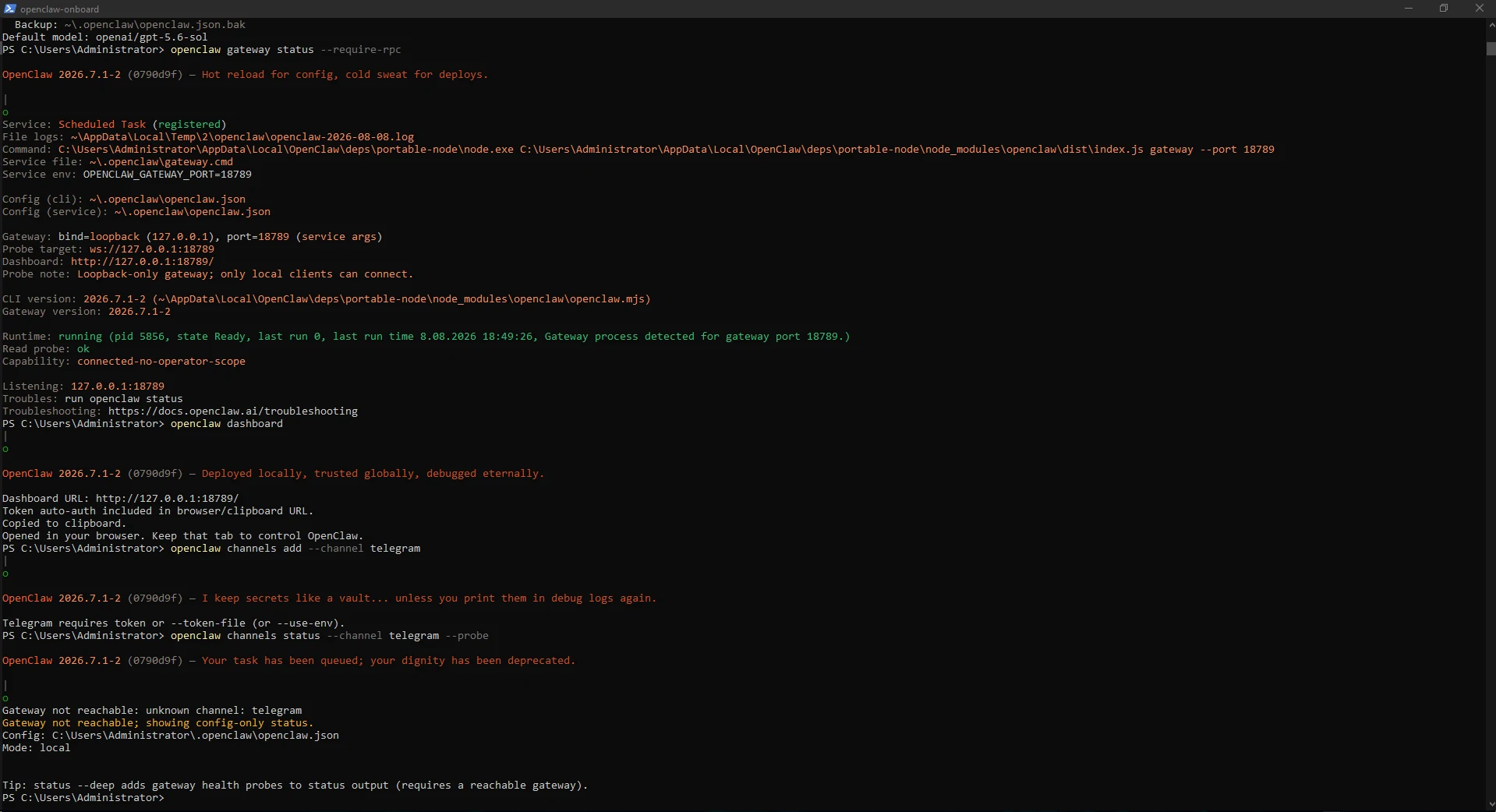
The first attempt without a token returned Telegram requires token; --token-file then created the channel successfully.
notepad "$env:USERPROFILE\.openclaw\telegram-token.txt"openclaw channels add --channel telegram --token-file "$env:USERPROFILE\.openclaw\telegram-token.txt"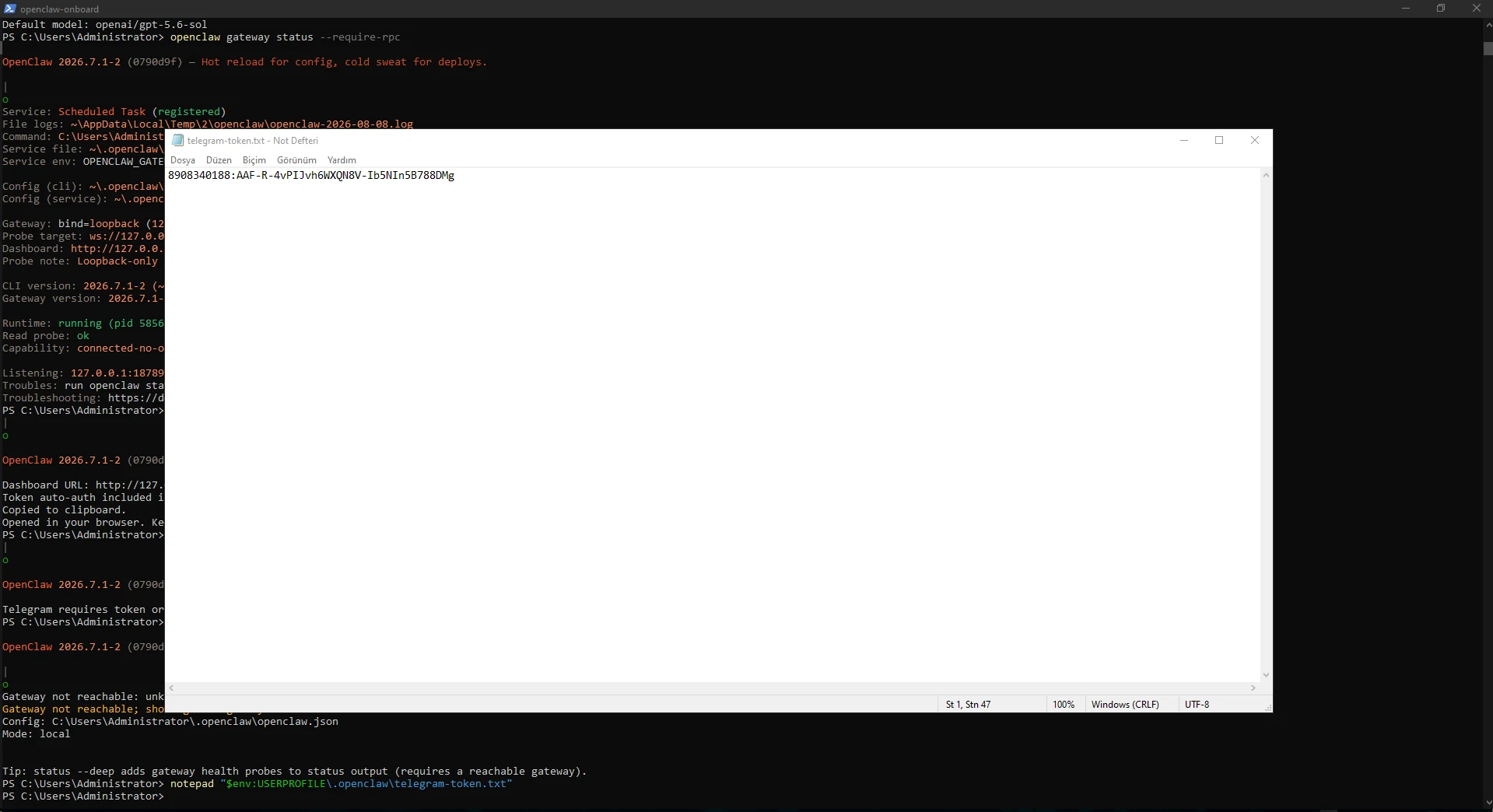
Immediately after restarting the Gateway, the live channel probe briefly returned 1006 abnormal closure.
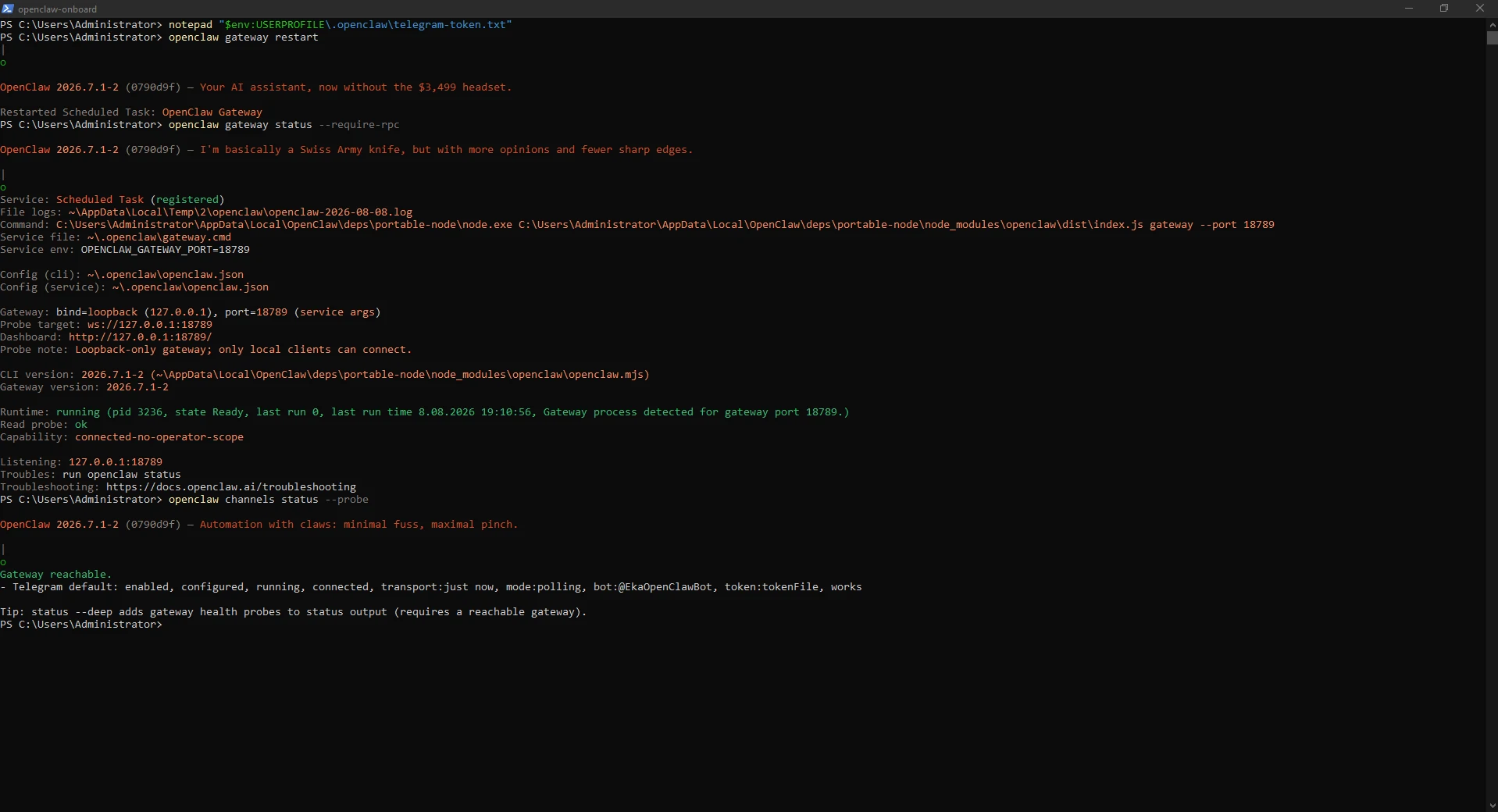
Once Gateway startup completed, channels status --probe reported Telegram as running, connected and works. Do not rebuild a correct configuration because the first post-restart probe was too early.
openclaw gateway restartopenclaw gateway status --require-rpcopenclaw channels status --probe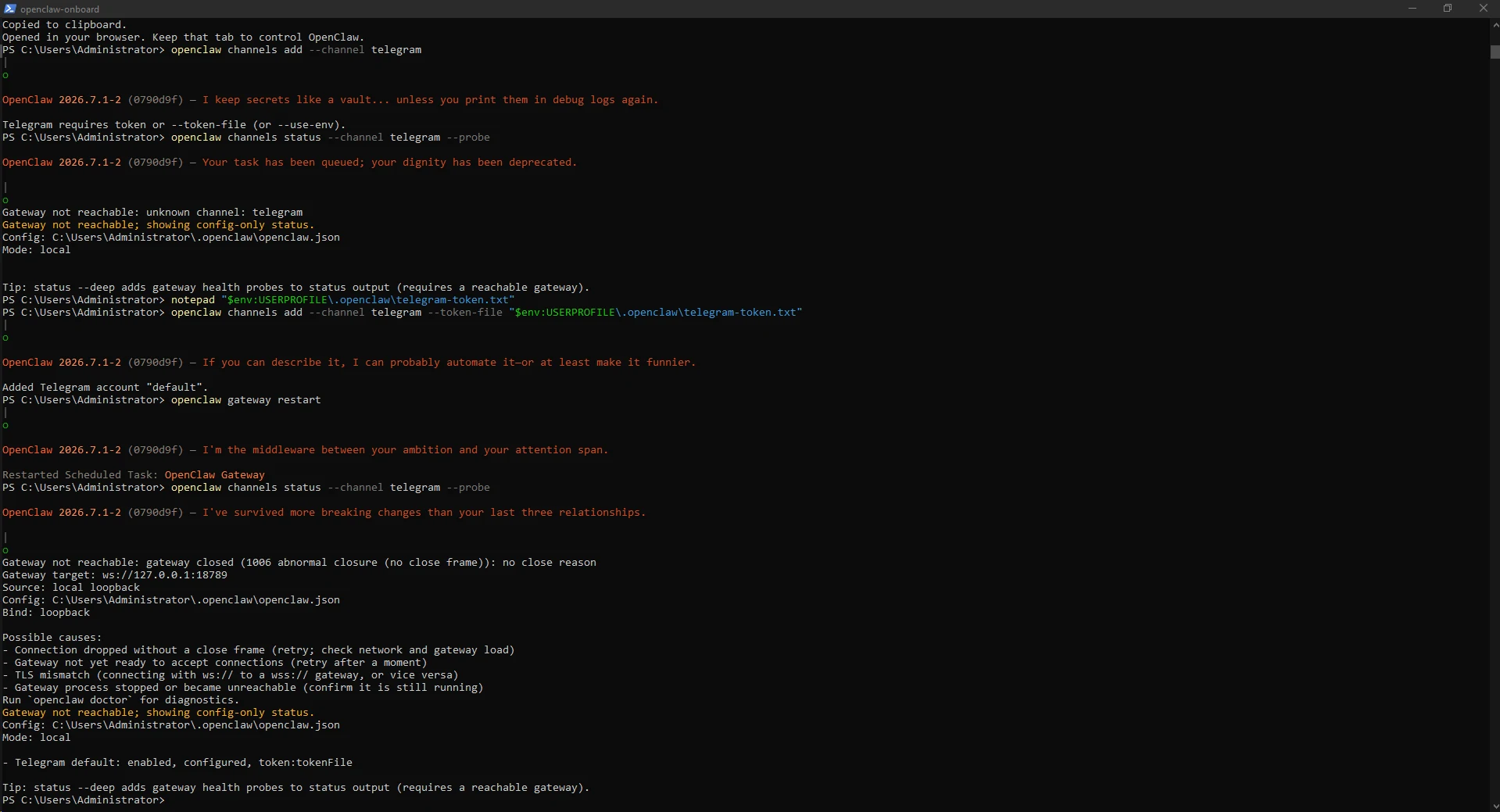
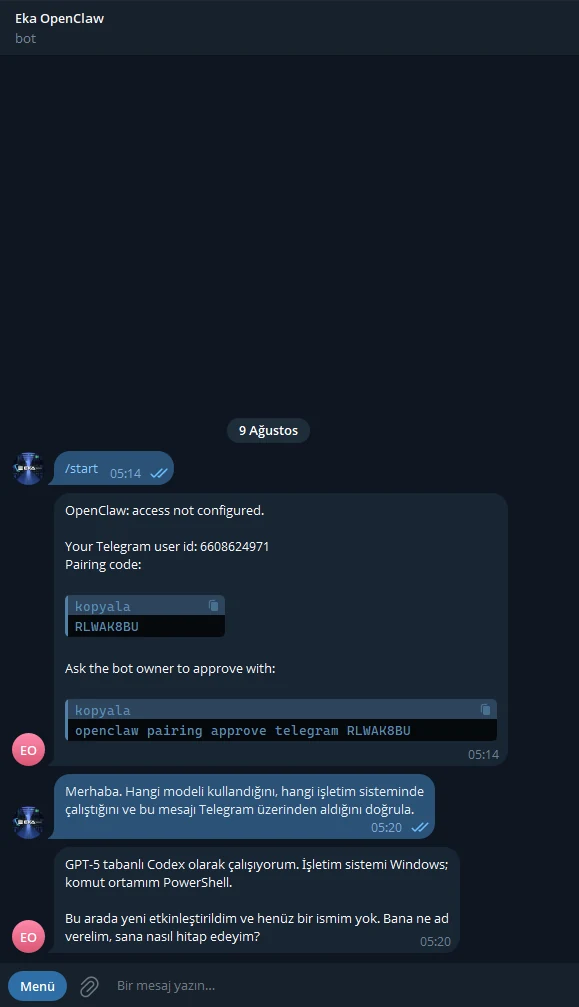
On the first DM OpenClaw did not grant access automatically. The bot returned the Telegram user id, a short-lived pairing code and the owner approval command.
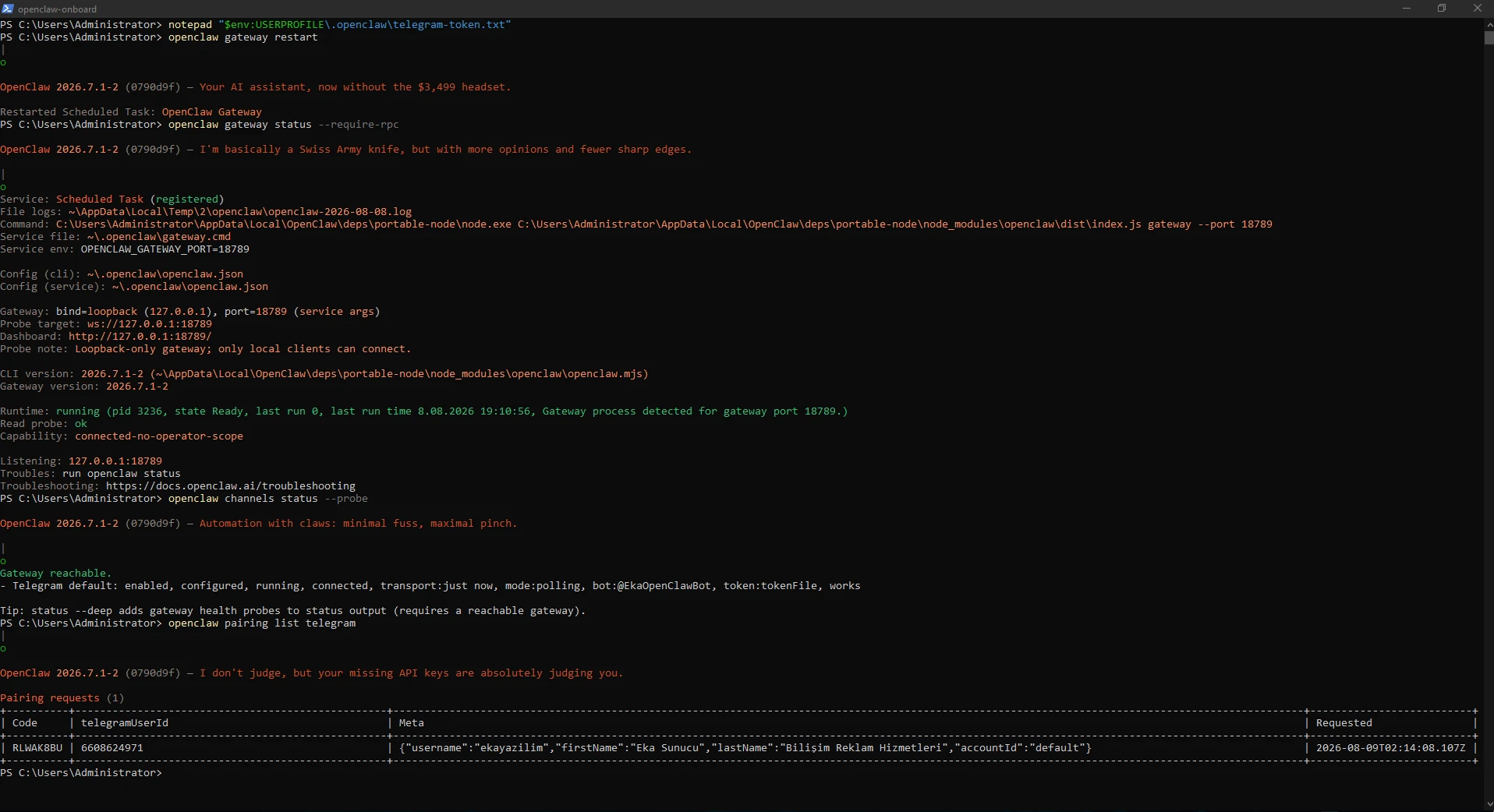
We reviewed the pending request in PowerShell and approved only our own account.
openclaw pairing list telegramopenclaw pairing approve telegram PAIRING_CODE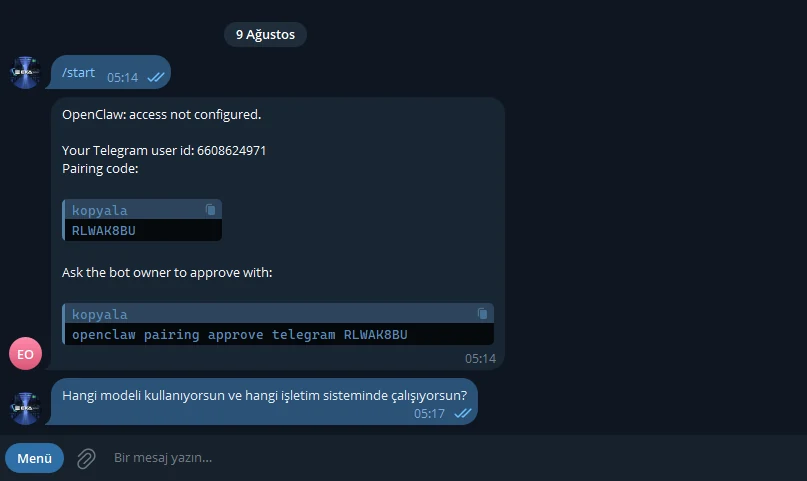
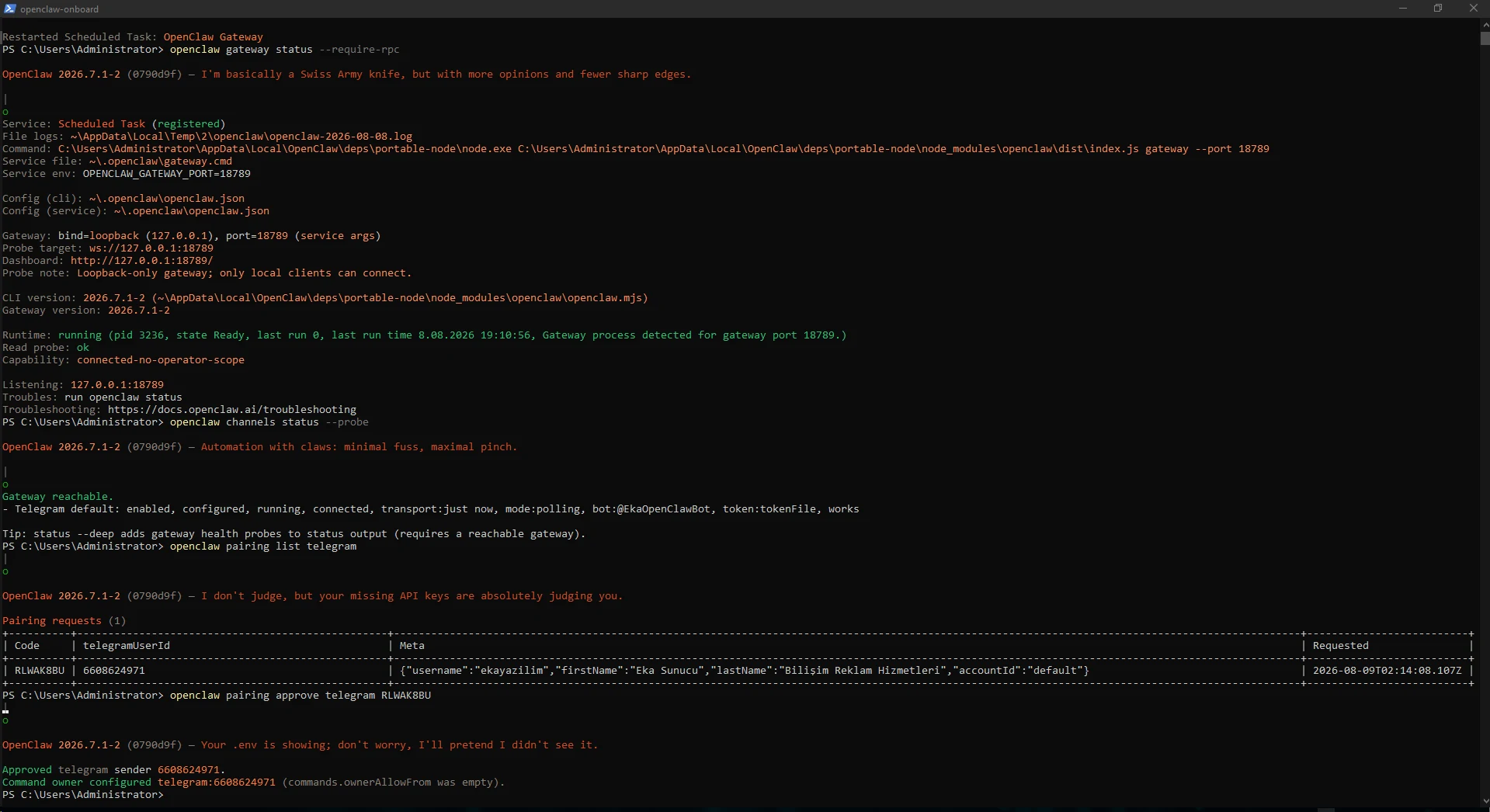
Messages sent before pairing approval may not be replayed automatically, so we sent a fresh message after approval.
Telegram showed the bot typing and then delivered the OpenClaw reply, validating the VPS, Gateway, OAuth, selected model and channel together.
Hello. Confirm which model you use, which operating system you run on, and that this message arrived through Telegram.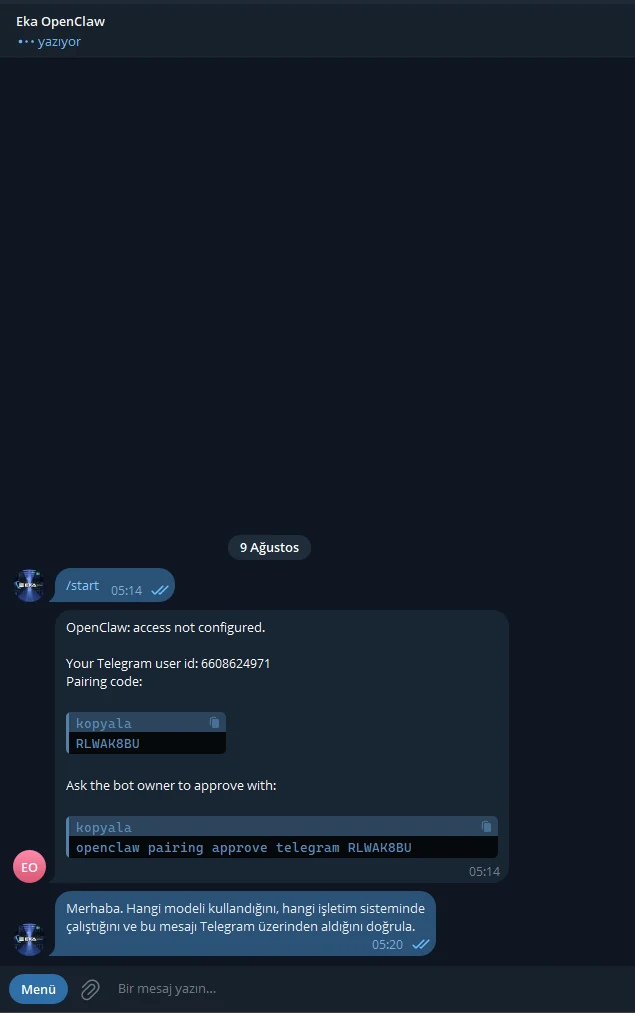
For an always-on deployment the most important validation is a full reboot. We used Restart-Computer -Force and did not run any OpenClaw start or restart command after Windows returned.
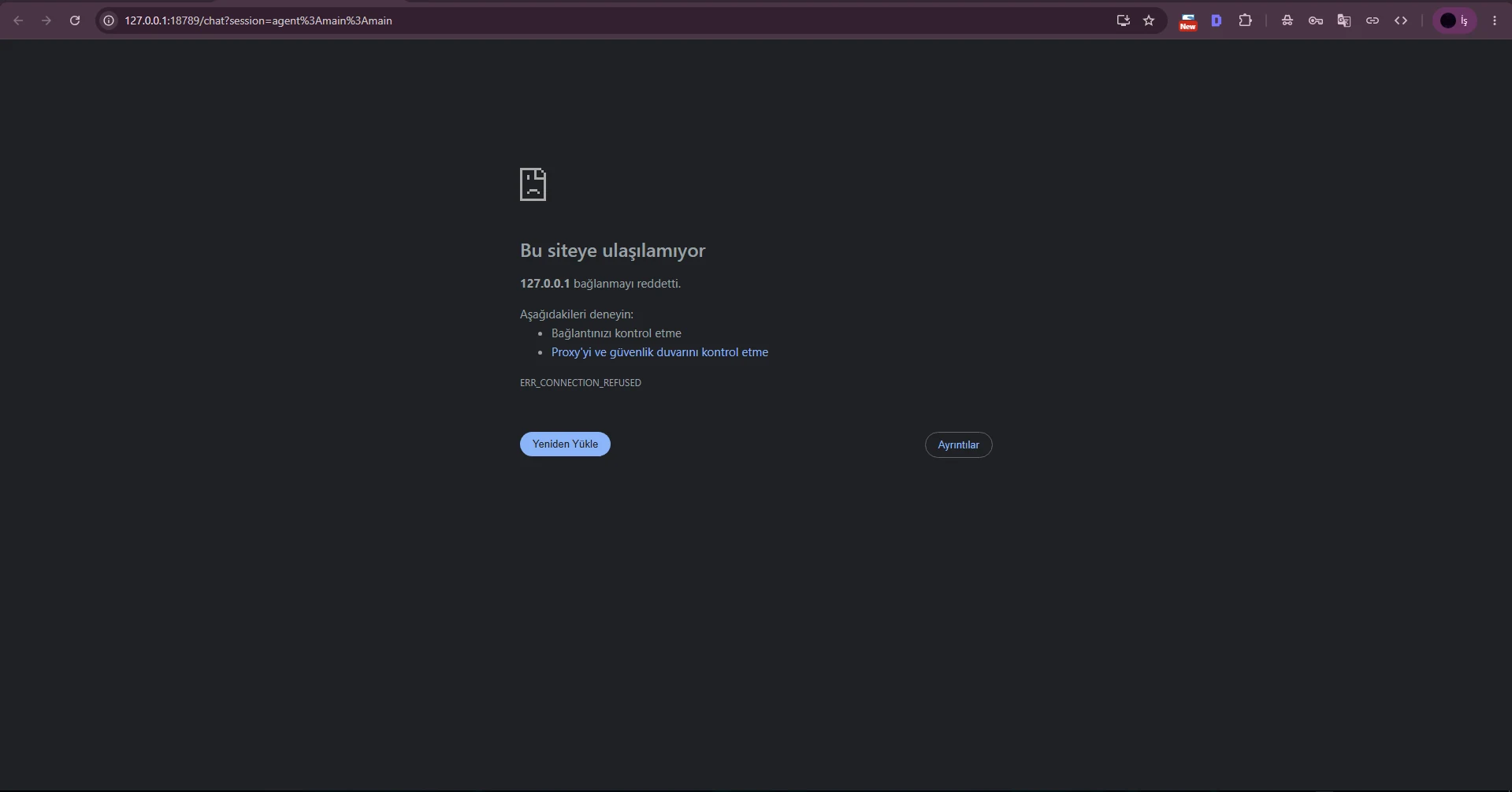
Refreshing the old Dashboard tab immediately produced ERR_CONNECTION_REFUSED. This was temporary: Windows was available, but the managed Gateway task had not started listening on port 18789 yet.
Restart-Computer -Force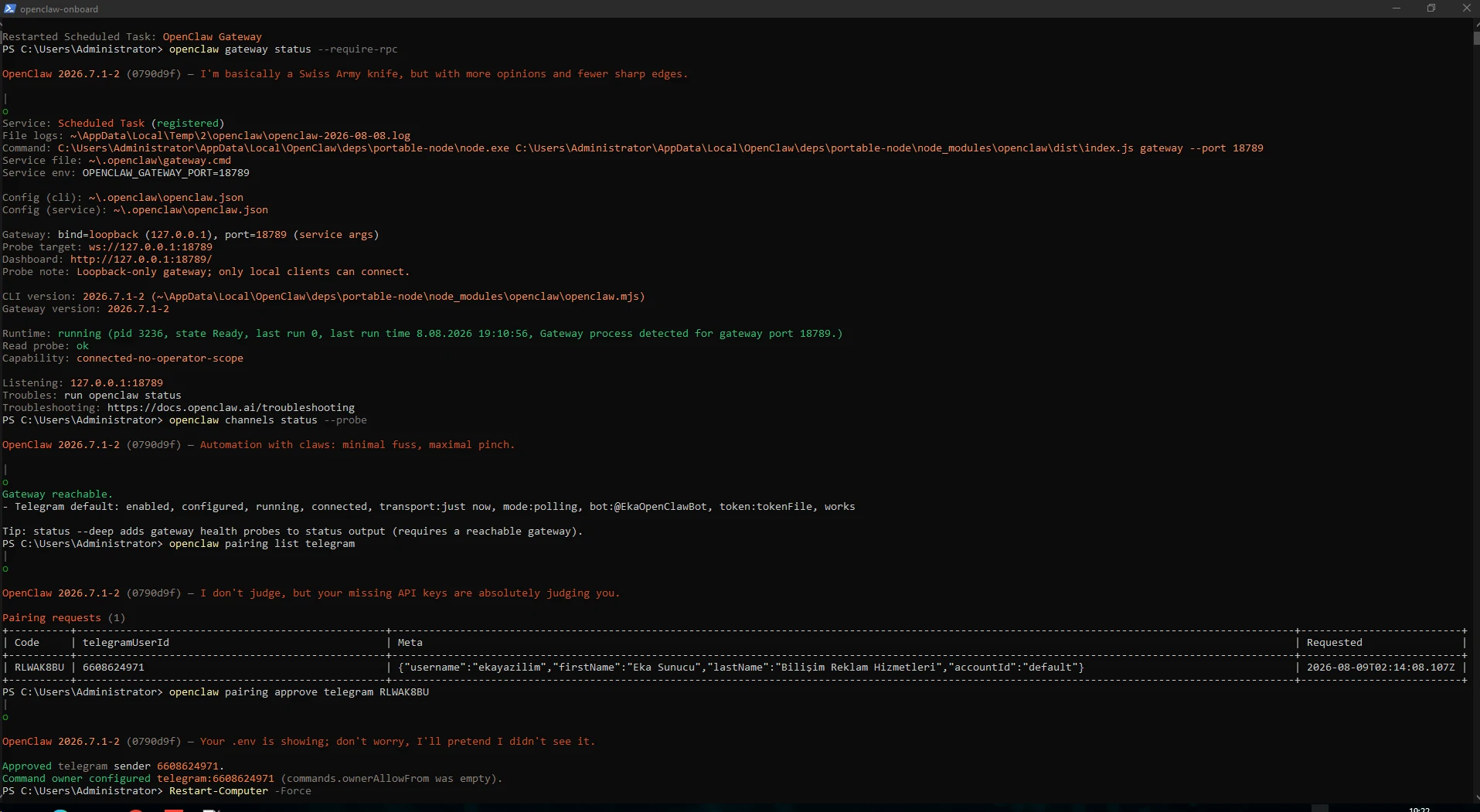
After a short wait the Dashboard became reachable without manual intervention. We sent a Telegram verification message without starting OpenClaw from PowerShell.
In this specific VPS test the agent reported that gateway.cmd started the Gateway roughly 21 seconds after Windows boot. Telegram reconnected and delivered the response. The 21-second value is test-specific, not a universal startup guarantee.
The Windows VPS has rebooted. I did not run any OpenClaw command. Are you running automatically now? Verify the OS and Telegram connection.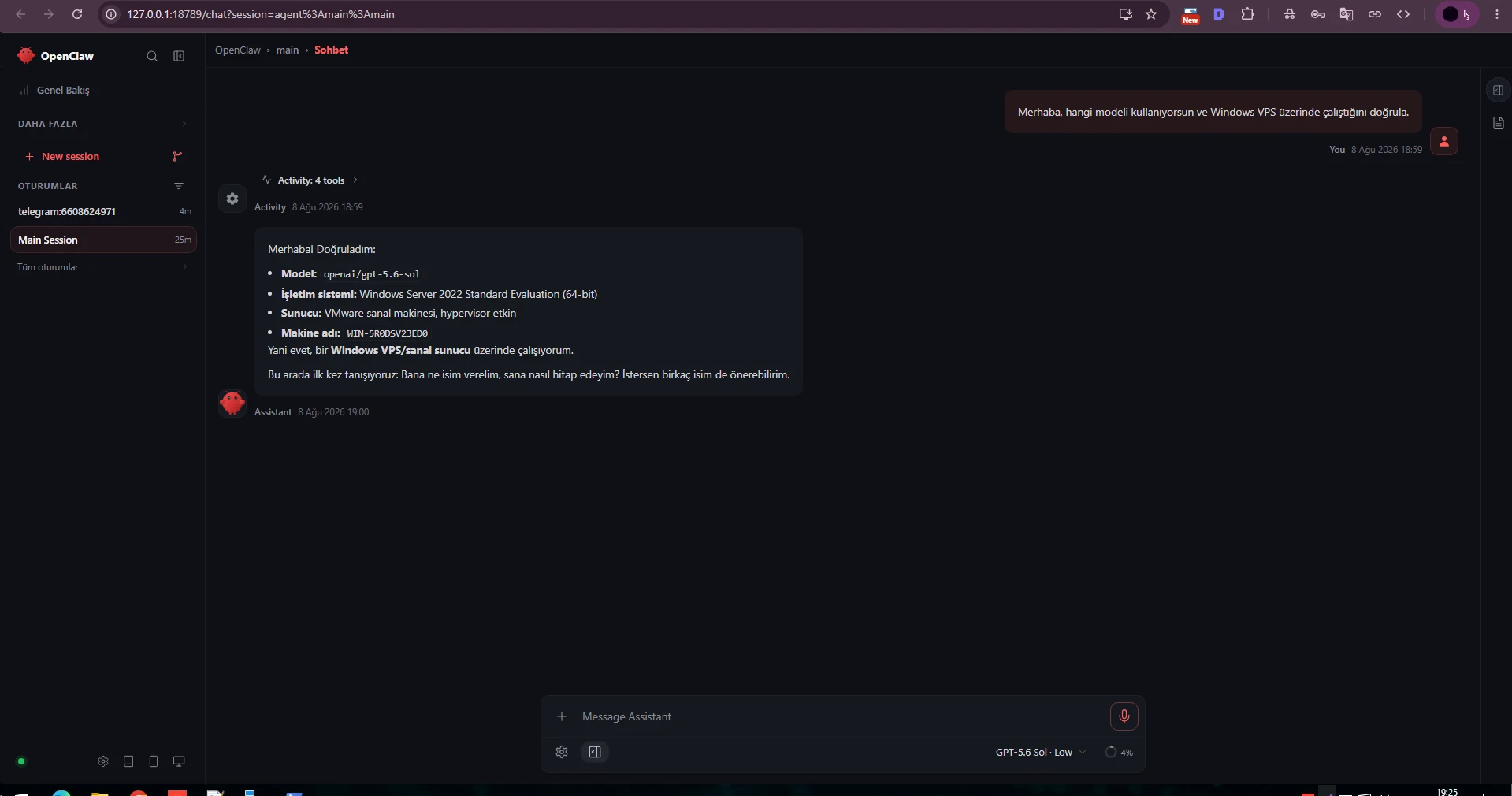
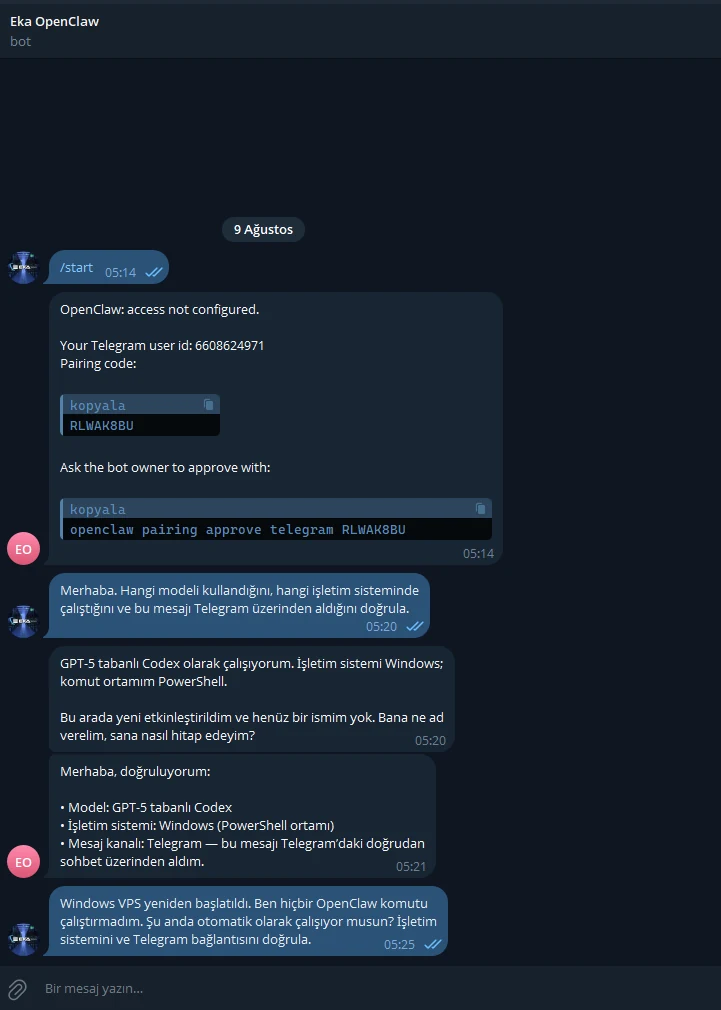
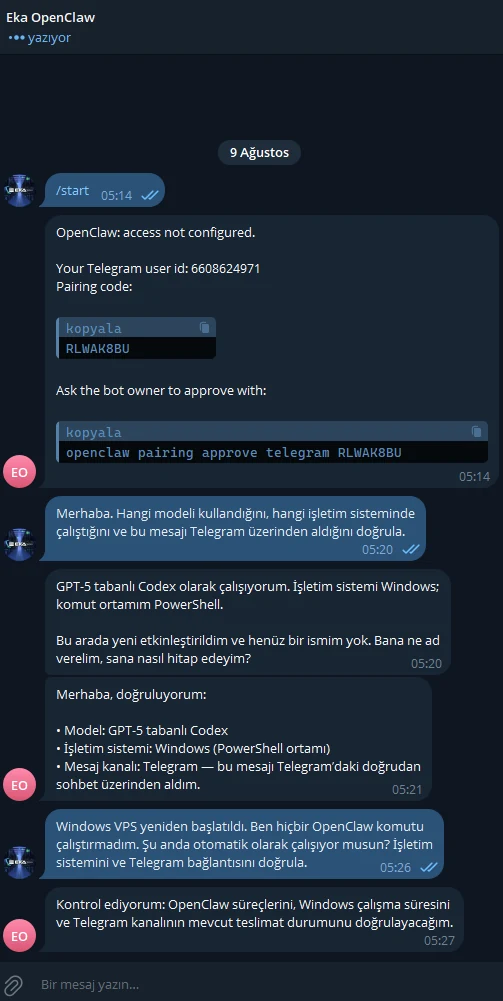
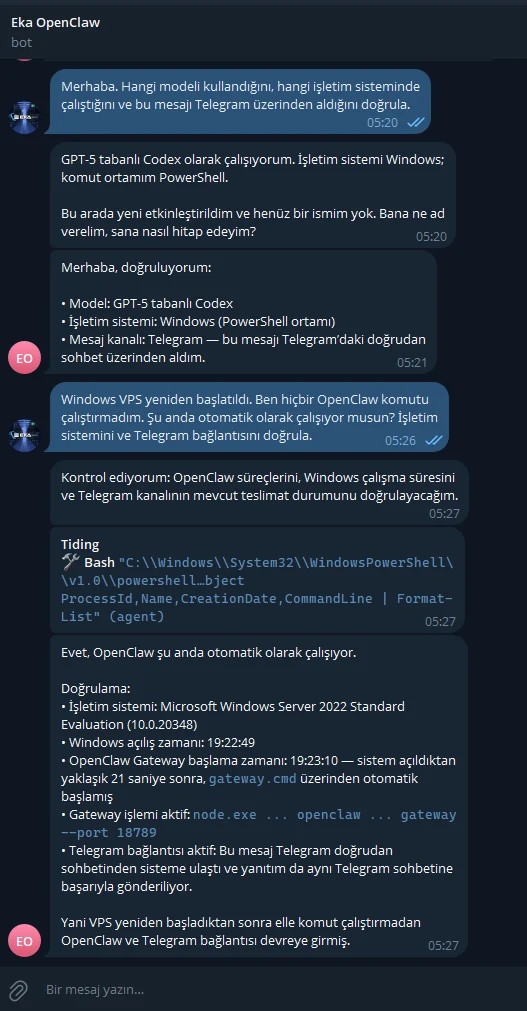
Overview provides a compact view of the Gateway URL, status, uptime, recent channel refresh, sessions and recent activity.
Our final screenshot shows the Telegram session and gpt-5.6-sol together. Empty cards can be normal depending on enabled features and runtime mode.
openclaw dashboard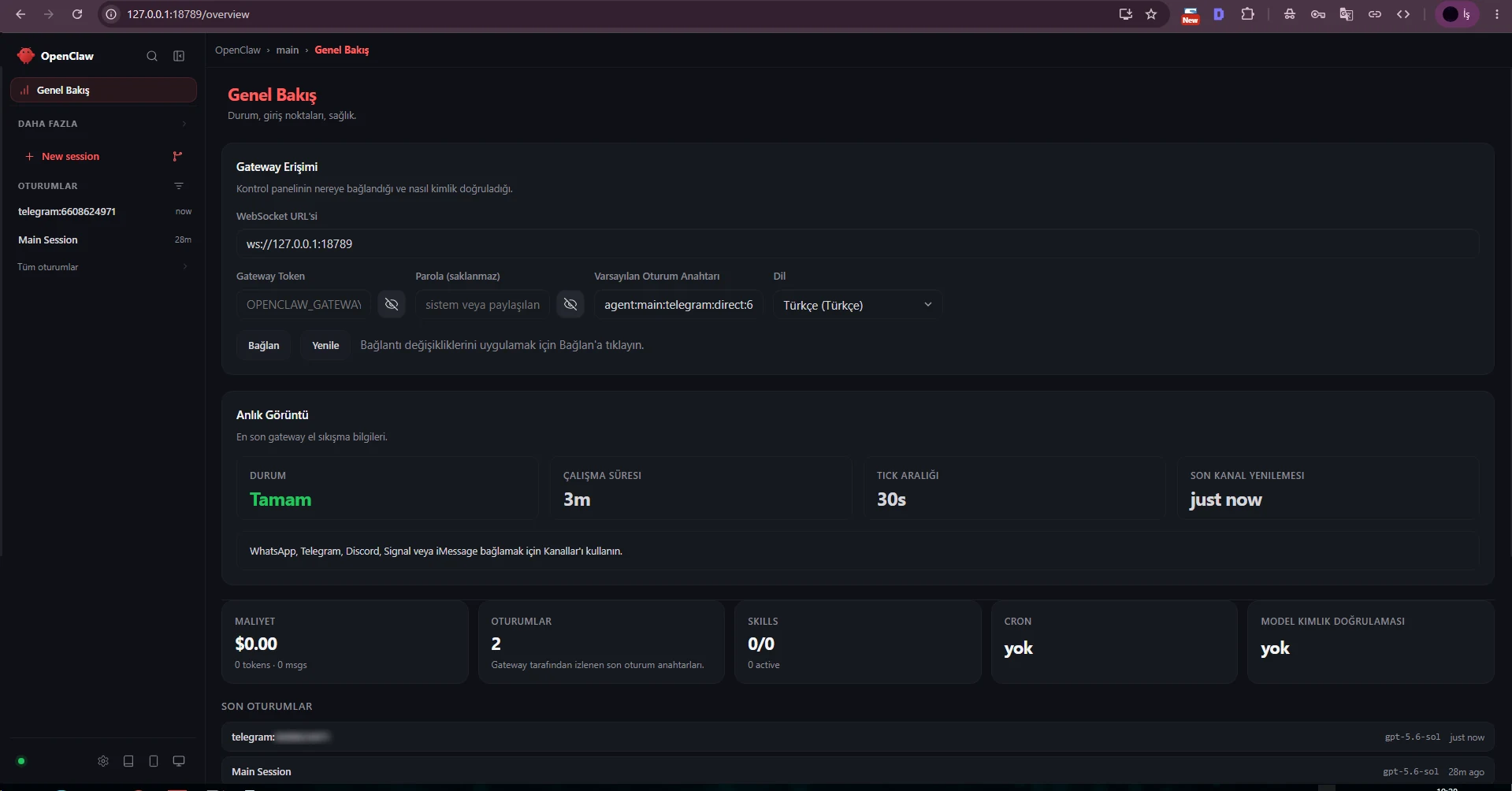
On Windows we observed ERR_REQUIRE_ESM_RACE_CONDITION from the Codex plugin. Despite the warning, OAuth remained usable and real Dashboard/Telegram inference worked. Always combine log interpretation with functional testing.
Telegram requires token, unknown channel and 1006 abnormal closure had different causes: missing secret, a channel not yet added, or Gateway readiness after restart. Isolate the layer with status, Gateway status, channel probe and logs.
openclaw statusopenclaw gateway statusopenclaw channels status --probeopenclaw logs --followopenclaw doctor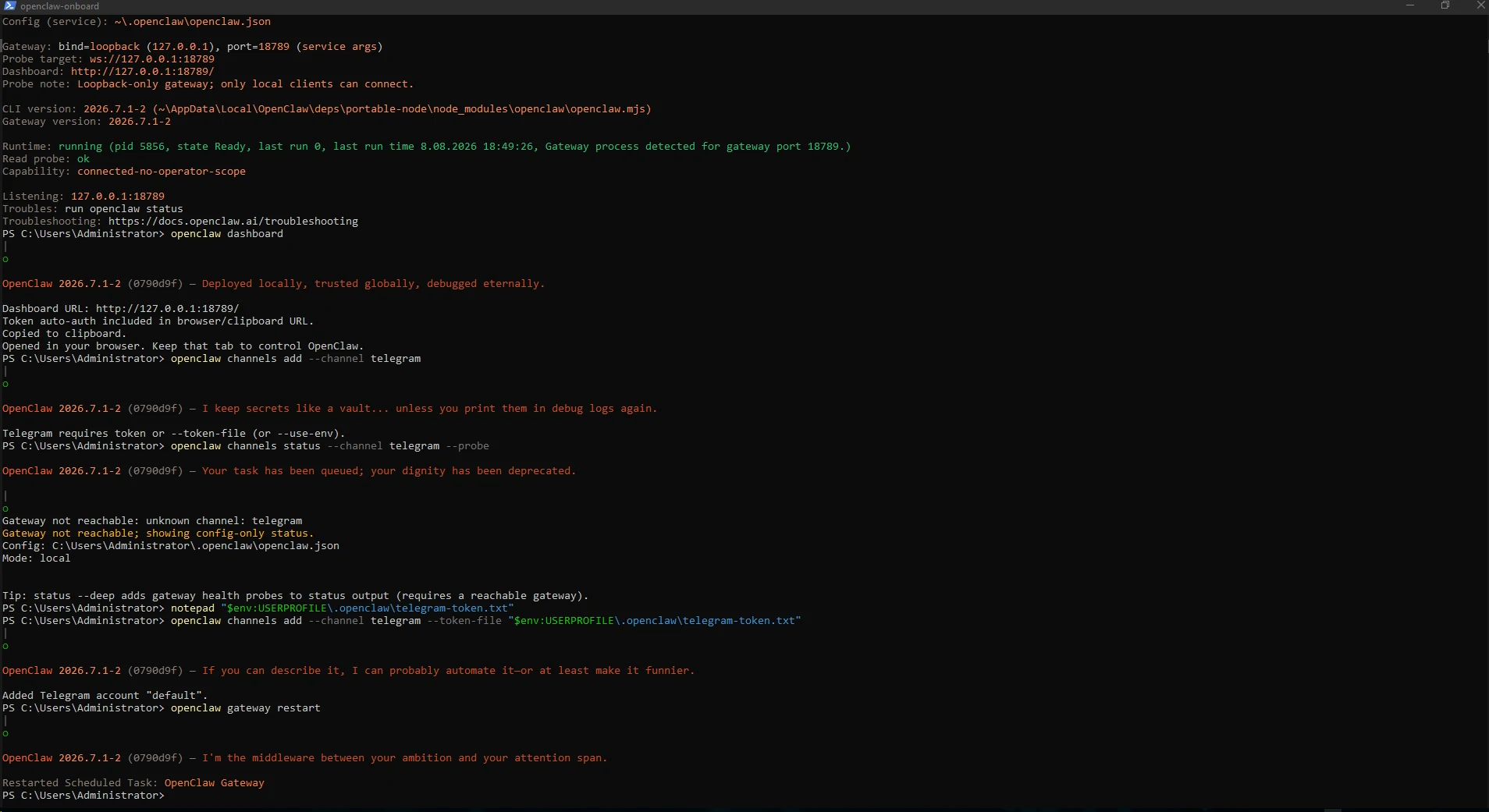
OpenClaw changes quickly. Take a VPS snapshot before larger updates and repeat Gateway and Telegram probe tests afterward.
For incidents, check openclaw status and gateway status first, then channels status --probe, logs --follow and doctor.
openclaw statusopenclaw gateway restartopenclaw channels status --probeopenclaw logs --followopenclaw doctorThe Gateway remained on loopback in this deployment. Do not expose a local administrative interface directly to the Internet just for convenience; use a supported secure remote-access design with explicit authentication when remote administration is required.
Telegram Bot API tokens, OAuth data, auth profiles and Gateway tokens are secrets. Revoke an exposed token immediately. A screenshot containing an old token is safe only after that exact credential is invalidated or the value is redacted.
The native PowerShell path was successfully tested on Windows Server 2022 Standard Evaluation in this guide. Repeat reboot and channel tests on your own edition.
No. Managed Gateway startup uses a Windows Scheduled Task, so a foreground PowerShell window is not required.
Our test Gateway listened on loopback at 127.0.0.1:18789. Do not expose a local administrative port directly to the public Internet.
The OpenAI provider can use ChatGPT/Codex OAuth. Available models and limits depend on the account.
Unknown DM senders are not trusted automatically. The Gateway owner reviews and approves the intended sender.
Supply the BotFather token directly or through tokenFile. This guide uses --token-file to avoid putting the secret in shell history.
In our test it appeared during a probe immediately after Gateway restart. Once the Gateway was ready, the probe returned works.
Windows was up, but the Scheduled Task had not started listening on port 18789 yet. On this VPS it recovered automatically about 21 seconds after boot.
That is the purpose of managed startup, but verify it with a real reboot on your own VPS. Our Windows Server 2022 test succeeded.
Yes, on a suitable Windows VPS with administrator access. Resource needs depend on the enabled tools and model runtime.
Explore EKA Sunucu Windows VPS plans to run an always-on OpenClaw Gateway, Telegram bot and AI-agent deployment on your own server.
Updated: 09.08.2026 Turkey (Turkish)
 Germany (German)
 Worldwide (English)

