
 Halkali merkez neighborhood fatih st ozgur apt no 46 , Kucukcekmece , Istanbul , 34303 , TR
In this real Windows VPS test we installed n8n with npm, fixed an npm 12 SQLite install-script problem, completed the Registered Community Edition setup, connected Ollama to AI Agent, and validated a Chat Trigger → AI Agent → Ollama Chat Model chain with real screenshots.
Windows VPS
   ├── n8n 2.33.7 → :5678
   │      └── Chat Trigger → AI Agent → Calculator
   └── Ollama 0.32.6 → :11434
          ├── functiongemma:latest
└── qwen3:1.7bThis guide installs the n8n workflow automation platform on Windows Server with npm, connects it to the local Ollama API, and builds a Chat Trigger → AI Agent → Ollama Chat Model flow. Model inference stays on the VPS through Ollama while n8n manages triggers, the agent and optional tools.
The tested environment used Node.js 22.23.2, npm 12.0.2, Ollama 0.32.6 and n8n 2.33.7. Initial tests used functiongemma:latest, then qwen3:1.7b was added for a more general multilingual agent scenario. These versions represent the real test environment on August 9, 2026.
Chat Trigger → AI Agent
                   ├── Ollama Chat Model → 127.0.0.1:11434
                   └── Calculator Tool

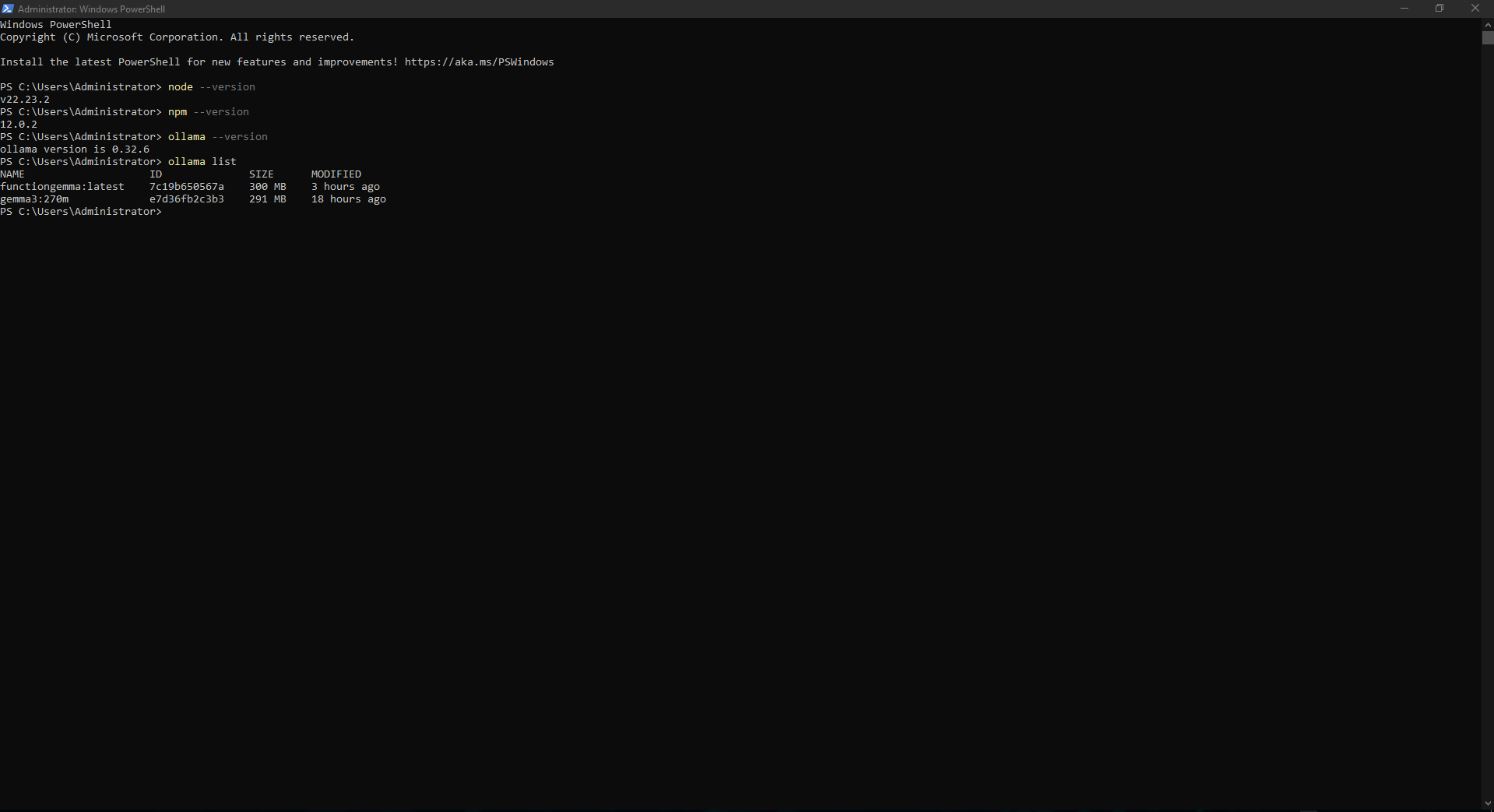
n8n Editor → localhost:5678We started by running Windows PowerShell as Administrator. Because n8n is installed through npm, Node.js and npm must be available. We also checked the Ollama version and any models that were already installed.
The test server reported Node.js v22.23.2, npm 12.0.2 and Ollama 0.32.6. The official n8n npm installation documentation currently requires Node.js from 20.19 through 24.x, so Node.js 22 was inside the supported range.
node --version
npm --version
ollama --version
ollama list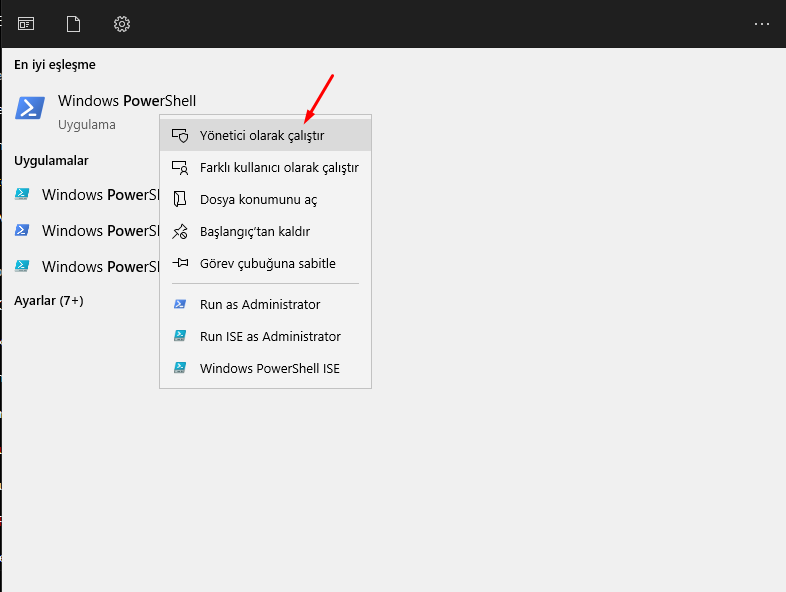
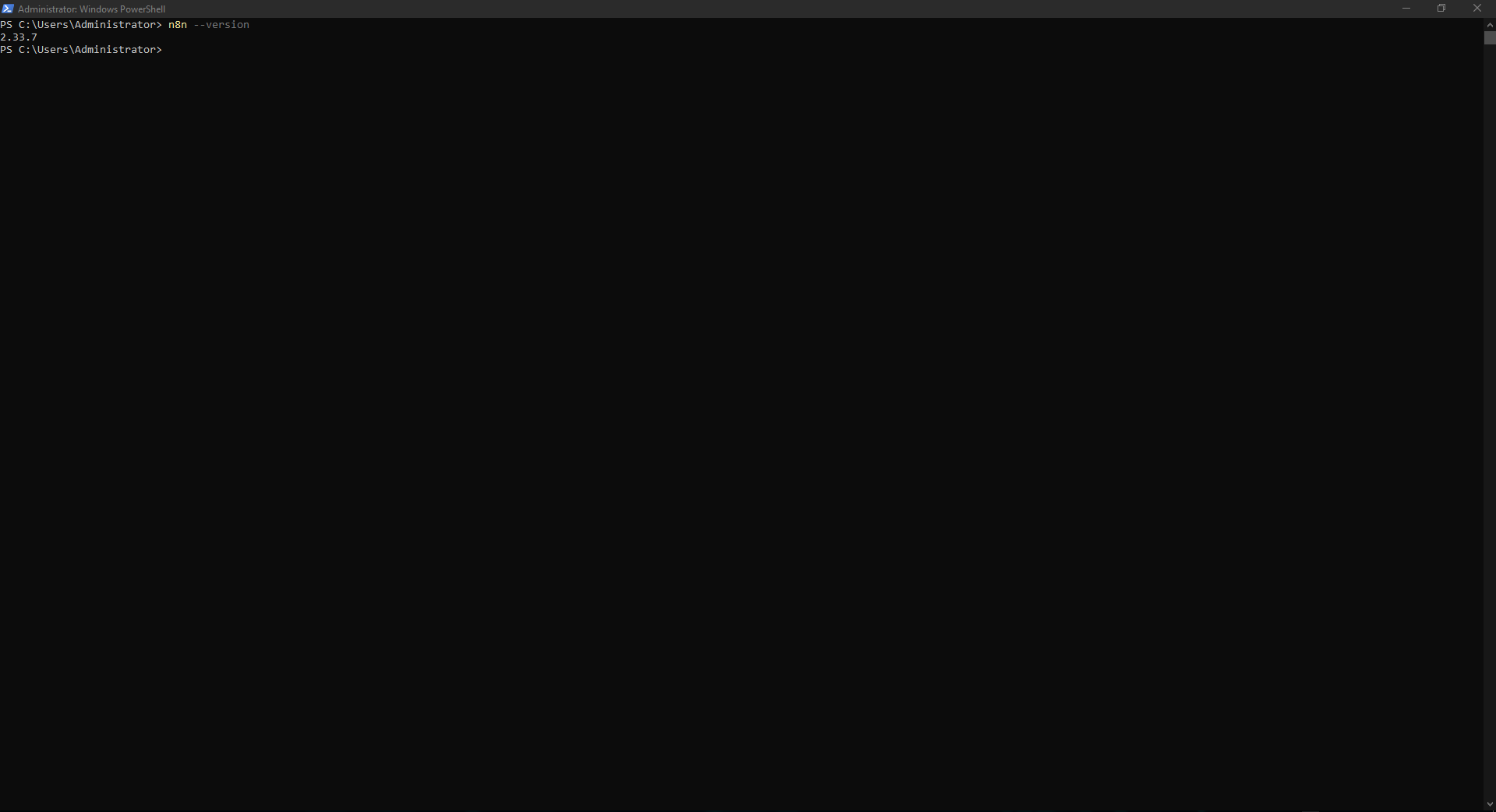
We installed n8n globally through npm. A large number of peer-dependency and deprecated-package warnings can appear during installation; the important part is that the command finishes and reports packages added instead of terminating with a fatal error.
The first installation added 2162 packages and n8n --version returned 2.33.7. During the clean reinstall later in the guide we pinned [email protected] so the tested environment remained consistent.
npm install -g n8nn8n --version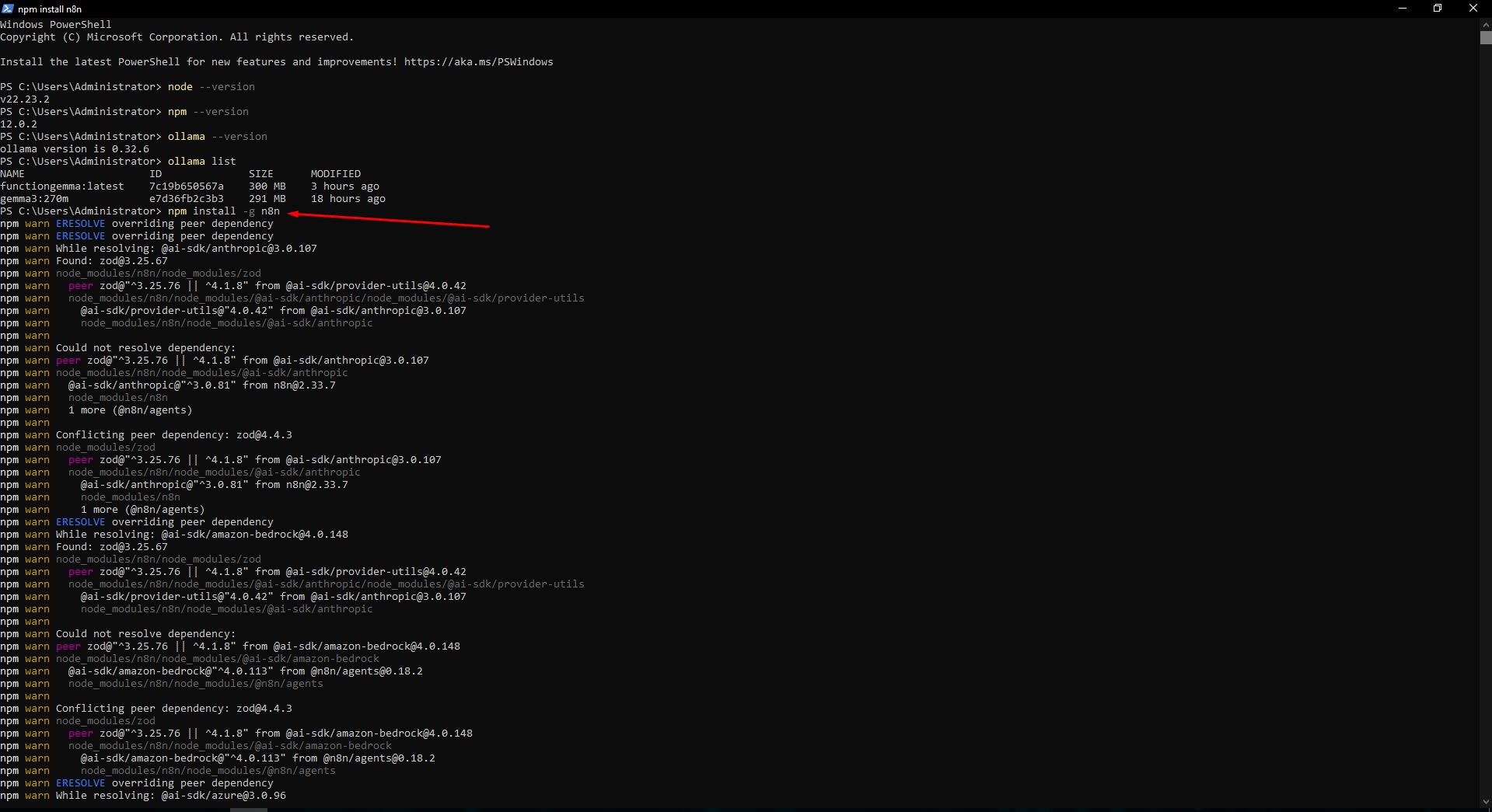
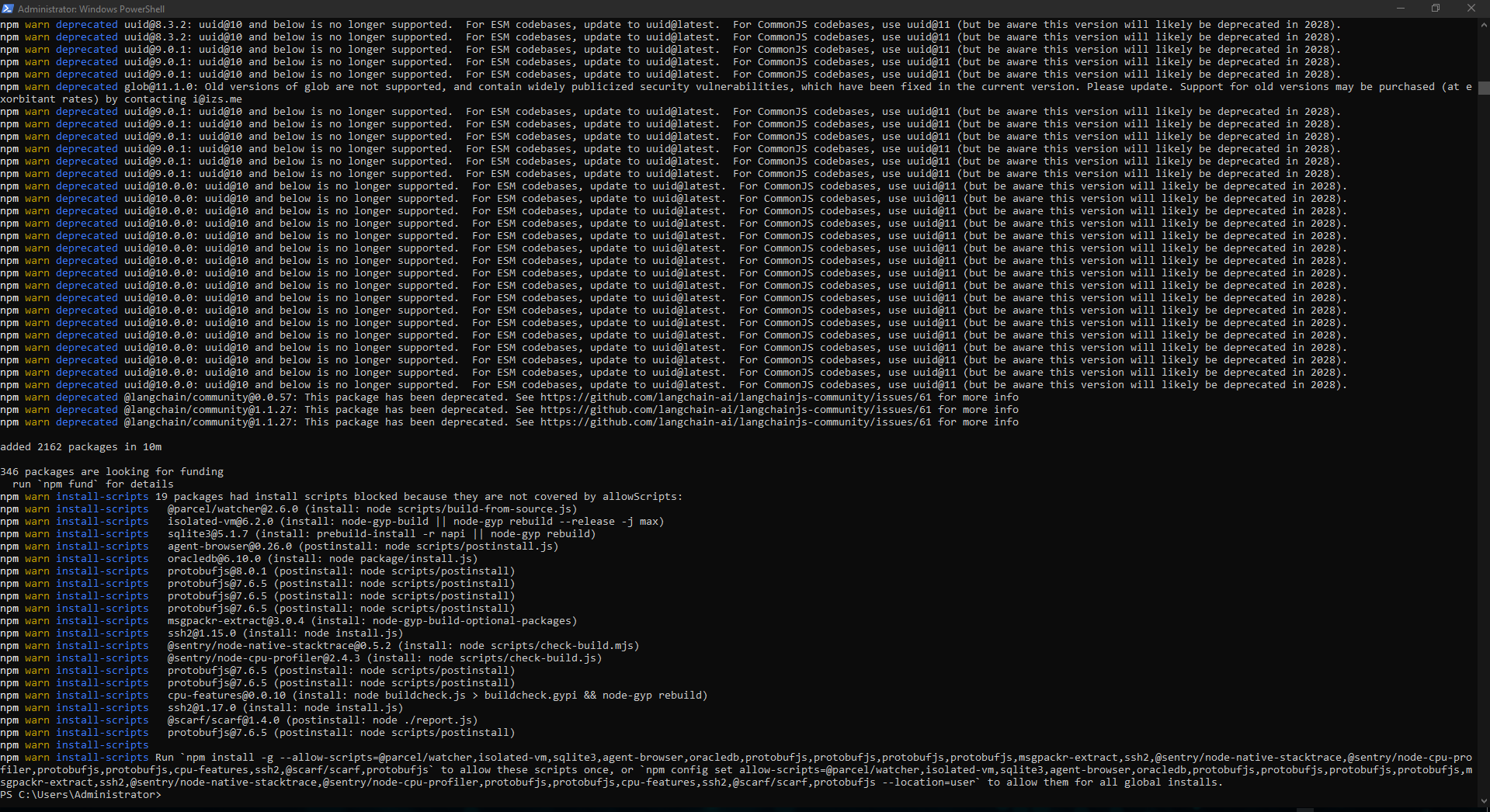
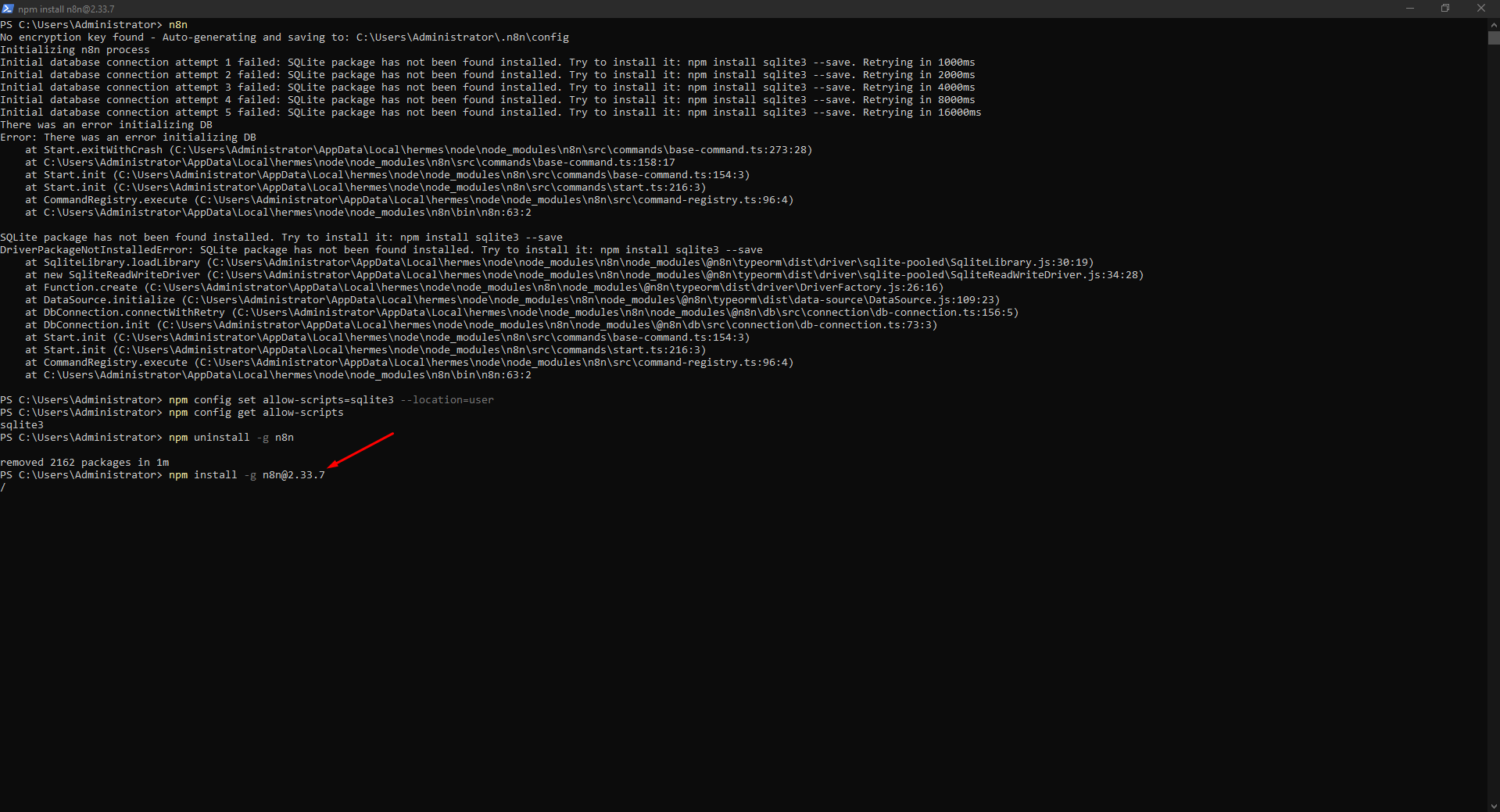
On the first n8n startup the database connection retried several times and failed because the SQLite package was unavailable. The npm installation output had shown that the sqlite3 install script was blocked, so n8n exited before opening port 5678.
We allowed only the sqlite3 install script at user scope, removed the existing global n8n install, and reinstalled the same n8n version cleanly. After reinstalling, sqlite3 was no longer in the blocked list and n8n could proceed to database migrations.
Allowing only the package we actually need is more controlled than globally enabling every install script. npm behavior can differ between versions, so you may not see this issue on another system.
npm config set allow-scripts=sqlite3 --location=usernpm config get allow-scriptsnpm uninstall -g n8nnpm install -g [email protected]n8n --version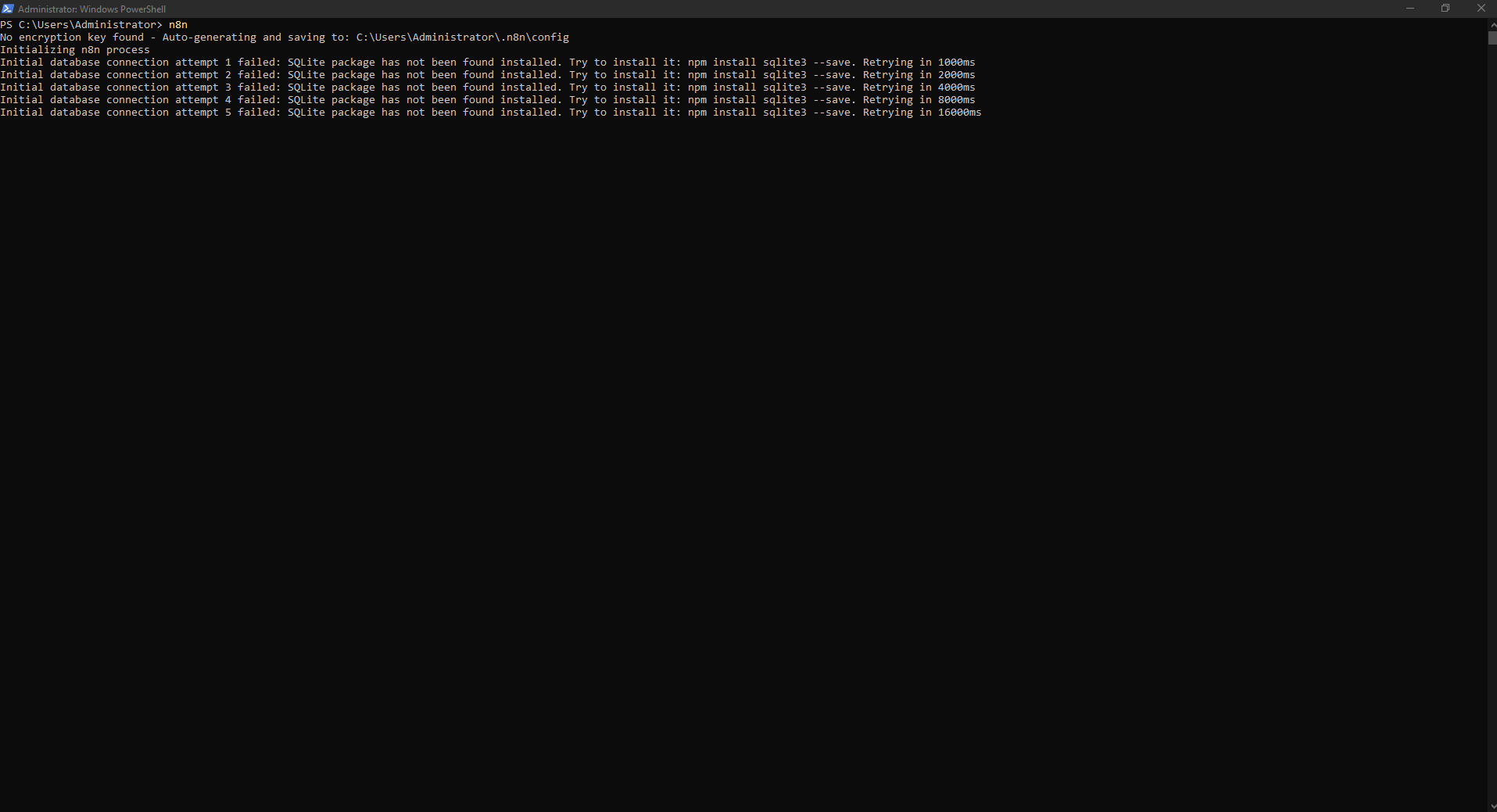
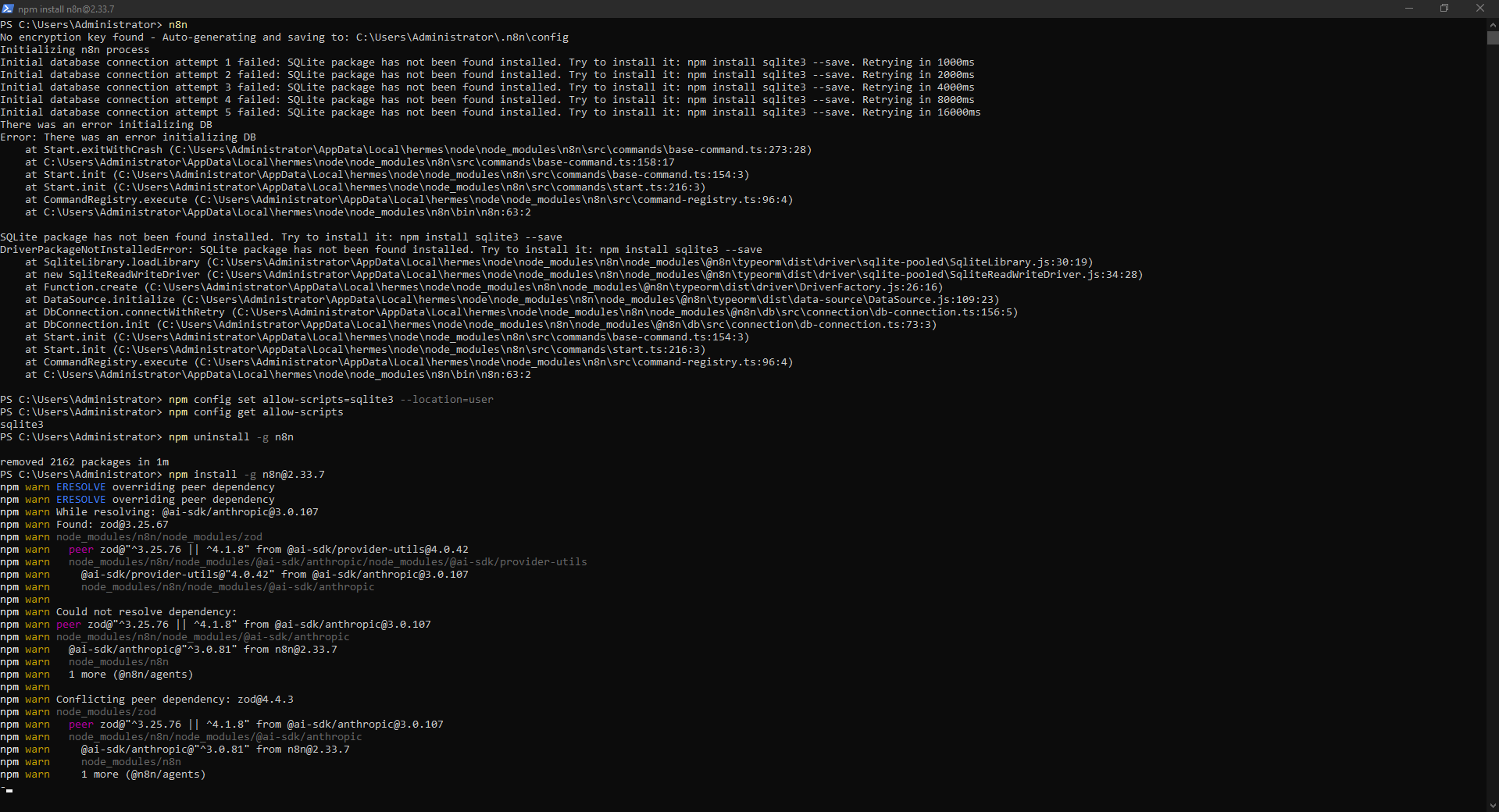
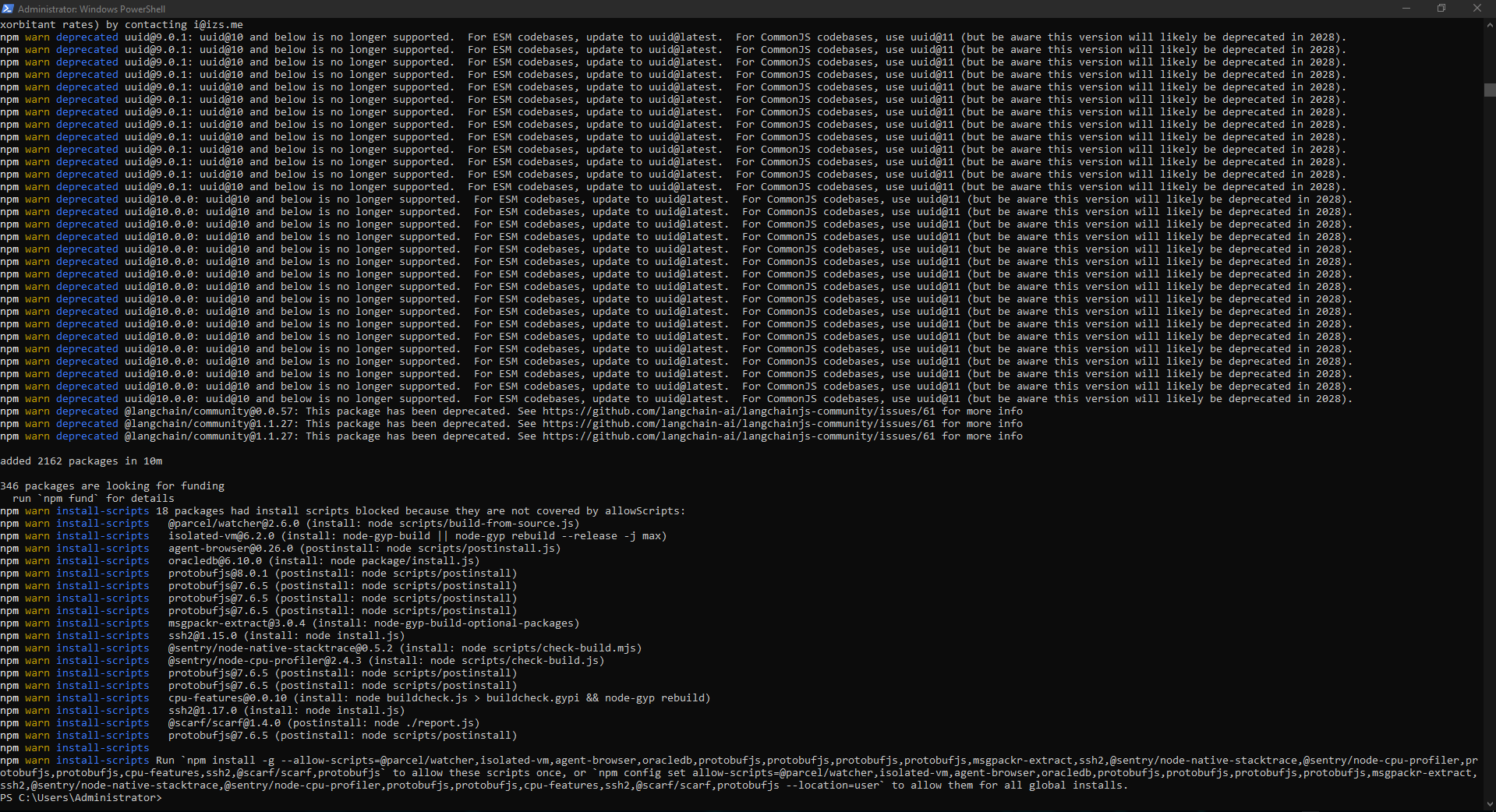
After fixing SQLite, n8n ran its database migrations on first startup. The terminal then reported n8n 2.33.7 and “Editor is now accessible via: http://localhost:5678”.
The terminal also displayed warnings about the Python task runner and future configuration changes. They did not prevent the editor from starting in this test. This guide focuses on a functional Windows integration; for long-running production deployments, review the latest official self-hosting guidance as well.
n8nhttp://localhost:5678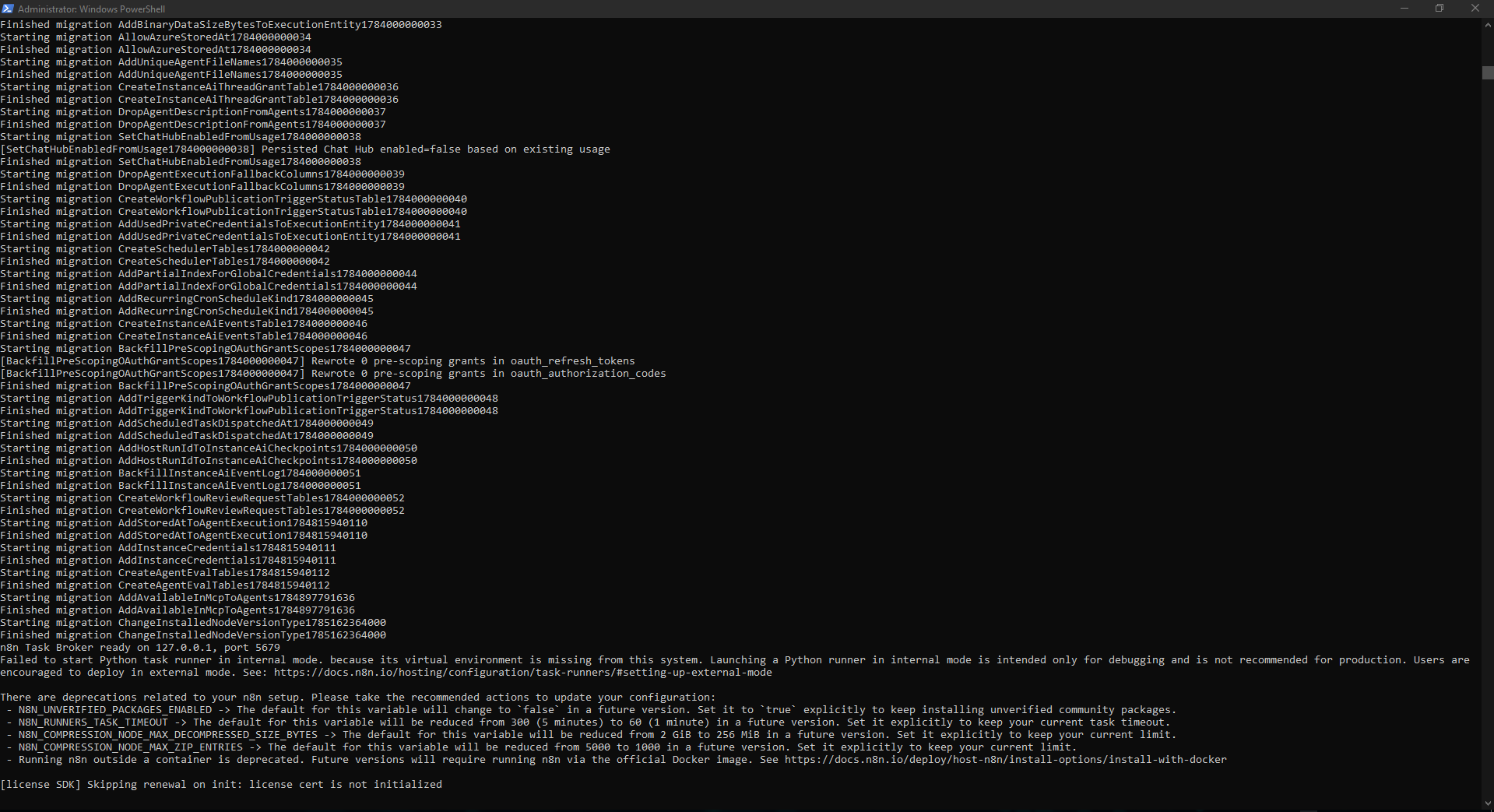
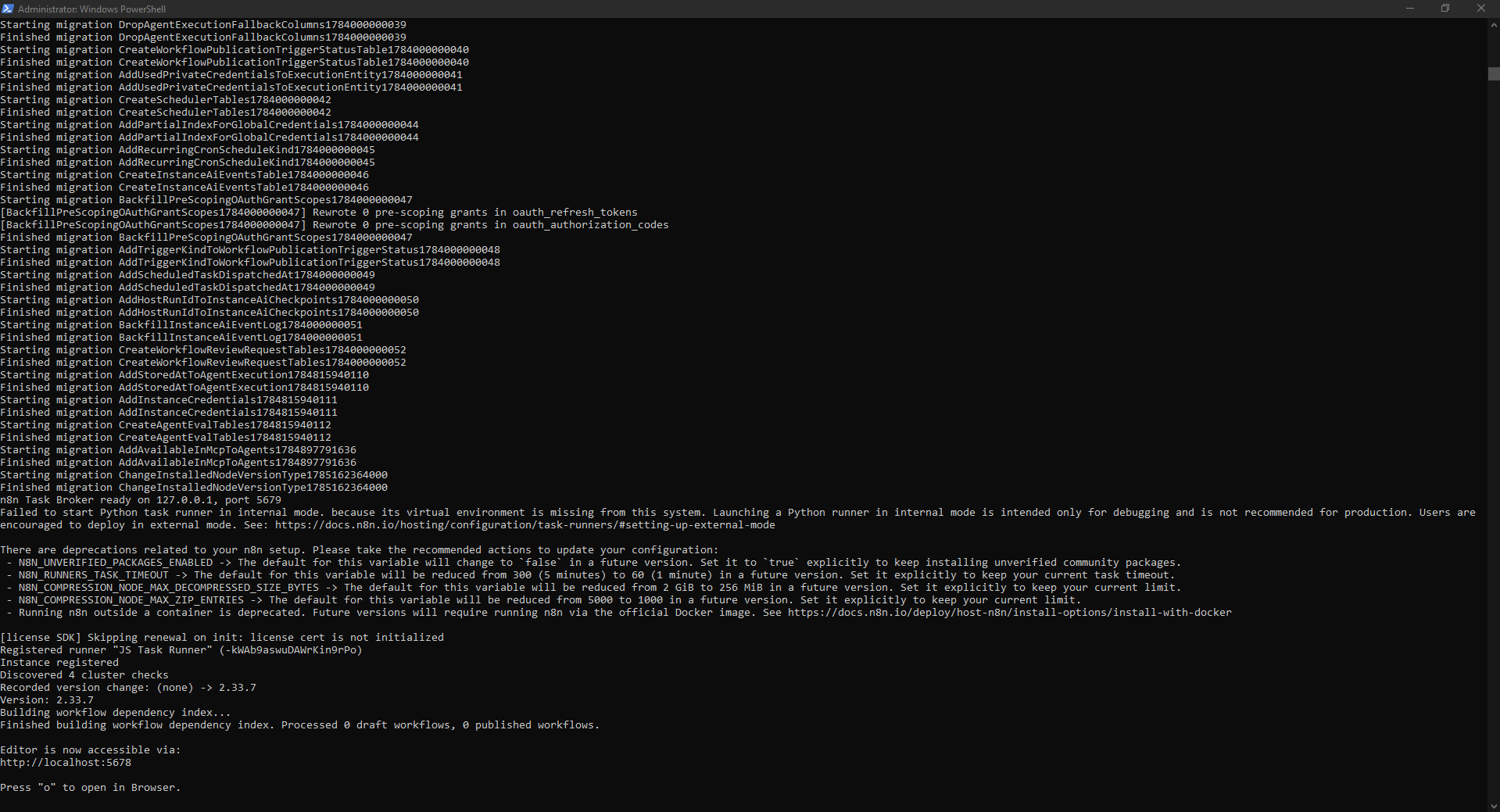
On first browser access n8n displayed the owner-account setup form. After entering the email, name and a strong password, n8n showed a short customization questionnaire.
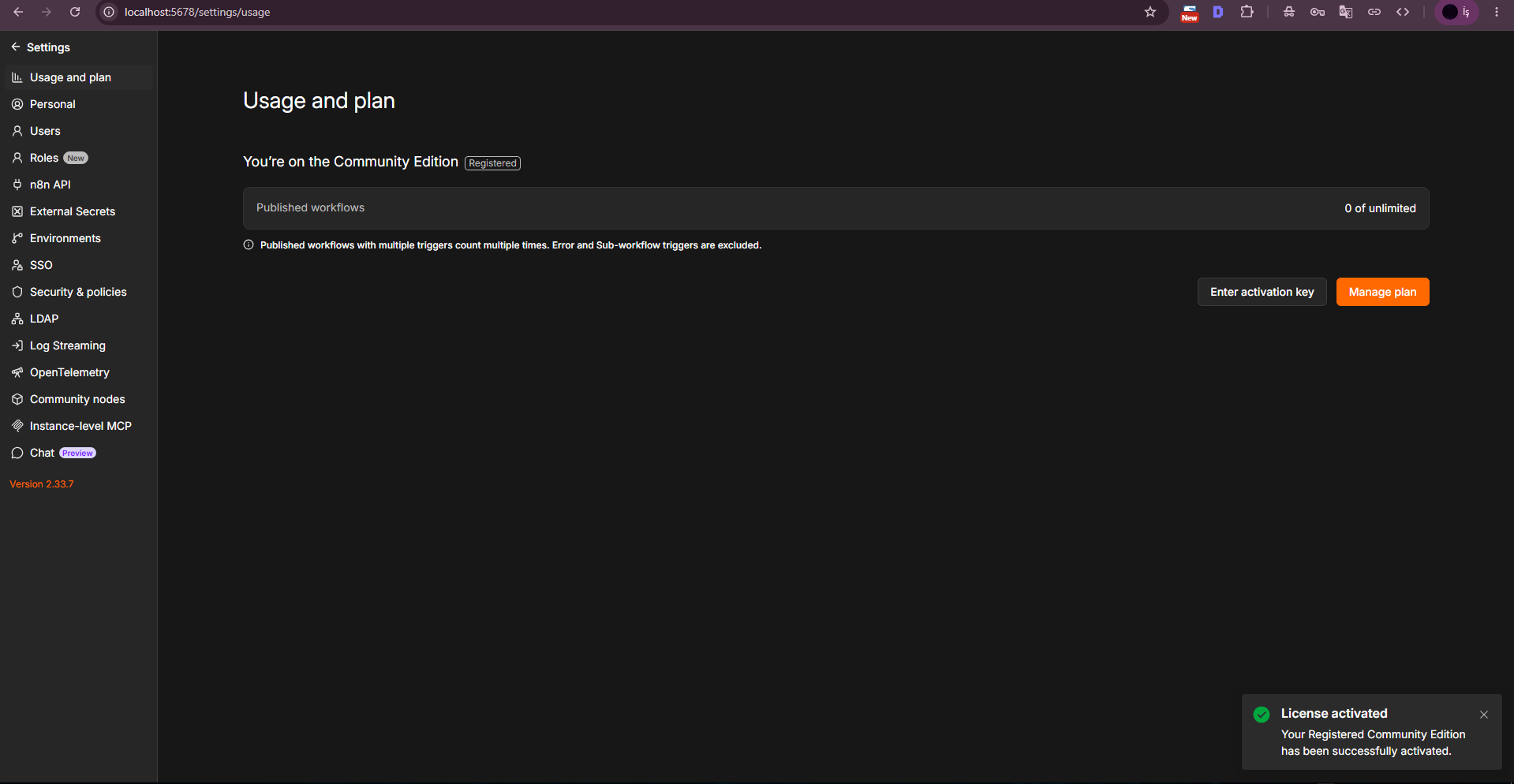
n8n also offered a free activation key for selected Registered Community Edition features. This step is optional. In the test environment we requested the key, activated it under Settings → Usage and plan, and verified the “Registered” badge.
Before publishing screenshots, remove email addresses, activation keys or other information according to your own publishing policy.
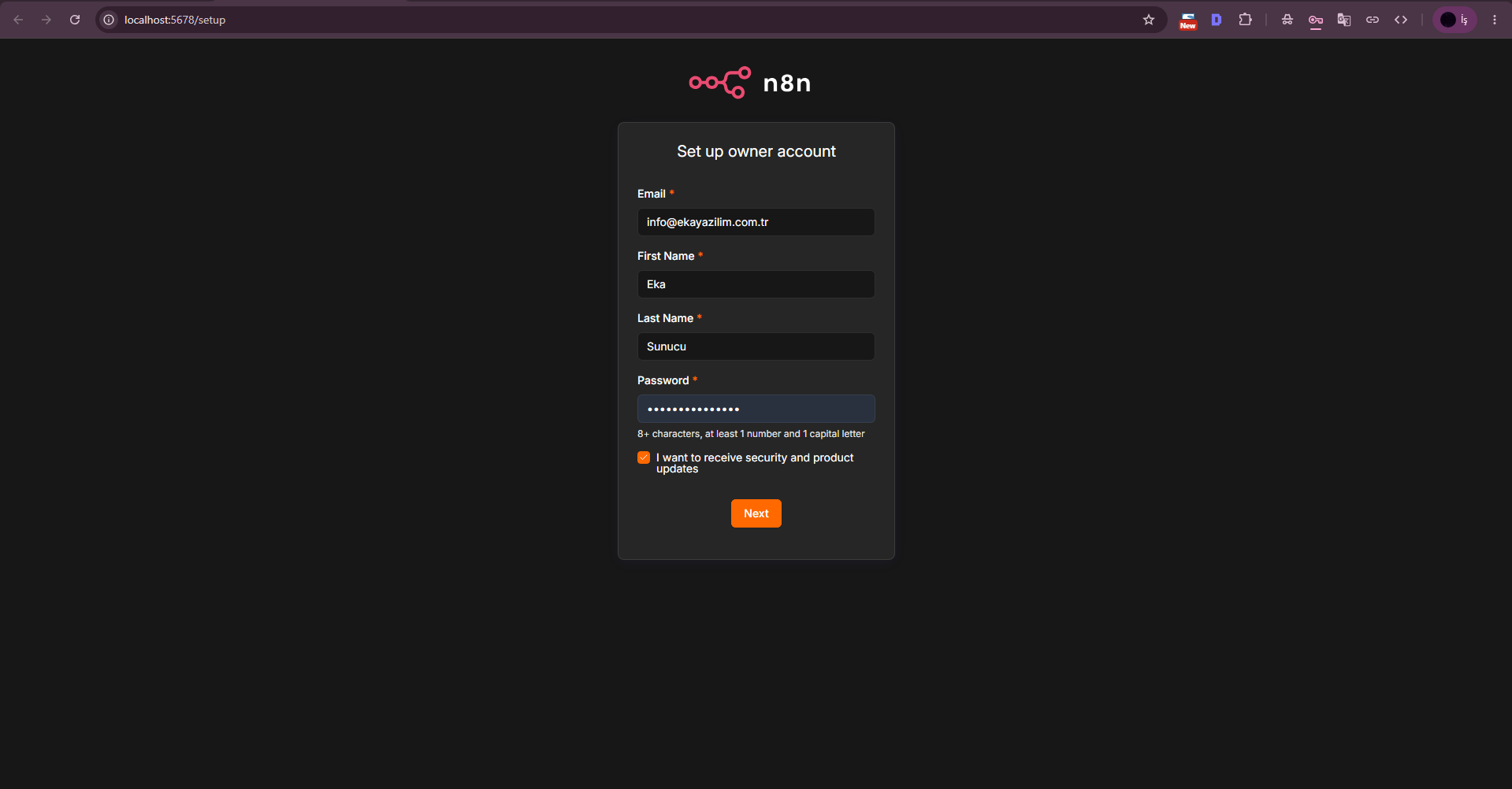
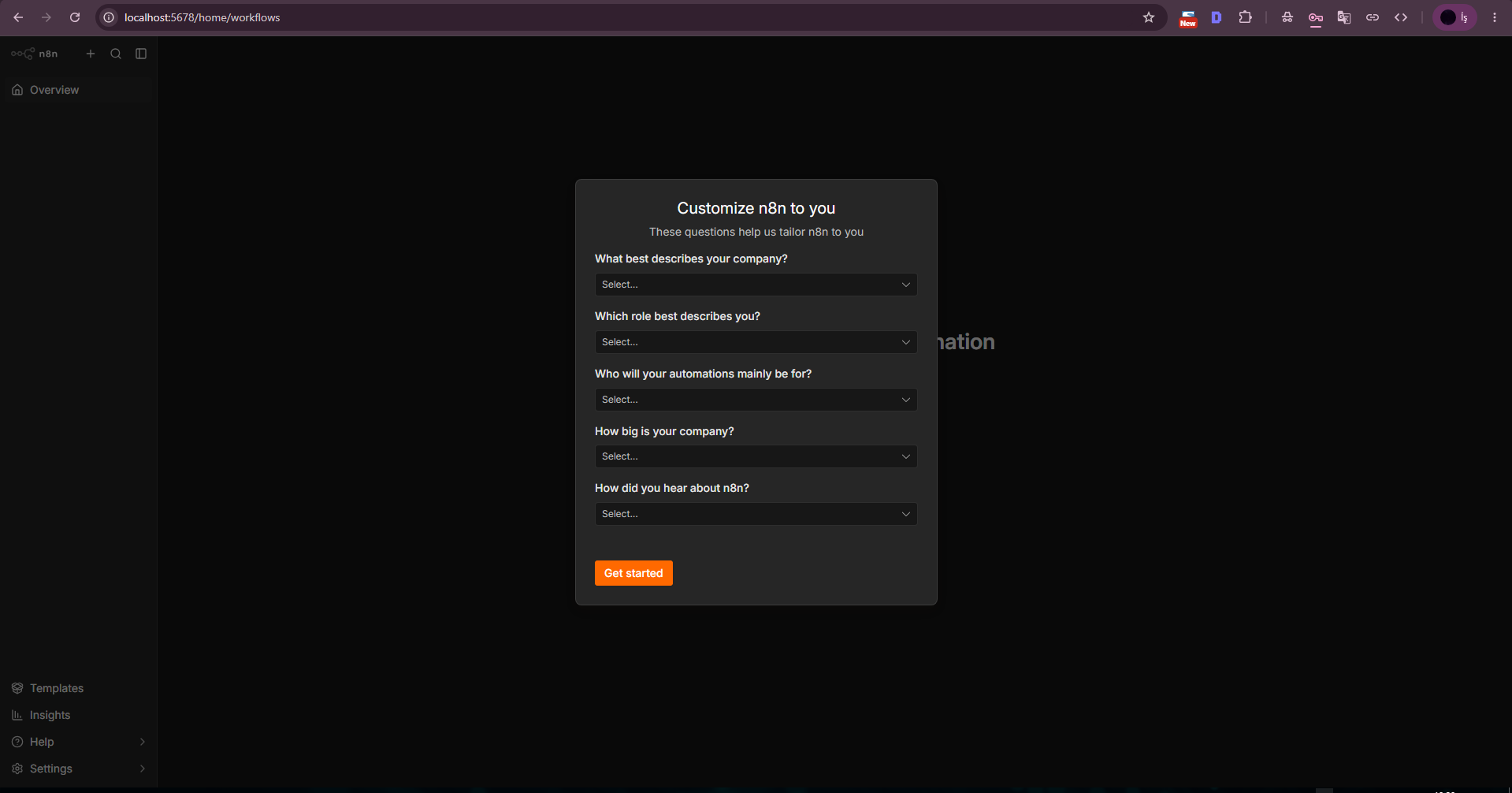
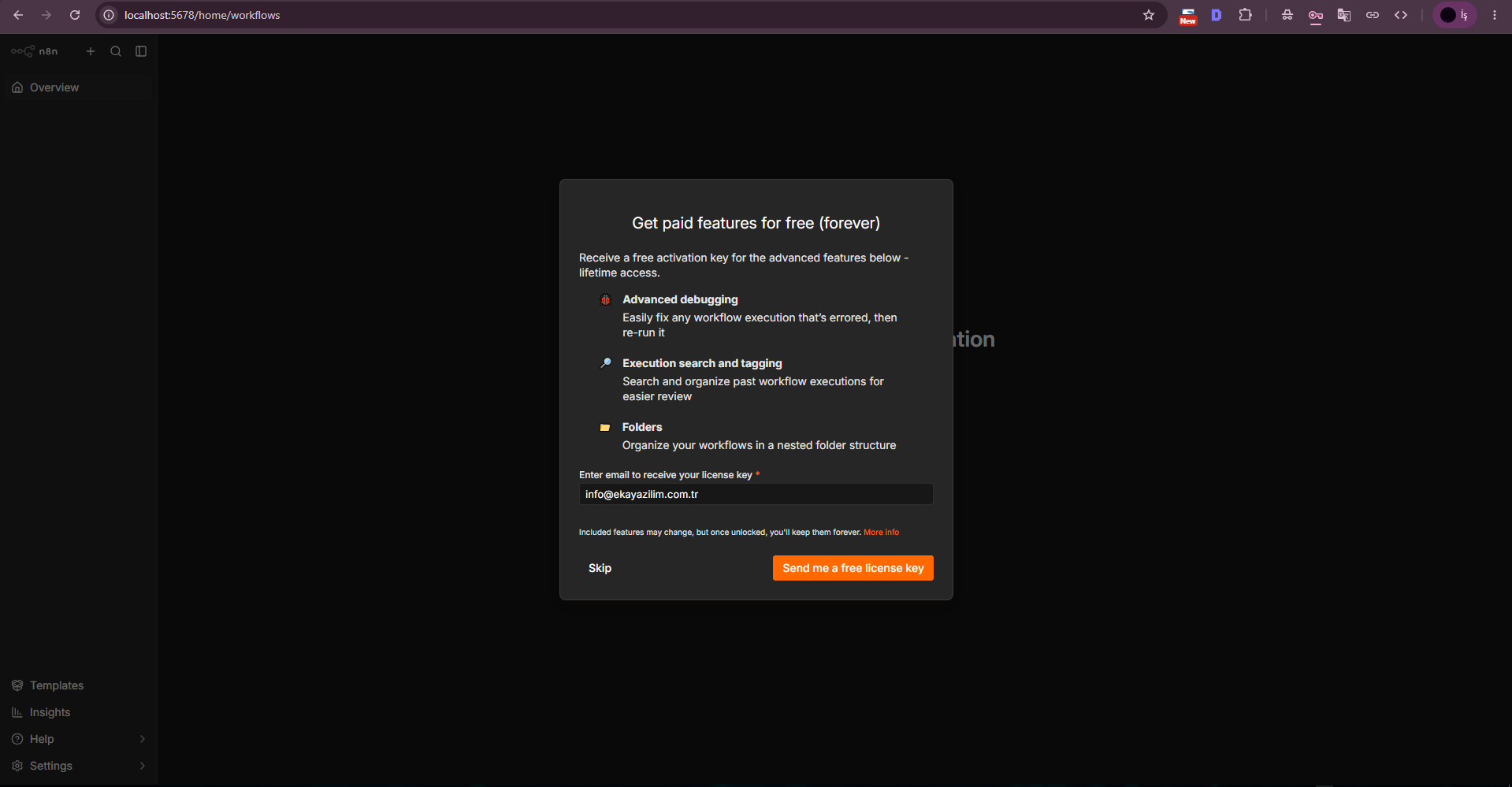
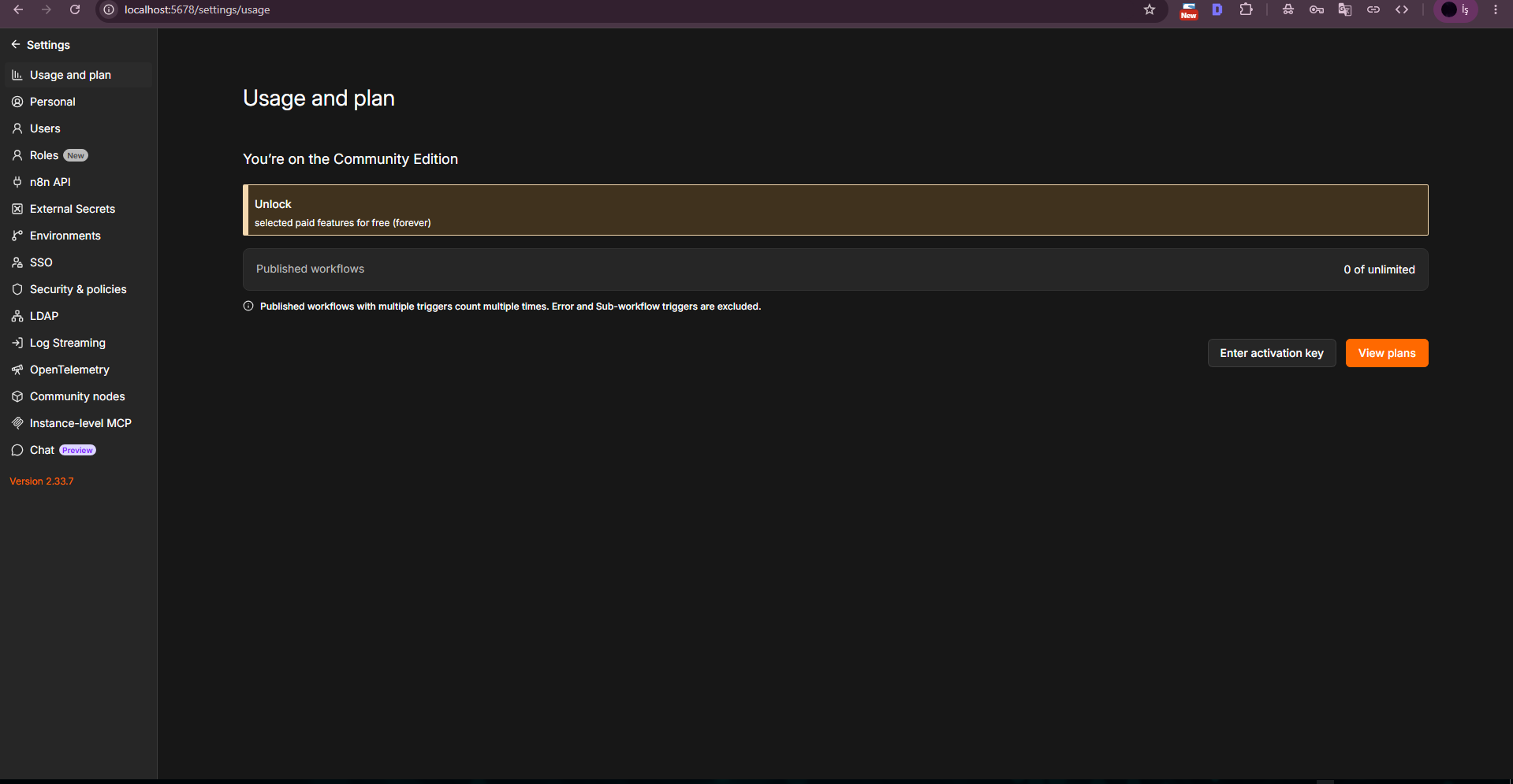
Before wiring AI nodes in n8n, we confirmed that the local Ollama API actually responded. Calling /api/tags from PowerShell returned the installed FunctionGemma and Gemma3 models as JSON. This proved that later n8n issues were not simply caused by Ollama being completely offline.
Because n8n and Ollama run on the same Windows VPS, the target is the local port 11434. Keeping Ollama on a local interface instead of exposing it directly to the public Internet provides a safer starting point.
Invoke-RestMethod -Uri "http://127.0.0.1:11434/api/tags" -Method Get | ConvertTo-Json -Depth 5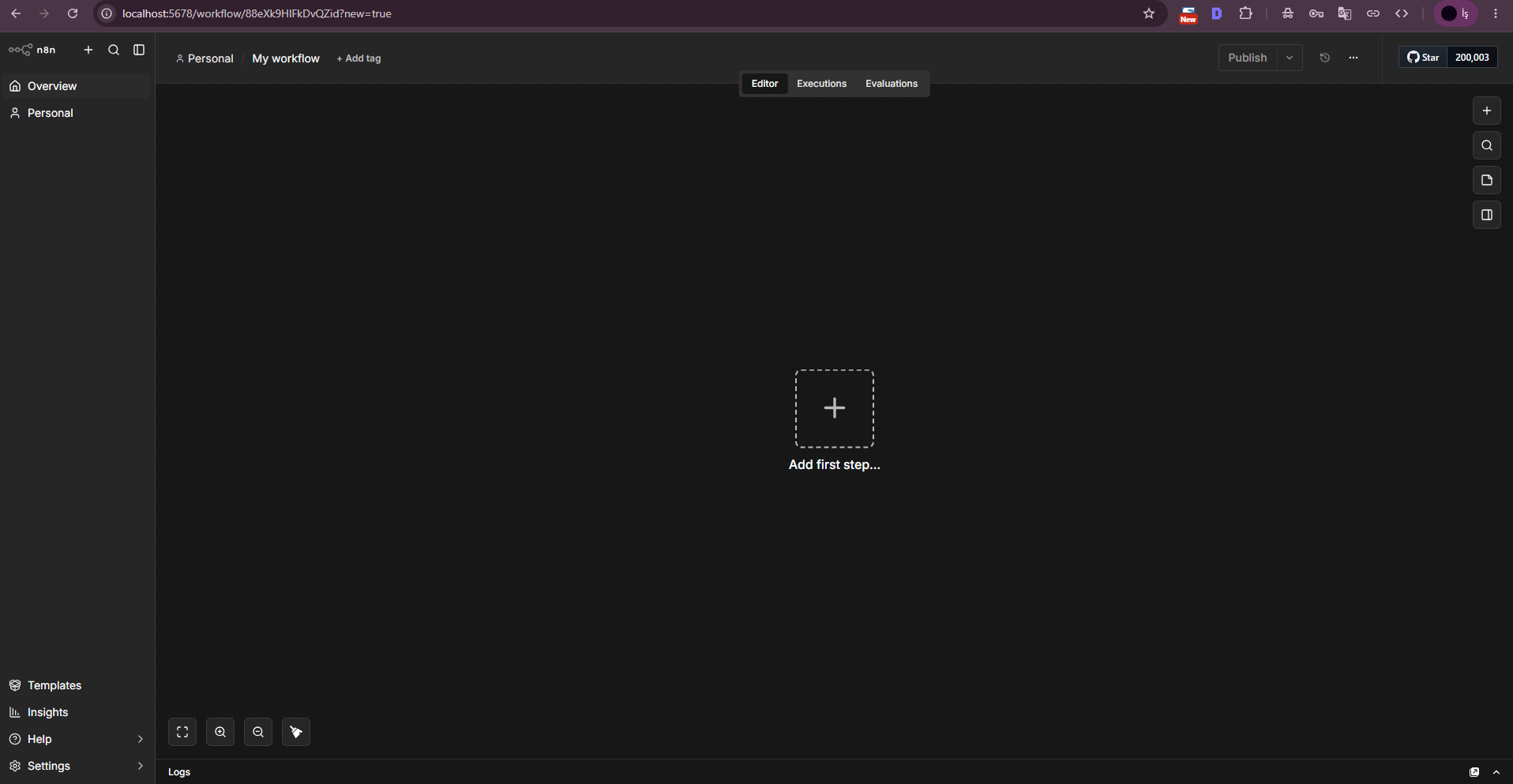
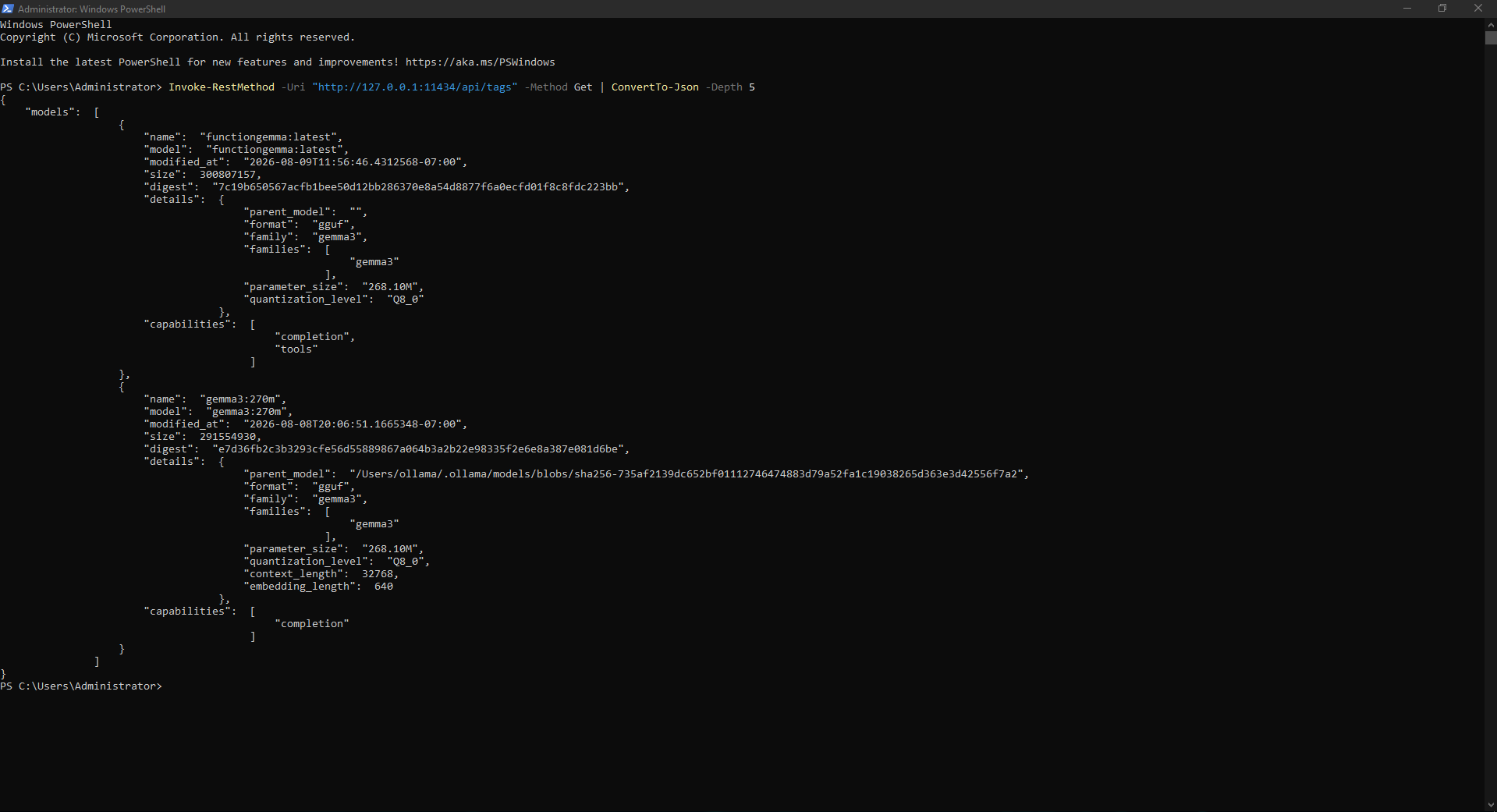
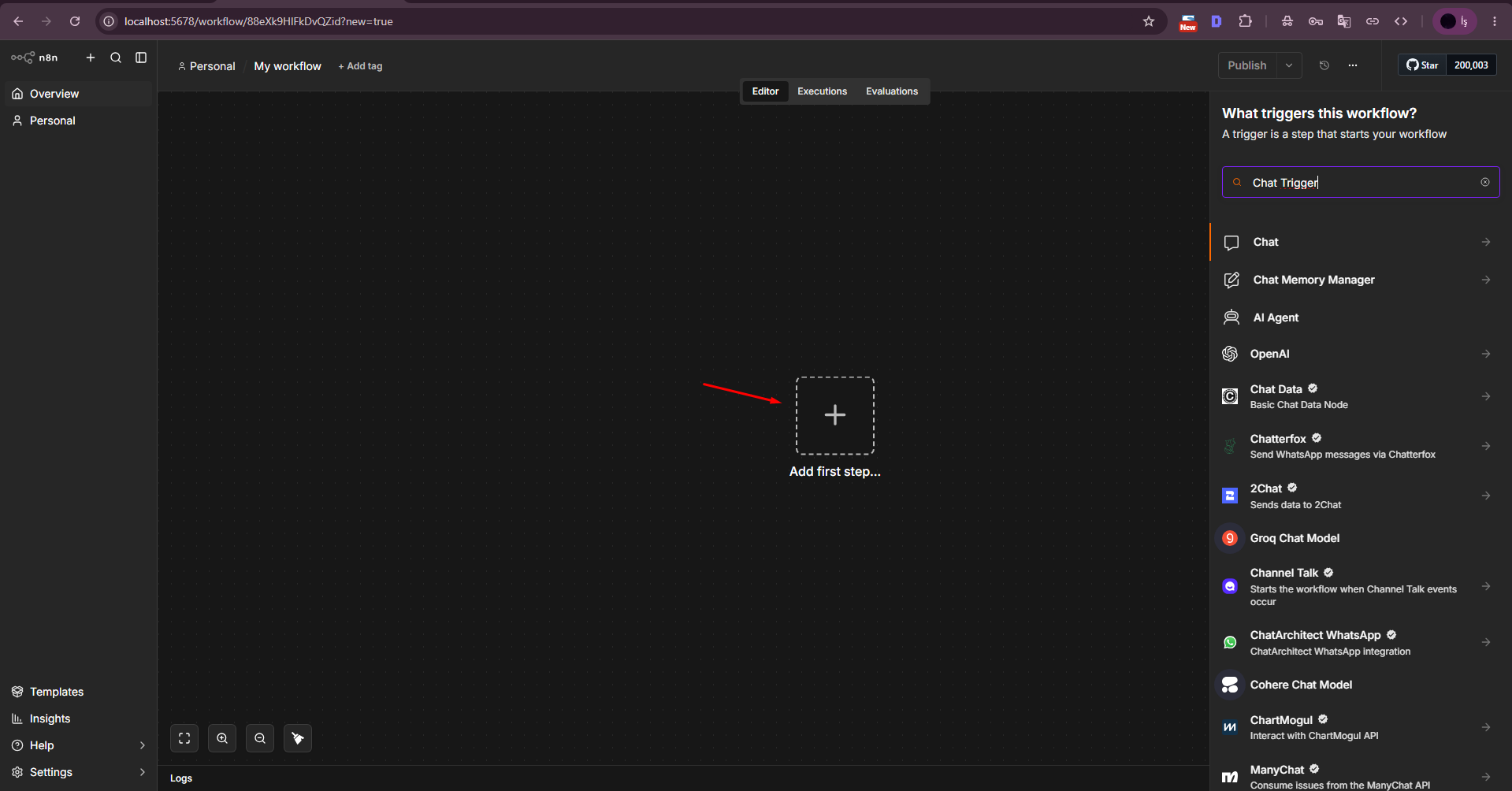
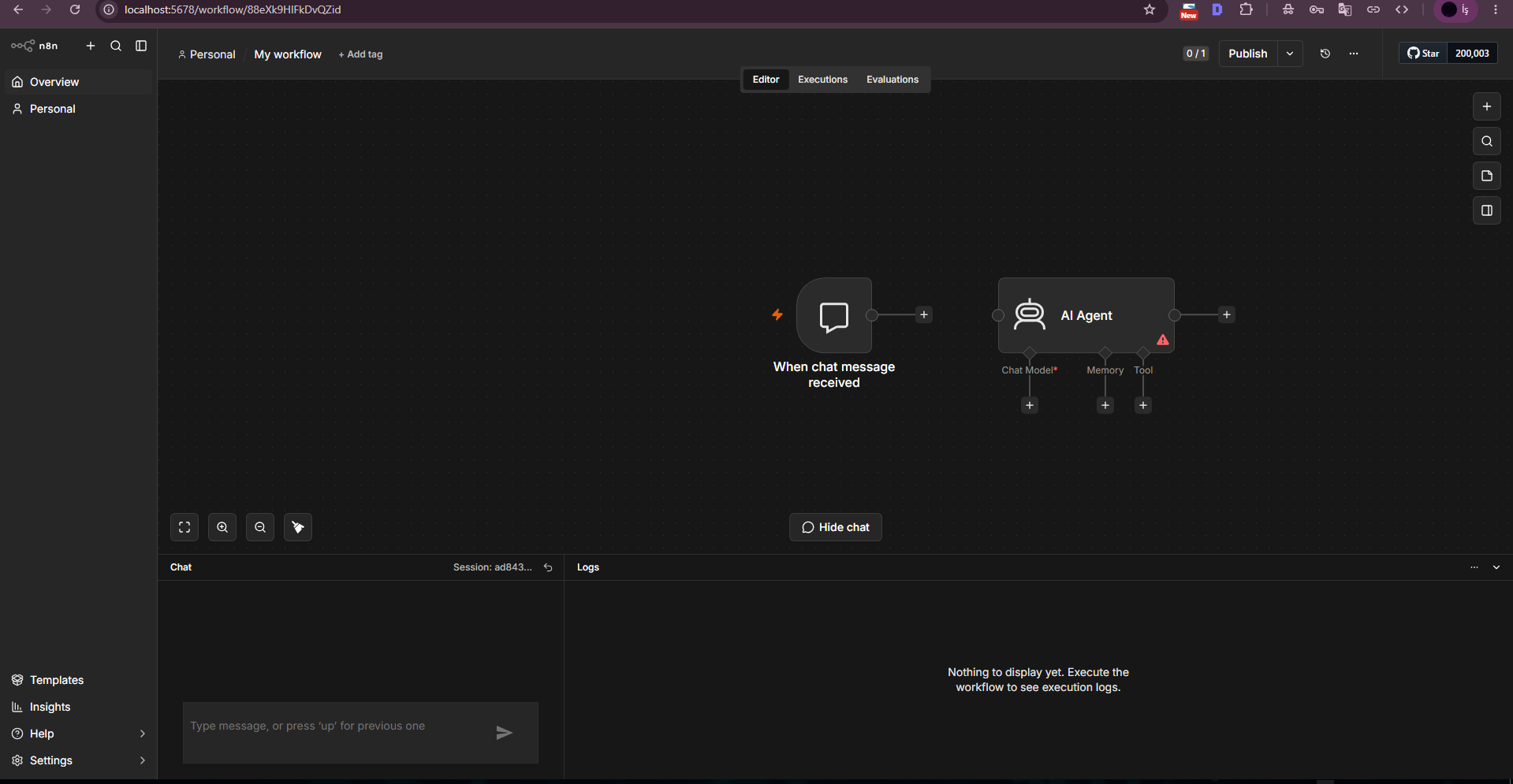
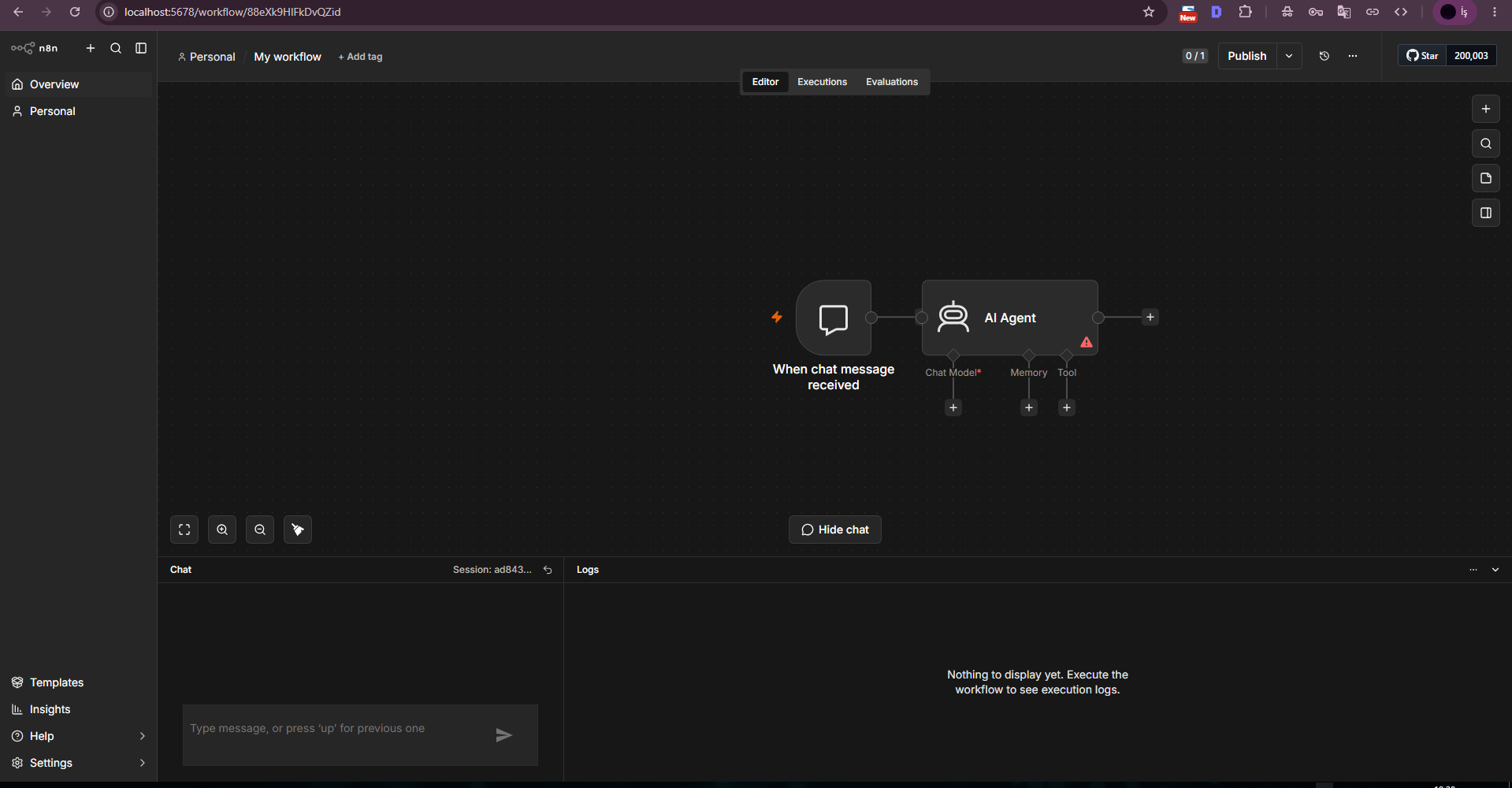
We added the “When chat message received” node as the chat trigger, then added AI Agent and connected the trigger main output to the AI Agent input.
This main connection is critical. If the workflow JSON stores an empty main connection for Chat Trigger, the incoming message can appear in the trigger output while AI Agent never starts automatically. We later verified and corrected this at JSON level.
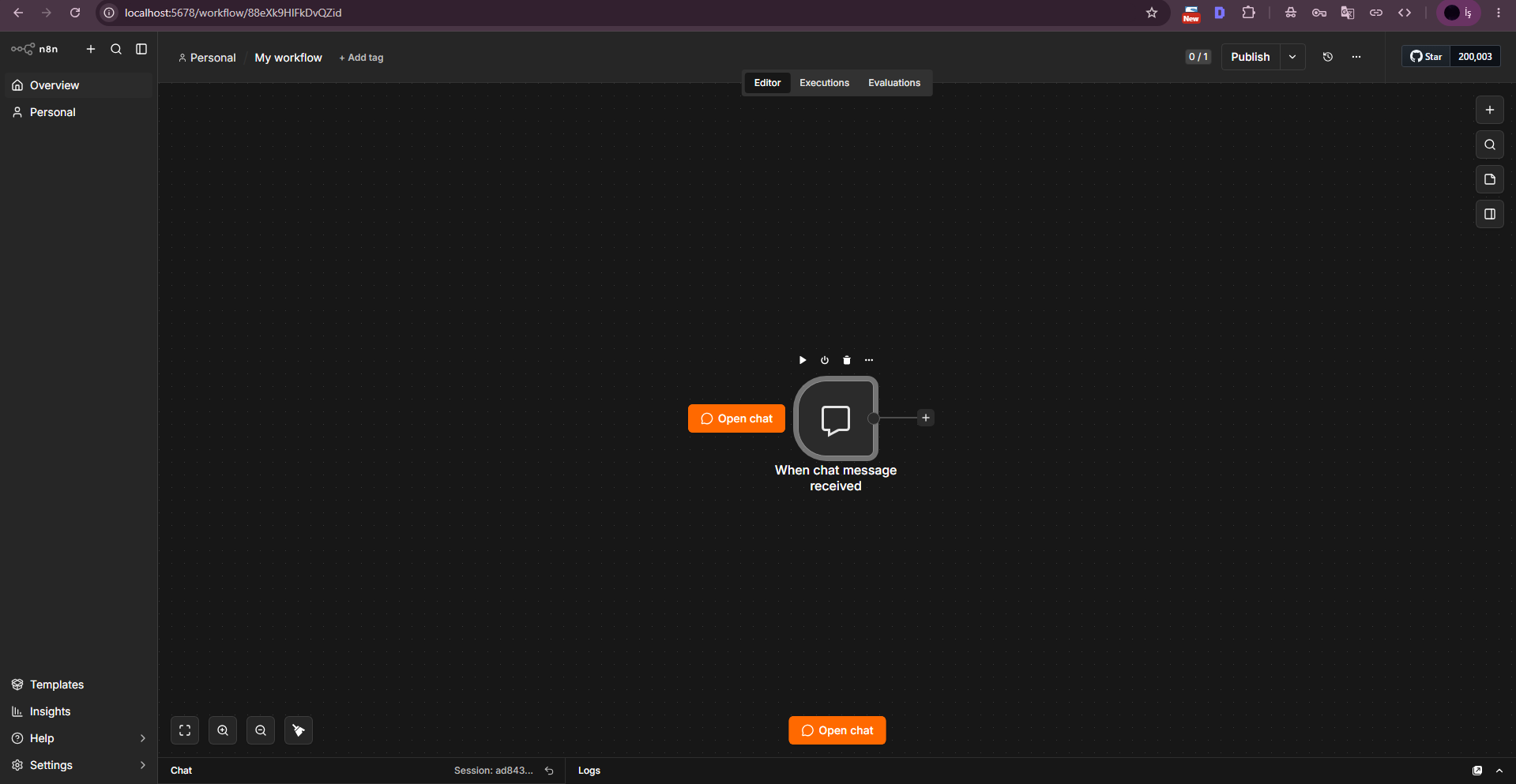
From the AI Agent Chat Model input we opened Language Models and added Ollama Chat Model. We first tried the n8n default local Base URL, http://localhost:11434, but the tested Windows environment returned a connection-refused error.
PowerShell had already proven that the same Ollama API responded on 127.0.0.1, so we changed the Base URL to http://127.0.0.1:11434. The credential could then be saved. No API key was required for the default local Ollama instance.
The model options initially failed to load with “Error fetching options”. Using Refresh List on the model field then populated functiongemma:latest and gemma3:270m. The service connection was valid; the UI model list simply needed a refresh.
http://127.0.0.1:11434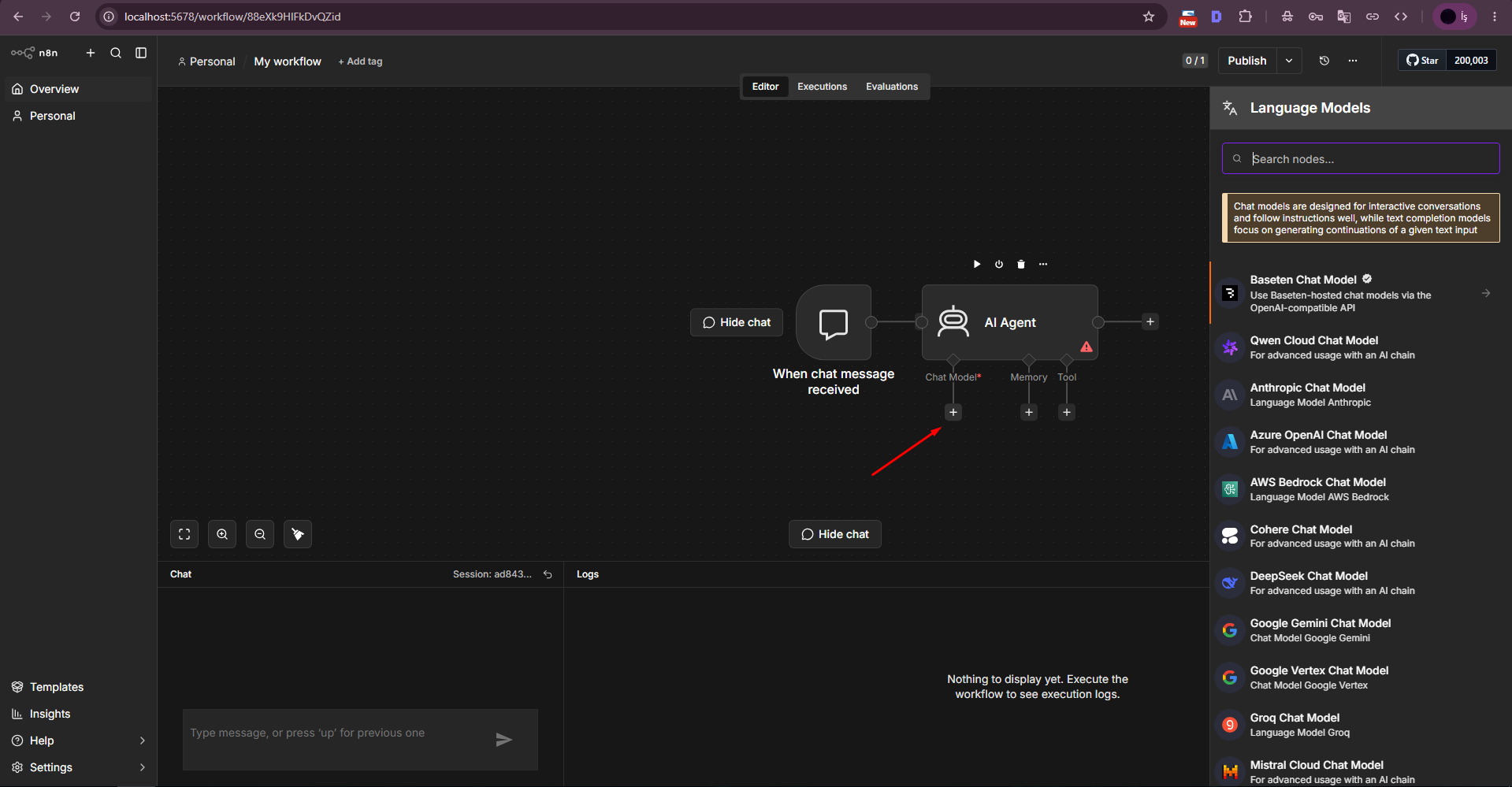
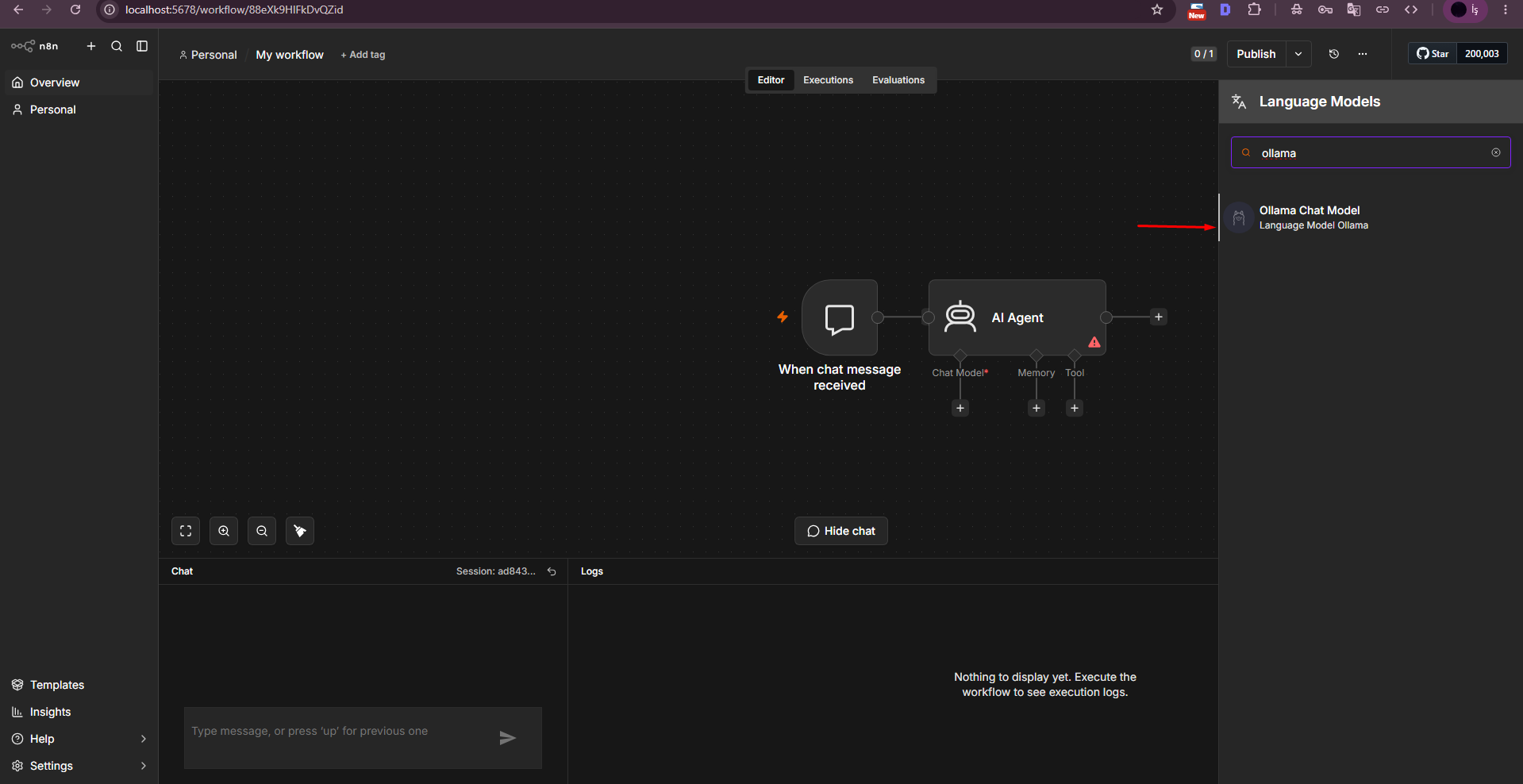
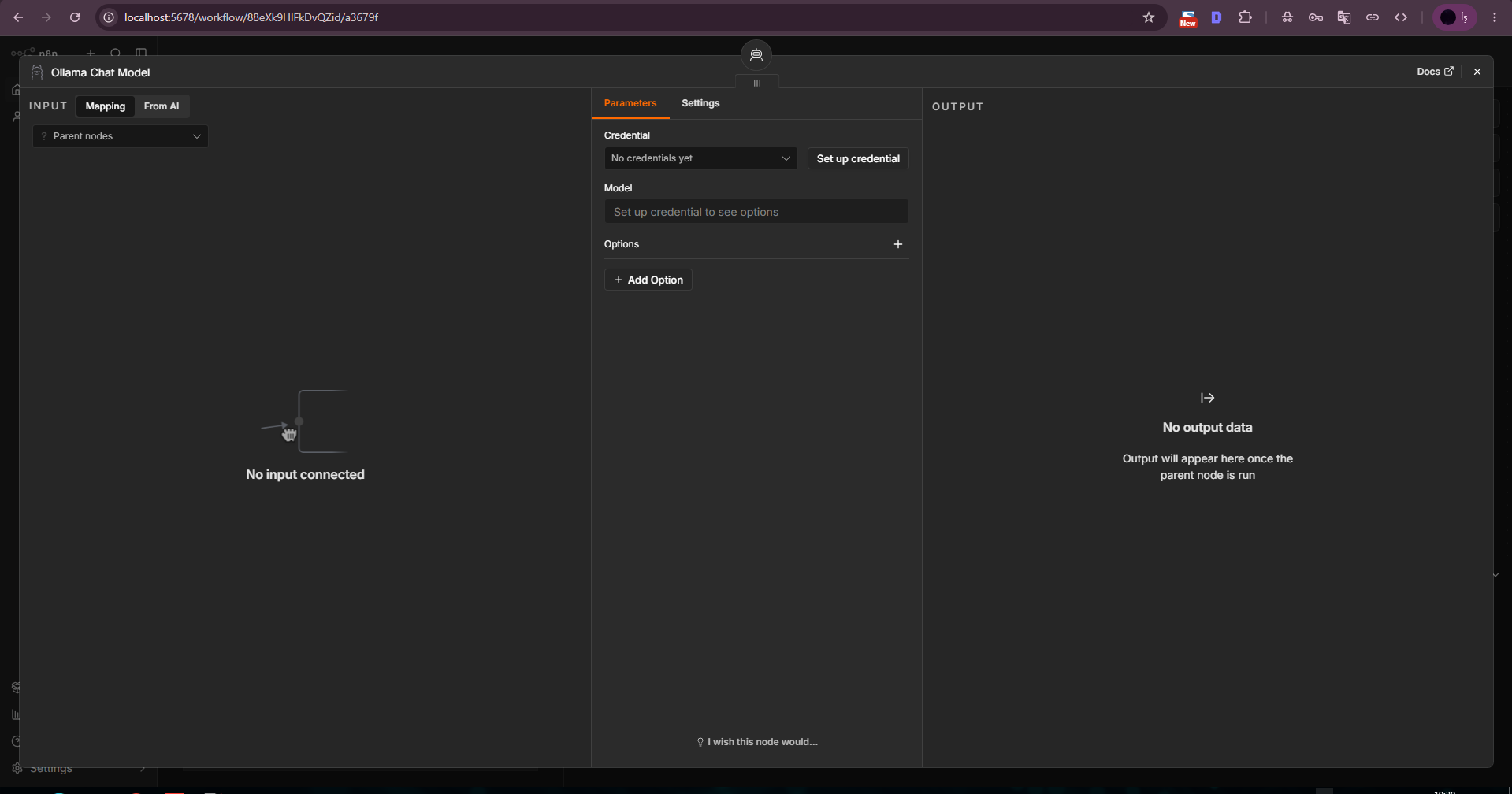
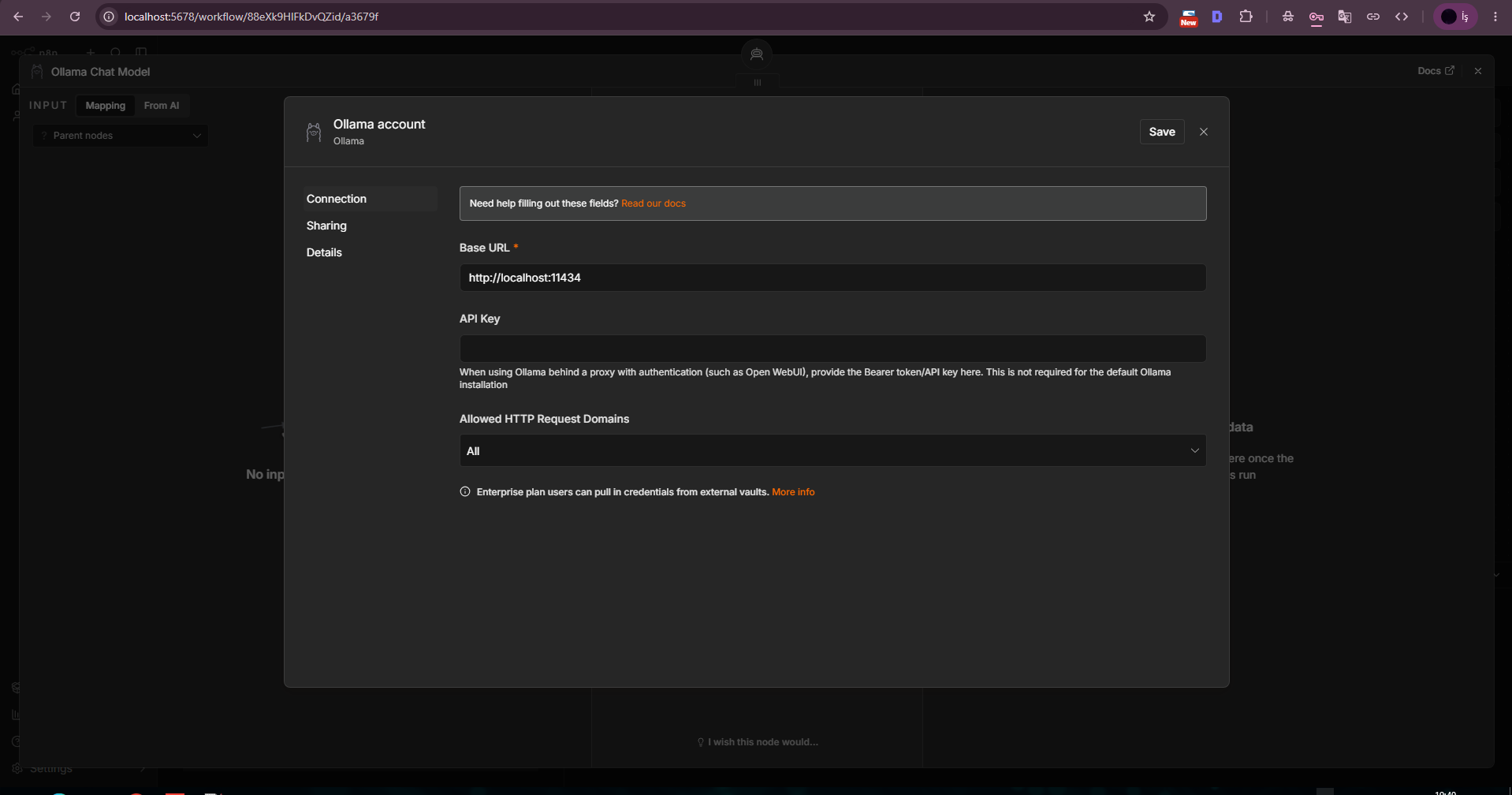
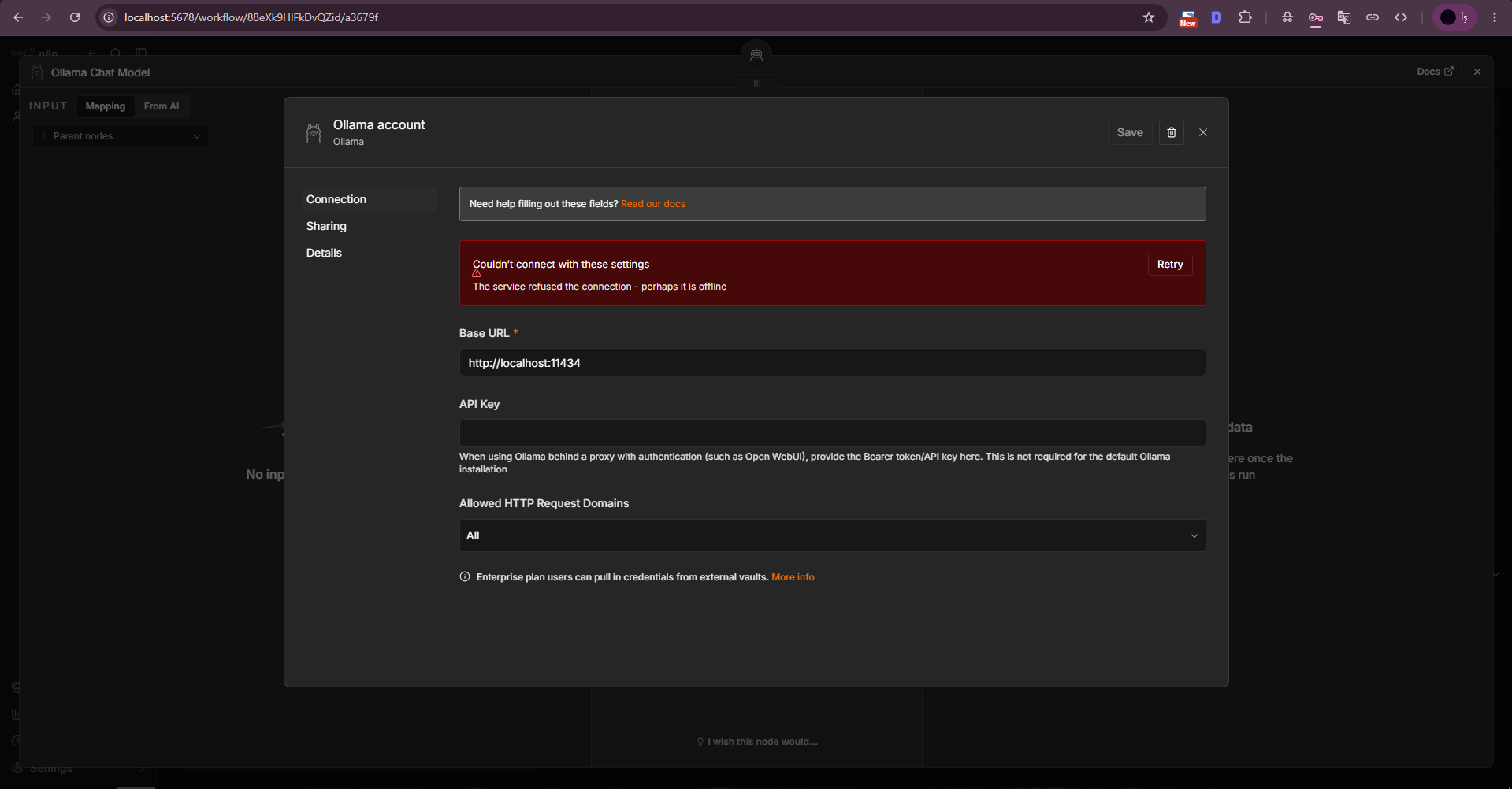
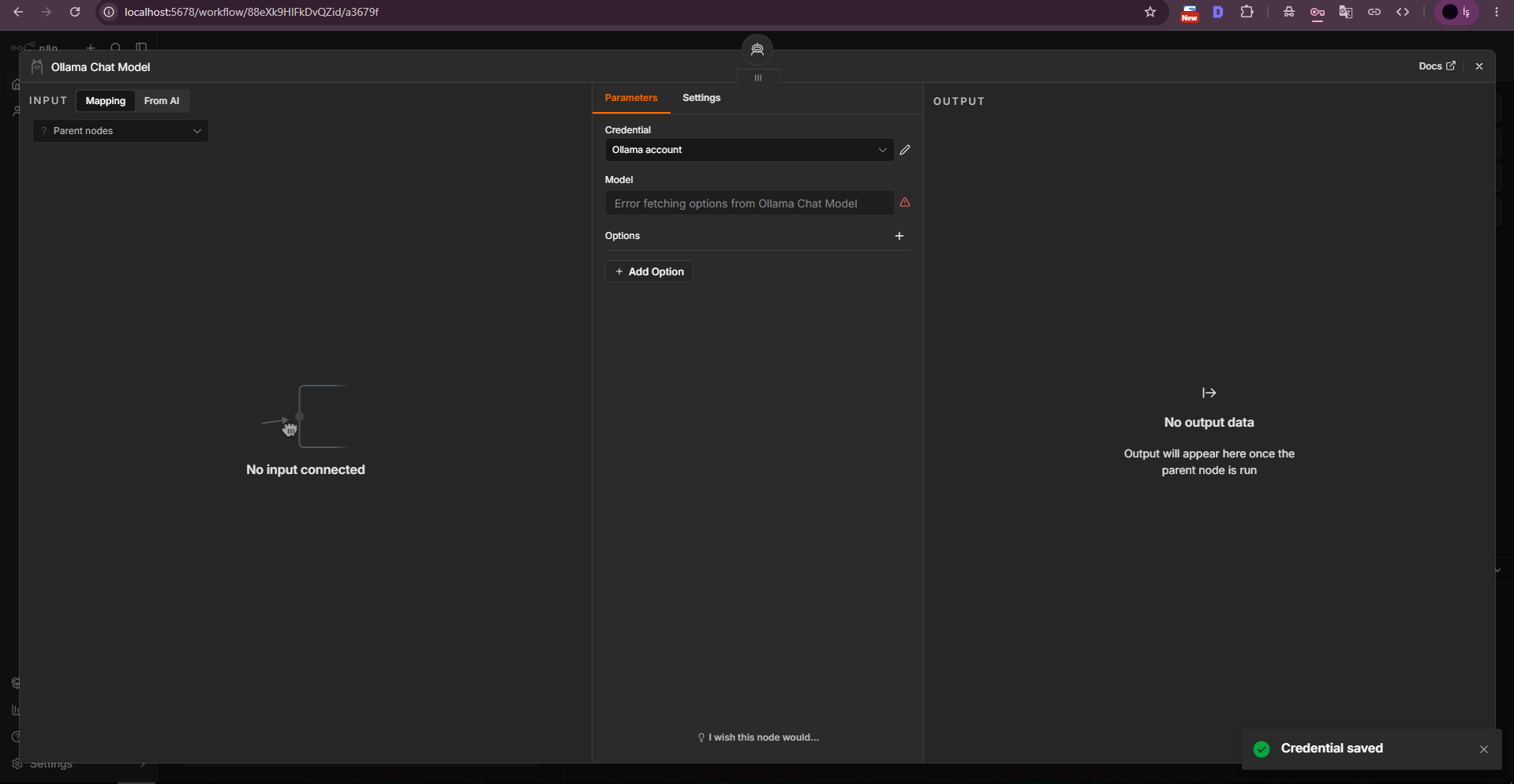
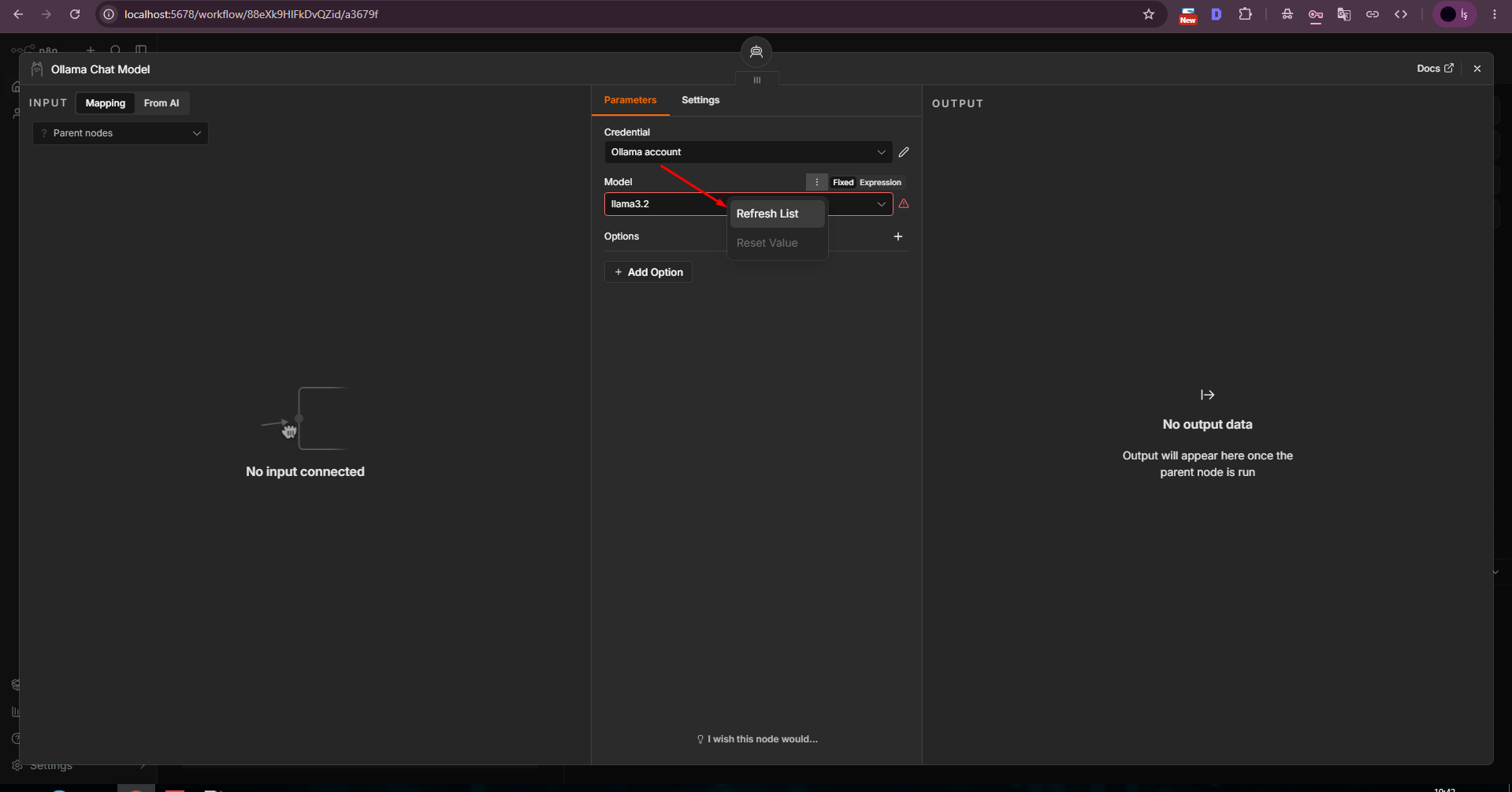
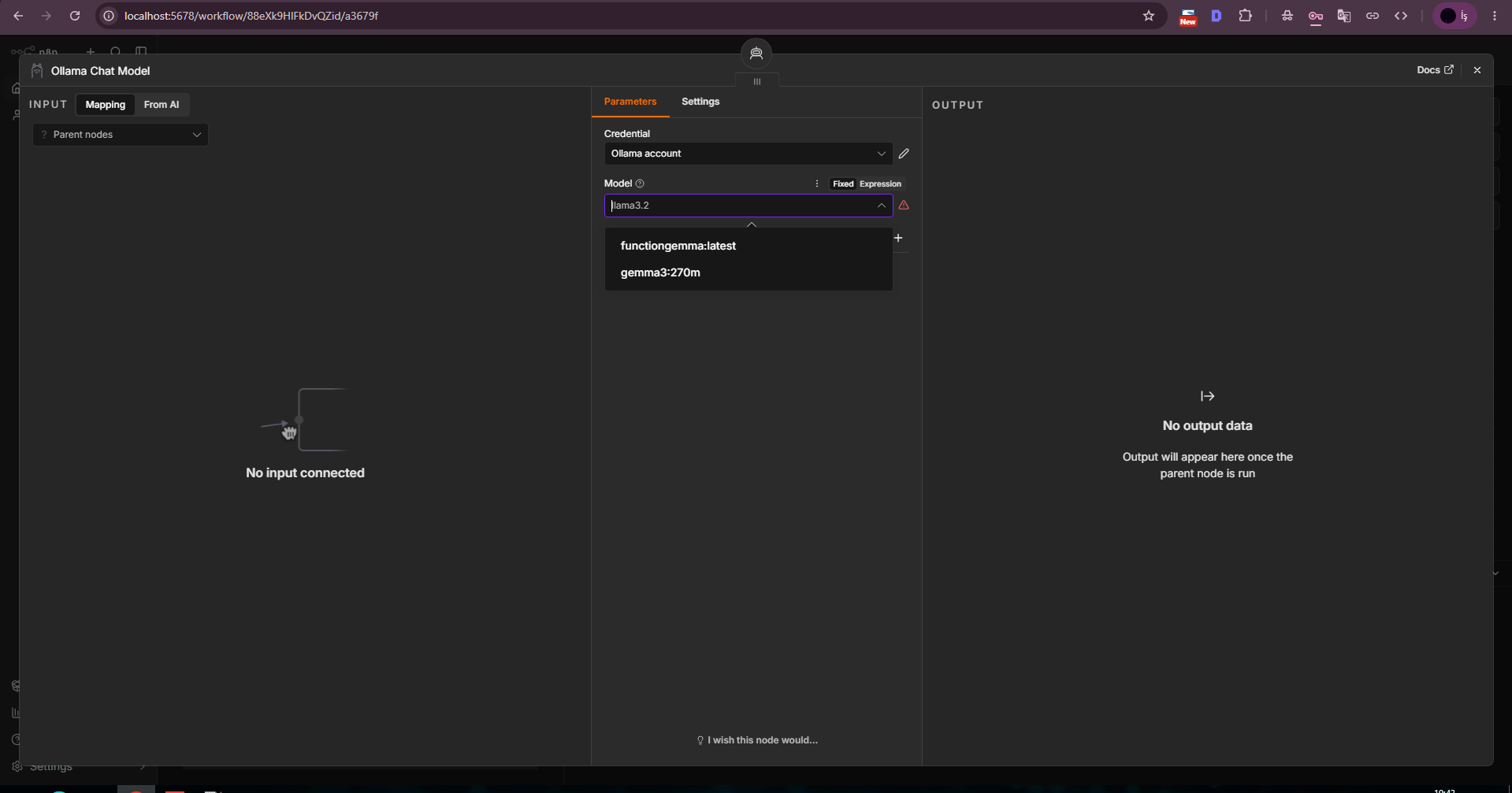
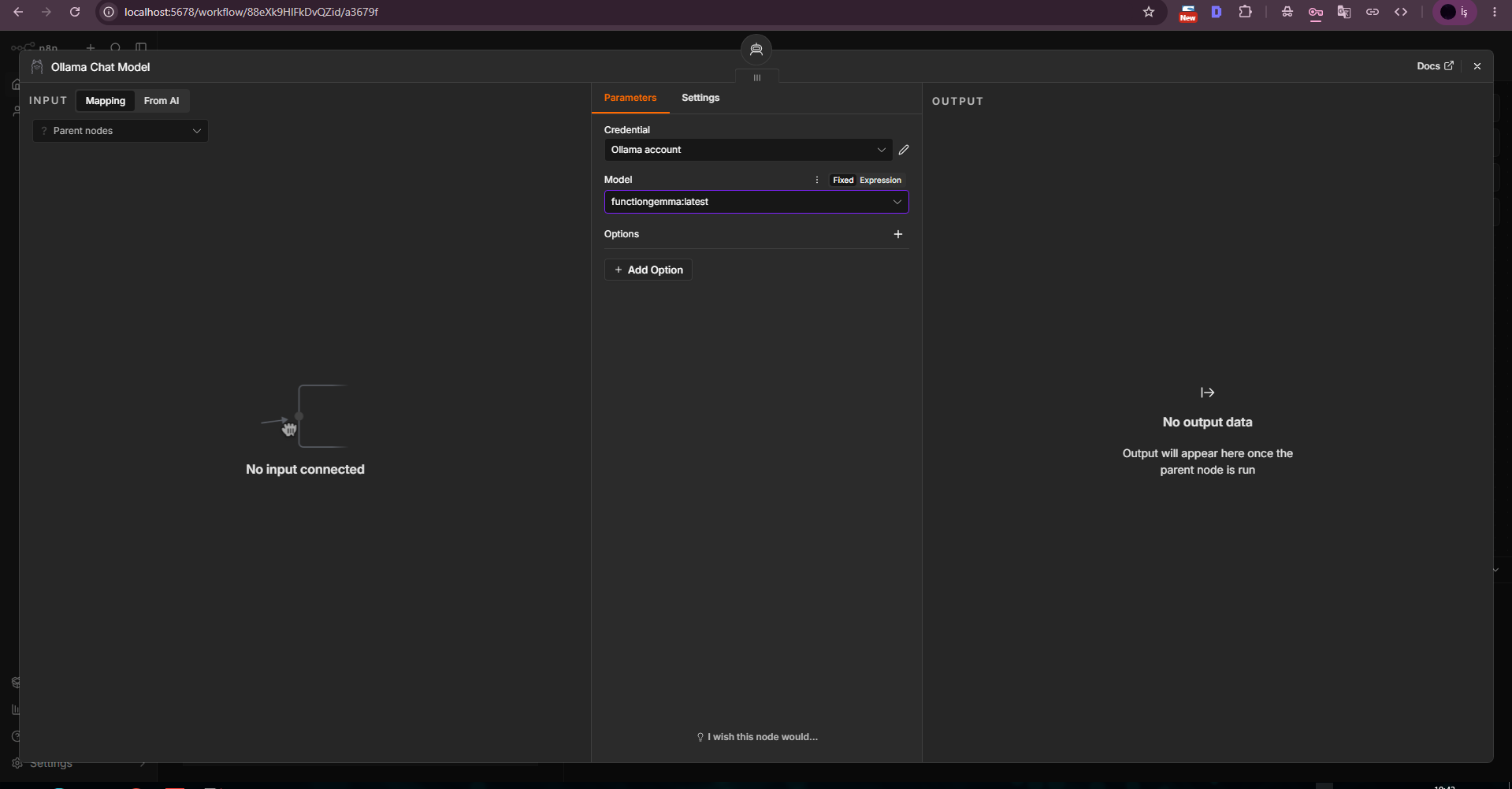
We selected functiongemma:latest as the first agent model. The Ollama API output showed that this model exposes a tools capability, and we attached the Calculator node to the AI Agent Tool input.
FunctionGemma is tiny and focused on function calling rather than natural conversational quality. Its Turkish chat behavior was limited in this test, so we moved to Qwen3 for a more general multilingual agent scenario.
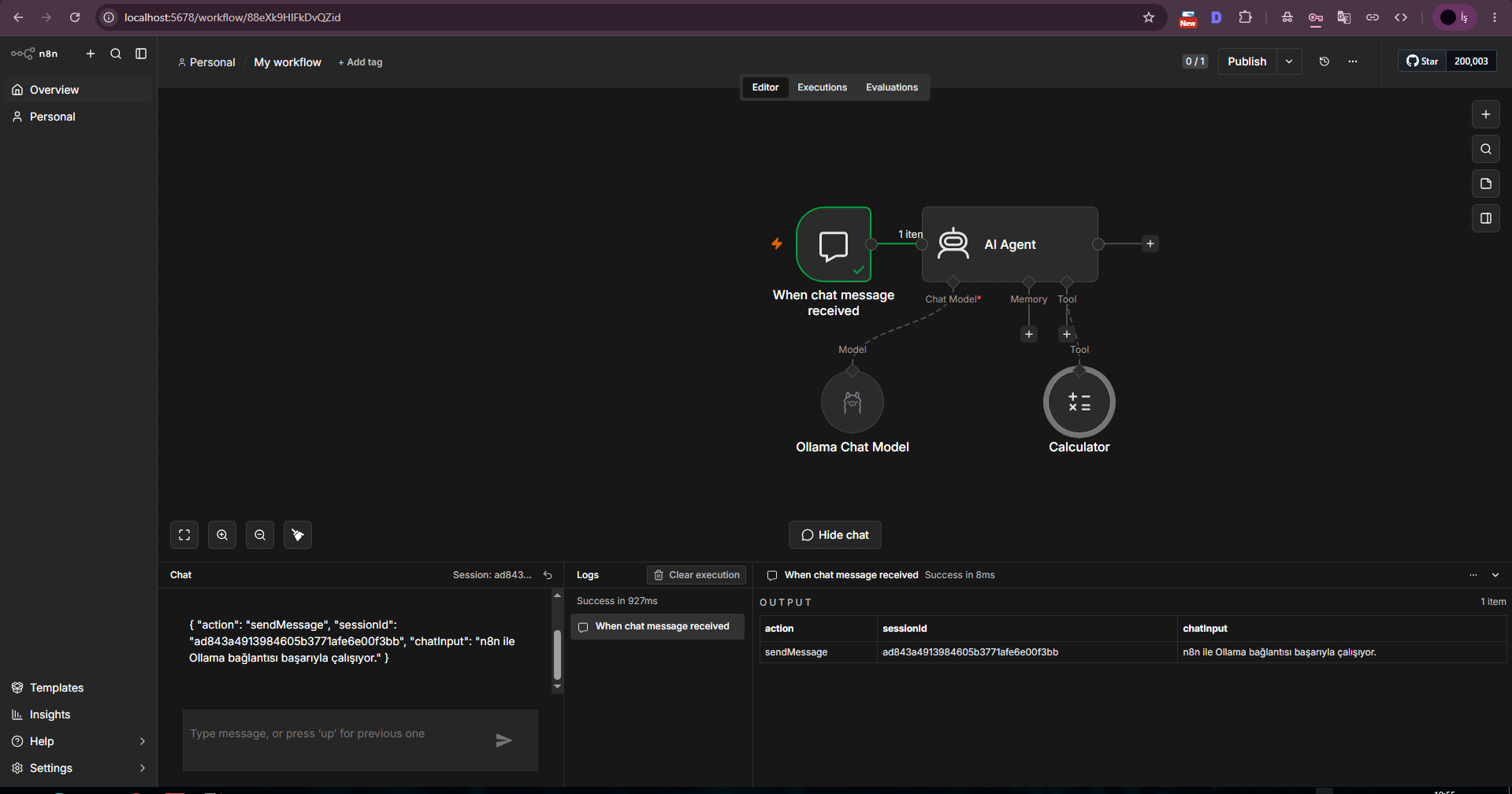
We pulled qwen3:1.7b because the Qwen3 family is better suited to multilingual instructions and agent/tool scenarios. The download completed at roughly 1.4 GB and the model appeared in ollama list.
The 1.7B model was chosen to keep the VPS resource requirement low while validating integration. For stronger answers, more reliable Turkish output and better agent behavior, choose a larger Qwen3 model or another tool-capable model that fits your RAM/GPU budget.
ollama pull qwen3:1.7bollama list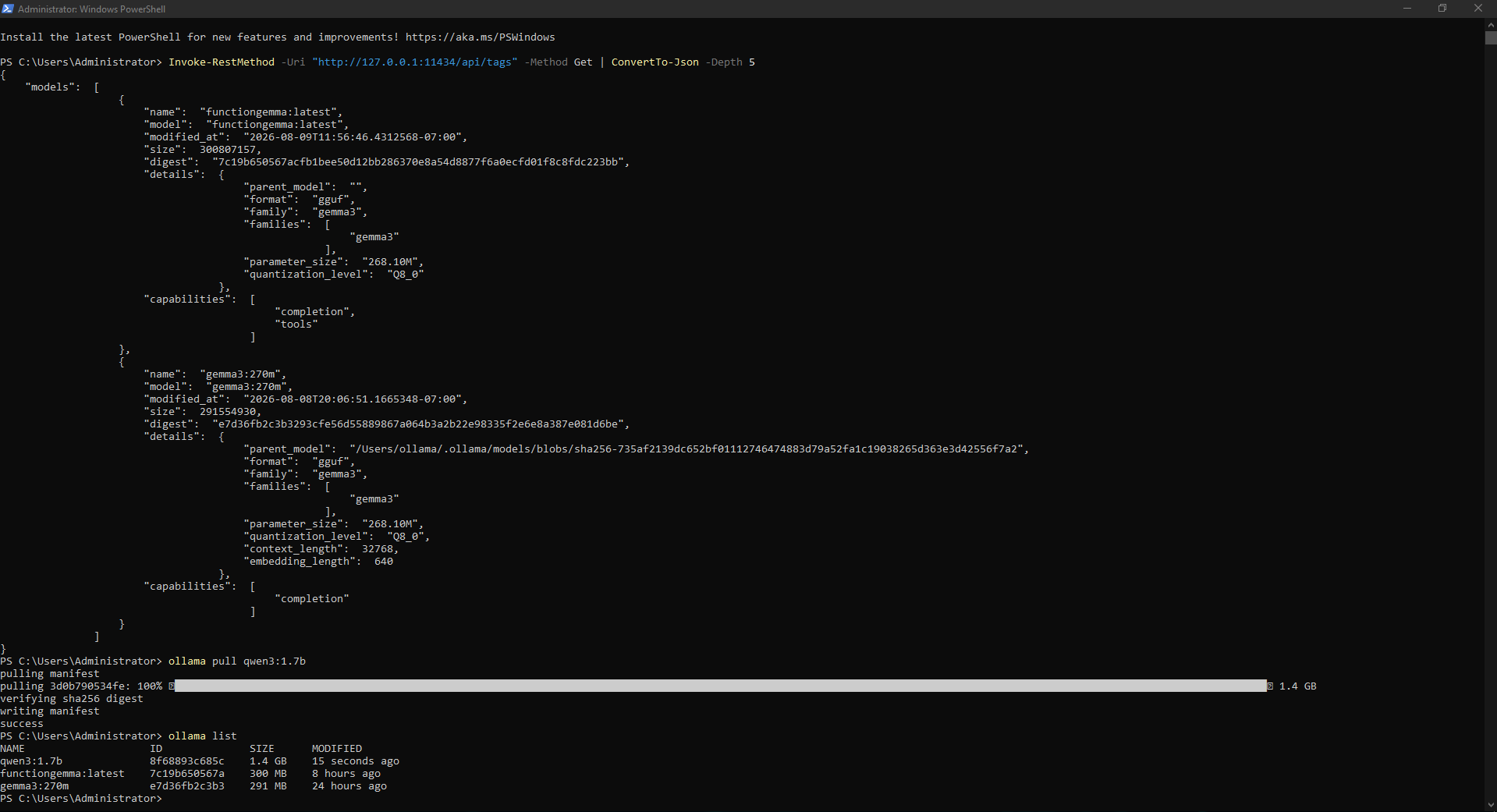
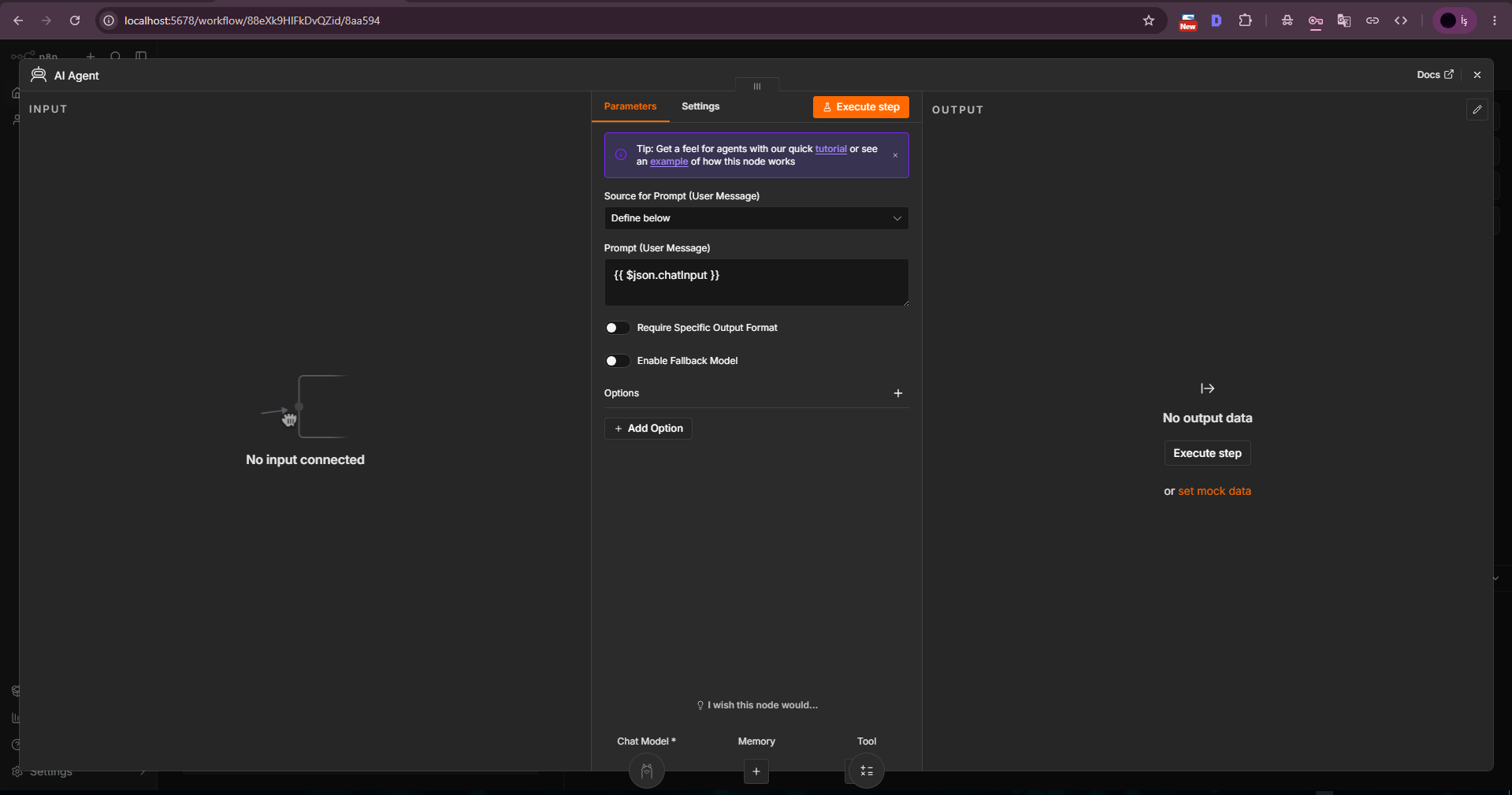
Running AI Agent by itself with Execute step can produce “No prompt specified” because the node has no chatInput from Chat Trigger. For the normal chat flow we used Source for Prompt = Define below and set the Prompt field in Expression mode to {{ $json.chatInput }}.
The actual automatic-execution problem was visible in the workflow JSON: the “When chat message received” node had an empty main connection array. Even if the canvas looked connected, execution stopped at the trigger because there was no AI Agent destination in JSON. Adding AI Agent to the main connection made the chain run automatically.
{{ $json.chatInput }}"When chat message received": {
"main": [[{
"node": "AI Agent",
"type": "main",
"index": 0
}]]
}
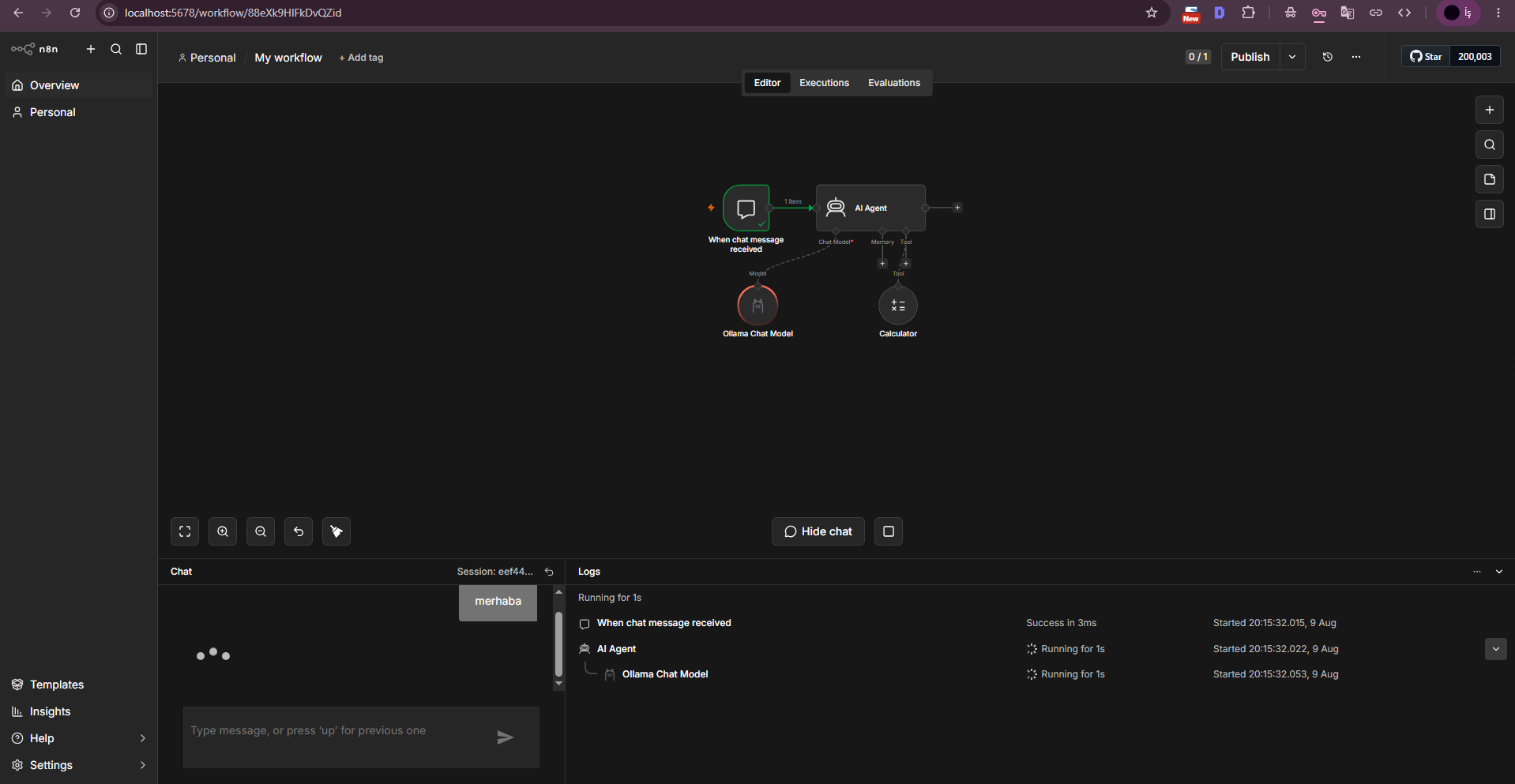
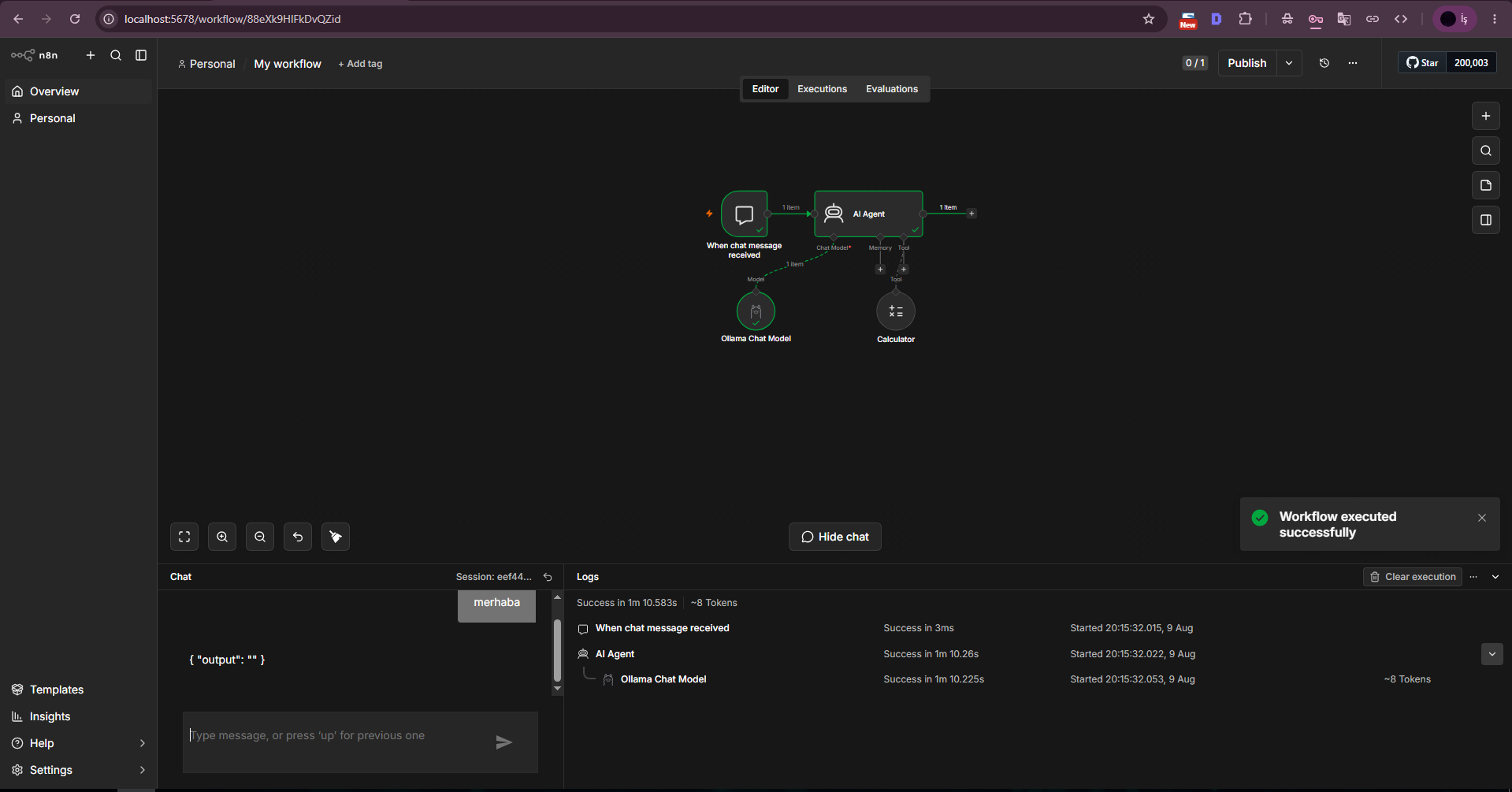
After correcting the connection JSON, a chat message automatically moved from Chat Trigger to AI Agent and then to Ollama Chat Model. The execution log showed all three nodes running and the workflow completing successfully.
In the final screenshot qwen3:1.7b completed the execution but returned an empty output for the test message. This does not mean the infrastructure connection failed: the trigger, agent and Ollama chain executed. It does mean that the tiny 1.7B model may not provide the response quality or n8n-agent behavior you expect in production. Re-test the same workflow with a stronger model if needed.
At this point the Windows VPS has a working n8n + Ollama local AI Agent foundation with the core agent path and local model connection verified.
This guide starts n8n from PowerShell to validate the integration. Closing that PowerShell process stops n8n. For 24/7 production use, plan process supervision, restart behavior, backups and the current official n8n self-hosting approach separately.
Do not expose the n8n editor or Ollama port 11434 directly to the public Internet without proper controls. If remote access is required, use TLS, a reverse proxy, strong authentication, firewall/IP restrictions and a regular update policy. Treat n8n credentials, the owner account and workflow exports as sensitive data.
In this guide n8n 2.33.7 ran on a Windows VPS with Node.js 22.23.2 and npm 12.0.2. Check the latest official n8n requirements before a new deployment.
In the test environment npm 12 had blocked the sqlite3 install script. Allowing sqlite3 and reinstalling n8n allowed the database migrations to run.
The editor in this test ran on the default http://localhost:5678 address.
n8n defaults to localhost:11434. On this Windows VPS localhost was refused, while http://127.0.0.1:11434 worked.
The default local Ollama instance in this test did not require an API key. A proxy or authentication layer can change that.
It exposed a tools capability in the Ollama API and was useful for testing the agent/tool connection. We later added Qwen3 for a more general multilingual scenario.
The roughly 1.4 GB model was selected to validate a multilingual, agent-oriented workflow with low VPS resource usage. Use a larger model when you need better quality.
Inspect the workflow JSON and confirm that Chat Trigger main connection actually targets AI Agent. In this test the canvas looked connected while the main array was empty.
We used Source for Prompt = Define below and set the Prompt field in Expression mode to {{ $json.chatInput }}.
This guide validates the integration. Process supervision, auto-start, reverse proxy, TLS, backups and production hardening should be planned separately.
Explore EKA Sunucu Windows VPS plans to test n8n workflows, Ollama and local AI models on your own server.
Updated: 09.08.2026 Turkey (Turkish)
 Germany (German)
 Worldwide (English)

